Qwen Edit 2511: Multi-Angle Camera
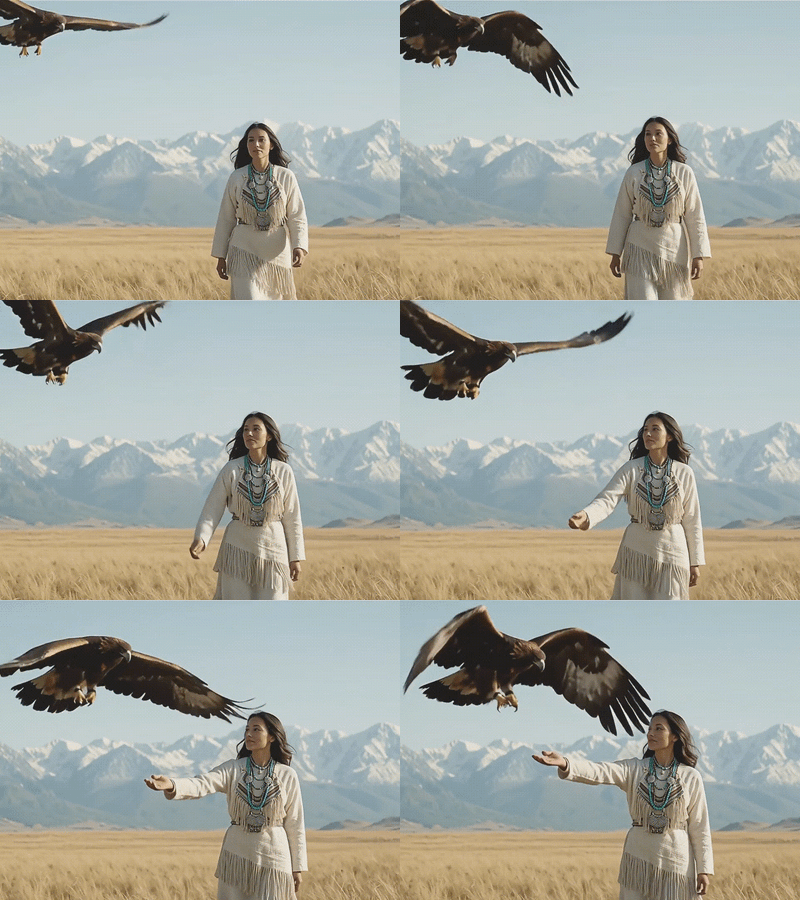
A image-editing workflow that generates a new camera angle of an image you provide. You load a source image, set horizontal_angle, vertical_angle, and zoom, and the node auto-writes a camera-instruction prompt (or you write your own) that's fed into the Qwen Image Edit 2511.
camera control
Image2Image
qwen
0
2
_1783603944360.png?width=1400&height=620&quality=80&resize=cover)
_1783603944360.png?width=1400&height=620&quality=80&resize=cover)
_1783603944360.png?width=1400&height=620&quality=80&resize=cover)
_1783603944360.png?width=104&height=104&quality=80&resize=cover)
_1783603944360.png?width=104&height=104&quality=80&resize=cover)
_1783603944360.png?width=104&height=104&quality=80&resize=cover)

Nodes & Models
LoadImage
Note
MarkdownNote
VAELoader
qwen_image_vae.safetensors
UNETLoader
qwen_image_edit_2511_bf16.safetensors
CLIPLoader
qwen_2.5_vl_7b_fp8_scaled.safetensors
SaveImage
Reroute
LoraLoader
Qwen\2511\Qwen-Image-Edit-2511-Lightning-4steps-V1.0-bf16.safetensors
qwen-image-edit-2511-multiple-angles-lora.safetensors
ModelSamplingAuraFlow
CFGNorm
ImageScaleToTotalPixels
FluxKontextMultiReferenceLatentMethod
VAEEncode
KSampler
TextEncodeQwenImageEditPlus
VAEDecode
FloyoStickyNote
QwenMultiangleCameraNode
QwenMultiangleCameraNode
HOW IT WORKS
Step 1. Load your source image
Upload the photo or render you want to see from a different angle.
Works great with: product shots · character renders · single-subject photos
Step 2. Set your camera angle
Adjust horizontal_angle and vertical_angle to rotate the virtual camera around the subject, and zoom to move closer or farther away.
Step 3. Let the node build the prompt
With default_prompts on, the node automatically writes a camera-instruction prompt matching your angle settings — no manual prompting needed. Turn it off to write your own.
Step 4. Qwen Image Edit renders the new view
The image and generated prompt are passed to the local Qwen Image Edit 2511 model, which regenerates the subject from the new camera position and saves the result.
Ready for: turnaround sheets · product galleries · consistent character views
First time? Leave
default_promptson and start with a small angle change (e.g. 20–30°) — large rotations are harder for the model to reconstruct convincingly from a single image.
RECOMMENDED SETTINGS
Quick-start guide. Find the goal that matches yours and copy the settings.
Standard run (most people) — Start here —
default_promptson · small-to-moderate angle change ·camera_viewoff. The right starting point for almost everyone.Full turnaround set — Run multiple passes, changing
horizontal_anglein steps (e.g. 0° → 45° → 90° → 180°) to build a set of views of the same subject.Subtle repositioning — Keep
zoomnear its default and adjust onlyvertical_anglefor a slight high/low-angle look.Manual prompt control — Turn
default_promptsoff and write your own camera/framing instructions for finer control than the automatic prompt gives.Want a literal camera-view label in the prompt — Enable
camera_viewto include explicit camera-perspective phrasing.
Angle & zoom: horizontal_angle and vertical_angle are in degrees around the subject; zoom controls how close the virtual camera sits. Small, incremental changes preserve subject likeness better than extreme rotations.
USE CASES
🔄 Character/Product Turnarounds Generate multiple consistent angles of the same subject from one source image.
📸 Reframing Existing Shots Adjust the camera angle of a photo after the fact without reshooting.
🎬 Previs & Storyboarding Quickly preview how a scene or character would look from a different camera position.
🛍️ E-commerce Galleries Build out additional product angles from a single hero shot.
WHAT WORKS BEST / WHAT TO AVOID
✅ Works great
Clear, well-lit single-subject images
Small-to-moderate angle changes (under ~45–60°)
Simple backgrounds with an isolated subject
Product shots and character renders
⚠️ May produce softer results
Extreme rotations (e.g. near-180°) from a single image
Busy or cluttered backgrounds
Multiple overlapping subjects in frame
Very low-resolution or heavily compressed source images
NEW TO COMFYUI?
Start with the free ComfyUI for Beginners Course on Floyo. Sixteen short videos take you from zero to running your own AI workflows. No setup headaches, no jargon, clear hands-on lessons. Watch the course, then run any workflow here in your browser.
👉 Watch the free ComfyUI for Beginners Course →
FAQ
What does the QwenMultiangleCameraNode actually do? It converts your numeric angle and zoom settings into a text prompt describing the desired camera move, which is then fed into the Qwen Image Edit model alongside your source image.
Does this run locally or through an API? Locally — the Qwen Image Edit 2511 subgraph runs on your own hardware (with its own steps/CFG/resolution controls), unlike the Floyo API-based workflows.
What's the difference between default_prompts on and off? On, the node writes the camera-instruction prompt for you automatically. Off, you write your own prompt, giving more control at the cost of needing to describe the camera move yourself.
What does camera_view do? It toggles whether the generated prompt explicitly frames the instruction in camera/perspective language versus a more general repositioning description.
Can I chain multiple angle changes together? Yes — feed the output back in as a new source image to keep rotating, though quality may degrade slightly with each additional pass.
Ready to try it? Load an image, set your angle, and hit run.
Questions? Watch the free course or check the FAQ above.
Read more


_1783028563354.gif?width=400&height=300&quality=80&resize=cover)