


1. Create videos from prompts (Txt→Vid)
Turn text prompts, scripts, or creative briefs into moving shots that match your tone and style. Great for rough boards, previs, mood pieces, and quick alternatives when you need a shot that does not exist yet.
%20(1)_1775891000879.webp?width=400&height=300&quality=80&resize=contain&format=origin)

Seedance 2.0 · Text to Video
Generate a video clip from a text prompt with Seedance 2.0 by ByteDance. Describe the scene, the action, and the camera. Pick a shape and length, hit run.

Wan 2.7 - Text to Video
Generate video from a text prompt using Alibaba's Wan 2.7 model. Set your resolution, aspect ratio, and duration, then hit Run. Audio input supported.


LTX 2.3 Text to video - Advanced Series 01
- Generates advanced text to video with LTX 2.3 with high quality and prompt adherence. - Related to the ComfyUI Advanced Video generation series on youtube channel : https://www.youtube.com/@AITold
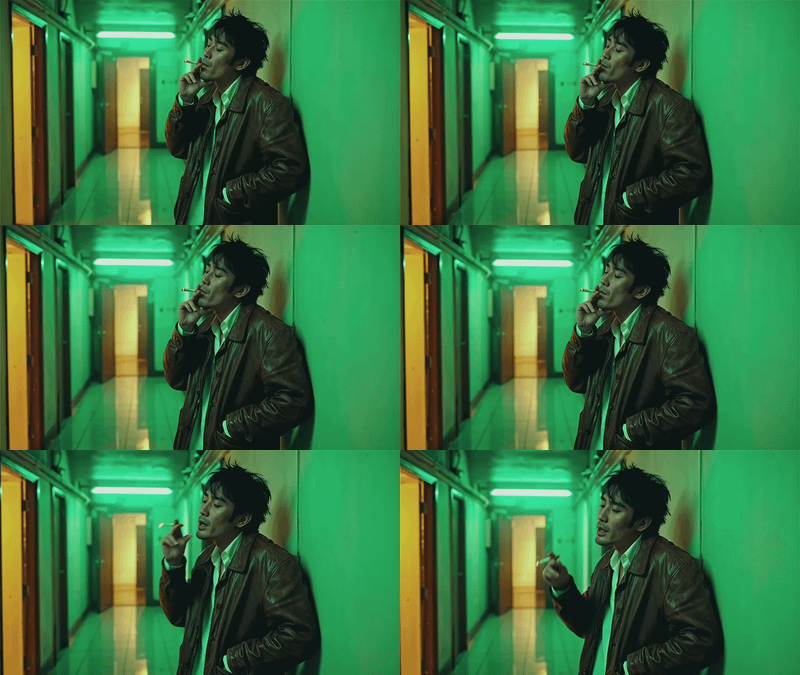
Wan2.6 Text to Video
_1762434919692.gif?width=400&height=300&quality=80&resize=contain&format=origin)
VEO3 Future of Video Creation
_1762345216109.gif?width=400&height=300&quality=80&resize=contain&format=origin)
Seedance Text to Video: Create Stunning video
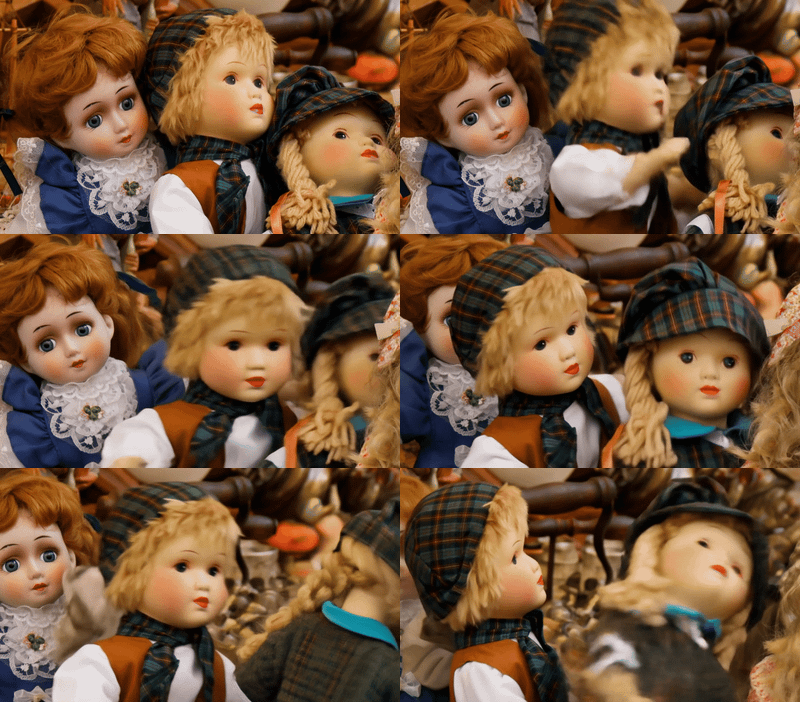
Kling Master 2.0 Create Engaging Video Content
_1762437195803.gif?width=400&height=300&quality=80&resize=contain&format=origin)
MiniMax Text-to-Video will Bring Your Creative Concepts to Life with Realistic Motion
2. Animate keyframes and images (Img→Vid)
Start from concept art, frames, or photo references and bring them to life as shots. Use single images, sequences, or storyboards as anchors to generate motion that respects composition, style, and character design.
Wan 2.7 · Image to Video With Audio
Generate 1080p video with sound using Wan 2.7, Alibaba's flagship video model with a thinking mode. Upload a start image, describe the action, hit run.

LTX-2.3 Pro · Image to Video With Audio
Generate up to 4K video with sound using LTX-2.3 Pro, the quality tier of Lightricks' 22B model. Upload a start and end image, write the shot, hit run.

Sora2 Pro Image to Video: Elevate Every Image into a Moving Masterpiece

Seedance 2.0 Fast - Image to Video with Audio
Animate any image into video with ByteDance's Seedance 2.0 Fast. Built-in audio generation, start and end frame control, and multiple aspect ratios. No setup needed.

Seedance 2.0 · Image to Video
Animate any still into a video clip with Seedance 2.0 by ByteDance. Upload a start image, add an optional end frame, describe the motion, and hit run.
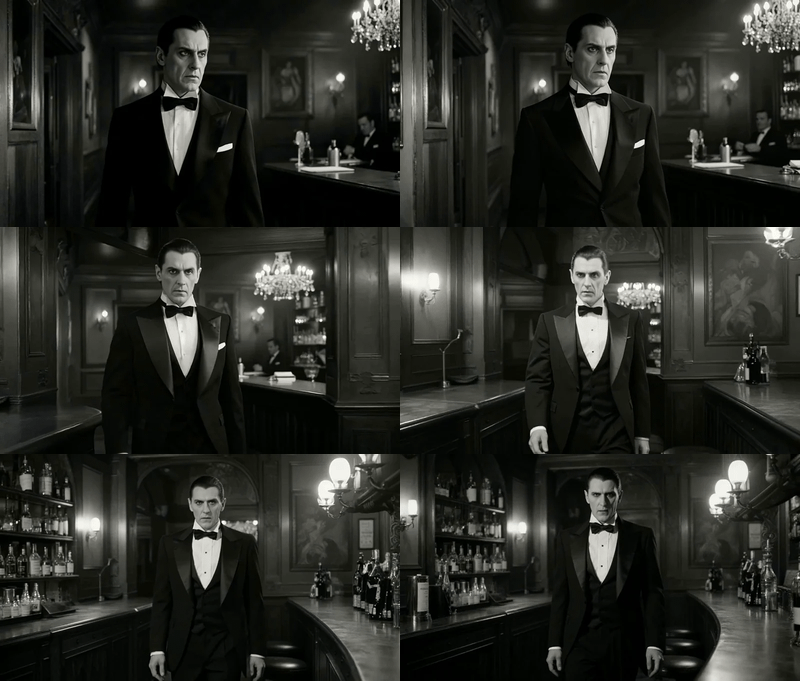
Image to Video with Seedance Pro API
Animate a still into a 1080p clip with Seedance Pro by ByteDance. Upload a start and end image, describe the motion, and hit run. Smooth cinematic motion.
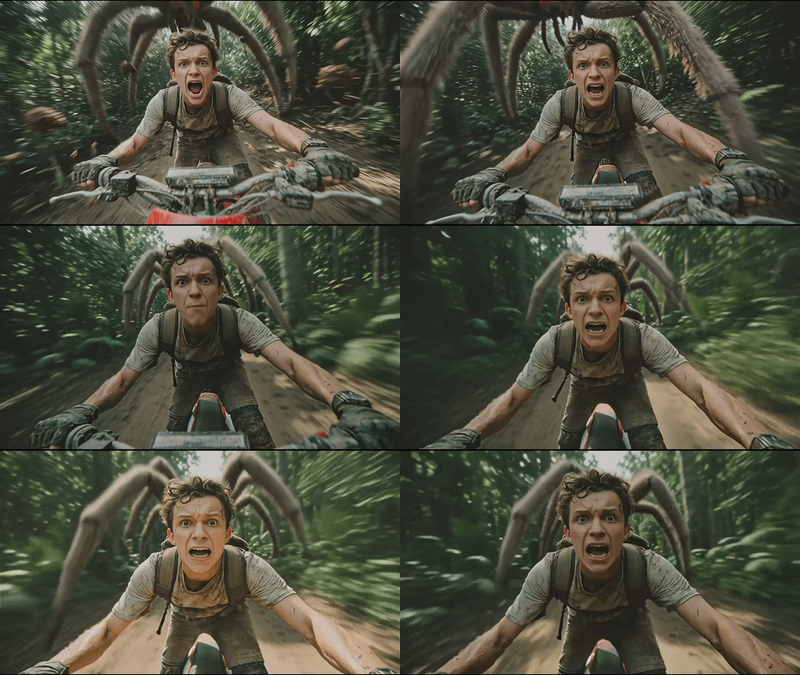
Wan 2.6 · Multi-Shot Image to Video
Turn a still image into a multi-shot video with sound using Wan 2.6 by Alibaba. The model plans camera cuts and syncs audio in one pass. Upload and run.

Veo 3.1 Image to Video
_1761821508019.webp?width=400&height=300&quality=80&resize=contain&format=origin)
Wan2.2 Fun Camera for Camera Control
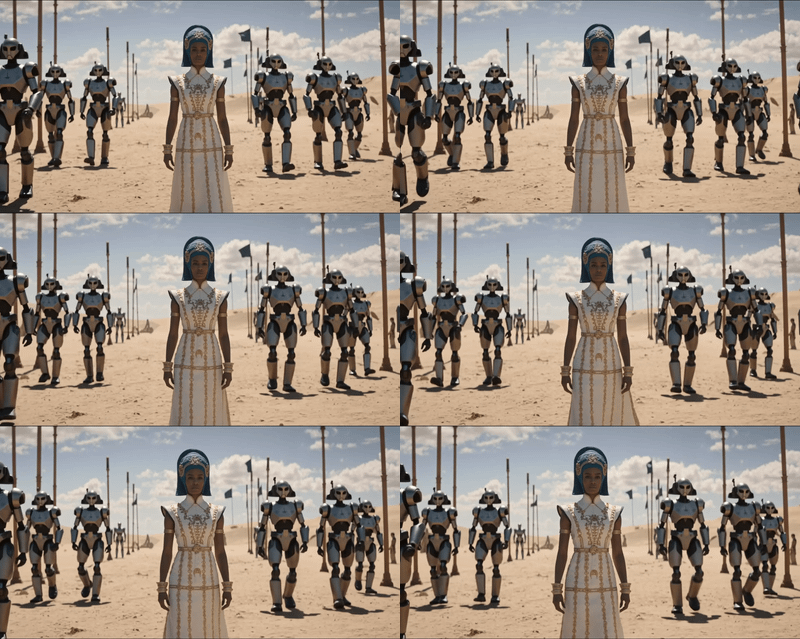
LTX 2.3 Image to Video with Two-Pass Upscaling
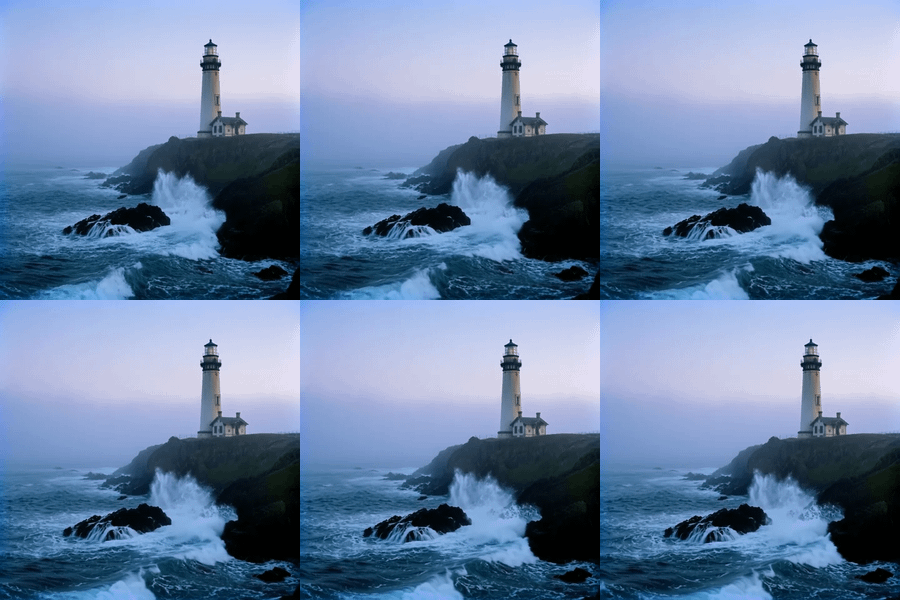
LTX 2 19B Fast for Image to Video
A workflow for ltx 2 image to video using distilled model
Wan 2.5: Image to Video with Audio

Wan2.2 Animate Character
Wan 2.2
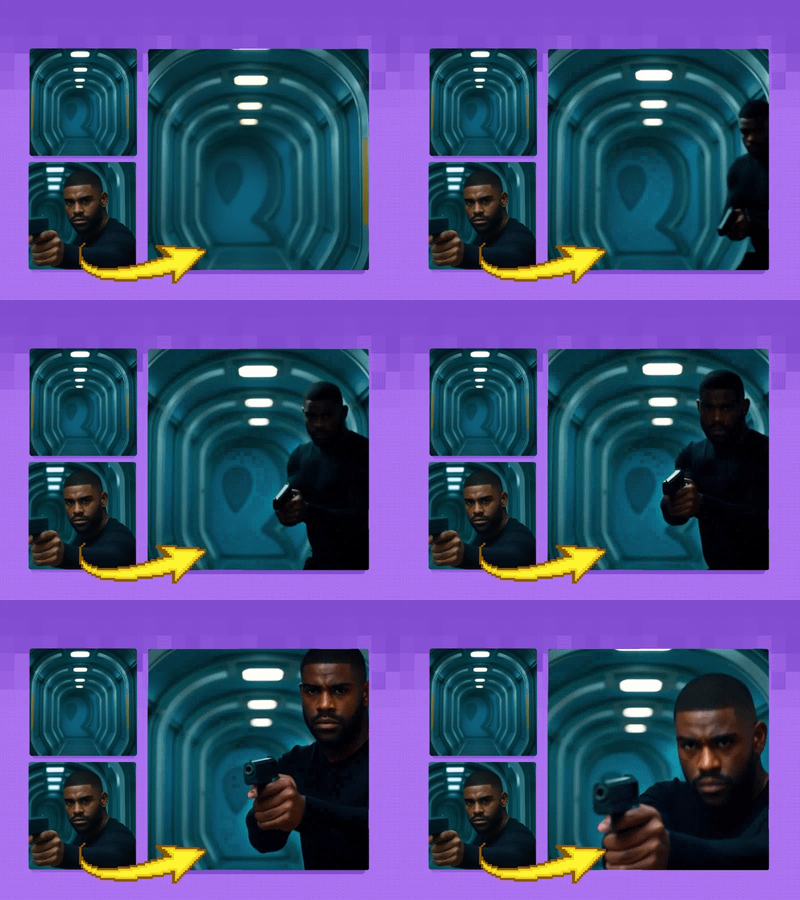
Wan2.1 Start & End Frame Image to Video
Used for image to video generation, defined by the first frame and end frame images.
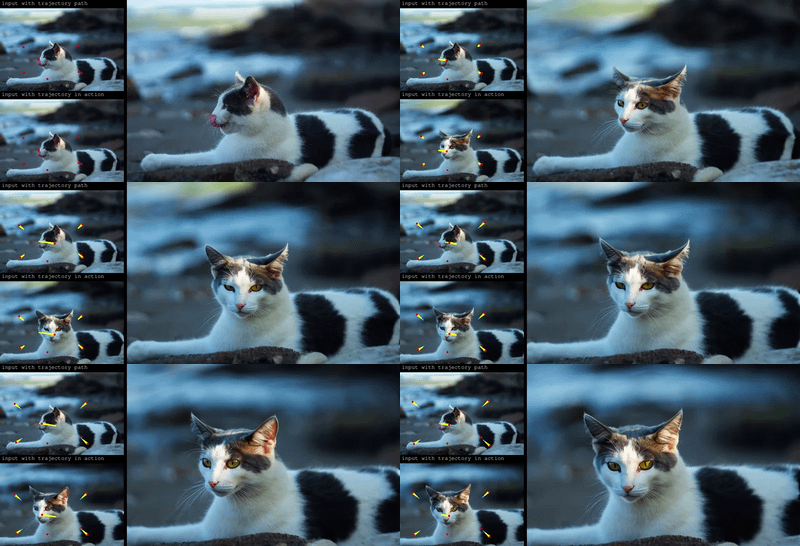
Wan2.1 and ATI for Control Video Motion: Draw Your Path, Get Your Video
_1758870047277.webp?width=400&height=300&quality=80&resize=contain&format=origin)
Wan2.1 FusionX and MultiTalk - Image to Video
Turn any portrait - artwork, photos, or digital characters - into speaking, expressive videos that sync perfectly with audio input. MultiTalk handles lip movements, facial expressions, and body motion automatically.

Wan2.1 and FantasyTalking - Image2Video Lipsync
Create high quality lipsync video from image inputs with Wan2.1 FantasyTalking Key Inputs Load Image: Select an image of a person with their face in clear view Load Audio: Choose audio file Frames: How many frames generated
_1774200945888.webp?width=400&height=300&quality=80&resize=contain&format=origin)
Next-Level Motion from Images using MiniMax
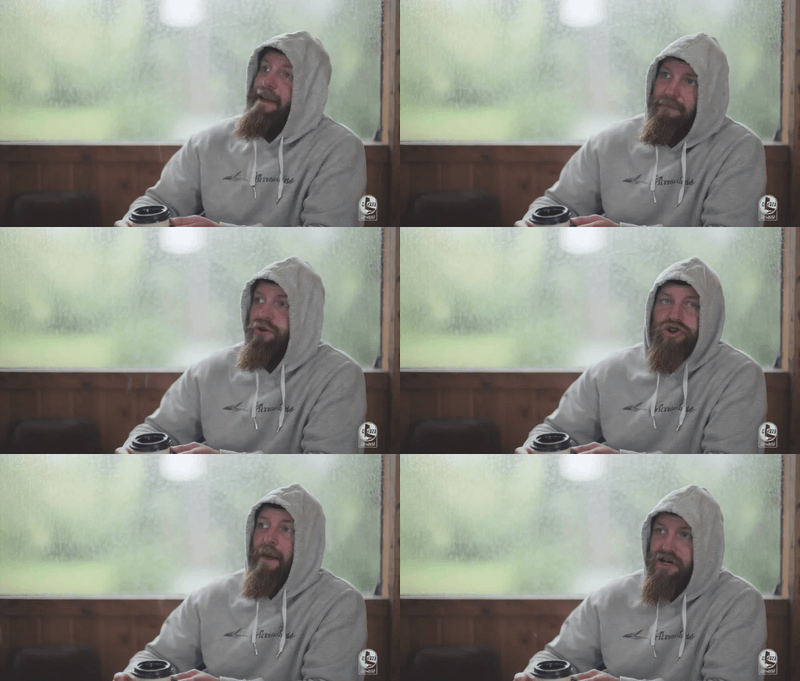
Ovi: Create a Talking Portrait
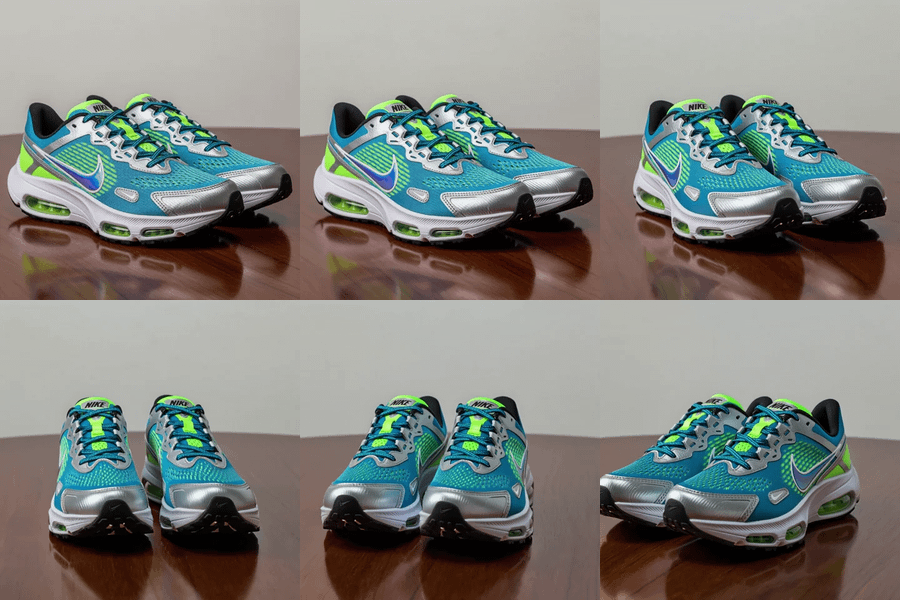
Wan2.2 and Bullet Time LoRA: Transform Static Shots into Product Spins

Veo 3.1 Image to Video - First Frame and Optional Last Frame

OmniHuman Image to Video

Kling 2.5 Image to Video


InfiniteTalk | Image to Video: Unlimited Talking Avatar with Lip-sync
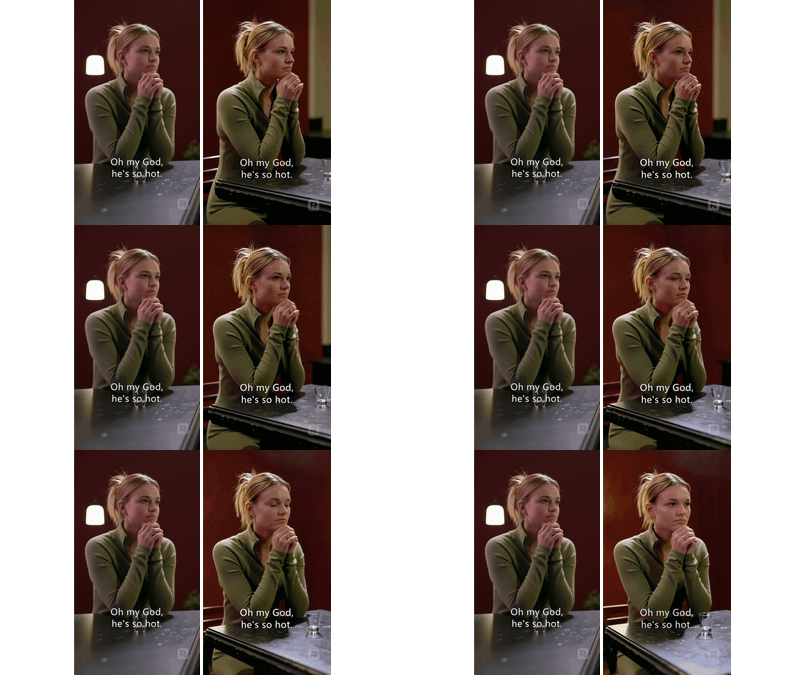
Image-to-Video with Reference Video (Prompt-Based Camera Rotation)
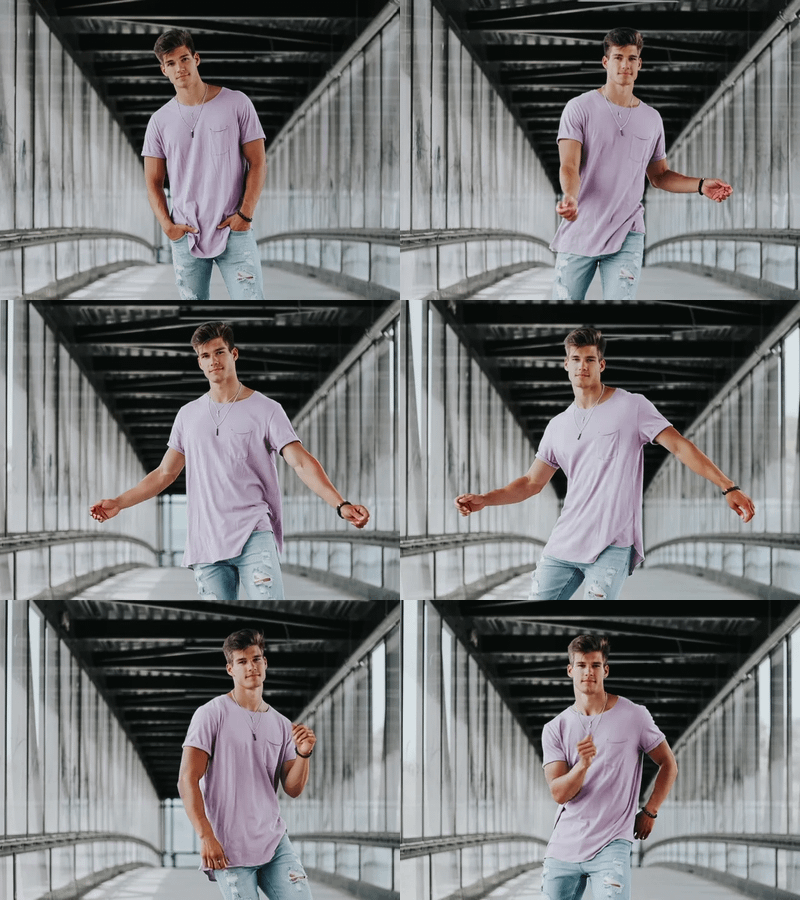
Kling Omni One Image to Video
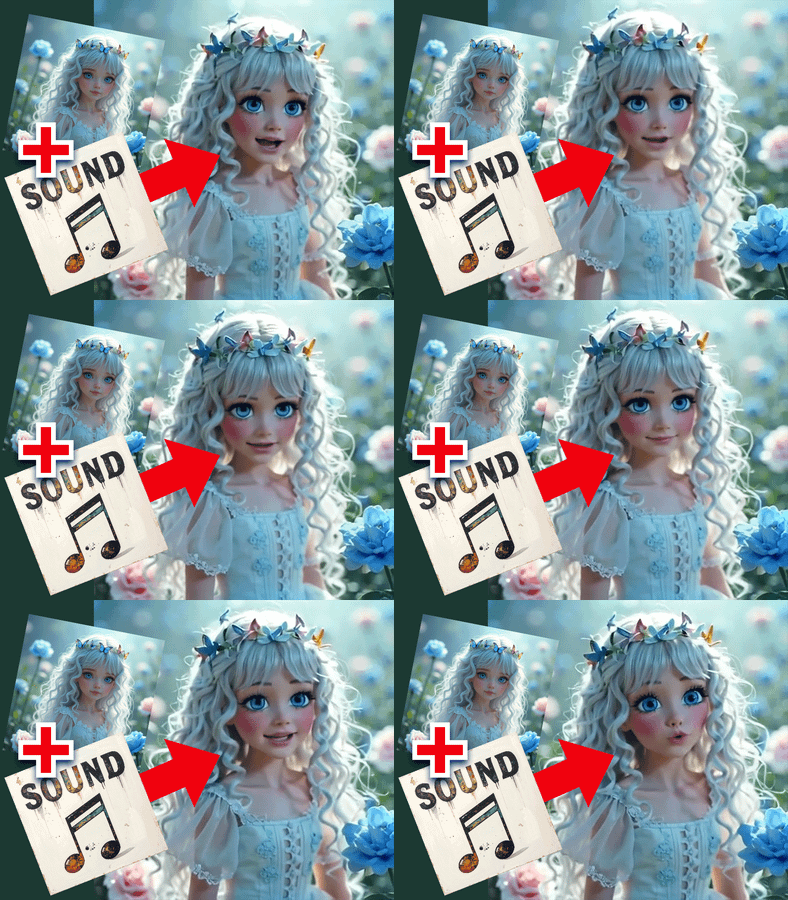

LTX2 Image + Sound to VIDEO
Image + Sound to VIDEO

Kling O3 Pro - Image to Video

Kling O3 Pro Image to Video with Reference
3. Transform existing footage (Vid→Vid)
Use one piece of video to create many. Stylize, reframe, change motion, or generate new variations and coverage from existing clips, so you can expand edits, test different looks, or fix problem shots without going back to set.
Wan2.2 Animate Character
Wan 2.2

Wan2.1 and RecamMaster for V2V Camera Control
Adjust the camera angle of an existing video, like magic.

Wan2.1 and VACE for Video to Video Outpainting
Wan VACE video outpainting invites you to break free from the limits of the frame and explore endless creative possibilities.

Wan2.2 Fun and RealismBoost LoRA for V2V
%20(2)_1774208003255.webp?width=400&height=300&quality=80&resize=contain&format=origin)
Topaz Video Upscaler for Sharper Results
Upload a video, pick your enhancement model and quality level, and Topaz Video AI sharpens, denoises, and upscales it. Audio is preserved. Output is H265 MP4.

Wan Alpha Create Transparent Videos

FlashVSR for Video Upscale
Upscale your videos
%20(1)_1774207669060.webp?width=400&height=300&quality=80&resize=contain&format=origin)
Wan 2.1 Vid2Vid Style Transfer with Ditto
Upload any video, describe a new style, and Wan 2.1 rewrites every frame. Ditto keeps motion and structure intact across anime, Pixar, clay, and dozens more.
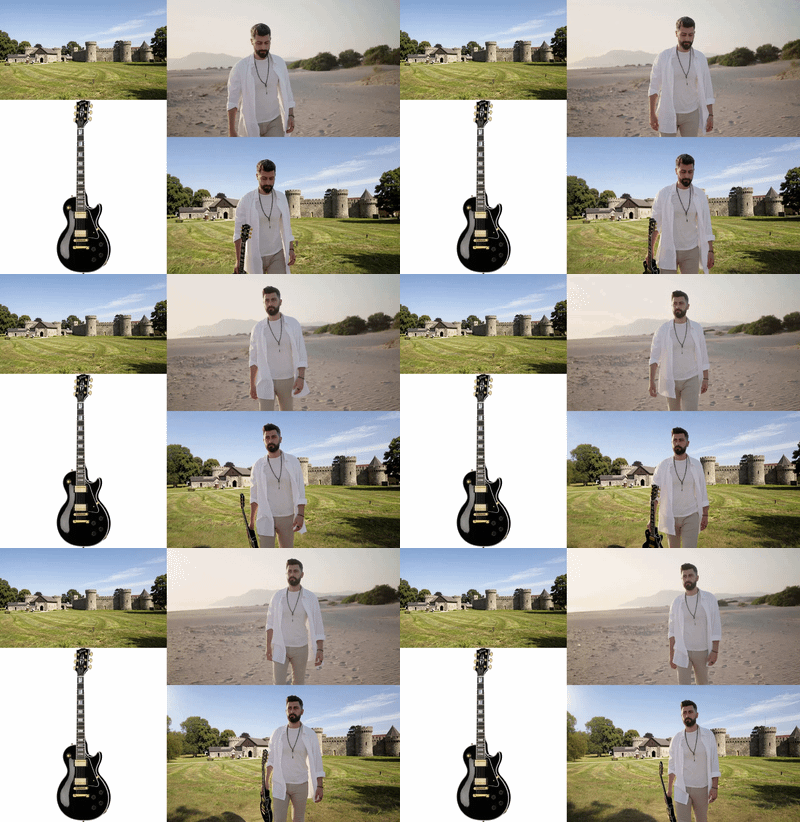
Kling Omni One Video to Video Edit
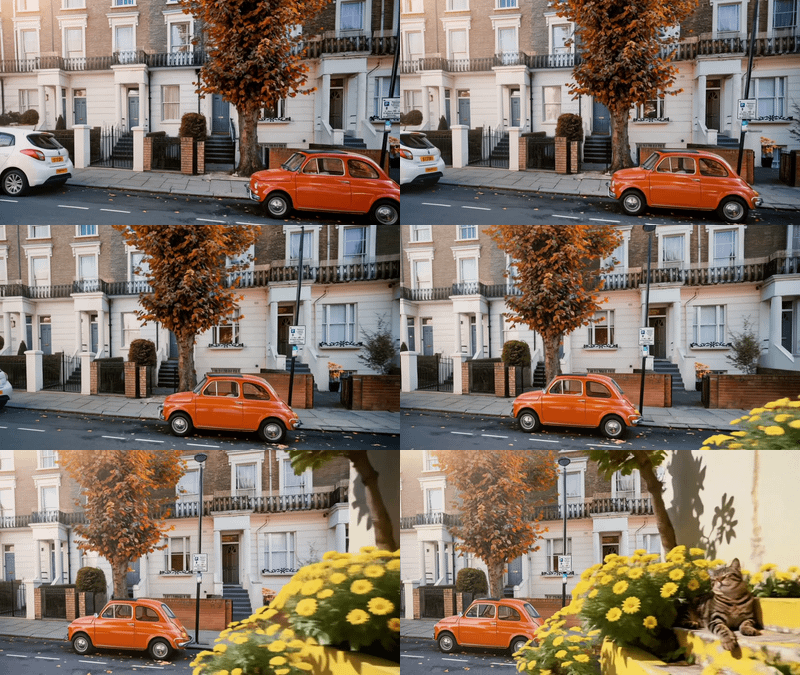
Kling Omni 1 Reference to Video

Kling O3 Pro - Video to Video Edit
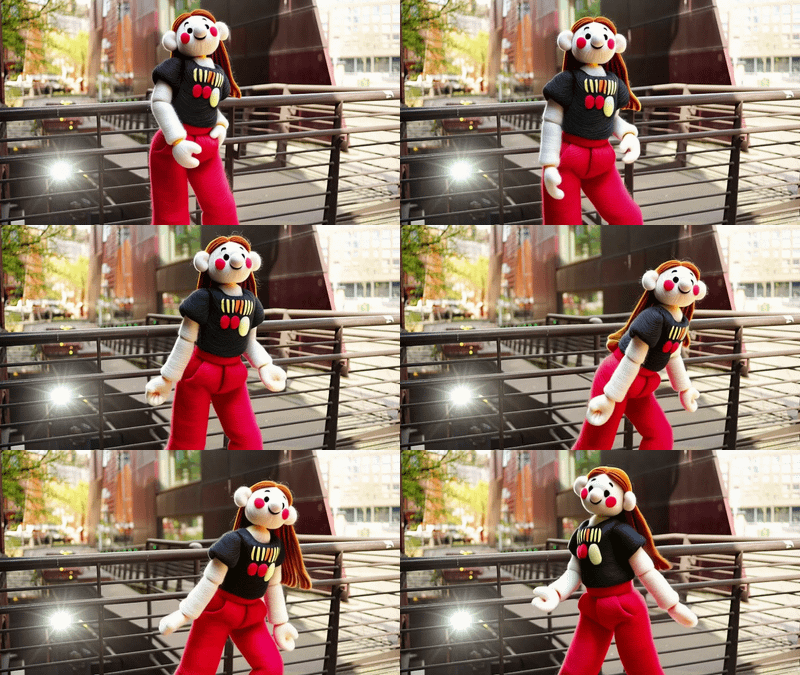
Kling O3 Video to Video — Standard Edit

Kling O3 Video to Video — Standard Reference

Wan2 Video to Video
Upload a video and the edited first frame
%20(1)_1772692256095.webp?width=400&height=300&quality=80&resize=contain&format=origin)

Wan 2.2 and Qwen for V2V Restyle
Create a new video by restyling an existing video with a reference image.
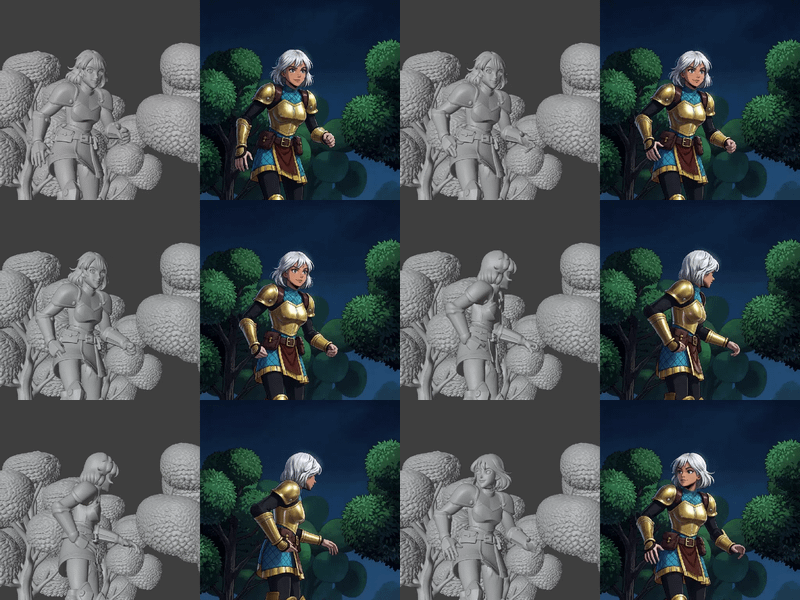

LTX 2.3 IC LoRA Union Control - Video to Video
Restyle video with LTX 2.3 using IC-LoRA Union Control for structure guidance

Kling O3 Pro - Video to Video Reference
Edit your video with Kling O3 Pro. Upload a clip, describe what to change, set duration and aspect ratio. Audio is preserved by default.
4. Create new videos from existing examples (Ref→Vid)
Instead of using a video as a literal source for transformation, use a reference clip for capturing the essence and character consistency
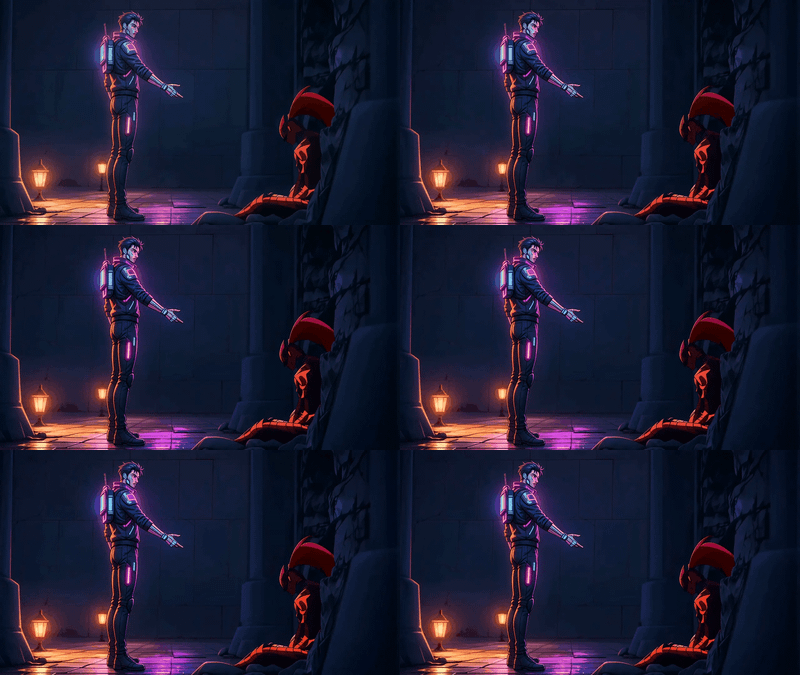
Wan 2.7 Reference to Video with Motion Control
Wan 2.7 Reference to Video with Motion Control
Seedance 2.0: Reference to Video
Composite up to nine reference images into one video clip with Seedance 2.0 by ByteDance. Tag each image in the prompt, describe the scene, and hit run.
_1776068409140.webp?width=400&height=300&quality=80&resize=contain&format=origin)
Seedance 2.0 Fast Reference-to-Video

Wan 2.6 Reference to Video
Kling Omni 1 Reference to Video
Kling O3 Video to Video — Standard Reference
5. Create new videos from audio (Audio→Vid)
Workflows that take sound and visualize them into videos.

LTX 2.3 Audio to Video