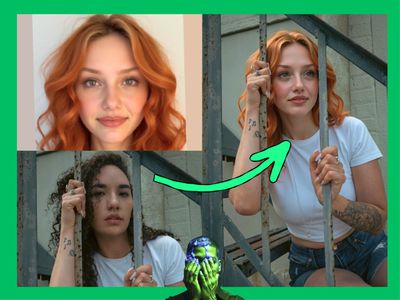
Grok Imagine Video 1.5 Lite for Image to Video
Animate a still image into a short MP4 clip with matching audio using Grok Imagine Video 1.5 Lite by xAI. Upload your image, describe the motion, and run.
Grok Imagine Video 1.5 Lite
Image to Video
Video
4

ABOUT THE WORKFLOW
Bring a still image to life
Upload one image and write a short line about what should move, how the camera should travel, and what you want to hear. The workflow uses your image as the first frame and returns a short MP4 clip with sound. You can test ideas cheaply at low resolution, then rerun your best prompt in higher quality.
Partner node. This workflow calls an external API, so each run uses credits from your API wallet. No API key needed. Floyo handles the connection.
Model
Grok Imagine Video 1.5 Lite by xAI. It is the lighter, lower-cost tier of Grok Imagine Video 1.5. It is best at fast drafts, natural motion, and ambient audio that matches the scene.
HOW IT WORKS
Step 1. Upload your image
This becomes the first frame of your video. Use a clear, well-lit image with one main subject for the cleanest motion.
Works great with: portraits · product shots · landscapes
Step 2. Describe the motion and sound
Write what moves, how the camera moves, and what you want to hear. Example: "Slow push-in as she turns toward the window, curtains moving, soft city noise."
Step 3. Set length and resolution (optional)
Duration sets the clip length in seconds, from 1 to 15 (default 6). Resolution sets the quality: 480p, 720p, or 1080p (default 720p). A safety checker toggle is also available and is off by default.
Step 4. Run and download
Hit run and the model animates your image into one MP4 clip with generated sound. The clip is saved under video/Floyo by default, ready to download or edit.
Ready for: TikTok · Instagram Reels · YouTube Shorts · Premiere Pro
First time? Leave every setting as-is. The defaults are the right starting point for almost everyone.
RECOMMENDED SETTINGS
Image (Required)
Loaded via LoadImage node — becomes the first frame
One image only — a batch is not accepted
At least 512 pixels in total (10x10 is refused, 64x64 works)
8K photos, 13.6 MB files, transparent PNGs, and grayscale images worked in testing
Very wide and very tall images work too (a 17:1 image came back as 2272x128 at 480p)
Small extra charge for the input image, equal to half a second at 480p
Prompt (Required)
Say what happens next, not what is already in the image
Describe the movement, the camera, the lighting, and the sound
Up to 4,096 characters; spaces at the start and end don’t count
Speech is lip-synced — describe any dialogue you want
Duration
Range: 1 to 15 seconds, whole seconds
Default: 6
The video comes back one frame longer than you pick (6 seconds plays as 6.04 seconds)
Aspect Ratio
No aspect_ratio setting — the video always keeps your image’s shape
Crop the image first to change shape (e.g. Upscale Image node with crop set to center)
A 21:9 image gives a 21:9 video, which Text-to-Video can’t do
Resolution
Options: 480p, 720p, 1080p
Default: 720p
1080p is upscaled from 720p
About 0.3 MP at 480p, 0.9 MP at 720p, 2 MP at 1080p
720p costs 1.5x as much per second as 480p
1080p costs 7x as much as 480p, and about 4.7x as much as 720p
Output Sizes (from testing)
16:9 image — 480p: 736x400, 720p: 1264x720, 1080p: 1888x1072
1:1 image — 480p: 544x544, 720p: 960x960, 1080p: 1424x1424
9:16 image — 480p: 400x736, 720p: 720x1264, 1080p: 1072x1888
21:9 image — 480p: 832x352, 720p: 1456x624
Safety Checker and Billing
enable_safety_checker: on or off — default off; turn on for stricter content screening
You pay for the duration you pick, at a per-second rate set by resolution, plus the small image charge
The prompt and safety checker don’t change the price
If xAI decides a request breaks its usage guidelines, the generation is still charged
Not Supported on Lite
No seed and no negative prompt
No silent video — sound is always on
No reference images, voice references, last frame, or keyframes
No video editing or extending — use Grok Imagine Video Edit or Grok Imagine Extend Video for those
Output
One video per run via STRING output (link to the video)
MP4 (H.264) at 24 fps with stereo sound
Saved via DownloadVideo node (prefix "video/Floyo")
Common Error-Causing Mistakes to Avoid
Empty prompt, or only spaces — will be rejected
Prompt over 4,096 characters — will be rejected
No image connected — the run doesn’t start ("Required input is missing: image")
A batch of images connected — fails with "Failed to upload image"
Image under 512 total pixels — rejected by xAI after the request is sent
Expecting the node to change your image’s shape — crop the image first
Describing what’s already in the image — describe what happens next instead
Images or prompts breaking xAI’s usage guidelines (may include celebrity photos) — refused and still charged
Running 1080p for test runs — about 4.7x the cost of 720p; test at 480p or 720p first
Recommended Safe Defaults
Duration: 6 seconds (shorter for test runs)
Resolution: 720p (480p for tests, 1080p only for finals)
Safety checker: off (on for stricter screening)
Use a clean, original image cropped to the shape you want
Describe motion, camera, and sound in the prompt
Leave all settings at defaults for a first run
LEARN
📹 Videos
ComfyUI 101 Free Course ft. Sebastian Kamph
Floyo 101 for Team Collaboration
✨ Quick links
USE CASES
📱 Social video clips
Turn a single photo into a short clip with sound for Reels, TikTok, or Shorts.
🛍️ Product motion shots
Animate a product still with a slow camera move and ambient audio for ads and listings.
🎬 Storyboard and previs drafts
Turn concept frames into quick moving tests so you can check timing and camera direction before a full shoot.
🖼️ Living portfolio pieces
Add subtle motion and atmosphere to illustrations, portraits, or landscapes.
⚡ Low-cost prompt testing
Draft many motion ideas at 480p, then rerun the winners at 1080p with a heavier model or the same one.
WHAT WORKS BEST / WHAT TO AVOID
✅ Works great
Clear, well-lit images with one main subject
One simple action paired with one camera move
Prompts that name the sound, such as rain, crowd noise, or wind
Natural, everyday motion such as turning, walking, hair or fabric moving
⚠️ May produce softer results
Images with small text, logos, or fine patterns that need to stay crisp
Prompts that stack several actions or camera moves at once
Busy scenes with many subjects competing for focus
Shots that need an exact ending pose or frame, since Lite has no end frame or keyframe control
FAQ
What is Grok Imagine Video 1.5 Lite?
Grok Imagine Video 1.5 Lite is an AI video model from xAI, released in October 2026. It is the lighter, lower-cost tier of Grok Imagine Video 1.5. It turns a start image and a text prompt into a short MP4 clip with generated sound.
How does image to video work with Grok Imagine Video 1.5 Lite?
You upload one image, which becomes the first frame, and write a prompt describing the motion, camera movement, and sound. The model animates the scene forward from that frame. You choose the clip length and resolution before you run.
Does Grok Imagine Video 1.5 Lite generate audio?
Yes. Sound is generated with the clip by default. Mention the sounds you want in your prompt, such as footsteps, wind, or city noise, to steer the audio.
How long can Grok Imagine Video 1.5 Lite videos be?
Clips can run from 1 to 15 seconds at 480p, 720p, or 1080p. Cost scales with both length and resolution, and 1080p costs several times more per second than 480p.
What is the difference between Grok Imagine Video 1.5 Lite and Grok Imagine Video 1.5?
Lite is the cheaper, faster tier built for drafts and everyday clips. The full 1.5 model adds end frame and keyframe control for more precise shots. Lite is also weaker at fine detail.
Is Grok Imagine Video 1.5 Lite open source?
No. It is a closed model from xAI, available through an API only, with no open weights.
How to run Grok Imagine Video 1.5 Lite online?
You can run Grok Imagine Video 1.5 Lite online through Floyo. No installation, no setup, no API key to wire up. Open the workflow in your browser, upload your inputs, and hit run. Free to try.
WHY FLOYO?
Floyo is the only platform with team collaboration for ComfyUI in the browser. You run workflows with no install. You share run history, assets, and models across your team. You pay only when you generate. Floyo supports open-source and closed-source models.
A designer runs an edit and likes the result. A teammate opens that exact run from shared history and keeps going. No file handoffs. No version confusion.
For studios and enterprise teams, Floyo adds private workspaces, pooled resources, and a team usage dashboard. Other ComfyUI cloud tools run for one person at a time. Floyo runs for the whole team, with transparent per-generation costs.
Ready to try it?
Upload a photo, describe the motion and sound, and get your first clip in one run.
Questions? Watch the free course or check the FAQ above.
Read more