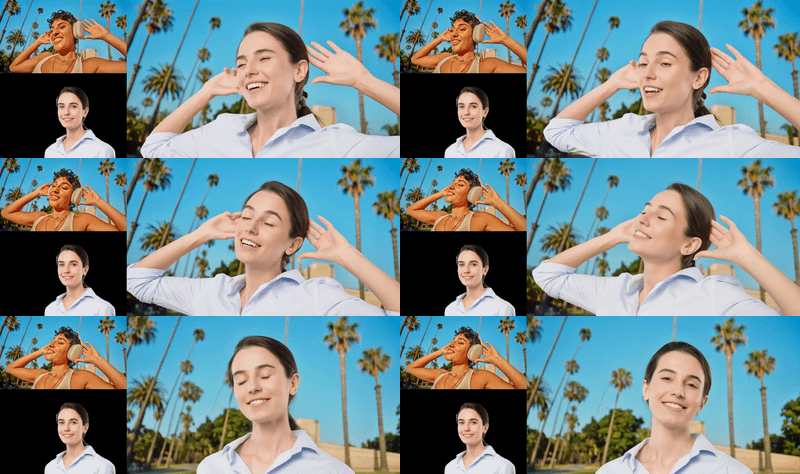
Kling 2.6 · Motion Control
Transfer motion from any video onto your character with Kling 2.6 by Kuaishou. Upload a character image and a reference clip, describe the scene, hit run.
Animation
character animation
Image to Video
Kling 2.6
motion transfer
Video
11.4k



Nodes & Models
Kling26StandardMotionControl_floyo
VideoToFrames
LoadVideo
LoadImage
VHS_VideoCombine
ABOUT THE WORKFLOW
Make Your Character Perform Any Motion
Upload a character image and a reference video. The model extracts the motion from the clip and maps it onto your character, preserving body dynamics, facial expressions, and lip sync. The result comes back as a video with sound.
Partner node. This workflow calls an external API, so each run uses credits from your API wallet. No API key needed. Floyo handles the connection.
Model
Kling 2.6 Standard Motion Control by Kuaishou. Released December 2025. A closed video model that uses 3D face and body reconstruction to map motion from a reference clip onto a still character image, frame by frame. Handles full-body movement, facial expressions, and lip sync in one pass with audio.
HOW IT WORKS
Step 1. Upload your character image
A clear front or three-quarter view of the character you want to animate. Clean background and visible limbs help.
Works great with: portraits · character art · product mascots · illustrations
Step 2. Upload the motion video
A clip showing the movement you want your character to perform. Dance, walk, gesture, talk.
Step 3. Describe the scene (optional)
A short prompt adds context. "The man with a rose is dancing." Leave it empty and the model works from the motion alone.
Step 4. Hit run and download
The model maps the motion onto your character and returns a clip with sound, saved under kling 2.6 standard motion control.
Ready for: Premiere · DaVinci Resolve · CapCut · After Effects
First time? Leave every setting as-is. The defaults (video orientation · keep original sound on · h265-mp4) are the right starting point for almost everyone.
RECOMMENDED SETTINGS
Quick-start guide. Find the goal that matches yours and copy the settings.
Standard motion transfer (most people) — video orientation · keep original sound on · h265-mp4. The right starting point for almost everyone.
Character looks squashed or stretched — Switch character orientation from video to image. Video mode follows the reference clip's framing. Image mode follows your character's aspect ratio instead.
Want silent output — Turn keep original sound off. The audio from the reference clip drops out of the saved file.
The character distorts during motion — Try a cleaner reference image with a simpler background. The model reads the character's shape from the still, so clutter behind them confuses the mapping.
Motion does not match the character's body — The transfer works best when the character and the motion source share a similar build and pose. A slim character following a bulky dancer's moves will stretch.
Want a different container — Switch the save format. The default is h265-mp4 at 10-bit colour.
Prompt: Keep it short and literal. "The woman dances in a studio" or "the character walks forward and waves." The prompt adds context but the motion comes from the video, not from the words. Over-describing the motion in the prompt fights the reference clip.
LEARN
📹 Videos
ComfyUI 101 Free Course ft. Sebastian Kamph
Floyo 101 for Team Collaboration
✨ Quick links
USE CASES
💃 Dance and Performance
Record a dance on your phone and transfer it onto a character, an avatar, or a product mascot.
🛍️ Product Animation
Make a mascot or spokesperson character perform scripted gestures for ads and social content.
🎭 Character Acting
Give a still illustration or portrait full-body motion and facial expressions without rigging or mocap.
📱 Social Content
Turn one reference clip into several videos with different characters performing the same motion.
WHAT WORKS BEST / WHAT TO AVOID
✅ Works great
Front or three-quarter character images with visible limbs
Reference clips with one person and clear, readable motion
Characters and motion sources with a similar build
Clean backgrounds on the character image
⚠️ May produce softer results
Characters whose proportions differ a lot from the motion source
Reference clips with extreme perspective changes or fast cuts
Cluttered or busy backgrounds on the character image
Long clips where drift accumulates over time
FAQ
What is Kling 2.6 Motion Control?
Kling 2.6 Motion Control is a video model from Kuaishou, released December 2025. It takes a still character image and a reference video, extracts the motion frame by frame using 3D face and body reconstruction, and maps that motion onto the character. The result is a video where your character performs the same movements as the reference, with body dynamics, facial expressions, and lip sync preserved.
How long can the reference video be?
The model handles reference clips of 3 to 30 seconds. The output matches the length of the source motion. Shorter clips transfer more cleanly, and drift can build up in longer ones.
Does Kling 2.6 Motion Control keep the audio?
Yes, by default. The keep original sound setting is on, so the audio from the reference clip stays on the track. Turn it off if you want a silent result to score yourself.
What is the difference between video and image character orientation?
Video mode frames the output to match the reference clip's aspect ratio and composition. Image mode frames it to match the character image instead. If your character looks squashed or stretched, switching from video to image often fixes it.
Is Kling 2.6 open source?
No. Kling is a closed model with no published weights. It is reached through the Kuaishou API. Kuaishou also makes the model available through third-party providers.
Can I use Kling 2.6 Motion Control outputs commercially?
Commercial use rights depend on Kuaishou's license terms. Review the current terms before using output in paid work. Kuaishou operates the largest commercial AI video platform by revenue, so commercial use is part of the product's design.
How to run Kling 2.6 Motion Control online?
You can run Kling 2.6 Motion Control online through Floyo. No installation, no setup, no API key to wire up. Open the workflow in your browser, upload a character image and a motion video, and hit run. Free to try.
WHY FLOYO?
Floyo is the only platform with team collaboration for ComfyUI in the browser. You run workflows with no install. You share run history, assets, and models across your team. You pay only when you generate. Floyo supports open-source and closed-source models.
A designer runs an edit and likes the result. A teammate opens that exact run from shared history and keeps going. No file handoffs. No version confusion.
For studios and enterprise teams, Floyo adds private workspaces, pooled resources, and a team usage dashboard. Other ComfyUI cloud tools run for one person at a time. Floyo runs for the whole team, with transparent per-generation costs.
Ready to try it?
Upload a character image and a motion video, and run it. The settings are already set.
Questions? Watch the free course or check the FAQ above.
Read more
_1758870047277.webp?width=400&height=300&quality=80&resize=contain&format=origin)