floyo logo
Pricing
Create with Alibaba Happy Horse model now! Try here 👉
floyo logo
Pricing
Create with Alibaba Happy Horse model now! Try here 👉
Alibaba Happy Horse Models hero

ALIBABA HAPPY HORSE MODELS

Generate cinematic video with synchronized native audio from text, images, or up to nine reference photos using Alibaba Happy Horse, by Alibaba.

Happy Horse is a family of video generation models built by Alibaba's ATH team. You describe a scene, upload an image, or provide reference photos, and Happy Horse turns it into a video clip with motion, lighting, and synchronized audio.

The model is built on a native multimodal architecture with joint audio-video generation. It covers two core workflows: multimodal video generation (text to video, image to video, reference to video) and video editing. It ranked number one on the Artificial Analysis Video Arena for both text-to-video and image-to-video, with over 100 Elo points ahead of second place.

Every Happy Horse workflow on Floyo runs in your browser. Upload your inputs, write your prompt, hit run.

Latest Released Models

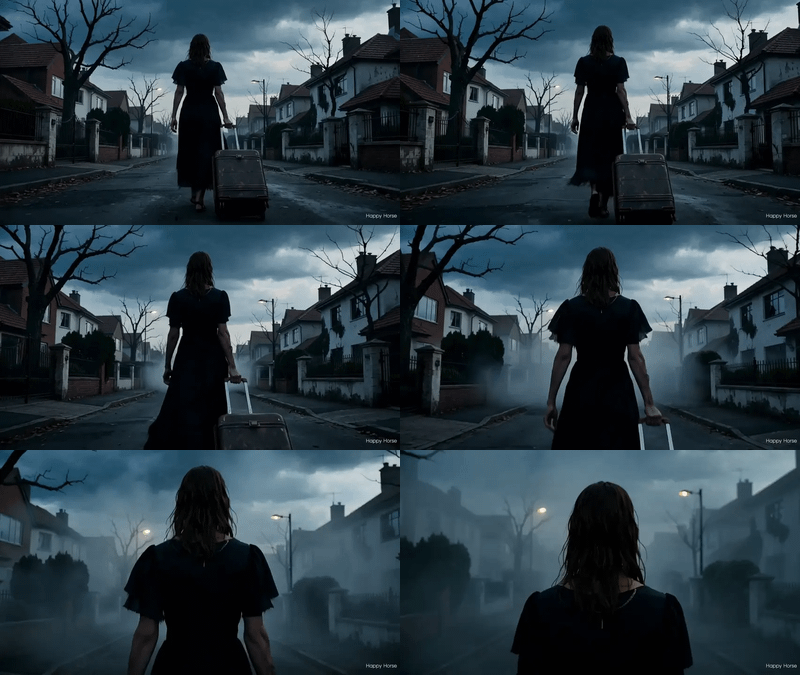
Happy Horse 1.0 Reference to Video

character design

consistency

happy horse

image to video

reference to video

video generation

Turn up to 9 reference images plus a prompt into a 5-second video with Happy Horse 1.0. Keep characters, products, and style consistent across the shot.
Happy Horse 1.0 Reference to Video

Turn up to 9 reference images plus a prompt into a 5-second video with Happy Horse 1.0. Keep characters, products, and style consistent across the shot.

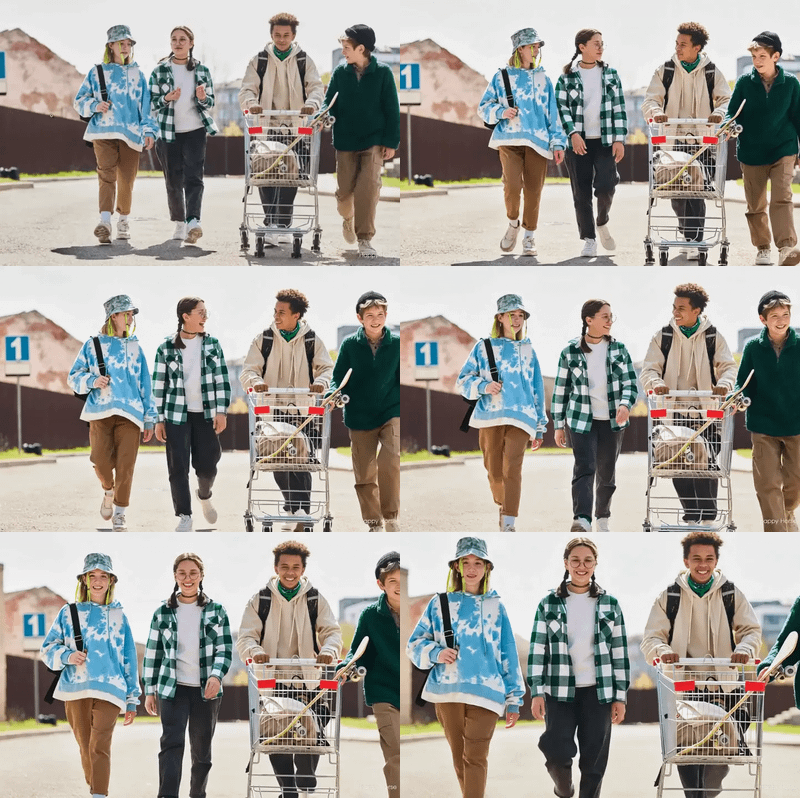
Happy Horse 1.0 - Image to Video

consistency

film production

happy horse

image to video

product photography

video generation

Animate a still image with Happy Horse 1.0. Upload a frame, describe the motion you want, get a 5-second clip with stable physics and consistent details.
Happy Horse 1.0 - Image to Video

Animate a still image with Happy Horse 1.0. Upload a frame, describe the motion you want, get a 5-second clip with stable physics and consistent details.

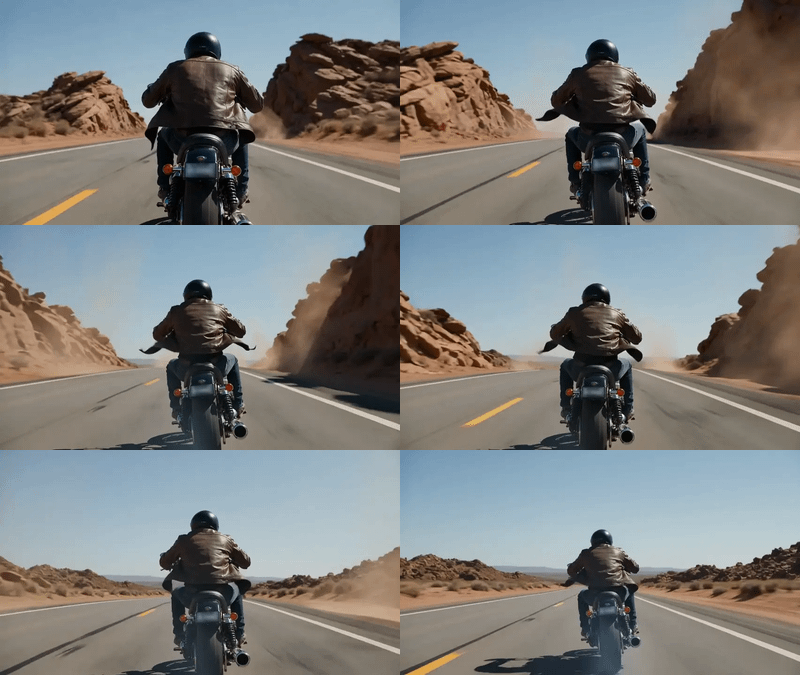
Happy Horse 1.0 - Text to Video

animation

film production

happy horse

text to video

video generation

Generate cinematic video with synchronized audio from a text prompt using Alibaba's Happy Horse 1.0. Pick resolution, aspect ratio, and clip length up to 15s.
Happy Horse 1.0 - Text to Video

Generate cinematic video with synchronized audio from a text prompt using Alibaba's Happy Horse 1.0. Pick resolution, aspect ratio, and clip length up to 15s.

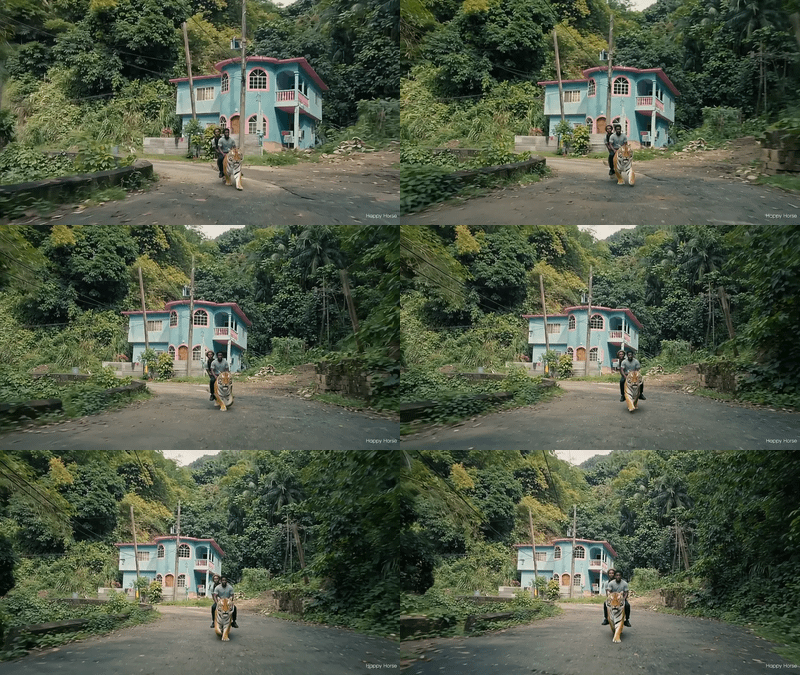
Happy Horse 1.0 Video Editing

consistency

film production

happy horse

style transfer

vid2vid

video generation

Edit any video with Happy Horse 1.0 by uploading up to 5 reference images. Swap backgrounds, change subjects, or shift style. Original motion stays intact.

Happy Horse 1.0 Video Editing

Edit any video with Happy Horse 1.0 by uploading up to 5 reference images. Swap backgrounds, change subjects, or shift style. Original motion stays intact.

Why use Happy Horse for video generation?

Happy Horse models are built for content production scenarios including advertising, e-commerce, short-form drama, and social media. Here is what makes them stand out.

Native audio in one pass. Most video models generate silent clips. Happy Horse generates ambient sound, dialogue, Foley effects, and music alongside the video in a single generation. There is no separate audio step and no post-production syncing needed.

Ranked number one on Artificial Analysis. The model reached the top position on the Artificial Analysis Video Arena for both text-to-video and image-to-video, based on blind human preference votes across thousands of comparisons.

Multi-image reference consistency. Upload between 1 and 9 reference images and the model carries character appearance, product design, or visual style consistently through the entire output. This is what makes it strong for product videos and character-consistent storytelling.

Cinematic visual quality. The model handles skin texture, hair detail, metallic reflections, smoke, and mist with high realism. It responds to cinematography language. Camera directions like "slow dolly push-in" or "overhead crane shot" are followed.

Smooth camera movement and transitions. The model supports zoom in, zoom out, depth-of-field shifts, and follows camera direction instructions from the prompt. Transitions are coherent across color grading and environmental blending.

Lifelike facial performance. Happy Horse is specifically optimized for facial realism. It handles nuanced expressions, natural eye movement, and lip-sync across seven languages. It performs well in talking-head videos, short-form drama, and social media content.

Six aspect ratios including native vertical. 16:9, 9:16, 1:1, 4:3, 3:4, and 21:9 are all supported natively. 9:16 vertical output needs no cropping, which matters for TikTok, Reels, and Shorts.

1. Happy Horse Text to Video

No image needed. Write a prompt and get a video with synchronized audio back.

Happy Horse 1.0 - Text to Video

animation

film production

happy horse

text to video

video generation

Generate cinematic video with synchronized audio from a text prompt using Alibaba's Happy Horse 1.0. Pick resolution, aspect ratio, and clip length up to 15s.

Happy Horse 1.0 - Text to Video

Generate cinematic video with synchronized audio from a text prompt using Alibaba's Happy Horse 1.0. Pick resolution, aspect ratio, and clip length up to 15s.

The prompt is your only input, so the quality of your description directly determines the quality of the output. The model works best with a structured prompt that covers subject, action, scene, camera movement, and style or atmosphere.

How do you prompt Happy Horse for text-to-video?

Use this structure for every prompt: Subject + Action + Scene + Camera + Style/Atmosphere. Be specific. Avoid abstract descriptions like "beautiful scenery." The more precise your description, the better the output.

Match duration to complexity. Use 3 to 5 seconds for simple actions like turning a head or waving. Use 8 to 15 seconds for complex narratives or dynamic camera movements.

Use camera direction language. Terms like "slow dolly push-in," "tracking shot at eye level," "shallow depth of field," and "low-angle approach" all affect the output. Add one camera cue per shot for better framing control.

Include audio cues. For scenes with environmental sound or speech, describe it in the prompt. "Rain on pavement," "low rumble of jet engines," or "ambient café noise" produce synchronized audio. Enabling sound effects significantly enhances immersive scenes.

Do not use conflicting instructions. Avoid describing contradictory actions (e.g., "standing still while running fast") or stacking too many subjects and actions in one segment.

2. Happy Horse Image to Video

Upload a still image, describe the motion. Happy Horse animates it while keeping the first frame intact.

Happy Horse 1.0 - Image to Video

consistency

film production

happy horse

image to video

product photography

video generation

Animate a still image with Happy Horse 1.0. Upload a frame, describe the motion you want, get a 5-second clip with stable physics and consistent details.

Happy Horse 1.0 - Image to Video

Animate a still image with Happy Horse 1.0. Upload a frame, describe the motion you want, get a 5-second clip with stable physics and consistent details.

How do you get the best results from image-to-video?

Focus your prompt on "what happens once it starts moving." Describe actions, motion trajectories, and camera changes. You do not need to re-describe the static content already visible in the image. The model reads the first frame automatically.

Image quality matters. Use a source image with a short side of at least 400 pixels and 720p resolution or higher. Avoid blurry, heavily compressed, or noisy images. The first frame quality sets the ceiling for the output.

Keep subjects clear and complete. The main subject should not be obstructed or cropped. A complete pose with the full body visible helps the model infer subsequent movements correctly.

Images that imply motion produce better results. A starting-blocks pose or an arm mid-wave generates better animation than a completely static flat-on portrait.

Output aspect ratio follows the input image. Crop your image to the target ratio before uploading to avoid the model automatically cropping the subject.

3. Happy Horse Reference to Video

Upload up to 9 reference images plus a prompt. The model uses them as visual guides for character, scene, and style consistency.

Happy Horse 1.0 Reference to Video

character design

consistency

happy horse

image to video

reference to video

video generation

Turn up to 9 reference images plus a prompt into a 5-second video with Happy Horse 1.0. Keep characters, products, and style consistent across the shot.

Happy Horse 1.0 Reference to Video

Turn up to 9 reference images plus a prompt into a 5-second video with Happy Horse 1.0. Keep characters, products, and style consistent across the shot.

This is the most useful mode for product videos, branded content, and character-consistent storytelling across multiple shots. You can reference a character from one image, a scene from another, and a logo from a third, all in the same generation.

How do you use multiple reference images in Happy Horse?

Use "Image 1," "Image 2," ... "Image N" in your prompt to reference each uploaded image precisely. The model follows explicit attribution. Name what you want from each image rather than writing a generic style description.

Four reference patterns that work well:

  • Single subject, multiple angles. Upload front view, side view, and full-body shot of the same character. This gives the model a fuller picture of the subject's appearance for consistency.

  • Subject plus scene separation. Use some images for the character or product and others for the target environment. Example: Images 1 and 2 are product shots, Image 3 is a scene reference.

  • Multi-subject interaction. Upload reference images of different characters or objects and describe their interaction in the prompt.

  • Narrative storyboard. Upload reference images in scene order. The model attempts to follow the image sequence as a visual script.

Keep aspect ratios consistent across all reference images and as close to your target video ratio as possible. All images should revolve around the same theme. Upload them in the order you want the narrative or scenes to unfold. A prompt is required and should describe the purpose of each image clearly.

4. Happy Horse Video Editing

Upload an existing video, describe what to change. Original motion and timing stay intact.

Happy Horse 1.0 Video Editing

consistency

film production

happy horse

style transfer

vid2vid

video generation

Edit any video with Happy Horse 1.0 by uploading up to 5 reference images. Swap backgrounds, change subjects, or shift style. Original motion stays intact.

Happy Horse 1.0 Video Editing

Edit any video with Happy Horse 1.0 by uploading up to 5 reference images. Swap backgrounds, change subjects, or shift style. Original motion stays intact.

There are four main editing scenarios: style transfer, subject replacement, scene transfer, and multi-element combined editing. Each works differently and needs a different prompting approach.

How do you prompt Happy Horse for video editing?

Always state clearly what to change and what to keep. The more specific your description of the intended edit, the more precisely the model executes it, and the less it changes things that should stay the same.

Style transfer. Describe the visual characteristics of the target style. Do not repeat descriptions of what is already in the video. Example: "Transform into Studio Ghibli animation style, hand-drawn texture, increased saturation, keep character actions and camera unchanged."

Subject replacement. State exactly what to replace and use "Image 1" to reference the uploaded replacement. Explicitly write "everything else remains unchanged" to reduce unwanted edits. Example: "Replace the girl's red T-shirt with the white linen shirt from Image 1. Keep the scene, actions, lighting, and camera entirely unchanged."

Scene transfer. Describe the target scene's lighting, atmosphere, and time of day. If the new scene lighting differs significantly from the original, add "match the subject's lighting to the new scene" to avoid the character looking pasted into the background.

Multi-element editing. Use a clause structure where each clause corresponds to one change, with each change clearly referencing the appropriate image. Stability decreases when processing more than three changes simultaneously. Split into two separate edits if you need more than three changes.

Table of Contents
OVERVIEW

Generate cinematic video with synchronized native audio from text, images, or up to nine reference photos, all in your browser.