Happy Horse 1.0 Video Editing
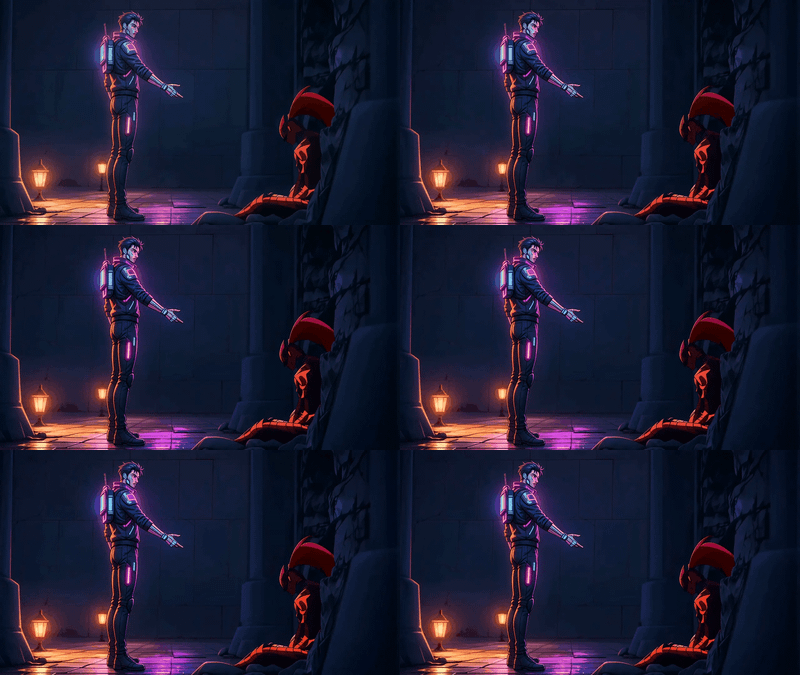
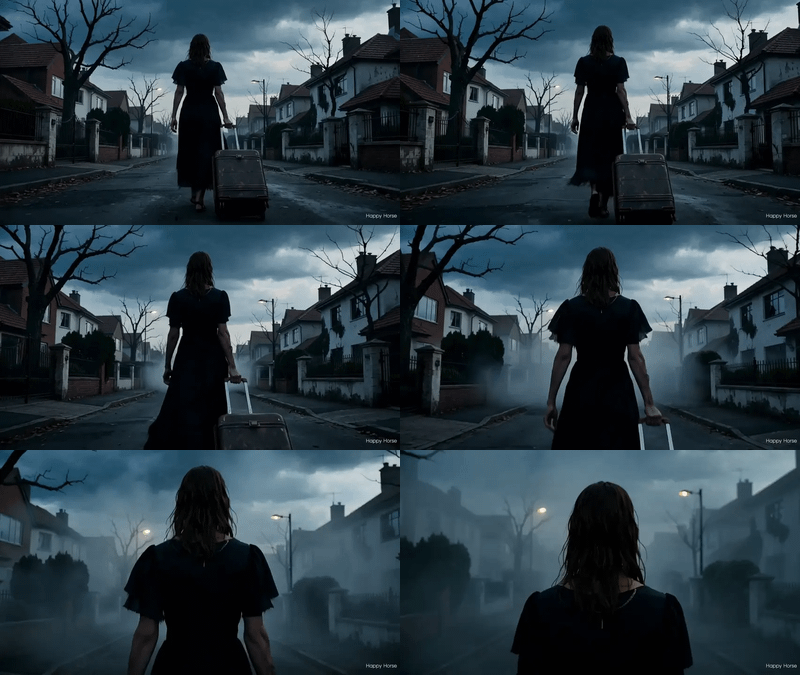
Edit any video with Happy Horse 1.0 by uploading up to 5 reference images. Swap backgrounds, change subjects, or shift style. Original motion stays intact.
consistency
film production
happy horse
style transfer
vid2vid
Video
video generation
276

Nodes & Models
HappyHorse10VideoEditing_floyo
VideoToFrames
WorkflowGraphics
LoadVideo
LoadImage
CreateVideo
SaveVideo
Happy Horse 1.0 video editing with up to 5 reference images for style and subject control.
Upload your source video, drop in reference images, and write what you want changed. Happy Horse keeps the original motion and timing locked while it rewrites the look. Backgrounds, subjects, atmosphere all reshape to match your prompt and references.
Source clips up to 15 seconds. Output at 720P or 1080P.
How do you edit a video with Happy Horse 1.0 and reference images?
Upload your source video and one to five reference images. Write a prompt that describes the visual world you want, not the action (motion comes from the source). Pick 720P or 1080P, choose whether to keep the original audio, and run. The output preserves the source motion and applies your new look on top.
Source video The clip drives all motion. Want a clean transformation? Use a well-lit, steady source. Heavy motion blur and chaotic handheld footage trip the model up. Keep the clip under 15 seconds. Longer videos get truncated.
Reference images (1 to 5) Style anchors. Drop in a screenshot of a city, a character portrait, a product photo, a color palette. Reference image 1 tends to carry the most weight. Empty slots are fine. Want stronger style transfer? Stack multiple references that share the same look.

Prompt Describe the world, not the action. The motion comes from your source video. "A realistic city with afternoon light, warm tones, slight haze" works better than "a motorcycle drives through a city." Stay visual: setting, color, atmosphere. Skip camera directions, they often confuse the model.
Resolution 720P for faster runs and quick tests. 1080P when you need the final.
Audio setting Auto lets the model decide (often replaces the source audio). Set this to origin if your source has dialogue, music, or sound design you want to keep.
Watermark On by default. Turn it off when you need a clean export.
Seed Same prompt and same seed produces the same output. Lock the seed to compare prompt tweaks side by side. Randomize when you want variation.
What is Happy Horse video editing good for?
Transforming a video's look while keeping its motion. Background swaps, scene relocation, style changes, and subject substitution where the original timing matters. Useful when you have good footage but the wrong setting, or when a reshoot costs more than it's worth.


Concrete cases: a motorcycle ride filmed in a parking lot becomes the same ride through Tokyo. A product demo shot on a plain studio backdrop gets relocated into a cafe. A character walking on green screen ends up in a forest with every step still in sync.
Where it falls short: source clips with fast cuts, heavy motion blur, or chaotic camera shake transform poorly. The model can't add detail that isn't in the source motion. Need to generate fresh video from scratch? Reach for Happy Horse text-to-video or image-to-video instead.
Built on Alibaba ATH's Happy Horse 1.0, which currently ranks #1 on the Artificial Analysis video leaderboard.
FAQ
How long can my source video be in Happy Horse video editing? Up to 15 seconds. Anything longer gets truncated to the first 15 seconds. If you need to edit a longer clip, split it into segments, run each one, and stitch them back together at the end.
How many reference images can I use with Happy Horse 1.0? One to five. You don't need to fill every slot. Reference image 1 has the strongest pull. Multiple references work best when they share a visual language: same palette, same lighting, same environment type.
Should my Happy Horse prompt describe the action or the new look? The new look. Motion comes from your source video. Your prompt only needs to define the target world: setting, lighting, color, atmosphere. Camera directions and scripted action get ignored at best, and confuse the model at worst.
Can Happy Horse keep the original audio when editing a video? Yes. Set audio_setting to "origin" to preserve dialogue, music, or ambient sound from your source. The default "auto" can replace it. Use origin whenever the audio matters to the final cut.
How to run Happy Horse 1.0 online? You can run Happy Horse 1.0 online through Floyo. No installation, no setup. Open the workflow in your browser, upload your video and references, and hit run. Free to try.
Read more