Wan2.1 FusionX and MultiTalk - Image to Video
Turn any portrait - artwork, photos, or digital characters - into speaking, expressive videos that sync perfectly with audio input. MultiTalk handles lip movements, facial expressions, and body motion automatically.
Animation
Audio
Filmmaking
Image to Video
Lipsync
Marketing
Multitalk
Video
Wan2.1
4.2k
_1758870047277.webp)



Nodes & Models
WanVideoBlockSwap
WanVideoTorchCompileSettings
WanVideoTeaCache
WanVideoEnhanceAVideo
Label (rgthree)
DownloadAndLoadWav2VecModel
LoadWanVideoT5TextEncoder
umt5-xxl-enc-bf16.safetensors
WanVideoVAELoader
Wan2_1_VAE_bf16.safetensors
CLIPVisionLoader
clip_vision_h.safetensors
WanVideoLoraSelect
detailz-wan.safetensors
Wan21_T2V_14B_lightx2v_cfg_step_distill_lora_rank32.safetensors
LoadAudio
LoadImage
MultiTalkModelLoader
Wan2_1-InfiniTetalk-Single_fp16.safetensors
WanVideoTextEncodeSingle
AudioCrop
ImageResizeKJv2
WanVideoApplyNAG
WanVideoModelLoader
Wan2.1_14B_FusionX.safetensors
AudioSeparation
WanVideoClipVisionEncode
MultiTalkWav2VecEmbeds
WanVideoImageToVideoMultiTalk
WanVideoSampler
WanVideoDecode
VHS_VideoCombine
VHS_VideoCombine
VHS_VideoCombine
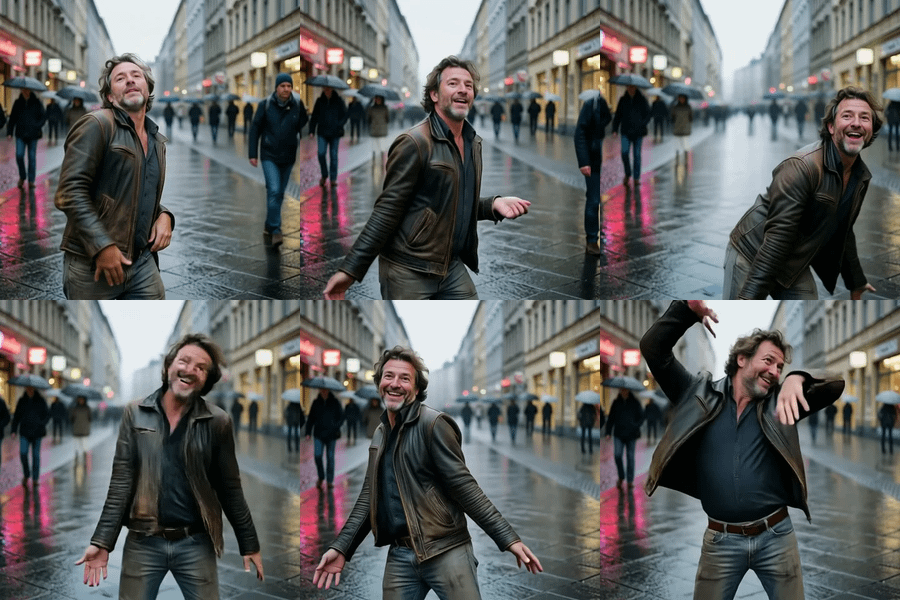
Turn a portrait into a talking, expressive video that syncs to your audio.
Upload an image of a person and an audio clip. MultiTalk reads the speech from your audio and generates lip movements, facial expressions, and body motion that match. Wan 2.1 FusionX handles the video generation with a detailz LoRA for sharper output and a distillation LoRA for faster inference. The result is a video where the person in your image appears to speak or sing with natural motion.
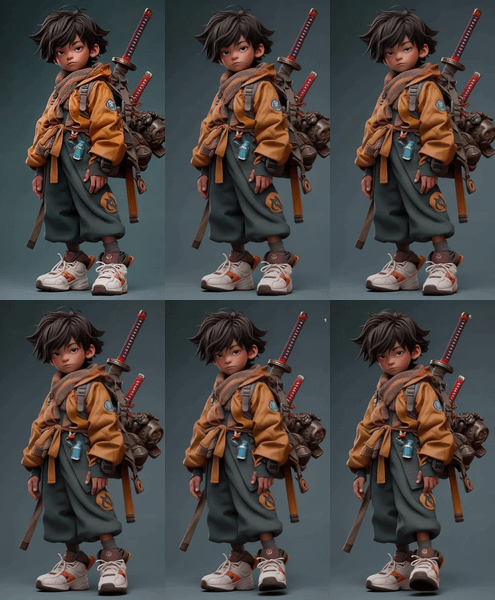
Works with photos, digital art, paintings, and AI-generated characters. Upload your image, your audio, write a short prompt describing the motion, and run.
How do you make a portrait talk with Wan 2.1 and MultiTalk?
Upload a portrait image and an audio clip. Write a prompt describing the person's action and mood. MultiTalk extracts speech patterns from your audio and drives lip sync, facial expressions, and body motion. Wan 2.1 FusionX generates the video at 25 FPS with a detailz LoRA for sharper faces and textures. Audio clips up to 12 seconds are supported by default.
Load Image Upload an image of a person. Front-facing or slight angle works best. The face needs to be clearly visible. Works with photos, illustrations, AI-generated portraits, paintings, anime characters, and digital avatars. MultiTalk reads the face structure and maps speech motion onto it.
For multi-person scenes, upload an image showing multiple people. MultiTalk can handle more than one face in the frame.
Load Audio Upload a speech or singing clip. MP4 and standard audio formats work. The workflow separates vocals from background audio automatically, so music tracks with vocals will work too. Default crop is 0:00 to 0:12 (12 seconds). Adjust the start and end times in the AudioCrop node if your clip is longer or you want a specific section.
Prompt Describe the person's action and mood. "A woman calmly speaking to camera, warm lighting, gentle head movements." The prompt guides Wan 2.1 on the overall motion style and scene. MultiTalk handles the detailed lip sync and facial expressions from the audio, so your prompt focuses on body motion, mood, and environment.
Include "detailz" in your prompt to activate the detailz LoRA's style enhancement. The default example prompt includes this keyword.
Negative prompt Pre-loaded with quality filters: overexposed, static, blurred details, low quality, deformed faces, extra fingers, and similar. No need to edit this for most runs. If you're getting specific artifacts, add descriptions of them here.
Audio duration The AudioCrop node defaults to 12 seconds (0:00 to 0:12). Your output video length matches your audio length. Shorter clips generate faster and tend to have more stable lip sync. For audio longer than 12 seconds, adjust the crop range or split your audio into segments and generate each separately.
Resolution The MultiTalk node generates at 512x512 internally, then the EAV (EnhanceAVideo) node upscales by 2x. Output is 25 FPS in H.264 MP4 format.
Sampler settings 5 steps with the UniPC sampler, guidance scale of 12. The lightx2v distillation LoRA allows fewer steps without quality loss. NAG (Noise-Aware Guidance) is enabled for better prompt adherence. TeaCache accelerates inference. These are all pre-tuned. No need to change them for standard use.
What is Wan 2.1 FusionX with MultiTalk good for?
This workflow turns any portrait into a talking video. It's built for creators who need a character to speak or sing from a single image and an audio clip. MultiTalk's lip sync works with both realistic and stylized faces, and Wan 2.1 FusionX produces high-quality video with natural motion.
Digital characters and avatars. Have an AI-generated character or illustrated avatar? Upload the portrait and a voiceover clip. MultiTalk animates the face to match the speech, so your character appears to deliver the lines. Works for YouTube channels, brand mascots, and virtual influencers.
Content creation. Create talking-head videos from a single photo. Educators can animate a presenter image. Marketers can produce spokesperson videos from a brand photo. Podcasters can add visual elements to audio content.
Music videos and singing. MultiTalk handles singing as well as speech. Upload a portrait and a vocal track. The model syncs mouth movement to the singing with matching expressions and head motion. The audio separation node isolates vocals from instrumentals automatically.
Storytelling and narrative. Animate characters for comics, visual novels, or short films. Each character gets a portrait and a voice clip. The result looks like the character is performing their dialogue.
Honest limitations. Lip sync accuracy depends on audio clarity. Clean, well-recorded speech produces the best results. Heavy background noise or overlapping speakers reduce sync quality (the audio separation helps, but isn't perfect). Extreme head rotations or profile views can produce artifacts. Full-body motion is limited to upper body. For clips longer than 12 seconds, you'll need to generate in segments and stitch them together.
FAQ
What kind of images work with MultiTalk for talking video?
Any image with a clearly visible face. Photos, illustrations, anime characters, paintings, digital art, and AI-generated portraits all work. Front-facing or slight angles give the best lip sync. Profile views and heavily angled faces produce less accurate mouth movement. The face needs to be large enough in the frame for MultiTalk to map speech motion onto it.
Can MultiTalk handle multiple people in one image?
Yes. MultiTalk supports multi-person scenes. Upload an image showing multiple people, provide audio with multiple speakers or a single voice, and the model will animate the faces. For best results with multi-person scenes, make sure each face is clearly visible and not too small in the frame.
How long can the audio clip be?
The default crop is 12 seconds. You can extend this by adjusting the AudioCrop node's start and end times. Shorter clips (4-8 seconds) generate faster and tend to have more stable lip sync. For longer content, generate in segments and combine them in post. Each segment keeps the same character appearance since it's driven by the same input image.
Does the workflow separate vocals from music?
Yes. The AudioSeparation node isolates vocals from background audio automatically. You can feed it a music track with singing, and it will extract the vocal line to drive the lip sync. The quality of separation affects sync accuracy, so clean vocal tracks give better results than heavily layered mixes.
How do I run Wan 2.1 FusionX with MultiTalk online?
You can run this workflow online through Floyo. No installation, no setup. Open the workflow in your browser, upload your image and audio, and hit run. Free to try.
Read more
0
Reply