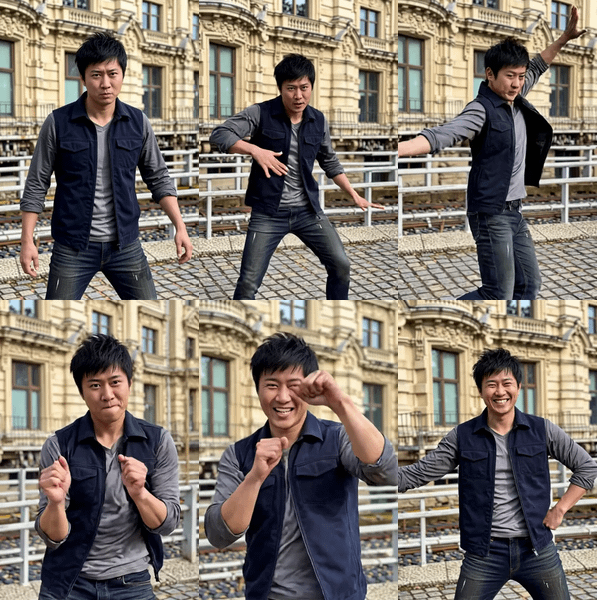
Wan 2.2 14B · Image to Video + End Frame For Anime
Upload a start image and an end image, describe the motion, and Wan 2.2 generates smooth video between them using a dual-model pipeline with high-noise and low-noise passes for maximum quality in 6 steps.
end frame
image to video
interpolation
start frame
Video
wan2.2
364

_1783580079669.webp)
_1783580079669.webp)
_1783580079669.webp)

Nodes & Models
LoadImage
WanVideoTorchCompileSettings
INTConstant
WanVideoBlockSwap
Note
CreateCFGScheduleFloatList
Label (rgthree)
WanVideoSampler
WanVideoDecode
Seed (rgthree)
GetImageSizeAndCount
RIFE VFI
rife47.pth
WanVideoImageToVideoEncode
Fast Groups Bypasser (rgthree)
LoadWanVideoT5TextEncoder
WanVideoVAELoader
Wan2_1_VAE_bf16.safetensors
WanVideoLoraSelect
lightx2v_I2V_14B_480p_cfg_step_distill_rank64_bf16.safetensors
WanVideoModelLoader
wan2.2_i2v_high_noise_14B_fp8_scaled.safetensors
wan2.2_i2v_low_noise_14B_fp8_scaled.safetensors
WanVideoTextEncode
WanVideoSetBlockSwap
WanVideoSetLoRAs
ImageResizeKJv2
FloyoStickyNote
VHS_VideoCombine
ABOUT THE WORKFLOW
Generate Video Between Two Frames
Upload a start image and an end image. Write a prompt describing the motion between them. Wan 2.2 generates smooth video that transitions from the first frame to the last, filling in the action, camera movement, and physics in between. The workflow uses a dual-model split-step pipeline: the High Noise model builds the initial structure, then the Low Noise model refines detail and consistency. RIFE frame interpolation doubles the frame count for smoother playback. The output is an MP4 at 832x480.
Model
Wan 2.2 I2V High Noise 14B by Alibaba. Handles the initial noisy latents in the first denoising pass, building structure and motion from the start and end frame anchors.
Wan 2.2 I2V Low Noise 14B by Alibaba. Refines the output in the second denoising pass, sharpening detail, reducing artifacts, and improving temporal consistency.
LightX2V Distilled LoRA (rank 64). Applied to both models for 6-step generation speed.
RIFE 4.7. Doubles the frame count after generation for smoother playback.
HOW IT WORKS
Step 1. Upload your start frame
The image the video begins from. The model preserves the subject, lighting, and composition.
Works great with: character poses · product shots · concept art · anime scenes · photographs
Step 2. Upload your end frame
The image the video should land on. The model generates smooth motion between the two frames.
Step 3. Write your prompt
Describe the motion and action between the two frames. "Cartoon woman jumps around and turns to the viewer" tells the model what happens in between. Match the prompt to the visual content of both frames.
Step 4. Hit run and download
The dual-model pipeline generates the video in 6 steps, RIFE doubles the frame count, and the workflow saves an MP4 at 16fps.
Ready for: Premiere · DaVinci Resolve · After Effects · TikTok · YouTube · animation pipelines
First time? Upload a start and end frame, write a motion prompt, and hit run. Leave all settings as-is.
RECOMMENDED SETTINGS
Quick-start guide. Find the goal that matches yours and copy the settings.
Standard start-to-end video — 832x480, 53 frames, 6 steps, dpm++_sde, RIFE 2x. Upload both frames, write a prompt, run.
Longer clip — Increase the frame count above 53. More frames at 16fps extends the duration. Note: first/last frame generation uses more VRAM than single-frame I2V. If you hit out-of-memory errors, reduce the frame count or resolution.
Smoother motion — RIFE 2x is on by default. The interpolation doubles the frame count, filling in intermediate frames for smoother playback.
Different resolution — Change the ImageResizeKJ dimensions from 832x480. Wider or taller output is possible, but higher resolution increases VRAM usage. Reduce frame count if needed.
Motion does not connect the two frames well — Write a more specific prompt that describes the transition step by step. "She turns left, raises her arm, then faces the camera" sequences the action. Also check that both frames share enough visual elements (same character, same setting) for the model to bridge them.
Reproduce a result — The seed defaults to fixed. Keep it locked to get the same output. Change it to explore different motion interpretations.
Prompt: Describe what happens between the two frames, not what the frames look like. "She jumps, spins, and turns to face the camera" describes motion. "A woman standing in a room" describes a static scene and produces minimal movement.
LEARN
📹 Videos
ComfyUI 101 Free Course ft. Sebastian Kamph
Floyo 101 for Team Collaboration
✨ Quick links
USE CASES
🎬 Controlled Transitions and Morphs
Upload two keyframes and let the model generate the motion between them. Character transformations, scene changes, and camera reveals all benefit from start-to-end control.
📖 Animation and Animatic Sequences
Connect two drawn or AI-generated frames into an animated sequence. Each pair of frames becomes a smooth clip for storyboards and animatics.
🛍️ Product Reveals
Set a closed box as the start frame and the revealed product as the end frame. The model generates the unboxing or reveal transition automatically.
🎨 Concept Art to Motion
Take two concept frames showing a before and after state and generate the transformation between them for pitches and previsualization.
WHAT WORKS BEST / WHAT TO AVOID
✅ Works great
Start and end frames with the same subject, setting, and lighting
Action prompts that describe motion between the two frames
Moderate transitions (pose change, camera shift, expression change)
Frames that share enough visual elements for the model to bridge
⚠️ May produce softer results
Start and end frames with completely unrelated content
No motion description in the prompt
Very high resolution or frame count (may cause out-of-memory errors)
Frames with drastically different lighting or color temperature
FAQ
What is the dual-model split-step pipeline?
This workflow uses two separate Wan 2.2 models. The High Noise model handles the first denoising pass, building structure and motion from noisy latents. The Low Noise model handles the second pass, refining detail and temporal consistency. Splitting the work between two specialized models produces higher quality than a single model at the same step count.
What is Wan 2.2 and how does it differ from Wan 2.1?
Wan 2.2 is the latest generation of Alibaba's Wan video model. It improves motion quality, temporal consistency, and first/last frame control over Wan 2.1. The separate High Noise and Low Noise model variants are new to the 2.2 release and enable the split-step pipeline used in this workflow.
Does end frame control work with any two images?
Both images need to share enough visual elements for the model to generate a plausible transition. Same character, same setting, and similar lighting produce the best results. Two completely unrelated images will produce unpredictable output.
What does RIFE frame interpolation do?
RIFE 4.7 doubles the frame count after generation by synthesizing intermediate frames between every pair of generated frames. This produces smoother motion at playback without increasing generation time. The output goes from 53 frames to approximately 106 frames.
Can I use this workflow with only a start frame and no end frame?
This workflow is designed for start-to-end frame generation. For single start frame I2V, use a standard Wan 2.2 Image to Video workflow without the end frame input.
Is Wan 2.2 licensed for commercial use?
Wan 2.2 is an open-source model by Alibaba. The LightX2V LoRA and RIFE have their own license terms. Check each component's license on its model page for commercial use in your specific project.
How to run Wan 2.2 start-to-end video generation online?
You can run Wan 2.2 start-to-end video generation online through Floyo. No installation, no setup, no local GPU needed. Open the workflow in your browser, upload your frames, and hit run. Free to try.
WHY FLOYO?
Floyo is the only platform with team collaboration for ComfyUI in the browser. You run workflows with no install. You share run history, assets, and models across your team. You pay only when you generate. Floyo supports open-source and closed-source models.
A designer runs an edit and likes the result. A teammate opens that exact run from shared history and keeps going. No file handoffs. No version confusion.
For studios and enterprise teams, Floyo adds private workspaces, pooled resources, and a team usage dashboard. Other ComfyUI cloud tools run for one person at a time. Floyo runs for the whole team, with transparent per-generation costs.
Ready to try it?
Write a detailed prompt and hit run.
Questions? Watch the free course or check the FAQ above.
Read more