Wan 2.1 FusionX: Cinematic Image to Video
Created by @vrgamedevgirl on Civitai, please support the original creator!
FusionX
Image to Video
Video Generation
Wan
21
4.8k




_1758801022723.webp?width=1400&height=620&quality=80&resize=cover)







_1758801022723.webp?width=104&height=104&quality=80&resize=cover)


Nodes & Models
LoadImage
VHS_VideoCombine
VHS_VideoCombine
VHS_VideoCombine
HOW IT WORKS
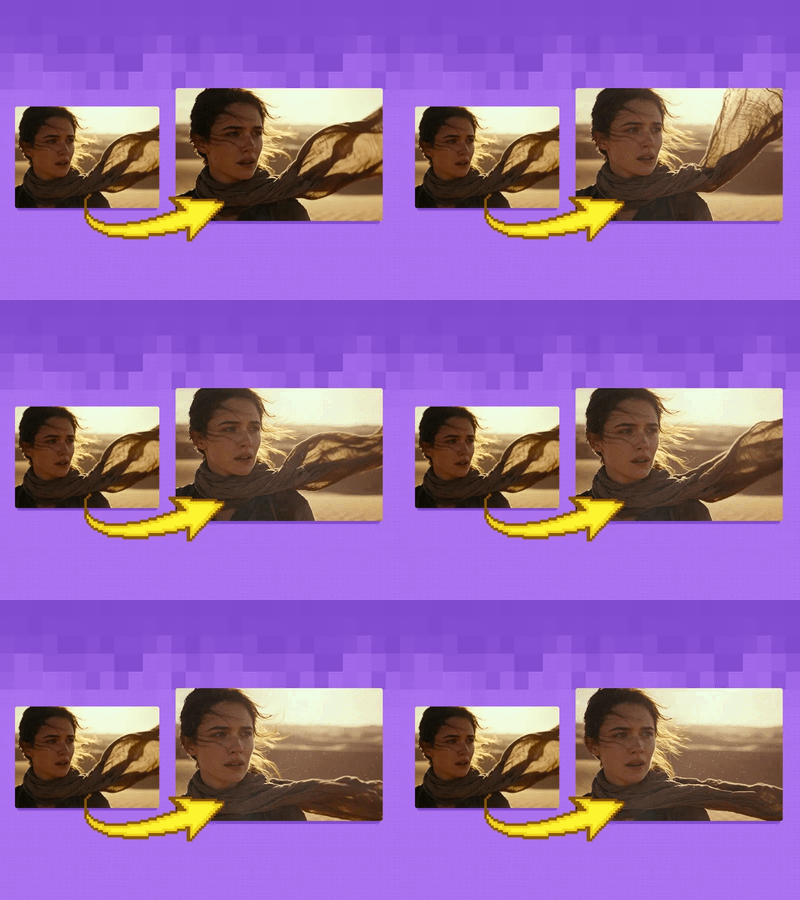
Step 1. Upload your image The still your clip starts from. A clear subject with room to move gives the cleanest motion. Works great with: photos · cinematic stills · character art · landscapes
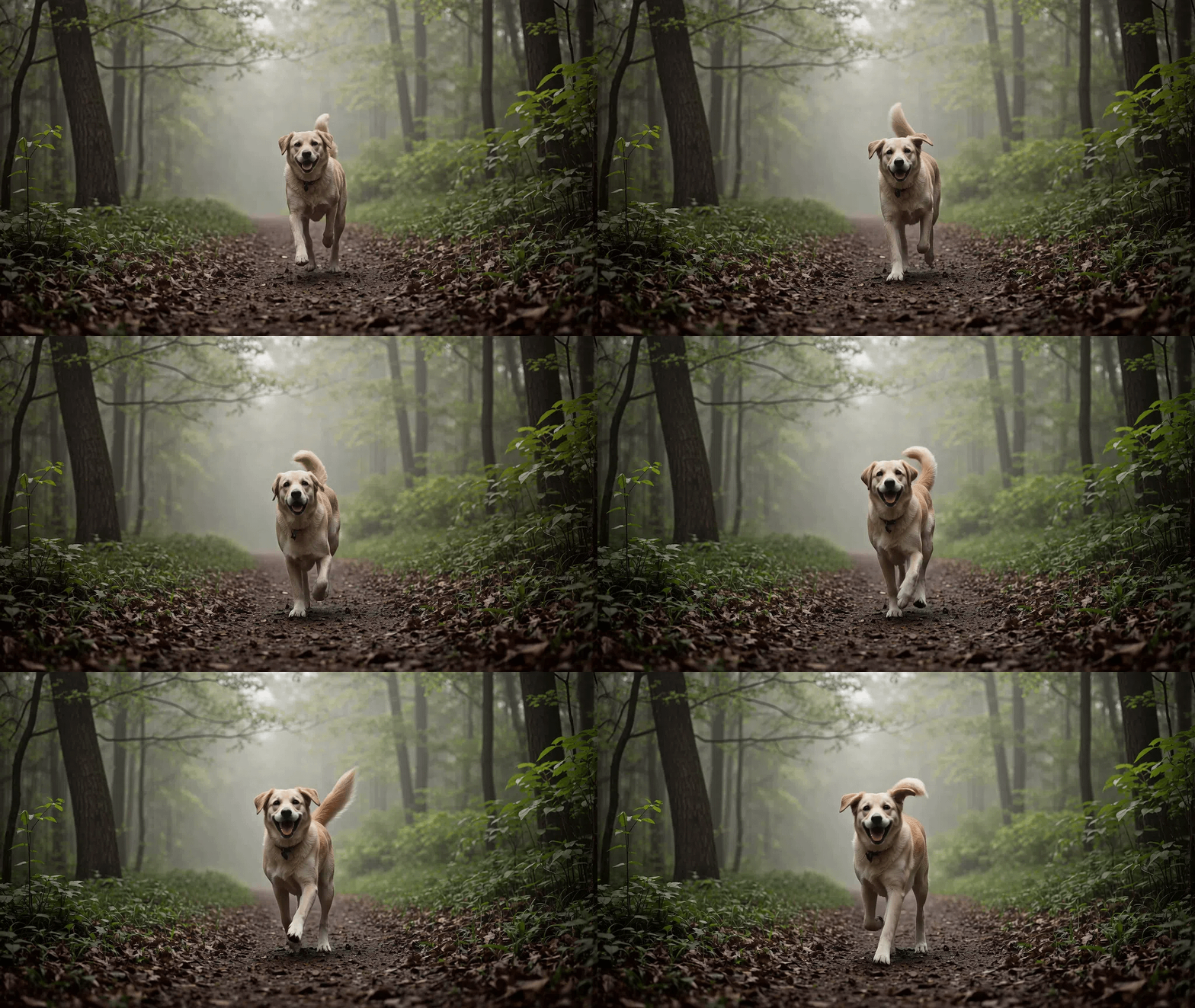
Step 2. Describe the motion Write a short prompt for the action and the camera, like "cinematic shot, the dog runs through a forest, smooth camera follow." Cinematic cues help FusionX lean into the look.
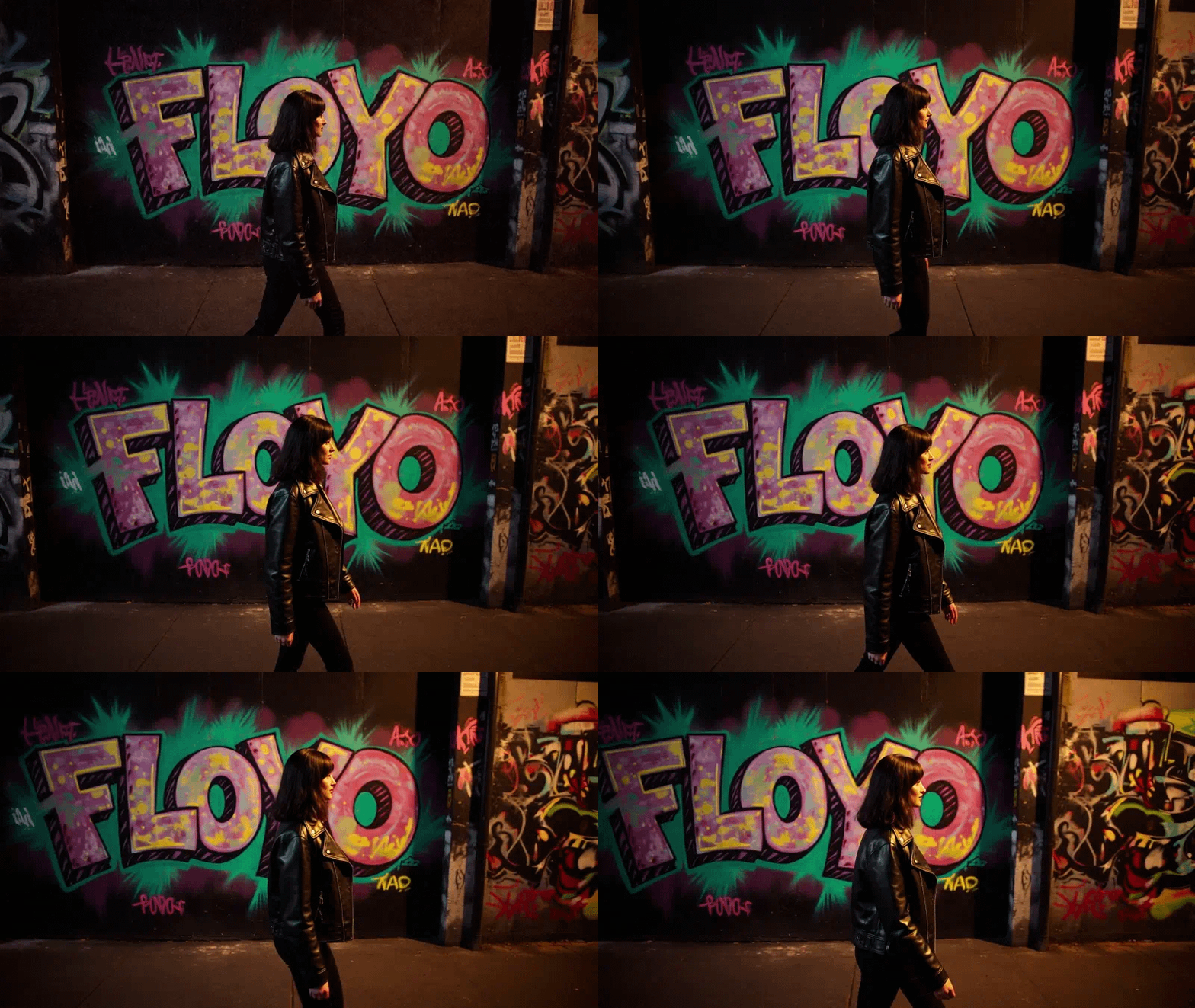
Step 3. Hit run and download You get back a smooth 1024 x 576 clip in a handful of steps. Preview it in the workflow, then download. Ready for: Premiere · CapCut · DaVinci Resolve · any editor
First time? Leave every setting as-is. The defaults (1024 x 576 · 10 steps · CFG 1 · 81 frames) are the right starting point for almost everyone.
RECOMMENDED SETTINGS
Quick-start guide. Find the goal that matches yours and copy the settings.
Standard clip (most people) ★ Start here — 1024 x 576 · 10 steps · CFG 1 · shift 2. The right starting point for almost everyone.
Want it even faster — Drop the steps toward 6 to 8. FusionX is built to hold quality at low step counts, so the speed gain costs little.
Motion feels slow or stiff — Raise the frame count toward 121 and describe the movement and camera plainly. FusionX responds well to clear motion cues.
More realism or more style — Lower the shift for realism, or raise it toward 3 to 9 for a more stylized look.
Cinematic look — Add cinematic keywords to the prompt, like lighting, lens, and camera move. FusionX leans into them.
Reproduce a clip you liked — The seed is fixed by default. Keep it fixed and the same image and prompt give you the same clip.
Keep CFG at 1 — FusionX is tuned to run without heavy guidance, like the speed models it is built on. Raising CFG tends to hurt more than help.
Prompt: Describe the action, the camera, and the mood, with cinematic detail. The default negative prompt filters common video artifacts, so leave it on for a first run.
USE CASES
🎬 Cinematic Shorts Turn a still into a film-style clip with smooth motion and lighting, without a render farm.
🎨 Artists & Illustrators Bring concept art or a character to life with cinematic movement while the style holds.
⚡ Fast Iteration The low step count makes it quick to test motion ideas and compare takes before committing.
🎞️ Previs & Mood Block out how a shot moves and reads before building it out in full.
WHAT WORKS BEST / WHAT TO AVOID
✅ Works great
A clear subject with room to move
Cinematic prompts with camera and lighting cues
Clean, well-lit source images
Short clips at the default resolution
⚠️ May produce softer results
Cluttered frames with no clear subject
Fast or extreme motion in a short clip
Low-resolution or blurry source images
Vague prompts with no motion described
NEW TO COMFYUI?
Start with the free ComfyUI for Beginners Course on Floyo. Sixteen short videos take you from zero to running your own AI workflows. No setup headaches, no jargon, clear hands-on lessons. Watch the course, then run any workflow here in your browser.
👉 Watch the free ComfyUI for Beginners Course →
FAQ
What is Wan 2.1 FusionX? Wan 2.1 FusionX is a community model built on top of Wan 2.1 14B by merging in several video-generation models and LoRAs, including CausVid, AccVideo, and MoviiGen. The result is cinematic-quality image-to-video in roughly 8 to 10 sampling steps, with smooth motion and rich detail. This workflow runs the image-to-video version.
Why is FusionX faster than base Wan 2.1? The merged-in models handle motion and speed, so FusionX reaches good quality in about 8 to 10 steps where base Wan 2.1 needs many more. In practice that is roughly half the generation time, with smooth motion and scene consistency held through the lower step count.
What settings should I use for FusionX image-to-video? Use 1024 x 576 resolution, 8 to 10 steps, CFG 1, a shift around 2, and the dpm++ beta scheduler. Frame counts of 81 to 121 work well. Start at the defaults, then drop steps for speed or raise the frame count for more motion.
Does Wan 2.1 FusionX generate audio? No. FusionX outputs silent video, so add music or sound in your editor afterward. If you want audio generated together with the video, use a model built for that, like the Wan 2.5 or Wan 2.6 workflows.
How is FusionX different from Wan 2.2, 2.5, and 2.6? FusionX is a Wan 2.1-based community merge focused on fast, cinematic local generation. Wan 2.2 is the newer open base model with its own improvements, and Wan 2.5 and 2.6 are API models whose headline feature is native synchronized audio. Choose FusionX for quick cinematic clips from the Wan 2.1 line, and the others when you need their specific features.
Can I use FusionX outputs commercially? Be careful here. FusionX merges in components released under non-commercial licenses, such as CC BY-NC-SA 4.0, so the model is intended for research and non-commercial use rather than the permissive terms of the base Wan models. Check the licenses of the merged components before any commercial use, and use a permissively licensed model if you need commercial rights.
How to run Wan 2.1 FusionX online? You can run Wan 2.1 FusionX online through Floyo. No installation, no setup, no GPU to rent. Open the workflow in your browser, upload an image, write a prompt, and hit run. Free to try.
WHY FLOYO?
Floyo is the only platform with team collaboration for ComfyUI in the browser. You run workflows with no install. You share run history, assets, and models across your team. You pay only when you generate. Floyo supports open-source and closed-source models.
A creator runs a clip and likes the result. A teammate opens that exact run from shared history and keeps going. No file handoffs. No version confusion.
For studios and enterprise teams, Floyo adds private workspaces, pooled resources, and a team usage dashboard. Other ComfyUI cloud tools run for one person at a time. Floyo runs for the whole team, with transparent per-generation costs.
Ready to try it? Upload your image and run it. Write a short cinematic prompt and the settings are already set.
Questions? Watch the free course or check the FAQ above.
Read more