

Text to Video + Hunyuan LoRA
Integrate a custom model with your text prompt to create a video with a consistent character, style or element. Key Inputs Prompt: as descriptive a prompt as possible. Make sure to include the trigger word from your LoRA below Load LoRA: Load your reference model here Width & height: resolution settings are noted in pixels Guidance strength (CFG): Higher numbers adhere more to the prompt Flow Shift: For temporal consistency, adjust to tweak video smoothness.
Hunyuan
LoRa
LoRAs
Text2Video
Video
929
_1758800553742.webp)

Nodes & Models
Label (rgthree)
Note
VAELoader
hunyuan_video_vae_bf16.safetensors
Ver Private
Comm Use
EmptyHunyuanLatentVideo
RandomNoise
KSamplerSelect
UNETLoader
hunyuan_video_720_cfgdistill_fp8_e4m3fn.safetensors
Ver Private
Comm Use
DualCLIPLoader
clip_l.safetensors
Ver Private
Comm Use
llava_llama3_fp8_scaled.safetensors
Ver Private
Comm Use
SetNode
CLIPTextEncode
LoraLoaderModelOnly
hyvideo_FastVideo_LoRA-fp8.safetensors
Ver Private
Comm Use
Seb_HunyuanVideo.safetensors
Ver Private
Comm Use
FluxGuidance
ModelSamplingSD3
BasicScheduler
BasicGuider
SamplerCustomAdvanced
VAEDecodeTiled
StringFunction|pysssss
ReroutePrimitive|pysssss
ApplyFBCacheOnModel
VHS_VideoCombine
Integrate a custom model with your text prompt to create a video with a consistent character, style or element.
Key Inputs
Prompt: as descriptive a prompt as possible. Make sure to include the trigger word from your LoRA below
Load LoRA: Load your reference model here
Width & height: resolution settings are noted in pixels
Guidance strength (CFG): Higher numbers adhere more to the prompt
Flow Shift: For temporal consistency, adjust to tweak video smoothness.
Uploading LoRAs to Floyo
Launch App or Run Workflow
On the left side of the canvas, click the middle file button
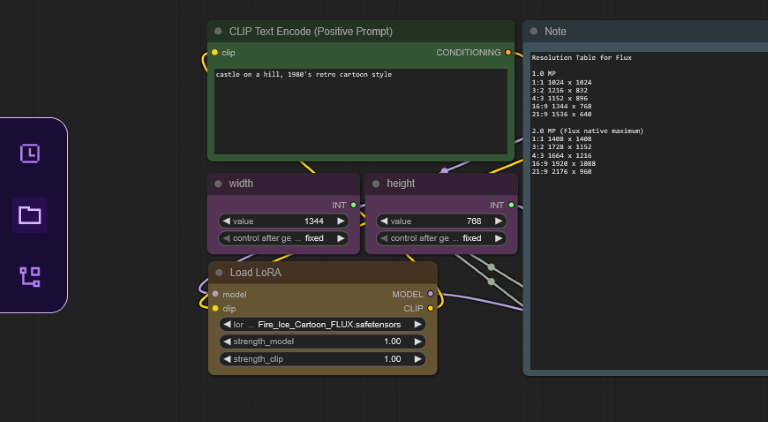
In "My Files" navigate to models/loras, select "Upload a File" and choose a LoRA file
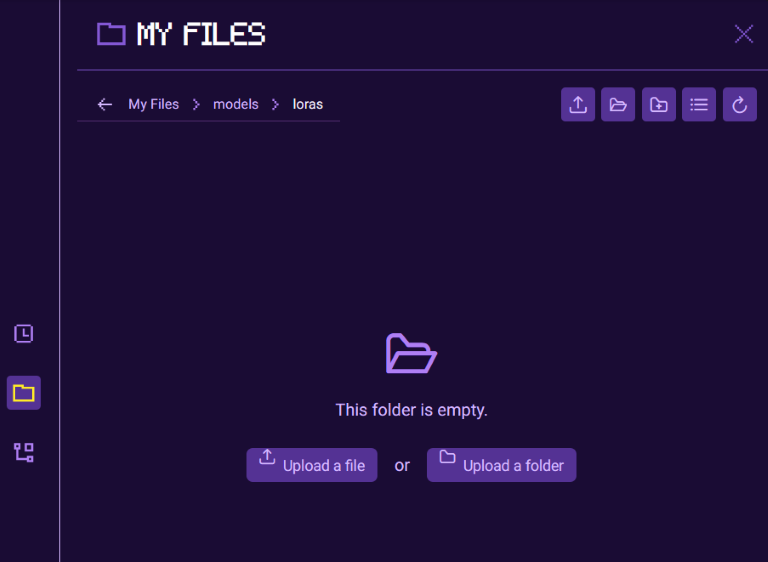
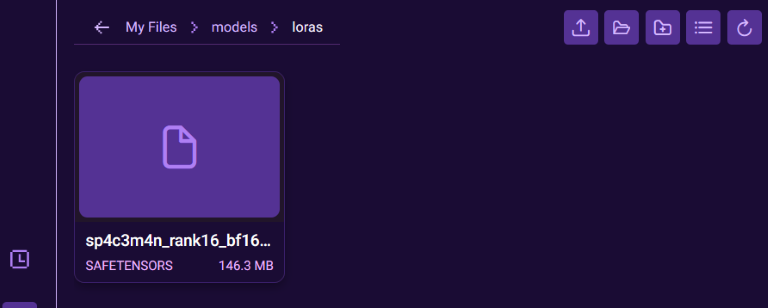
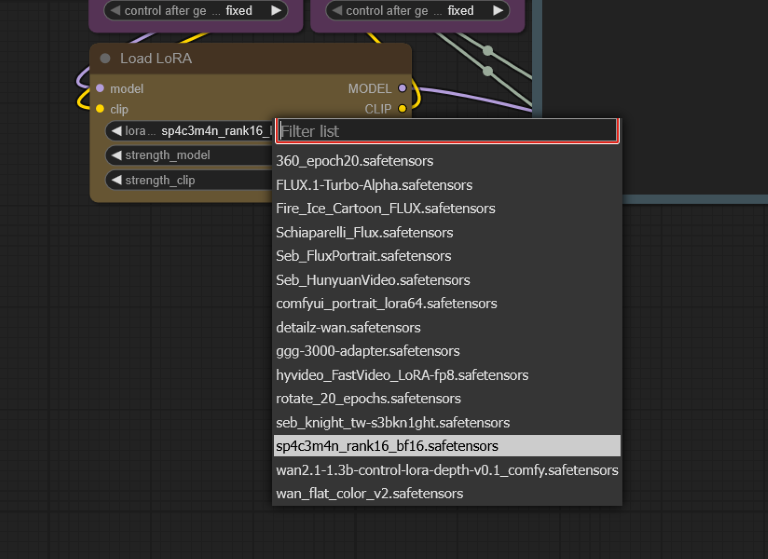
Once your LoRA is uploaded, close the file browser and refresh your ComfyUI canvas by pressing "R", this will update all model lists
Select your LoRA in the Load LoRA node
Read more
N






_1783028563354.gif?width=400&height=300&quality=80&resize=contain&format=origin)


