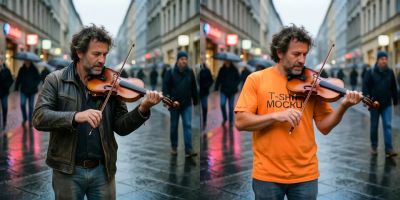
Seedream 5.5 for Image Editing
Upload a photo, describe what to change, and Seedream 5.5 by ByteDance edits only what you ask for while keeping the rest intact. Write your edit prompt and hit run.
Image
Image Editing
Seedream 5.5
48
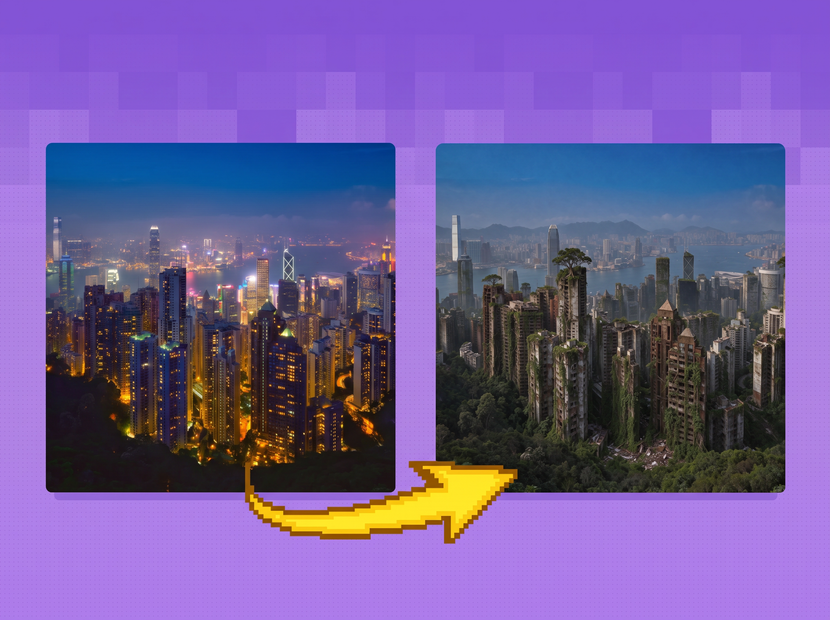
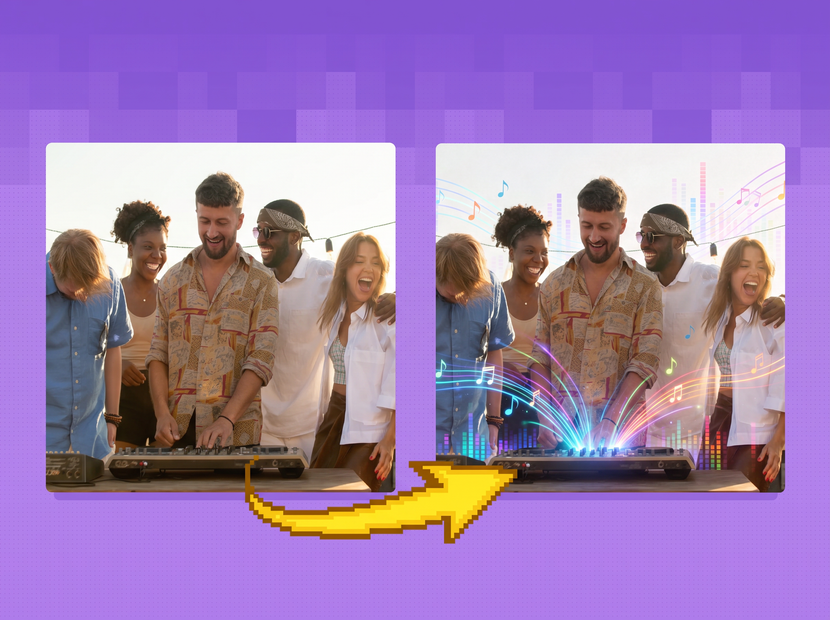
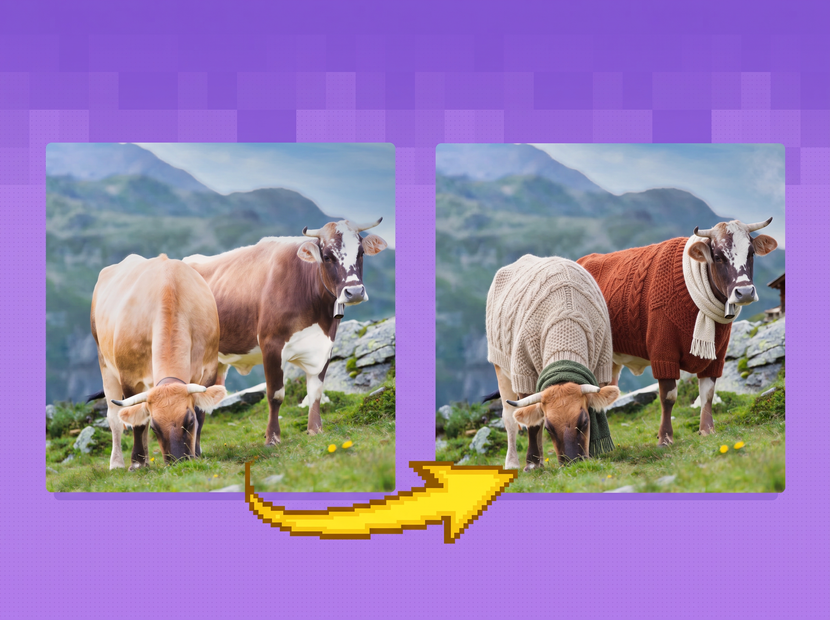

ABOUT THE WORKFLOW
Edit any photo with a text prompt
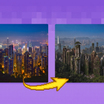
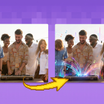
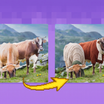
Upload an image and describe what you want changed. The model rewrites only the parts you mention and leaves everything else untouched. You get back one edited image, up to 2K resolution, in PNG, JPEG, or WebP.
Partner node. This workflow calls an external API, so each run uses credits from your API wallet. No API key needed. Floyo handles the connection.
Model
Seedream 5.5 by ByteDance Seed. Strong at photorealistic editing, stable multi-turn changes (up to 100 rounds on the same image), and rendering small text in multiple languages.
HOW IT WORKS
Step 1. Upload your image
Drop in the photo you want to edit. Any standard image format works. Clear, well-lit photos give the best results.
Works great with: product shots · portraits · lifestyle photos
Step 2. Describe the edit
Write exactly what you want changed. Be specific about the change and leave out anything you want kept as-is.
Example: “Change the background to a beach at sunset” or “Make the shirt blue.”
Step 3. Adjust settings (optional)
Pick a resolution (1K, 1.5K, or 2K), output format (PNG, JPEG, WebP), and aspect ratio. Set the background to transparent if you need a cutout with no background.
Step 4. Run and preview
Hit run. The edited image appears on the canvas. Download it or feed it into the next step of your pipeline.
Ready for: Photoshop · Figma · Canva · social media
First time? Leave every setting as-is. The defaults are the right starting point for almost everyone.
RECOMMENDED SETTINGS
Image Inputs (image1–image10)
At least one image required (image1 is wired by default)
Up to 10 images can be connected for multi-image compositing
One photo per input — batches or video on one input are not accepted
Each image: min 15px per side, max 36,000,000 pixels (36 MP), max 16,383px per side, max 30 MB
Aspect ratio between 1:16 and 16:1
Prompt
Required text field describing what to change
Be specific about what to change and leave the rest out — the model edits only what you describe
For multi-image compositing, say what each image is for, e.g. "use Image 1 for the character and Image 2 for the colour palette"
Under ~600 English words works best — longer prompts can make the model miss details
Supports 16 languages: English, Chinese, Russian, Arabic, Filipino, Thai, Turkish, Korean, Malay, Spanish, Portuguese, Indonesian, French, German, Vietnamese, Japanese
Supports stable multi-turn editing up to 100 rounds
Resolution
Options: 1K, 1.5K, 2K
Default: 2K
Maximum output is 2K (~4.6 megapixels) — no 4K option
Not used when aspect_ratio is set to custom
Aspect Ratio
Options: auto, 21:9, 16:9, 3:2, 4:3, 1:1, 3:4, 2:3, 9:16, custom
Default: auto
auto on Edit with one image keeps the shape of your input image (e.g. a 16:9 photo at 1K came back as 1392x784)
With several images, pick the shape yourself if it matters
Width / Height (Custom Only)
Range: 1 to 16,384 per side
Default: 2048 x 2048
Only shown when aspect_ratio is set to custom
Custom size must be 921,600 to 4,624,220 total pixels, shape between 1:16 and 16:1
Output Format
Options: jpeg, png
Default: png
Hidden when background is transparent — result is always PNG
Watermark
Options: on, off
Default: off
Adds a small "AI generated" mark in the bottom right corner
Background
Options: auto, transparent, opaque
Default: auto
transparent: PNG with transparent background (for cutout assets)
opaque: solid background
auto: model decides
Output
One edited image per run
Format: PNG (default) or JPEG
Parts you did not mention in the prompt stay unchanged
Common Error-Causing Mistakes to Avoid
Empty prompt — will be rejected
No image connected — will be rejected; use the Text-to-Image node instead
Connecting a batch of images or a video to one input — Seedream 5.5 takes one photo per image input
Image side under 15px — will be rejected
Image wider than 16:1 or taller than 1:16 — will be rejected
Image over 36,000,000 pixels (36 MP) — will be rejected
Image side over 16,383px — will be rejected
Image over 30 MB — will be rejected
Custom size under 921,600 total pixels — too small, will be rejected
Custom size over 4,624,220 total pixels — too large, will be rejected
Prompts with famous cartoon or movie characters — can be refused by the model’s copyright check
Not specifying which image is for what when combining multiple images — leads to unpredictable results
Recommended Safe Defaults
Resolution: 2K (drop to 1K for faster test runs)
Aspect ratio: auto (keeps your input image’s shape with one image)
Output format: png
Watermark: off
Background: auto (set to transparent for cutout assets)
Write clear, specific prompts — name exactly what to change
For multi-image compositing, describe what each image is for
Leave all settings at defaults for a first run
LEARN
📹 Videos
ComfyUI 101 Free Course ft. Sebastian Kamph
Floyo 101 for Team Collaboration
✨ Quick links
USE CASES
🛍️ Product photo editing
Swap backgrounds, change product colors, or remove distractions from e-commerce images without reshooting.
🖼️ Background replacement
Drop a subject into a new environment. Studio to outdoors, white backdrop to branded set, plain wall to city skyline.
👕 Wardrobe and color changes
Change clothing colors, patterns, or accessories in model photos for variant mockups or lookbook updates.
✂️ Transparent asset extraction
Set background to transparent and get clean cutouts for compositing into presentations, ads, or design files.
✏️ Text and label insertion
Add or change small text on signs, labels, or packaging in a photo. Seedream 5.5 handles multi-language text rendering.
WHAT WORKS BEST / WHAT TO AVOID
✅ Works great
Clear, well-lit photos with distinct subjects
Specific, targeted edit prompts (“change X to Y”)
Color swaps, background replacements, and object additions
Product photography and portrait touch-ups
⚠️ May produce softer results
Heavily compressed or very low-resolution source images
Vague prompts that do not name the exact change (“make it cooler”)
Requests that change the entire composition at once
Edits requiring fine anatomical changes (hand poses, finger counts)
FAQ
What is Seedream 5.5?
Seedream 5.5 is an image generation and editing model made by ByteDance Seed, released in November 2026. It is the successor to Seedream 5.0 Pro. It specializes in photorealistic generation, stable multi-turn editing, and rendering small text in multiple languages.
How does Seedream 5.5 image editing work?
You upload a source photo and write a prompt describing the change. The model identifies the relevant region, applies the edit, and returns the modified image with untouched areas preserved. No manual masking is needed.
Can I use Seedream 5.5 for commercial projects?
Seedream 5.5 is available as an API through BytePlus and partner platforms. Check ByteDance’s current terms of service for commercial usage rights, as licensing terms may vary by distribution channel.
What is the maximum resolution for Seedream 5.5?
The maximum output resolution is 2K, roughly 4.6 megapixels. There is no 4K option on this model version. For most photo editing and social media use, 2K is more than sufficient.
Does Seedream 5.5 support transparent backgrounds?
Yes. Set the Background option to transparent and the model outputs a PNG with no background. This is useful for product cutouts, stickers, and compositing assets.
What is the difference between Seedream 5.5 and Seedream 5.0 Pro?
Seedream 5.5 is the direct successor with improved photorealism, more stable multi-turn editing (up to 100 rounds on the same image), and better small-text rendering in multiple languages. It supports the same resolution tiers (1K, 1.5K, 2K).
How to run Seedream 5.5 image editing online?
You can run Seedream 5.5 image editing online through Floyo. No installation, no setup, no API key to wire up. Open the workflow in your browser, upload your inputs, and hit run. Free to try.
WHY FLOYO?
Floyo is the only platform with team collaboration for ComfyUI in the browser. You run workflows with no install. You share run history, assets, and models across your team. You pay only when you generate. Floyo supports open-source and closed-source models.
A designer runs an edit and likes the result. A teammate opens that exact run from shared history and keeps going. No file handoffs. No version confusion.
For studios and enterprise teams, Floyo adds private workspaces, pooled resources, and a team usage dashboard. Other ComfyUI cloud tools run for one person at a time. Floyo runs for the whole team, with transparent per-generation costs.
Ready to try it?
Upload a photo and describe your first edit. See the result in seconds.
Questions? Watch the free course or check the FAQ above.
Read more