Qwen Image Edit 2509: Build a LoRA Dataset
Create Character LoRA Dataset
character consistency
Dataset
Image
Image to Image
LoRA
LoRAs
Qwen Image Edit 2509
11.1k
_1786518453053.png?width=1400&height=620&quality=80&resize=contain)
_1786518453053.png?width=1400&height=620&quality=80&resize=contain)
_1786518453053.png?width=1400&height=620&quality=80&resize=contain)
_1786518453053.png?width=104&height=104&quality=80&resize=cover)
_1786518453053.png?width=104&height=104&quality=80&resize=cover)
_1786518453053.png?width=104&height=104&quality=80&resize=cover)

HOW IT WORKS
Step 1. Add your character Upload one clear reference image of the subject. Every image in the set is built from this one, so a sharp, well-lit reference sets the quality of the whole dataset. Works great with: a sharp, front-facing reference · one clear subject · even lighting
Step 2. List your views The prompt list holds the angles, poses, and lighting to generate. The default covers profiles, three-quarter turns, high and low angles, and portrait lighting. Add or edit lines to shape the set you want.
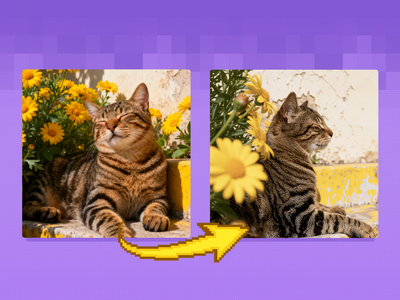
Step 3. Generate the set Qwen Image Edit 2509 renders each view while keeping the face and identity consistent across the whole batch, so the dataset reads as one person from every angle.
Step 4. Save for training Each image is saved with a matching caption file, ready to drop straight into a LoRA trainer. Ready for: Kohya · OneTrainer · AI Toolkit · any LoRA trainer
First time? Leave every setting as-is. The defaults (one reference image · the built-in view list · 4 steps) are the right starting point for almost everyone.
RECOMMENDED SETTINGS
Quick-start guide. Find the goal that matches yours and copy the settings.
Standard dataset (most people) Start here — One reference image, the default view list, 4 steps. The right starting point for almost everyone.
Want more variety in the set — Add lines to the prompt list. Each line becomes one image, so more lines build a bigger, more varied dataset. Spread them across angle, expression, lighting, and distance.
Identity drifts across the set — Use a sharper, front-facing reference. 2509 holds identity well, and a clean source gives it more to anchor to.
Want a specific look — Describe it in the view lines: outfit, setting, lighting. Keep the subject wording consistent line to line so the set stays coherent.
Name your dataset — Set the character name so the captions and filenames are tagged consistently for training.
Reproduce a set you liked — The seed is fixed by default. Keep it fixed to regenerate the same dataset.
View list: One view per line. Be specific about angle, framing, and lighting. A strong training set spreads across angles, expressions, and distances rather than repeating the same shot.
Captions: The workflow saves a .txt caption next to each image, which is what LoRA trainers read. Edit the captions before training if you want to tune how the subject is described.
USE CASES
🎭 Character LoRA Training Build a consistent dataset of an original character from a single concept image, then train a LoRA that can place that character in any scene.
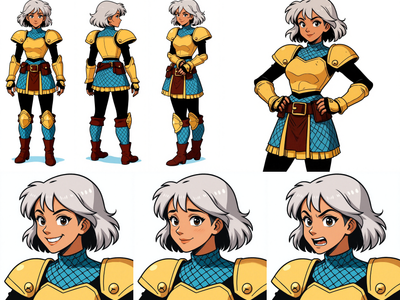
🧑🎨 Artists & Illustrators Generate reference sheets and turnarounds of a design from one drawing, so you can see it from every angle before you commit.
🎮 Game & Animation Lock a character's look across angles and lighting to feed a character or style LoRA for production.
📦 Product & Brand Generate a consistent set of a product or mascot from one shot to train a brand LoRA.
WHAT WORKS BEST / WHAT TO AVOID
✅ Works great
A sharp, front-facing reference image
A view list that spreads across angles and lighting
One clear subject per dataset
Consistent subject wording across lines
⚠️ May produce softer results
A blurry or low-resolution reference
A view list that repeats the same shot
Faces hidden by hair, hands, or props
Conflicting descriptions between lines
NEW TO COMFYUI?
Start with the free ComfyUI for Beginners Course on Floyo. Sixteen short videos take you from zero to running your own AI workflows. No setup headaches, no jargon, clear hands-on lessons. Watch the course, then run any workflow here in your browser.
👉 Watch the free ComfyUI for Beginners Course →
FAQ
What is a LoRA dataset and why do I need one? A LoRA dataset is a set of images of a single subject or style that you use to train a LoRA, a small add-on that teaches a base model a specific character, person, or look. The quality of the LoRA depends on the dataset, and the two things that matter most are consistency (the same subject throughout) and variety (different angles, expressions, and lighting). This workflow builds both from one reference image.
How many images should a LoRA dataset have? For a character LoRA, a set of roughly 20 to 50 varied images is a common starting point. Variety matters more than volume: a smaller set that covers many angles and expressions trains better than a large set of near-identical shots. Add or remove lines in the view list to size your dataset.
How does this keep the character consistent across every image? Qwen Image Edit 2509 is built to preserve facial identity and detail across edits, so each view is generated from the same reference rather than invented from scratch. That is what keeps the whole set reading as one person. A sharp, front-facing reference image gives the strongest consistency.
Do I need captions for LoRA training? Usually yes, and the workflow handles it. It saves a .txt caption file next to each generated image, which is the format LoRA trainers read. You can edit those captions before training to control how the subject and its features are described.
What can I train with the dataset this produces? Character and style LoRAs. Once the set is generated and captioned, you can load it into trainers like Kohya, OneTrainer, or AI Toolkit to train a LoRA for your character, then use that LoRA to place the subject in new scenes and poses.
Can I use the dataset and the LoRA commercially? Qwen Image Edit 2509 is released under the Apache 2.0 license, which permits commercial use, and images you generate on Floyo carry full commercial rights. Only build datasets from subjects you have the right to use. Do not train on a real person's likeness without their consent.
How to run Qwen Image Edit 2509 online? You can run Qwen Image Edit 2509 online through Floyo. No installation, no setup, no GPU to rent. Open the workflow in your browser, upload a reference image, set your view list, and hit run. Free to try.
WHY FLOYO?
Floyo is the only platform with team collaboration for ComfyUI in the browser. You run workflows with no install. You share run history, assets, and models across your team. You pay only when you generate. Floyo supports open-source and closed-source models.
A creator generates a dataset and likes the set. A teammate opens that exact run from shared history and keeps going. No file handoffs. No version confusion.
For studios and enterprise teams, Floyo adds private workspaces, pooled resources, and a team usage dashboard. Other ComfyUI cloud tools run for one person at a time. Floyo runs for the whole team, with transparent per-generation costs.
Ready to try it? Upload a reference image and run it. Edit the view list to shape your set.
Questions? Watch the free course or check the FAQ above.
Read more