Qwen 2509: Combine Multiple Images Into One Scene
2509
Image2Image
multi-image
product photography
Qwen
12
2.4k
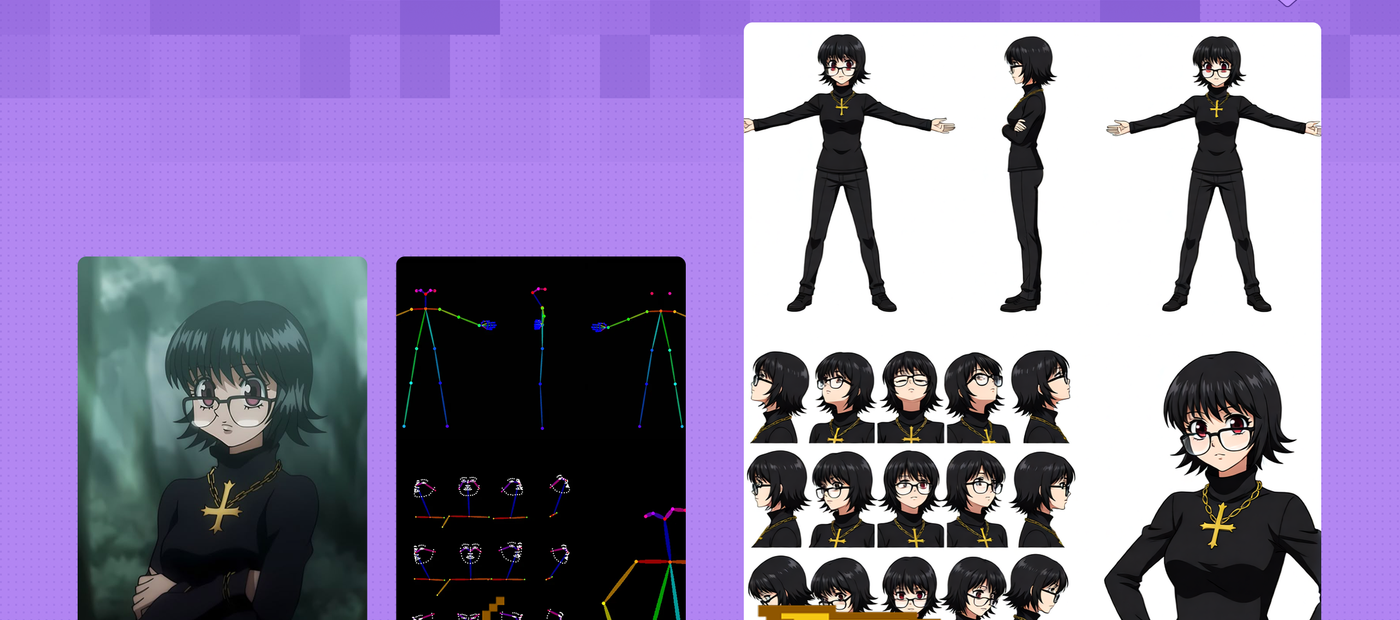
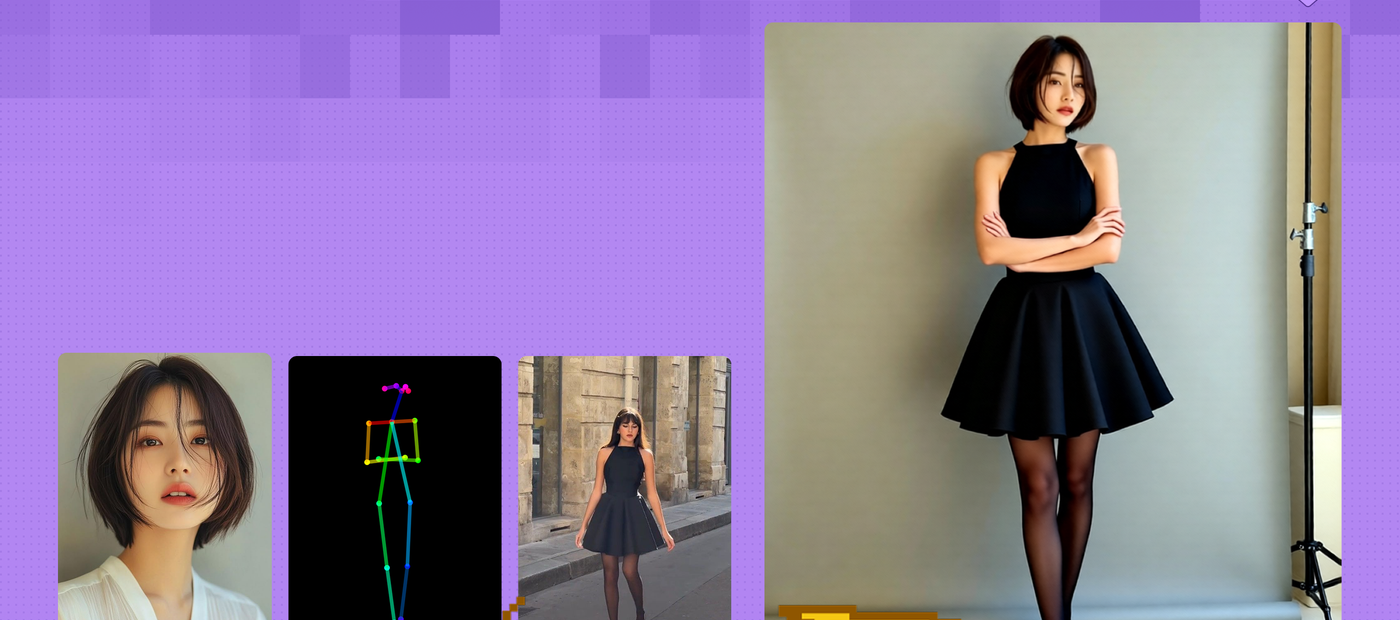
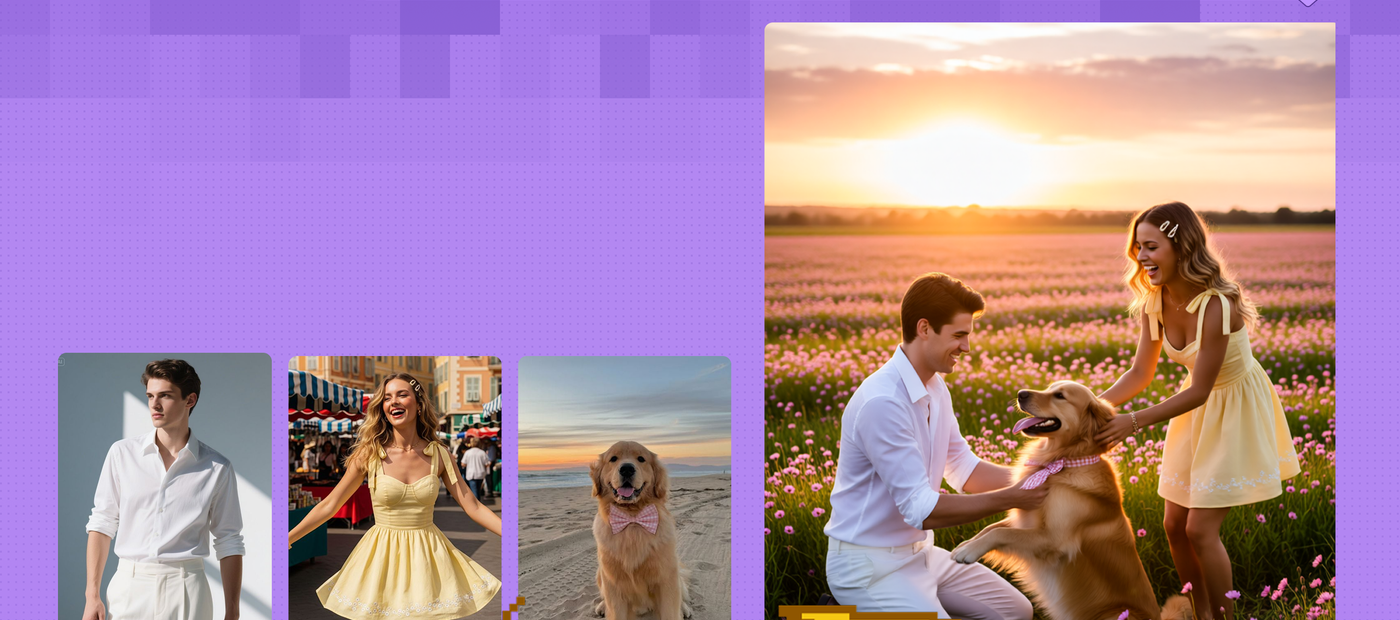

ABOUT THE WORKFLOW
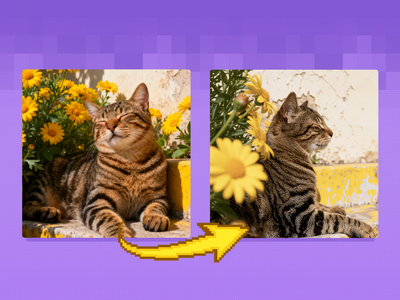
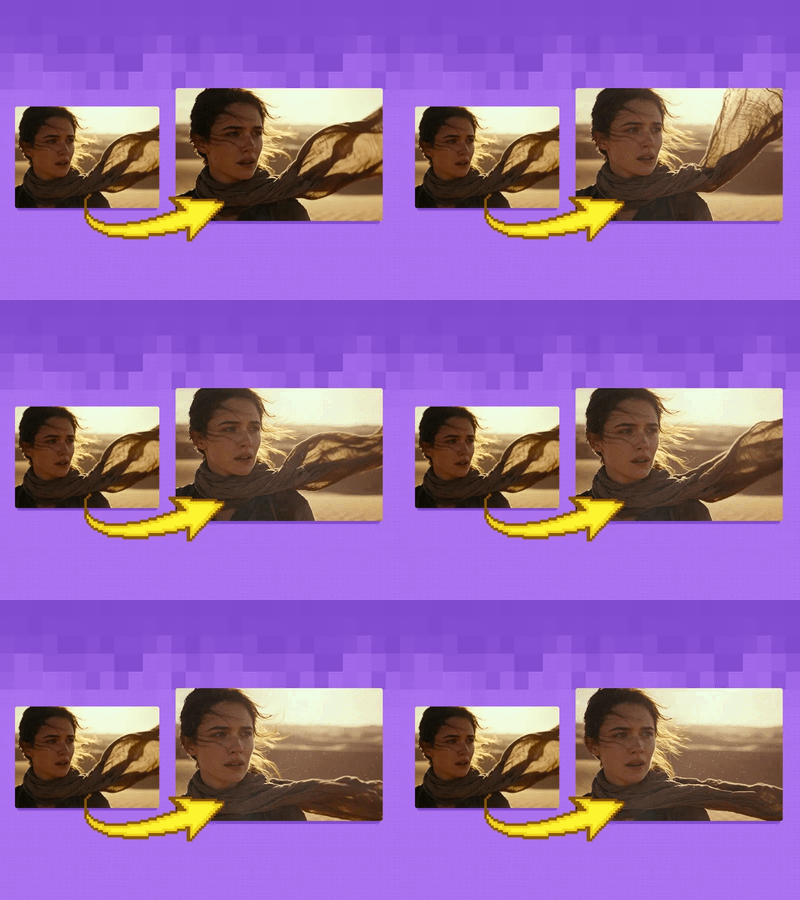
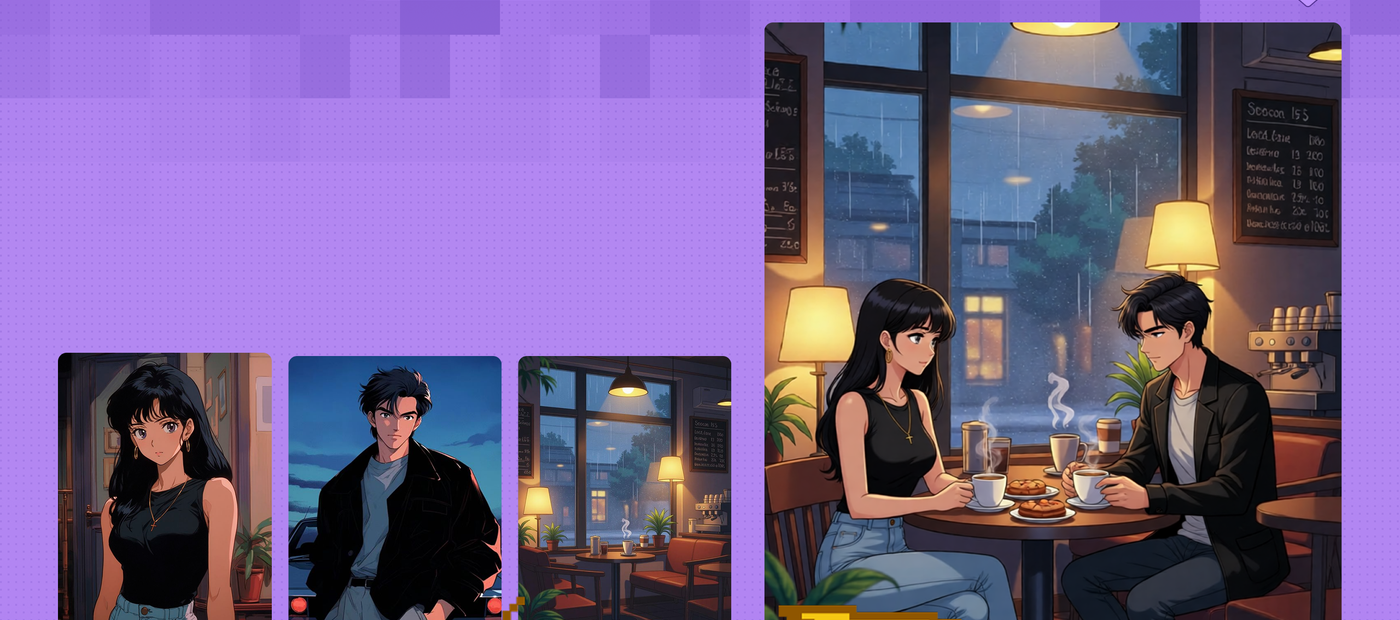
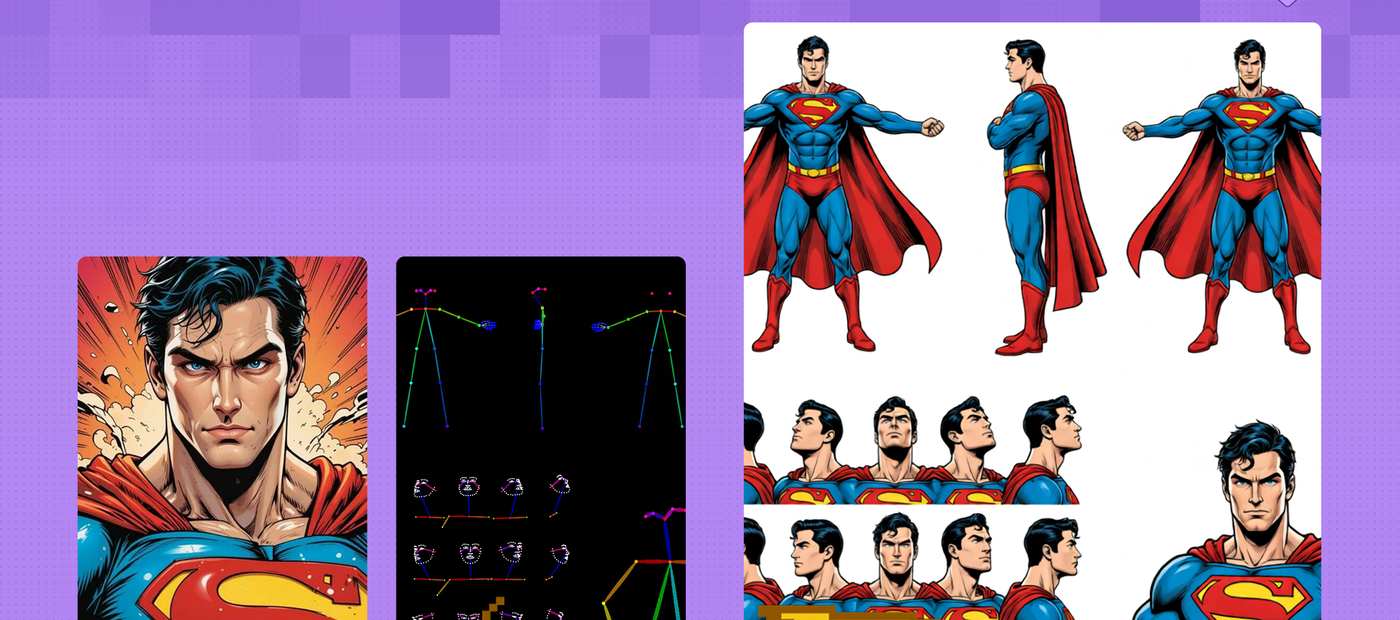
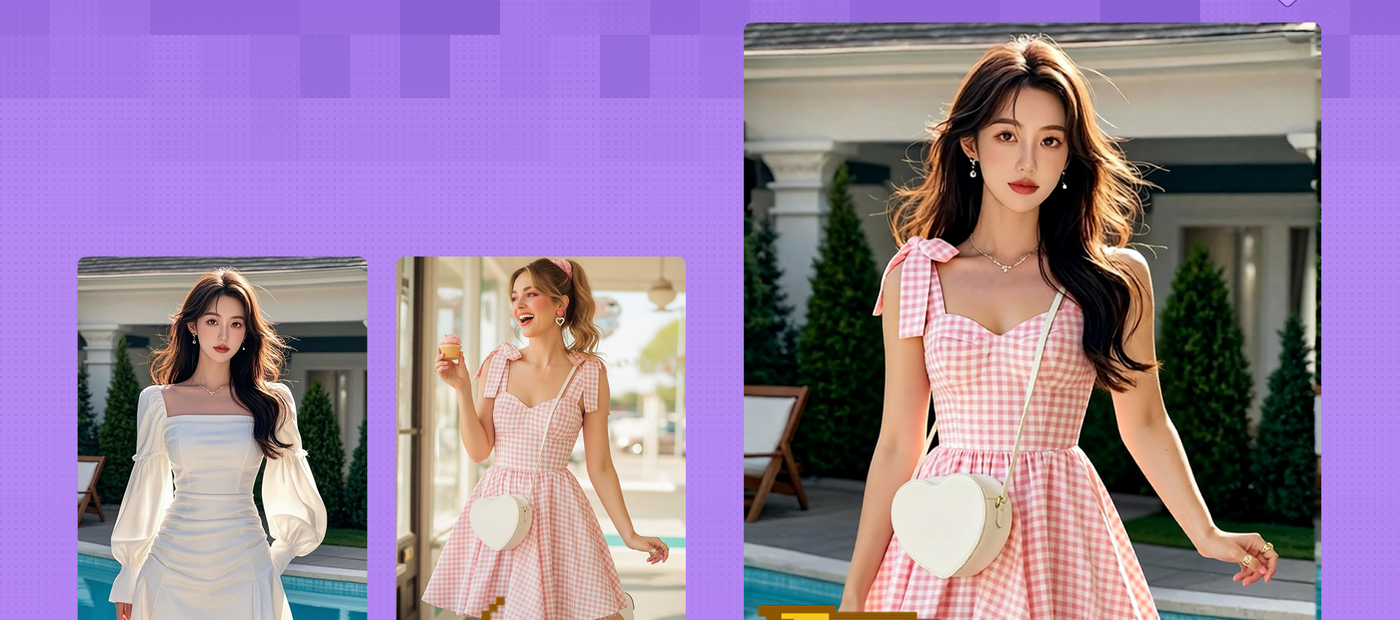
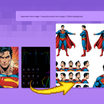
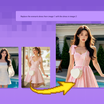
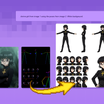
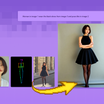
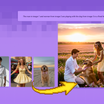
Multi-Image Editing Upload a model and product images, describe the scene, and the model combines them into one image. That's it.
Open source, so you only pay for generation time. All models pre-loaded on Floyo.
Model
Qwen Image Edit 2509. Alibaba's open-source editing model that merges up to three images into one coherent scene, referenced by number in your prompt.
HOW IT WORKS
Step 1. Upload your images A model or base image plus the products or elements you want to add, up to three images in total. Works great with: fashion · products · poses · person + scene
Step 2. Write your prompt by number Tell the model what comes from where, like "the girl in image 1 wears the goggles in image 2 and the cap in image 3."
Step 3. Hit run and download The model combines your images into one scene and shows the result next to the inputs. Preview it in the workflow, then download. Ready for: Photoshop · Figma · Canva · any editor
First time? Leave every setting as-is. The defaults (up to 3 images · 4 steps · 1MP · Lightning on) are the right starting point for almost everyone.
RECOMMENDED SETTINGS
Quick-start guide. Find the goal that matches yours and copy the settings.
Standard combine (most people) ★ Start here — Up to 3 images · 4 steps · CFG 1 · Lightning LoRA on. The right starting point for almost everyone.
Reference images by number — Say "image 1," "image 2," and "image 3" and what each one contributes. Clear roles give the cleanest merge.
Keep one thing per image — A model in one, a product in another. Crowded inputs are harder to combine cleanly.
Output follows image 1 — The result takes image 1's aspect ratio, so make your base image the first input.
Want higher fidelity — Use clean, high-resolution inputs. Sharp products composite more accurately than busy or low-res shots.
A source is drifting in the result — Keep the prompt short and specific about what to preserve from each image.
Reproduce a result you liked — Lock the seed to the number that produced it.
Prompt: Keep it short and role-based. Name what each image contributes and what the final scene should look like. "The woman in image 1 wears the jacket in image 2, standing on a city street" is the kind of instruction that lands.
USE CASES
👗 Fashion & Apparel Put an outfit or accessory from a product shot onto a model in one image.
🛍️ Product Mockups Place a product into a lifestyle scene or onto a person for listings and ads.
🤸 Pose & Composition Combine a subject with a pose reference or a second person in a single frame.
🎬 Scene Building Merge a person, an object, and a background into one coherent image.
WHAT WORKS BEST / WHAT TO AVOID
✅ Works great
Clean, high-resolution input images
One clear element per image
Short, role-based prompts that name each image
Up to three images
⚠️ May produce softer results
More than three inputs
Cluttered images with many elements
Vague prompts without numbered roles
Low-resolution or busy product shots
LEARN
📹 Videos
ComfyUI 101 Free Course ft. Sebastian Kamph
Floyo 101 for Team Collaboration
✨ Quick links
FAQ
What is Qwen Image Edit 2509? Qwen Image Edit 2509 is an open-source image editing model from Alibaba's Qwen team, released in September 2025, where the "2509" marks the year and month. Its headline feature is multi-image editing: it combines up to three input images into one coherent scene. It is built on the 20B Qwen-Image model, with a Qwen2.5-VL text encoder, and is released under the Apache 2.0 license.
How do I combine multiple images into one scene? Upload up to three images, then reference them by number in your prompt. Tell the model what each image contributes, for example "the woman in image 1 wears the dress in image 2 on the beach in image 3." The model was trained by image concatenation to reason across several images at once, so numbered roles in the prompt are what drive the merge.
How many images can I combine at once? Up to three. Three is the practical limit before quality starts to dip, so for the cleanest results, give each image one clear element, like a model in one, a product in another, and a background in the third.
What is this workflow good for? It is built for fashion, product, and scene composition. Common uses include putting an outfit or accessory onto a model, placing a product into a lifestyle scene, combining a subject with a pose or a second person, and merging a person, object, and background into one image. That makes it a fit for e-commerce, marketing, and mockups.
How is this different from the Qwen face swap workflow? This workflow composites several separate images into one new scene, while a face swap replaces a face on a single target image. Use this one when you want to build a combined image from a model plus products or a background, and use the face swap workflow when you only need to change whose face appears in one picture.
Can I use the results commercially? Yes. Qwen Image Edit 2509 is released under the Apache 2.0 license, and images you generate on Floyo carry full commercial rights. You are responsible for having the right to use the images you upload, including any people's likenesses and any brand or product imagery.
How to run Qwen Image Edit 2509 online? You can run Qwen Image Edit 2509 online through Floyo. No installation, no setup, no GPU to rent. Open the workflow in your browser, upload your images, write a prompt, and hit run. Free to try.
WHY FLOYO?
Floyo is the only platform with team collaboration for ComfyUI in the browser. You run workflows with no install. You share run history, assets, and models across your team. You pay only when you generate. Floyo supports open-source and closed-source models.
A designer runs a combine and likes the result. A teammate opens that exact run from shared history and keeps going. No file handoffs. No version confusion.
For studios and enterprise teams, Floyo adds private workspaces, pooled resources, and a team usage dashboard. Other ComfyUI cloud tools run for one person at a time. Floyo runs for the whole team, with transparent per-generation costs.
Ready to try it? Upload your images and run it. Reference them by number in your prompt and the settings are already set.
Questions? Watch the free course or check the FAQ above.
Read more
1
Reply