Qwen Image Edit 2509 · Change Camera Angle
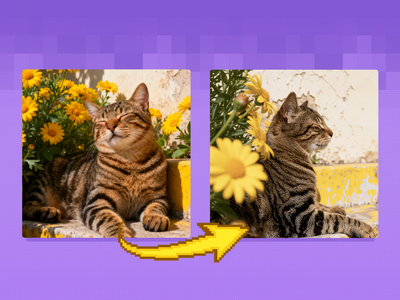
Re-render any subject from a new camera angle with Qwen Image Edit 2509 and a Multi-Angle LoRA. Upload one image, name the view, and hit run. Apache 2.0.
Image
Image2Image
Multiple Angles
novel view
Qwen
Qwen Image Edit 2509
6
4.1k




Nodes & Models
LoadImage
UNETLoader
qwen_image_edit_2509_fp8_e4m3fn.safetensors
ImageScaleToTotalPixels
CLIPLoader
qwen_2.5_vl_7b_fp8_scaled.safetensors
TextEncodeQwenImageEditPlus
PrimitiveInt
VAELoader
qwen_image_vae.safetensors
KSampler
LoraLoaderModelOnly
Qwen-Image-Edit-2509-Lightning-4steps-V1.0-bf16.safetensors
multi-angle.safetensors
QwenEdit\Qwen-Image-Edit-2509-Light_restoration.safetensors
VAEDecode
LayerUtility: PurgeVRAM
ModelSamplingAuraFlow
EmptySD3LatentImage
CFGNorm
SaveImage
PreviewImage
ABOUT THE WORKFLOW
See Your Subject From a New Angle
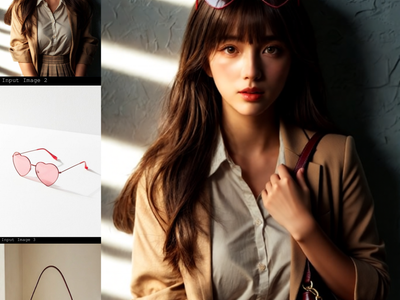
Upload an image and describe the camera angle you want. A Multi-Angle LoRA steers the model to re-render the same subject from that new view, and a Lightning LoRA keeps sampling down to six passes. The result comes back at about one megapixel.
Model
Qwen Image Edit 2509 by the Qwen team at Alibaba. The September 2025 update to the 20 billion parameter Qwen Image Edit model with a Qwen 2.5 VL 7B encoder. Strong at identity preservation across poses and styles.
Multi-Angle LoRA. A community adapter that teaches the model to re-render a subject from a specified camera direction.
Lightning 4-step LoRA. A speed adapter that compresses sampling to run in six passes.
HOW IT WORKS
Step 1. Upload your image
The subject you want to see from a different angle.
Works great with: portraits · products · characters · vehicles
Step 2. Describe the angle
Start the prompt with "image 1 ," then name the view. "image 1 ,Turn the camera to a close-up view, woman faces the camera." The "image 1 ," prefix is required or the model does not bind the instruction to your picture.
Step 3. Hit run and download
The image is scaled to one megapixel, passed through the two LoRAs, and re-rendered in six passes. The result and a side-by-side comparison are shown on screen. The result is saved under ComfyUI.
Ready for: Photoshop · Figma · Canva · any editor
First time? Leave every setting as-is. The defaults (1 megapixel · 6 steps · CFG 1 · fixed seed) are the right starting point for almost everyone.
RECOMMENDED SETTINGS
Quick-start guide. Find the goal that matches yours and copy the settings.
Standard angle change (most people) — 1 megapixel · 6 steps · CFG 1 · fixed seed. The right starting point for almost everyone.
The result does not look like the original — Try a different seed before changing anything else. The same picture, prompt, and seed give you the same result.
Extreme angle changes lose detail — A 180-degree turn forces the model to invent what it cannot see. Keep the angle shift moderate, like front to three-quarter or eye level to bird's eye, for the strongest identity hold.
Want a sharper result — Raise the step count from 6 toward 8. The Lightning LoRA is tuned for 4 steps, so 6 to 8 is the useful range before returns flatten.
Want to see a different take — Change the seed number. The default runs on fixed.
The prompt is not binding to the image — Check that it starts with "image 1 ," (note the comma and space). Without that prefix the model reads the instruction as a standalone generation rather than an edit of your picture.
A restoration LoRA is available — A muted restoration adapter sits inside the group node. Enable it if the angle change softens fine detail, especially on skin and fabric.
Prompt: Start with "image 1 ," then name the camera move or the target view. "image 1 ,Bird's eye view looking straight down" or "image 1 ,Side profile, subject facing left." Be literal about direction. Vague instructions like "a different angle" return unpredictable results.
LEARN
📹 Videos
ComfyUI 101 Free Course ft. Sebastian Kamph
Floyo 101 for Team Collaboration
✨ Quick links
USE CASES
🛍️ Product Multi-View
Generate alternate angles of a product from a single photo for listings, catalogues, and 360-degree views.
📸 Portrait Reframing
Shift a headshot from front-on to three-quarter or profile without booking another shoot.
🎨 Concept and Character Turnarounds
Produce a turnaround sheet from one piece of character art rather than drawing each angle by hand.
🎬 Previz Camera Planning
Test how a subject looks from a planned camera position before committing to the shot on set.
WHAT WORKS BEST / WHAT TO AVOID
✅ Works great
Moderate angle changes: front to three-quarter, eye level to bird's eye
Prompts that start with "image 1 ," and name a specific direction
Clean, well-lit source images with one readable subject
Products and characters with clear, symmetrical shapes
⚠️ May produce softer results
180-degree turns where the model must invent the unseen side
Source images with heavy occlusion or clutter
Vague angle instructions like "a different view"
Forgetting the "image 1 ," prefix in the prompt
FAQ
What is Qwen Image Edit 2509?
Qwen Image Edit 2509 is the September 2025 update to Alibaba's 20 billion parameter Qwen Image Edit model. It added multi-image editing and improved identity preservation across poses and styles. This workflow stacks a community Multi-Angle LoRA on top for camera control and a Lightning speed LoRA for fast sampling.
Why does the prompt have to start with "image 1 ,"?
The model uses that prefix to bind the instruction to the uploaded image. Without it, the text is treated as a standalone generation prompt rather than an edit of your picture. Include the comma and the space after the number.
How far can the angle change go?
Moderate shifts produce the strongest results: front to three-quarter, eye level to overhead, straight-on to side profile. Extreme changes like a full 180-degree turn force the model to invent detail it cannot see, and identity often drifts. If you need the back of a subject, consider JoyAI Image Edit, which is built for spatial reasoning.
What does the Lightning LoRA do?
It compresses the sampling schedule so the edit runs in six passes instead of the full 30 or more the base model normally takes. The trade-off is minor: some fine texture is lost, which the muted restoration LoRA inside the group can recover.
Is Qwen Image Edit 2509 free for commercial use?
Yes. It is released under Apache 2.0, which allows commercial use, modification, and self-hosted deployment with no revenue threshold and no territory restrictions. The community LoRAs loaded on this workflow have their own terms, so check those separately.
How does this compare to JoyAI Image Edit for angle changes?
Both handle camera angle changes, but they approach the problem differently. Qwen Image Edit 2509 with the Multi-Angle LoRA preserves identity more tightly on moderate shifts and runs faster at six steps. JoyAI Image Edit has stronger spatial reasoning and handles more extreme rotations, but needs 40 steps. Try this workflow first for portraits and products, and JoyAI for subjects that need a larger rotation.
How to run Qwen Image Edit 2509 camera angle online?
You can run Qwen Image Edit 2509 camera angle online through Floyo. No installation, no setup, no model downloads. Open the workflow in your browser, upload a picture, name the angle, and hit run. Free to try.
WHY FLOYO?
Floyo is the only platform with team collaboration for ComfyUI in the browser. You run workflows with no install. You share run history, assets, and models across your team. You pay only when you generate. Floyo supports open-source and closed-source models.
A designer runs an edit and likes the result. A teammate opens that exact run from shared history and keeps going. No file handoffs. No version confusion.
For studios and enterprise teams, Floyo adds private workspaces, pooled resources, and a team usage dashboard. Other ComfyUI cloud tools run for one person at a time. Floyo runs for the whole team, with transparent per-generation costs.
Ready to try it?
Upload a picture, name the camera angle, and run it. The LoRAs and settings are already loaded.
Questions? Watch the free course or check the FAQ above.
Read more