

PixVerse C1 - Image to Video
Animate a reference image into cinematic video with PixVerse C1. Pick your duration up to 15 seconds, resolution up to 1080p, and optional native audio.
animation
concept art
film production
image to video
pixverse
pixverse c1
Video
1
170



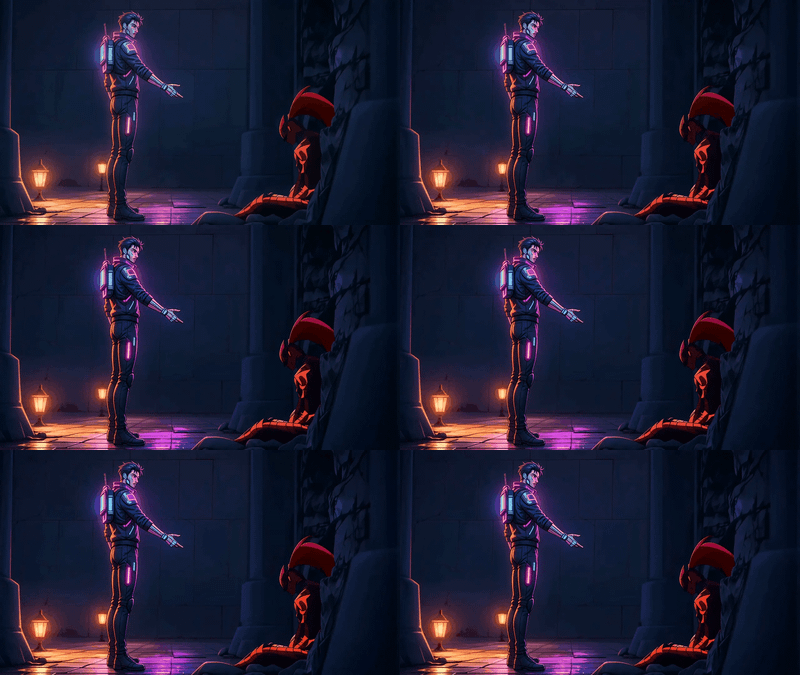
PixVerse C1 image-to-video. Upload a still, describe what happens, get a film-grade clip back.
C1 is PixVerse's newest video model, built for film production. It holds subject identity across the full clip, handles complex motion without warping, and can generate native audio in the same pass if you want it.
Pick your duration (1 to 15 seconds), set a resolution (360p to 1080p), hit run.
How do you use PixVerse C1 for image-to-video?
Upload a starting image, describe the motion in the prompt, pick resolution and duration, and run. PixVerse C1 animates the reference frame while holding subject identity across the clip. Turn on the audio switch if you want native sound generated in the same pass.
Image Your starting frame and visual anchor. Clean composition, clear subject, and good lighting give you noticeably better results. The model uses this as both the first frame and the identity reference for everything that follows.
Prompt Describe what happens in the video. Be specific about camera and motion. "Slow tracking shot, camera orbits right around the subject" lands better than "make it move." Up to 2,048 characters, so there's room to name the shot type, the action, and the mood.
Resolution Want a fast draft to test an idea? 360p or 540p finishes quickest. Need a polished clip to deliver? Go 720p or 1080p. Default is 720p, which is the sweet spot between clarity and render time for most shots.
Duration Short clips sharpen the output. Try 3 to 5 seconds while you're ideating, then extend the winner to 10 or 15 seconds once you know the prompt works. Default is 5 seconds.
Generate audio switch On: the model produces synchronized ambient sound, music, and light dialogue in the same pass as the video. Off: video only, which runs faster. The tradeoff: audio adds render time but saves you a separate sound step later.
Seed Set a fixed seed to reproduce the same clip with the same prompt and image. Keep it random to explore variations.
What is PixVerse C1 image-to-video good for?
Animating still images into film-grade clips where subject identity and motion quality matter. Product shots with camera moves, portraits brought to life, concept art turned into short sequences, storyboard frames extended into continuous video. Strongest when your starting image is clean and your prompt names the camera move.
Product photography that needs motion: animate the pack shot, orbit around the product, add atmosphere. Concept art for pitches: turn a single frame into a fifteen-second moving reference. Portraits and character shots: natural movement with identity holding across the clip.
C1 handles physically demanding motion better than prior PixVerse generations. Close-combat choreography, object interactions, high-velocity action. If you've had earlier models warp subjects halfway through a clip, this is the one to try next.
When to reach for something else: for text-to-video with no reference frame, use the C1 text-to-video workflow. For scenes that need multiple characters or objects composited from separate references, use C1 reference-to-video.
FAQ
What resolution should I use with PixVerse C1 image-to-video? 720p is the default and the balance point. Use 360p or 540p when you're iterating on prompts and want fast turnarounds. Go 1080p for final delivery. Higher resolutions take longer and cost more, so don't commit until the motion in a lower-res draft is what you want.
How long can PixVerse C1 videos be? 1 to 15 seconds per clip, with a 5-second default. Keep it short (3 to 5s) while testing prompts. Once the motion is right, rerun with the same seed at 10 or 15 seconds to get the full clip. Longer durations cost more, so dial in the short version first.
Does PixVerse C1 generate audio with the video? Yes, when you toggle the generate audio switch on. The model produces ambient sound, background music, and light dialogue in the same pass as the video. Turn it off for video-only output and faster renders. Audio mode saves you a separate sound design step when prototyping.
What makes a good prompt for PixVerse C1 image-to-video? Name the camera move, the subject's action, and the mood. "Slow dolly-in, tracking a warrior walking through snow, overcast light" works better than "woman walking." C1 supports over 20 camera techniques via prompt, so specifying pan, orbit, push-in, or crane gives you real shot control.
How to run PixVerse C1 image-to-video online? You can run PixVerse C1 image-to-video online through Floyo. No installation, no setup. Open the workflow in your browser, upload your reference image, write your prompt, and hit run. Free to try.
Read more



%20(2)_1774290976171.webp?width=400&height=300&quality=80&resize=contain&format=origin)

