Pika H3 Flex for Reference to Video
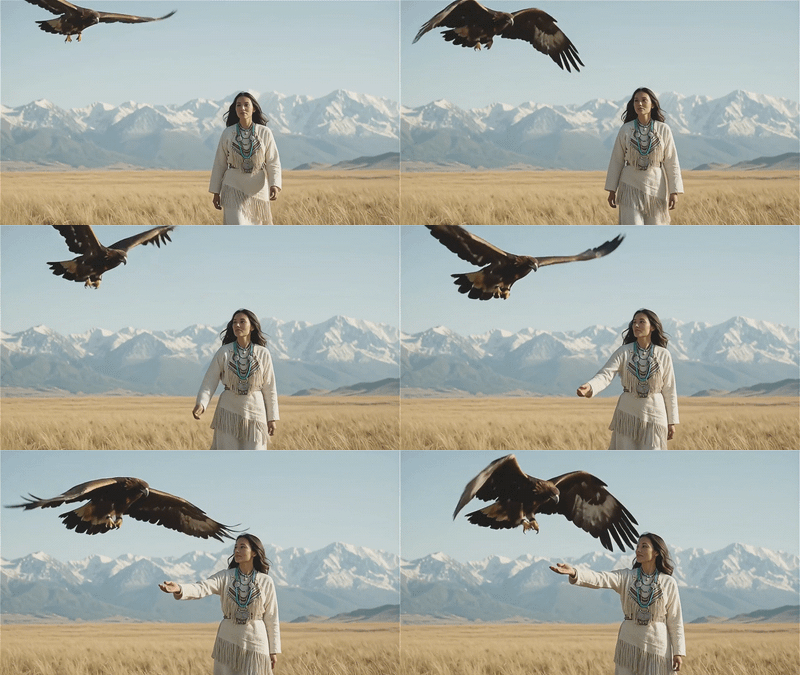
Upload reference images, describe the scene, and Pika H3 Flex generates a video with synced stereo audio in six sampling steps. Hit run.
Pika H3 Flex
Reference to Video
Video
163

Nodes & Models
ResolutionSelector
VAELoader
minimax_h3_video_vae_int8_convrot.safetensors
minimax_h3_audio_vae_fp32.safetensors
KSamplerSelect
UNETLoader
minimax_h3_ref2va_pruned_int8_convrot.safetensors
CLIPLoader
qwen3vl_32b_minimax_h3_nvfp4_awq.safetensors
RandomNoise
PrimitiveFloat
PrimitiveStringMultiline
ManualSigmas
LoadImage
LoadAudio
LoraLoaderModelOnly
pika_h3_flex_ref2va_v1_bf16-pike-h3-flex-for-referen-Drr9II3U.safetensors
ComfyMathExpression
MiniMaxH3ReferenceToVideo
BasicGuider
SamplerCustomAdvanced
VAEDecode
VAEDecodeAudio
CreateVideo
SaveVideo
VHS_LoadVideo
MarkdownNote
ABOUT THE WORKFLOW
Generate video from reference images
Upload one or more reference images of your subjects, write a prompt describing the scene and camera movement, and get back a video with synced stereo audio. Add a reference video or audio clip to guide the motion or soundtrack. The output saves as a single video file.
Model
Pika H3 Flex by Pika, built on MiniMax H3 (Hailuo 3.0, 33B parameters). A six-step distilled video model strong at multi-reference scene composition with synced audio generation. Uses the Ref2VA adapter for reference-to-video with audio.
HOW IT WORKS
Step 1. Upload your reference image
The main subject photo the model will follow in the video. A character, a product, a location, an object.
Works great with: characters · products · environments · props
Step 2. Add a second reference image (optional)
A second subject for the model to composite into the scene alongside the first. Enable it before uploading.
Step 3. Add a reference video (optional)
A short clip to guide the motion style. Enable it before uploading. The model picks up camera movement and pacing from the reference.
Step 4. Add reference audio (optional)
An audio clip to guide the soundtrack. Enable it before uploading. The model uses it as a tone and rhythm reference for the generated audio.
Step 5. Write the prompt
Describe the scene, camera movement, and sound you want. Detailed prompts with subject definitions and shot-by-shot breakdowns produce the best results.
Example: “A slow dolly push toward a cabin at dusk, fireflies in the foreground, crickets and soft wind in the audio”
Step 6. Hit run and download
Pika H3 Flex generates video frames and a stereo soundtrack in one pass. The result saves as a single video file with audio.
Ready for: Premiere Pro · DaVinci Resolve · After Effects · any NLE
First time? Leave every setting as-is. The defaults (5 seconds · 16:9 · 0.98 MP · random seed) are the right starting point for almost everyone.
RECOMMENDED SETTINGS
Duration (Float node 132): min 5, max 15 (seconds)
Megapixels (Resolution Selector node 115): min 0.3, max 1.5
LoRA strength (node 145): min 0.5, max 1.5
Length (node 136): min 124, max 362 (auto-calculated from duration, but add as a safety net)
Width (node 136): min 256, max 1920
Height (node 136): min 256, max 1920
Lock/hide: ManualSigmas, KSamplerSelect, sampler config — these must stay at their current values
LEARN
📹 Videos
ComfyUI 101 Free Course ft. Sebastian Kamph
Floyo 101 for Team Collaboration
✨ Quick links
USE CASES
🎬 Short Film and Narrative Previs
Feed in character and location references, write a shot-by-shot prompt, and get a previs clip with synced audio. Block out scenes before committing to a full production shoot.
🛍️ Product Videos with Atmosphere
Upload a product photo and a setting reference. The model composites the product into the scene and adds ambient sound, giving you a short promo clip from two still images.
🎮 Game and VFX Concept Motion
Turn concept art into moving footage. Upload an environment painting or character render, describe the camera move, and get a clip you can drop into a mood reel or pitch deck.
🎵 Music and Audio-Driven Clips
Add an audio reference to guide the soundtrack. The model generates video with sound that follows the tone and rhythm of your clip. Useful for music videos, social content, and mood pieces.
WHAT WORKS BEST / WHAT TO AVOID
✅ Works great
Clear, well-lit reference images with a single subject per image
Detailed prompts with subject definitions and shot descriptions
Scenes with deliberate camera movement (push-ins, dollies, pans)
Reference videos to guide motion pacing
⚠️ May produce softer results
Busy reference images with multiple overlapping subjects
Vague prompts like “make a cool video”
Very fast or complex camera moves in a short duration
Distant or small subjects in frame (fine detail softens at 768p)
FAQ
What is Pika H3 Flex?
Pika H3 Flex is an open-weights video model released by Pika on October 29, 2026. It is built on MiniMax H3 (also known as Hailuo 3.0), a 33B parameter omni-modal video model. Pika post-trained MiniMax H3 on its own audio-video dataset, distilled it from 50 sampling steps down to six, and refined it with reward learning and preference optimization. The result is a model that generates video with synced stereo audio in six steps, and ships as two LoRA adapters you load on top of the base MiniMax H3 model.
How does reference-to-video generation work?
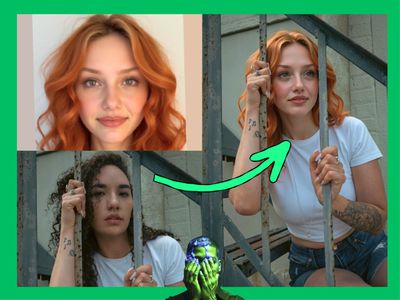
You upload one or more reference images of your subjects, then write a prompt describing the scene, camera movement, and sound. The model reads the visual features of your references and composites them into the generated video, following your prompt for motion and audio. You can also add reference video clips to guide the camera movement and reference audio to guide the soundtrack. This workflow uses the Ref2VA adapter, which supports up to three reference images, two reference videos, and three audio clips.
Does Pika H3 Flex generate audio with the video?
Yes. The model generates video frames and a stereo audio track in a single pass. The audio is synced to the visuals and saves as part of the output video file. You do not need to add sound separately. The generated audio follows your prompt descriptions and any audio reference you provide.
What resolution and frame rate does the output use?
The output is 768p at 24 fps with 32 kHz stereo audio. The default aspect ratio is 16:9 widescreen. Duration defaults to 5 seconds and can go up to about 15 seconds per clip. 768p is the native ceiling for this workflow.
Can I use multiple reference images in one generation?
Yes. This workflow supports up to three reference images for different subjects. For example, you can upload a character photo as reference image 1 and a location photo as reference image 2, then prompt the model to composite both into a single scene. Each reference image should show one clear subject.
Is Pika H3 Flex open source, and can I use the output commercially?
Pika H3 Flex ships as open-weights LoRA adapters under the MiniMax H3 Community License. The base model (MiniMax H3) uses the same license, which allows commercial use for organizations under $20M in annual revenue with prominent attribution. The Pika LoRA adapters carry their own license on Hugging Face. Review both licenses before using outputs in commercial work, and note that some territorial restrictions may apply to self-hosted deployments.
How is this different from image-to-video or text-to-video workflows?
Image-to-video takes a single start frame and animates it forward. Text-to-video creates everything from a text prompt. Reference-to-video is different: it takes one or more reference images as subject anchors and composites them into a new scene described by your prompt, with optional motion and audio references. The references define what the subjects look like, and the prompt defines what happens.
How to run Pika H3 Flex reference to video online?
You can run Pika H3 Flex reference to video online through Floyo. No installation, no setup, no API key to wire up. Open the workflow in your browser, upload your reference images, write a prompt, and hit run. Free to try.
WHY FLOYO?
Floyo is the only platform with team collaboration for ComfyUI in the browser. You run workflows with no install. You share run history, assets, and models across your team. You pay only when you generate. Floyo supports open-source and closed-source models.
A designer runs an edit and likes the result. A teammate opens that exact run from shared history and keeps going. No file handoffs. No version confusion.
For studios and enterprise teams, Floyo adds private workspaces, pooled resources, and a team usage dashboard. Other ComfyUI cloud tools run for one person at a time. Floyo runs for the whole team, with transparent per-generation costs.
Ready to try it?
Upload a reference image, describe the scene, and run it. The settings are already set.
Questions? Watch the free course or check the FAQ above.
Read more