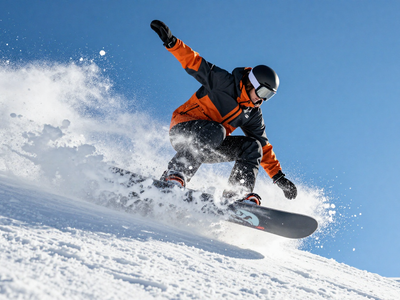
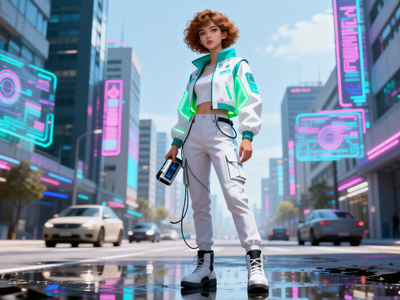
MOSS Image for Text to Image Native 4MP Macro Img
Generate high-resolution images up to 4 megapixels from a text prompt using MOSS-Image SFT, with optional prompt enhancement and skip-layer guidance. Type your description and hit run.
Image
MacroPhotography
MOSS Image
Text to Image
65
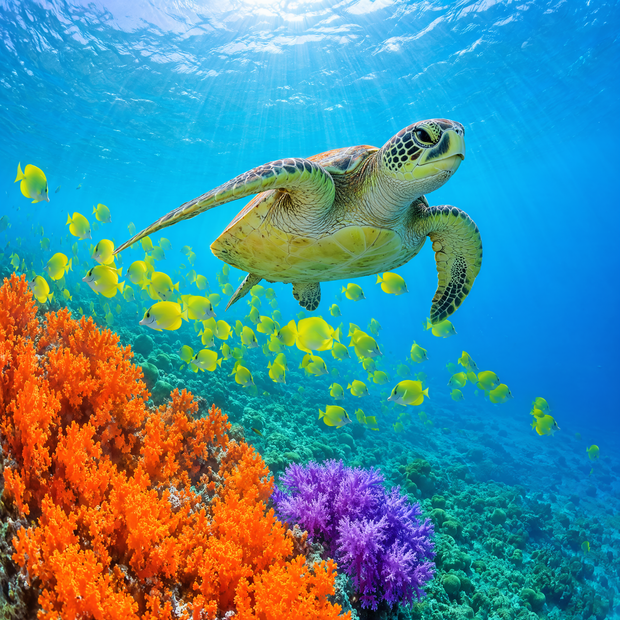
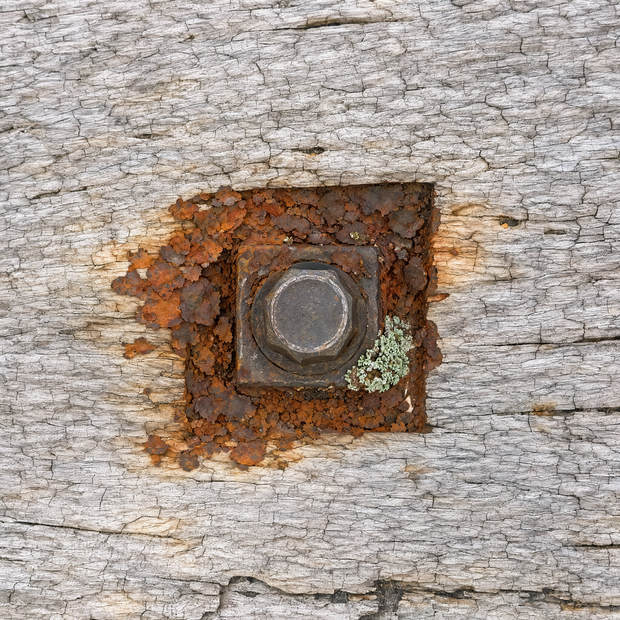
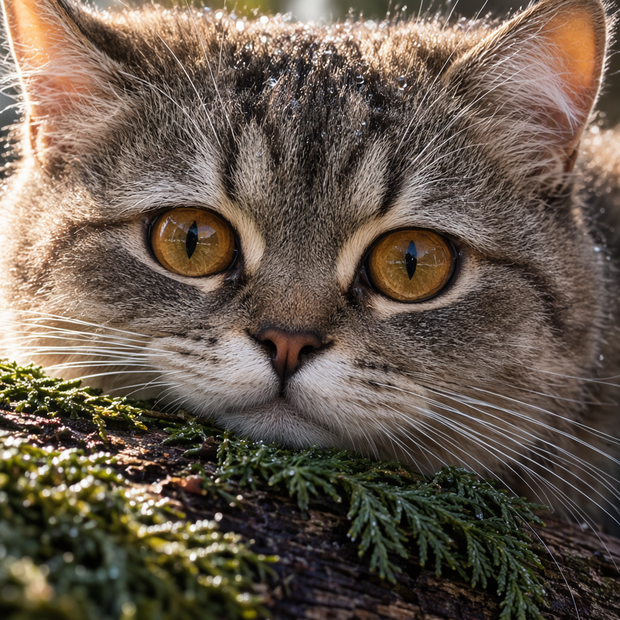



Nodes & Models
PrimitiveStringMultiline
UNETLoader
moss_image_sft_int8_convrot.safetensors
CLIPLoader
qwen3.5_9b_w4a8_gptq.safetensors
VAELoader
flux2-vae_small.safetensors
ResolutionSelector
SkipLayerGuidanceDiTSimple
CLIPTextEncode
EmptyFlux2LatentImage
ComfySwitchNode
ScaleROPE
PreviewAny
KSampler
VAEDecode
SaveImage
MarkdownNote
TextGenerate
ABOUT THE WORKFLOW
Generate 4-megapixel images from text
Type what you want to see, pick a resolution, and get a high-resolution image back. The workflow handles prompt encoding, sampling, and decoding in one pass. An optional prompt enhancer rewrites short descriptions into detailed captions using the built-in language model, and a skip-layer guidance switch sharpens fine detail.
Model
MOSS-Image SFT by OpenMOSS. A 5-billion-parameter diffusion transformer built for legible text rendering in English and Chinese, layout-controlled composition, and native high-resolution generation up to 4 megapixels. Apache-2.0 open weights.
HOW IT WORKS
Step 1. Write your prompt
Describe the image you want. Natural language works best, but tag lists and detailed scene breakdowns also work. The model accepts prompts up to 4,000 tokens.
Works great with: scene descriptions · character portraits · product shots
Step 2. Set the negative prompt (optional)
A default negative prompt is already filled in. Edit it to exclude specific qualities you do not want, or leave it as-is.
Step 3. Choose your resolution
Pick an aspect ratio (square, landscape, or portrait) and a megapixel count. Default is 1:1 square at 4 megapixels (2048x2048).
Step 4. Turn on the prompt enhancer (optional)
Flip the prompt enhancer switch to have the built-in Qwen 3.5 language model rewrite your short prompt into a detailed, model-optimized caption. Leave it off if you already wrote a long, specific prompt.
Step 5. Turn on skip-layer guidance (optional)
Flip the SLG switch for sharper details. This adds generation time but improves fine textures and edges.
Step 6. Hit run
The workflow samples 30 steps, decodes the latent, and saves the image. One image per run.
Ready for: Photoshop · Figma · Canva
First time? Leave every setting as-is. The defaults are the right starting point for almost everyone.
RECOMMENDED SETTINGS
Defaults
Aspect ratio: (default: 1:1 Square). Match it to your subject.
Megapixels: (default: 4). 1 to 2 recommended. 4 is the max.
Steps: (default: 30). 50+ for best quality. 20 to 50 useful range.
CFG: (default: 2.5). Official range 3 to 6. Raise for short prompts.
Seed: (default: fixed). Change for variety, keep to reproduce.
Limits
Dimensions must be multiples of 16 or the run fails.
4 megapixels max. Higher causes artifacts or out of memory.
ScaleROPE is tuned for 4MP. Lower megapixels needs scale_x/y closer to 1.0.
CFG below 2 loses adherence. Above 6 oversaturates.
Better results
Turn on the prompt enhancer switch for richer captions.
Turn on skip-layer guidance for sharper detail.
Try 50 steps and CFG 3 if output looks soft.
LEARN
📹 Videos
ComfyUI 101 Free Course ft. Sebastian Kamph
Floyo 101 for Team Collaboration
✨ Quick links
USE CASES
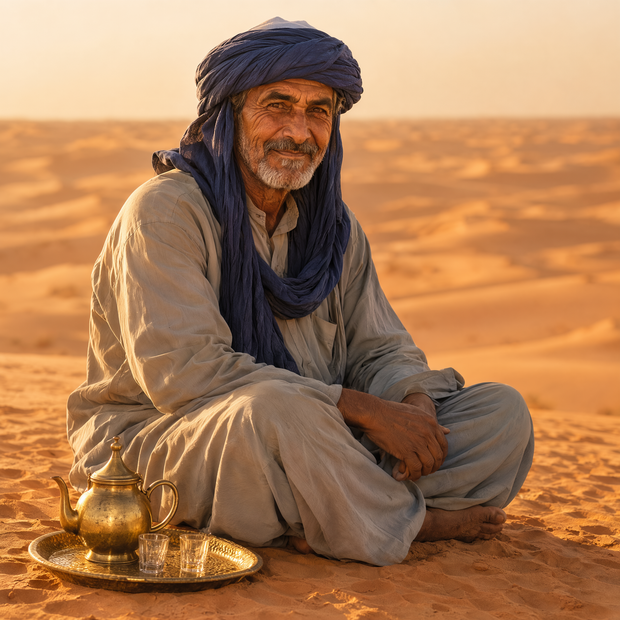
📸 Portrait and character art
Describe a person, set a mood and lighting direction, and get a detailed portrait with natural skin, fabric, and hair.
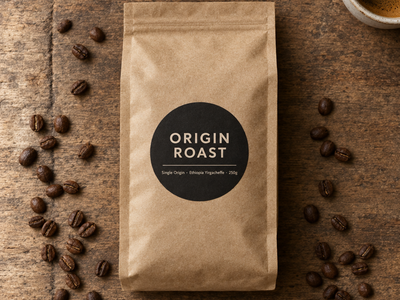
🏷️ Signage and mockups with readable text
Put product names, titles, or short phrases directly in the image. MOSS-Image renders English and Chinese text legibly without a separate inpainting step.
🌆 Environment and scene design
Build detailed landscapes, interiors, and cityscapes from a single prompt. The 4-megapixel output holds enough detail for close crops and wide compositions.
🎨 Concept art and moodboards
Explore visual directions fast. Write a loose description, turn on the prompt enhancer, and let the language model fill in composition and lighting choices.
📦 Product visualization
Describe a product on a styled surface with specific lighting. The high resolution and text rendering make this useful for packaging concepts and social media assets.
WHAT WORKS BEST / WHAT TO AVOID
✅ Works great
Detailed scene descriptions with lighting, materials, and composition
Single-subject portraits and character work
Short, large English or Chinese text placed in the image
Square and standard aspect ratios at 1 to 4 megapixels
⚠️ May produce softer results
Complex multi-object scenes without clear spatial cues in the prompt
Very small or dense text (keep text short and positioned prominently)
Resolutions above 4 megapixels (may produce artifacts or run out of memory)
Vague one-line prompts with no scene detail (turn on the prompt enhancer to compensate)
FAQ
What is MOSS-Image SFT?
MOSS-Image SFT is a 5-billion-parameter open-source text-to-image model made by OpenMOSS. It is a supervised fine-tune of the MOSS-Image base model, trained on curated data for everyday image generation. It uses a single-stream diffusion transformer architecture in the FLUX.2 latent space with a Qwen 3.5-9B text encoder.
Can I use MOSS-Image for commercial projects?
Yes. MOSS-Image SFT is released under the Apache-2.0 license, which allows commercial use, modification, and redistribution with no royalty.
Does MOSS-Image support text rendering in images?
Yes. MOSS-Image is built for legible text rendering in English and Chinese. Put the text you want in quotes inside your prompt and describe where it should appear. Short, large text works best.
What is the maximum resolution for MOSS-Image?
The supported range is 0.25 to 4 megapixels. Dimensions must be multiples of 16. The recommended sweet spots are 1, 1.5, or 2 megapixels for faster runs, and 4 megapixels for maximum detail. Going above 4MP may cause artifacts.
What does the prompt enhancer do?
The prompt enhancer uses the built-in Qwen 3.5 language model to rewrite your short prompt into a detailed image caption. It fills in composition, lighting, and material choices the diffusion model responds to. Turn it on when your prompt is short or vague. Turn it off when you already wrote a specific description.
Is MOSS-Image good for LoRA fine-tuning?
Yes. OpenMOSS releases a separate base checkpoint specifically for LoRA and fine-tuning work. The SFT version in this workflow is tuned for direct generation, but the base model is available for training custom styles and subjects.
How to run MOSS-Image online?
You can run MOSS-Image online through Floyo. No installation, no setup, no API key to wire up. Open the workflow in your browser, upload your inputs, and hit run. Free to try.
WHY FLOYO?
Floyo is the only platform with team collaboration for ComfyUI in the browser. You run workflows with no install. You share run history, assets, and models across your team. You pay only when you generate. Floyo supports open-source and closed-source models.
A designer runs an edit and likes the result. A teammate opens that exact run from shared history and keeps going. No file handoffs. No version confusion.
For studios and enterprise teams, Floyo adds private workspaces, pooled resources, and a team usage dashboard. Other ComfyUI cloud tools run for one person at a time. Floyo runs for the whole team, with transparent per-generation costs.
Ready to try it?
Type a scene description and generate your first 4-megapixel image in under a minute.
Questions? Watch the free course or check the FAQ above.
Read more