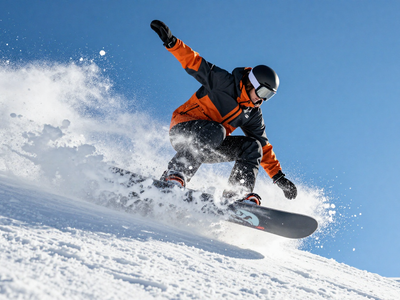
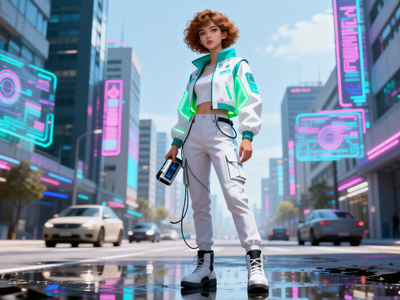
MOSS Image for Text to Image
Generate detailed images with accurate English and Chinese text rendering using MOSS-Image SFT, an open-source 5B model by OpenMOSS. Write a prompt and hit run.
Image
MOSS Image
Text to Image
Typography
184
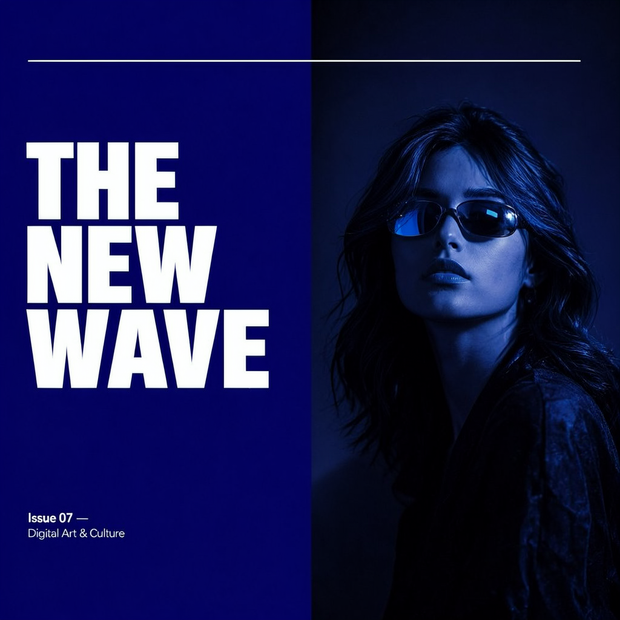
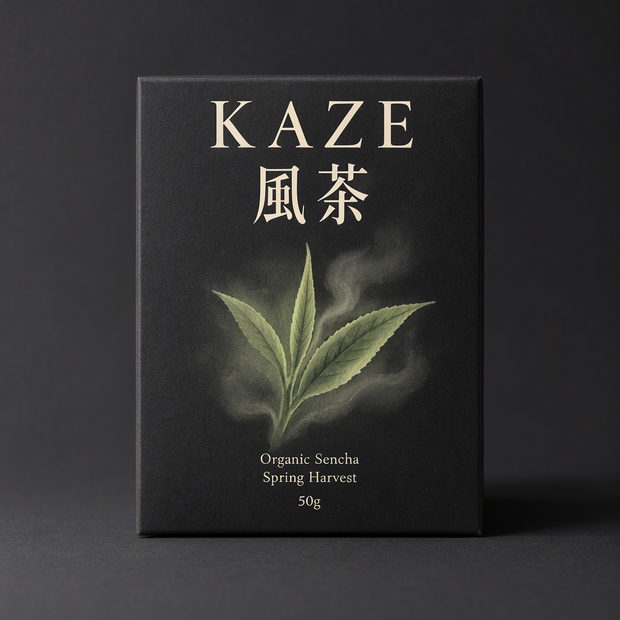
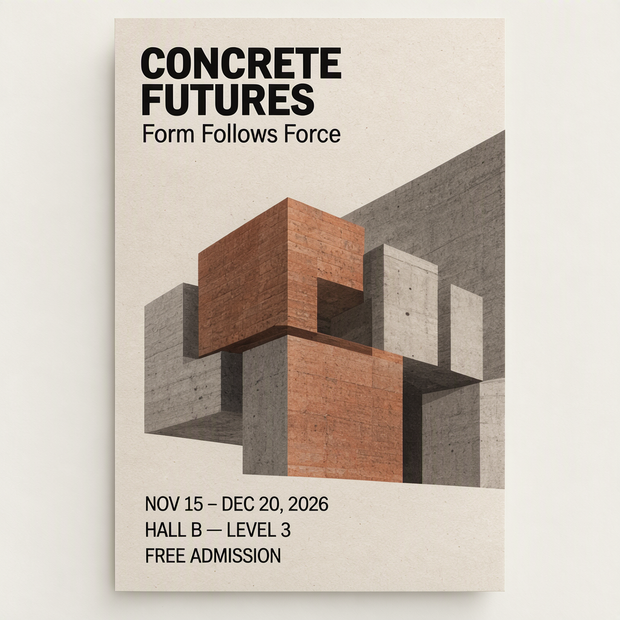
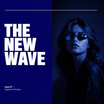
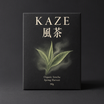
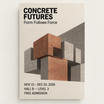

Nodes & Models
ResolutionSelector
PrimitiveStringMultiline
UNETLoader
moss_image_sft_int8_convrot.safetensors
CLIPLoader
qwen3.5_9b_w4a8_gptq.safetensors
VAELoader
flux2-vae_small.safetensors
MarkdownNote
EmptyFlux2LatentImage
SkipLayerGuidanceDiTSimple
CLIPTextEncode
TextGenerate
ComfySwitchNode
PreviewAny
KSampler
VAEDecode
SaveImage
ABOUT THE WORKFLOW
Generate an image from a text prompt
Write a short description of the image you want. A built-in prompt enhancer expands it into a detailed caption with composition, lighting, and layout. The model generates the image and saves it to your outputs. That’s it.
Model
MOSS-Image SFT by OpenMOSS. A 5B open-source image model strong at rendering legible English and Chinese text inside images, and at following detailed scene descriptions. Uses a Qwen 3.5 9B text encoder.
HOW IT WORKS
Step 1. Write your prompt
Describe the image you want in a few words or full sentences. Works in English and Chinese. Put any text you want rendered in the image inside quotes for accurate rendering.
Works great with: photos · posters · product shots · illustrations
Step 2. Pick an aspect ratio (optional)
Choose from presets like 1:1, 16:9, or 3:4. The default is 1:1 square at 1 megapixel.
Step 3. Hit run and download
The prompt enhancer expands your description into a detailed caption, then the model generates your image. Preview it in the workflow, then download.
Ready for: Photoshop · Figma · Canva · any editor
First time? Leave every setting as-is. The defaults are the right starting point for almost everyone.
RECOMMENDED SETTINGS
Resolution
Megapixels: 0.25 MP (min) → 1 MP (default) → 2 MP (max) — above 2 MP risks OOM
Multiple: must stay at 16 — changing it causes dimension mismatch errors
Batch size: 1–4 safe — each extra image multiplies VRAM; above 4 likely OOM
KSampler
Steps: 10 (min) → 25 (default) → 50 (max) — below 10 = undercooked; above 100 = timeout
CFG: 1.0 (min) → 2.5 (default) → 5.0 (max) — MOSS uses low CFG; above 7 = burnt/distorted; 0 = pure noise
Denoise: must be 1.0 for txt2img — anything lower on an empty latent = garbage output
Sampler: er_sde recommended — avoid uni_pc and ddim with this model
LLM Prompt Enhancer (TextGenerate)
Max length: 256 (min) → 4096 (default) → 8192 (max) — beyond 8K hits Qwen context limit
Temperature: 0.1 (min) → 0.7 (default) → 1.2 (max) — above 1.5 = word salad
Repetition penalty: keep 1.0–1.5 — above 2.0 = garbled text
SkipLayerGuidance (SLG)
Enabled by default: no (switch = false) — turning it on sharpens output but can over-detail
end_percent: keep 0.3–0.5 — setting to 1.0 applies SLG the entire run, causing artifacts
single_layers: default “22” is safe — invalid layer numbers will error
Top Error Triggers
Resolution above 2 MP + batch > 1 → OOM
CFG above 7 → burnt/distorted images
Temperature above 1.5 → incoherent prompt enhancement
Denoise below 1.0 on empty latent → blank output
Steps = 0 or multiple ≠ 16 → hard error
LEARN
📹 Videos
ComfyUI 101 Free Course ft. Sebastian Kamph
Floyo 101 for Team Collaboration
✨ Quick links
USE CASES
🎨 Posters and Print Design
Generate posters, flyers, and signage with readable text baked into the image. No post-production text overlay needed.
📸 Product and Marketing Imagery
Create product shots, social media visuals, and campaign images from a text description. Add brand copy or slogans directly in the generation.
🎬 Film and Video Pre-production
Generate concept frames, title cards, and storyboard panels with scene descriptions and on-screen text in a single pass.
🖼️ Concept Art and Illustration
Describe a scene with full composition and lighting detail. The prompt enhancer builds out the visual from a short description, so rough ideas turn into detailed concepts fast.
🀄 Bilingual Content
Generate images with Chinese and English text in the same frame. Useful for localized marketing, bilingual signage, and cross-market campaigns.
WHAT WORKS BEST / WHAT TO AVOID
✅ Works great
Natural-language prompts with composition and lighting detail
Text rendering with exact words in quotes
Photorealistic scenes, posters, and product shots
Prompts in English or Chinese
⚠️ May produce softer results
Very short prompts with the enhancer turned off
Highly stylized anime (photorealism is stronger out of the box)
Extremely long or complex text blocks in a single image
Resolutions far above 1 megapixel (slower and more VRAM)
FAQ
What is MOSS-Image and who made it?
MOSS-Image is a 5-billion-parameter open-source text-to-image model from the OpenMOSS team. It was released on October 16, 2026 under the Apache 2.0 license. The model uses a single-stream diffusion transformer in the FLUX.2 latent space with a Qwen 3.5 9B text encoder. It ships in two versions: Base for fine-tuning, and SFT for everyday image generation. This workflow runs the SFT version.
How does MOSS-Image render text inside images?
MOSS-Image was trained to recognize and reproduce legible text from prompts. Put the exact words you want in quotes inside your prompt, and the model renders them as part of the image. It supports both English and Chinese text. On the LongLongTextBench benchmark, MOSS-Image reaches 96.3% average text coverage, among the highest for open-weight models.
What does the prompt enhancer do?
The prompt enhancer is a built-in language model (Qwen 3.5 9B) that takes your short prompt and expands it into a detailed caption covering composition, lighting, subject detail, and layout. This gives the image model more to work with, so even a few words produce a well-composed result. You can turn it off for full manual control.
Can MOSS-Image do layout control with bounding boxes?
Yes. MOSS-Image supports JSON layout prompts where you place text and objects by bounding box coordinates. This workflow runs in standard text-to-image mode. For layout control, use the dedicated MOSS-Image layout workflow.
Is MOSS-Image good for anime and illustration styles?
MOSS-Image handles photorealism and poster design well out of the box. Anime and illustration styles are supported, but the model is newer and community LoRAs for stylized output are still emerging. For anime-focused work, test with your own prompts and compare against your current workflow.
Can I use the output for commercial projects?
Yes. MOSS-Image is released under the Apache 2.0 license, which permits commercial use. The model weights and inference code are both Apache 2.0. You own the images you generate.
How to run MOSS-Image online?
You can run MOSS-Image online through Floyo. No installation, no setup, no API key to wire up. Open the workflow in your browser, write your prompt, and hit run. Free to try.
WHY FLOYO?
Floyo is the only platform with team collaboration for ComfyUI in the browser. You run workflows with no install. You share run history, assets, and models across your team. You pay only when you generate. Floyo supports open-source and closed-source models.
A designer runs an edit and likes the result. A teammate opens that exact run from shared history and keeps going. No file handoffs. No version confusion.
For studios and enterprise teams, Floyo adds private workspaces, pooled resources, and a team usage dashboard. Other ComfyUI cloud tools run for one person at a time. Floyo runs for the whole team, with transparent per-generation costs.
Ready to try it?
Write your first prompt and hit run. The enhancer and settings are already set.
Questions? Watch the free course or check the FAQ above.
Read more