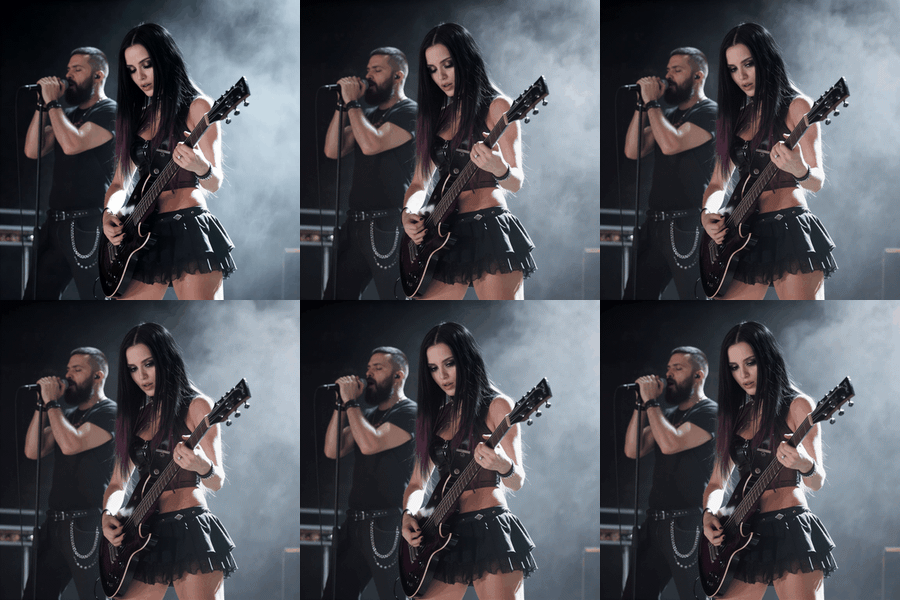
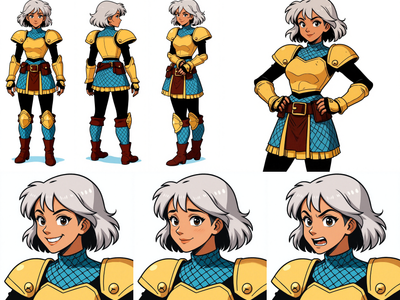
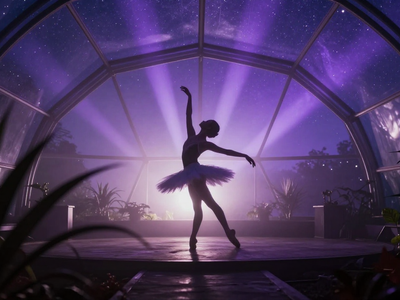
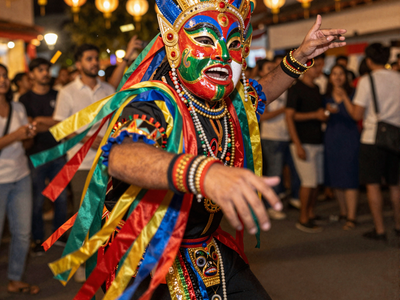
MiniMax H3 I2V · Image to Video with Upscale
Animate a starting image into video with synchronized audio using the open-weight MiniMax H3 FL2VA model, then automatically upscale the result 1.5x in a single run.
i2v
63
ABOUT THE WORKFLOW
Animate an image and upscale in one pass
Upload an image as your first frame. Describe the motion and sound you want. The workflow generates a video with native stereo audio at base resolution, then upscales it 1.5x through a latent refinement pass. You get two outputs: one at base resolution for fast review, one upscaled for final delivery. Optional last-frame input lets you control where the motion ends.
Model
MiniMax H3 FL2VA by MiniMax. The first/last-frame-to-video checkpoint of the 33B-parameter H3 model. Generates video with native 32 kHz stereo audio from one or two conditioning frames. Open-weight, released under the MiniMax H3 Community License.
HOW IT WORKS
Step 1. Upload your starting image
Load the image you want to animate through the Media Loader. This becomes the first frame of your video. The model preserves the composition, colors, lighting, and subjects from your image.
Works great with: product photos · portraits · landscapes · illustrations · AI-generated stills
Step 2. Write your prompt
Describe the motion, camera movement, and sound. Focus on what changes, not what the image already shows. Add “Music: N/A” at the end if you want natural ambient sound only. Example: “The woman turns slowly toward camera, wind lifts her hair, soft afternoon light. Music: N/A”
Step 3. Set resolution and duration
Choose your aspect ratio and megapixels in the ResolutionSelector. The default is 16:9 at 0.4 MP (864x480). Set the duration with the Float (Duration) node. The default is 2 seconds for fast iteration. The upscale pass runs at 1.5x the base resolution automatically.
Step 4. Add a last frame (optional)
Connect a second image as the last frame through the Media Loader. The model generates motion that transitions from your first frame to your last frame. Skip this for open-ended animations.
Step 5. Run and download
Hit run. The workflow generates video and audio at base resolution (20 steps), then runs a 3-step upscale refinement pass. Two MP4 files appear: one at base resolution, one upscaled. Download whichever you need.
Ready for: Premiere Pro · DaVinci Resolve · After Effects · social platforms
First time? Leave every setting as-is. The defaults are the right starting point for almost everyone.
RECOMMENDED SETTINGS
Quick-start guide. Find the goal that matches yours and copy the settings.
Quick iteration at base resolution — 0.4 MP, 2-second duration, 20 steps. The right starting point for almost everyone. Check the base-resolution output first before waiting for the upscale.
Want longer clips? — Change the Float (Duration) value. The model supports up to ~15 seconds. Keep in mind that longer clips at higher resolution take more time and VRAM, especially with the upscale pass.
Want vertical/portrait video? — Change the ResolutionSelector to 9:16. Keep megapixels at 0.4 for fast results. The upscale pass adjusts automatically.
Want higher base resolution without the upscale? — Increase megapixels in the ResolutionSelector. 0.98 MP gives you 1344x768. The upscale pass will still run at 1.5x on top, so you can disable it by disconnecting the upscale subgraph if you only want the base output.
Motion too subtle or too aggressive? — Write a more specific prompt. Describe the speed, direction, and timing. “Slow pan right, 2 seconds, then hold” gives more control than “the camera moves.”
Audio not matching the scene? — Describe the soundscape in your prompt. “Footsteps on gravel, wind through trees, no music” gives the model clear direction. Add “Music: N/A” to suppress background music.
Prompt: Describe what happens in the scene, not what the image looks like. The model already sees your starting frame. A good prompt: “The boat drifts forward on the still lake, ripples spread from the bow, birds call in the distance. Music: N/A” A vague prompt: “Make it move.”
Read more