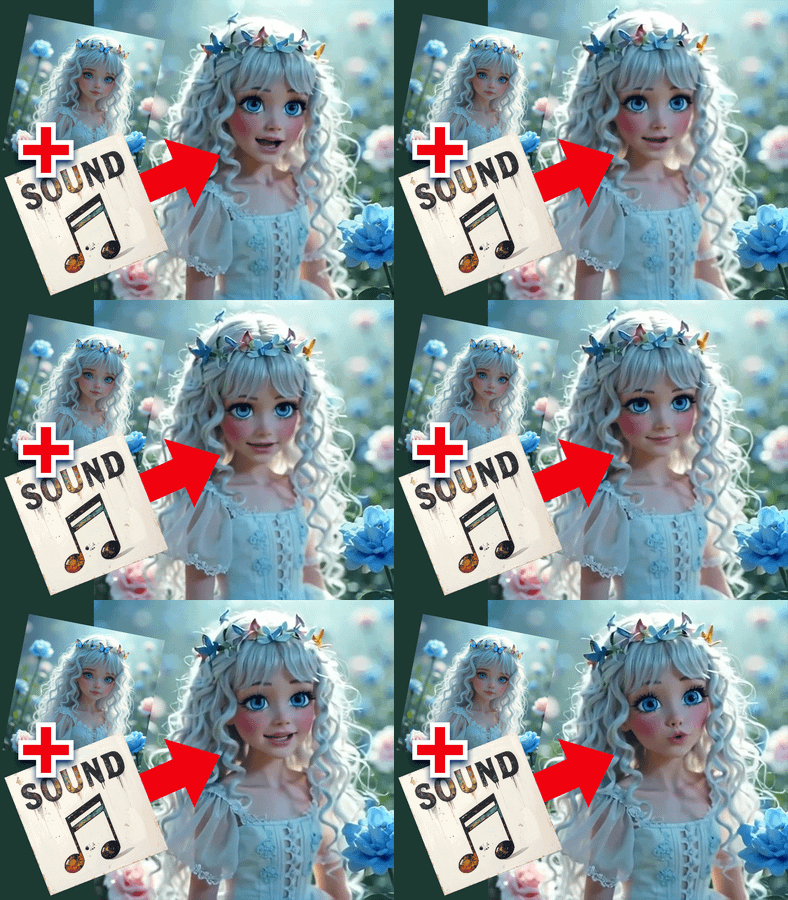
LTX 2.3 Lip Sync · Image to Video For Kids Edu
Animate a portrait photo with accurate lip sync using LTX-Video 2.3, Lightricks' 22B open-source model with a lip sync LoRA. Upload a photo and an audio clip, describe the scene, and hit run.
Audio
image to video
lip sync
LoRAs
ltx video
talking head
Video
180
_1784212330847.webp)
_1784212333343.webp)
_1784212336204.webp)

Nodes & Models
PrimitiveBoolean
GetNode
LoadImage
LoadAudio
Note
ManualSigmas
Fast Groups Bypasser (rgthree)
SaveVideo
ClownOptions_SDE_Beta
RandomNoise
KSamplerSelect
SharkOptions_Beta
LatentUpscaleModelLoader
ltx-2.3-spatial-upscaler-x2-1.0.safetensors
ltx-2.3-spatial-upscaler-x1.5-1.0.safetensors
PrimitiveInt
CheckpointLoaderSimple
ltx-2.3/ltx-2.3-22b-dev.safetensors
LTXAVTextEncoderLoader
gemma_3_12B_it_fp4_mixed.safetensors
ltx-2.3/ltx-2.3-22b-dev.safetensors
LTXVAudioVAELoader
ltx-2.3/ltx-2.3-22b-dev.safetensors
CLIPTextEncode
ClownSampler_Beta
ComfyMathExpression
SimpleCalculatorKJ
LoraLoaderModelOnly
ltx-2.3-22b-distilled-lora-384.safetensors
ltx-2-19b-lora-camera-control-static-ltx-2-3-lip-sync-i2v-a-plurEuEb.safetensors
SetNode
easy showAnything
SolidMask
LTXVConditioning
LTXVEmptyLatentAudio
EmptyLTXVLatentVideo
CFGGuider
LTX2LoraLoaderAdvanced
ltxv-098-ic-lora-detailer-comfyui.safetensors
LTX2_NAG
LTXVCropGuides
LTXVSeparateAVLatent
LTXVImgToVideoInplace
LTXVLatentUpsampler
SamplerCustomAdvanced
ResizeImageMaskNode
LTXVPreprocess
LTXVConcatAVLatent
LatentUpscaleBy
LatentInterpolate
CreateVideo
ImageResizeKJv2
PreviewImage
TrimAudioDuration
PreviewAudio
SetLatentNoiseMask
VAEDecodeTiled
FloyoStickyNote
MelBandRoFormerModelLoader
MelBandRoformer_fp16.safetensors
MelBandRoFormerSampler
LTXVAudioVAEEncode
MelBandRoFormerModelLoader
MelBandRoformer_fp16.safetensors
MelBandRoFormerSampler
ABOUT THE WORKFLOW
Animate a Portrait with Lip Sync
Upload a portrait photo and an audio clip, describe the scene, and get a video of the person speaking with accurate lip movements matched to the audio. The workflow strips vocals from music automatically, so you can upload any audio track. Three LoRAs are stacked for the best results: a lip sync LoRA, a distilled speed LoRA, and a detail enhancer LoRA. That's it.
Model
LTX-Video 2.3 (22B) by Lightricks. A 22B parameter DiT-based audio-video foundation model (Apache 2.0) with native audio latent support. Runs with a lip sync LoRA for accurate mouth movement, a distilled LoRA for faster generation, and a detail enhancer LoRA for sharper faces and textures. Output is upscaled to 1080p through a multi-pass pipeline.
HOW IT WORKS
Step 1. Upload a portrait photo
A front-facing photo with a visible face and neutral expression works best. Clear lighting and an uncluttered background help the model focus on the face.
Works great with: headshots · portraits · webcam-style frames · character art
Step 2. Upload an audio clip
Any audio file works. Speech, podcast clips, voiceovers, or songs. The workflow automatically separates vocals from background music before syncing. Up to 8 seconds of audio is used by default.
Step 3. Describe the scene
Write what the setting looks like, how the person is dressed, and what they do. Include "accurate lip sync related to the input audio" in your prompt for the best mouth movement. Be specific about lighting, camera angle, and scene details.
Step 4. Hit run and download
The model generates the lip-synced video in multiple passes, upscales to 1080p, and returns the result. Preview it in the workflow, then download.
Ready for: Premiere Pro · DaVinci Resolve · After Effects · any editor
First time? Leave every setting as-is. The defaults (1920×1080 · 241 frames · 24 fps · 8 seconds audio) are the right starting point for almost everyone.
RECOMMENDED SETTINGS
Quick-start guide. Find the goal that matches yours and copy the settings.
Standard lip sync (most people) — 1920×1080 · 241 frames · 24 fps · 8 seconds audio · fixed seed. About 10 seconds of video. The right starting point for almost everyone.
Want to match shorter audio — Lower the audio duration to match the length of speech in your clip. A 4-second voiceover does not need 8 seconds of audio.
Want a longer clip — Raise the frame length. Keep frame counts divisible by 8, plus 1 (so 121, 169, 241, 289). Longer clips take more time and credits.
Want portrait (vertical) video — Swap width and height to 1080×1920. The model supports native 9:16 portrait generation.
Using a song instead of speech — Upload it as-is. The workflow separates the vocal track from the music automatically before syncing the lip movement.
The lips are not syncing well — Make sure your prompt includes "accurate lip sync related to the input audio." Use a front-facing photo with a clear, visible mouth. Avoid extreme angles or photos where the face is partially hidden.
Want to skip the image — Turn on T2V mode to generate from text only. No image upload needed. The model creates both the character and the scene from your prompt.
Prompt: Describe the scene like a shot description. Include the person's appearance, wardrobe, setting, lighting, and camera angle. "A medium close-up shot of a young professional wearing a white shirt, seated in a modern office, natural light from a window, accurate lip sync related to the input audio" gives the model clear direction. Always include the lip sync instruction.
LEARN
📹 Videos
ComfyUI 101 Free Course ft. Sebastian Kamph
Floyo 101 for Team Collaboration
✨ Quick links
USE CASES
🎙️ Podcast and Voiceover Visualization
Turn a headshot and a podcast clip into a talking-head video. Useful for repurposing audio content into video for social media, YouTube, or course platforms.
🌐 Multilingual Dubbing Previews
Upload a portrait and a translated voiceover to preview what a dubbed version of a speaker looks like. Fast way to test lip sync across languages before committing to a full production.
📱 Social Media Talking-Head Content
Generate vertical 9:16 talking-head clips from a single photo and audio clip. Produce content for TikTok, Reels, and Shorts without filming a new video.
🎬 Pre-visualization and Animatics
Animate a character portrait with dialogue before a shoot or a full animation pass. Test how a performance reads in motion without hiring talent or rigging a 3D model.
🎵 Music Video and Lip Sync to Song
Upload a portrait and a song. The workflow strips the vocals and syncs the lip movement to the singing. Generate music video clips from a single photo.
WHAT WORKS BEST / WHAT TO AVOID
✅ Works great
Front-facing portraits with clear, visible mouths
Clean speech audio and voiceovers
Medium close-up framing
Well-lit photos with simple backgrounds
⚠️ May produce softer results
Side profiles or extreme angles where the mouth is partially hidden
Very noisy or low-quality audio
Group photos with multiple faces
Heavily stylized or cartoon-like portraits
FAQ
What is the LTX 2.3 Lip Sync workflow?
This workflow pairs LTX-Video 2.3 (22B) with a dedicated lip sync LoRA to animate a portrait photo so the person's mouth moves in sync with an uploaded audio clip. It also stacks a distilled LoRA for speed and a detail enhancer LoRA for sharper output, then upscales the result to 1080p through a multi-pass pipeline.
Does it work with music, or only speech?
Both. The workflow includes an automatic vocal separation step that isolates the vocal track from background music before syncing. You can upload a song and the model will sync lip movement to the singing voice.
How long can the output video be?
The default is about 10 seconds (241 frames at 24 fps). You can increase the frame length for longer clips, but generation time and credit cost scale with length. Frame counts must follow the formula: divisible by 8, plus 1.
What kind of photo works best for lip sync?
A front-facing portrait with a clearly visible mouth, neutral expression, and even lighting. Medium close-up framing (head and shoulders) produces the most accurate lip movement. Side profiles, extreme angles, or photos where the mouth is covered or partially hidden reduce sync accuracy.
How is this different from other lip sync tools like Wav2Lip or SadTalker?
Wav2Lip and SadTalker paste modified mouth regions onto existing video frames. This workflow generates the entire video from scratch using a single diffusion model, producing more natural head movement, consistent lighting, and scene-aware results rather than a patched overlay on existing footage.
Is LTX-Video 2.3 free to use commercially?
Yes. LTX-Video 2.3 is released under the Apache 2.0 license, which allows commercial use, modification, and redistribution. You can use the outputs in client work, published content, and commercial products.
How to run LTX 2.3 lip sync online?
You can run LTX 2.3 lip sync online through Floyo. No installation, no setup, no API key to wire up. Open the workflow in your browser, upload a photo and an audio clip, describe the scene, and hit run. Free to try.
WHY FLOYO?
Floyo is the only platform with team collaboration for ComfyUI in the browser. You run workflows with no install. You share run history, assets, and models across your team. You pay only when you generate. Floyo supports open-source and closed-source models.
A creator generates a lip sync clip and likes the result. A teammate opens that exact run from shared history and keeps going. No file handoffs. No version confusion.
For studios and enterprise teams, Floyo adds private workspaces, pooled resources, and a team usage dashboard. Other ComfyUI cloud tools run for one person at a time. Floyo runs for the whole team, with transparent per-generation costs.
Ready to try it?
Upload a portrait photo and an audio clip, describe the scene, and run it. The settings are already set.
Questions? Watch the free course or check the FAQ above.
Read more