

LongCat Image · Text to Image For Kids Edu
Generate images from a text prompt using LongCat-Image, Meituan's 6B bilingual model with precise Chinese and English text rendering. Type a prompt and hit run.
Image
longcat
text rendering
text to image
164
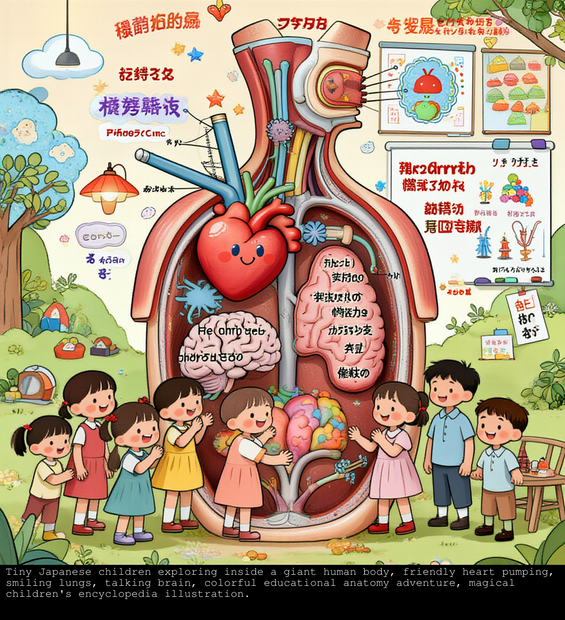
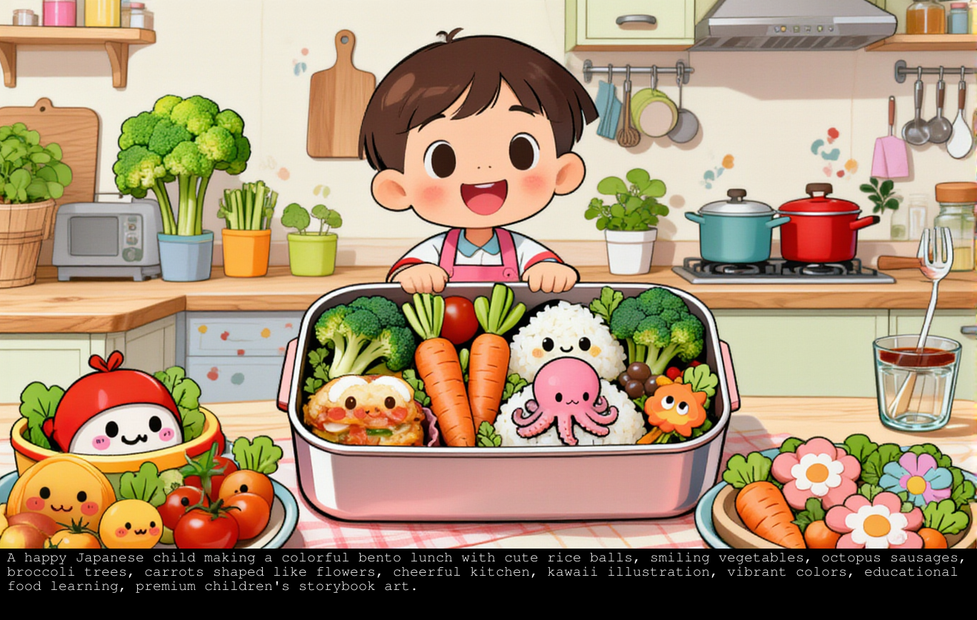
_1784107877809.png?width=1400&height=620&quality=80&resize=contain)


_1784107877809.png?width=104&height=104&quality=80&resize=cover)

Nodes & Models
easy positive
CLIPLoader
qwen_2.5_vl_7b_fp8_scaled.safetensors
VAELoader
ae.safetensors
UNETLoader
longcat_image_bf16.safetensors
ResolutionSelector
CLIPTextEncode
CFGNorm
PreviewImage
EmptySD3LatentImage
FluxGuidance
VAEDecode
KSampler
AddLabel
FloyoStickyNote
ABOUT THE WORKFLOW
Generate an Image
Type what you want to see and get a photorealistic image in seconds. LongCat-Image is a 6B parameter model that punches well above its size, with accurate rendering of English and Chinese text inside images. Works in both languages. That's it.
Model
LongCat-Image by Meituan LongCat Team. A 6B parameter open-source text-to-image model (Apache 2.0) built for photorealism and bilingual text rendering. Outperforms larger open-source models across multiple benchmarks while staying lightweight and fast.
HOW IT WORKS
Step 1. Write a prompt
Describe the image you want. Be specific about the subject, setting, lighting, and style. To include legible text inside the image, put it in quotes: a neon sign that says "Open 24 Hours."
Step 2. Choose an aspect ratio (optional)
Pick a shape for the output: square (1:1), landscape (16:9, 4:3), or portrait (9:16, 3:4). Defaults to 1:1 square.
Step 3. Hit run and download
LongCat-Image generates the image and returns the result with the prompt shown below it for reference. Preview it in the workflow, then download.
Ready for: Photoshop · Figma · Canva · any editor
First time? Leave every setting as-is. The defaults (1:1 square · 1 megapixel · 20 steps · 4 guidance) are the right starting point for almost everyone.
RECOMMENDED SETTINGS
Quick-start guide. Find the goal that matches yours and copy the settings.
Standard generation (most people) — 1:1 square · 1 megapixel · 20 steps · 4 guidance · random seed. The right starting point for almost everyone.
Want a landscape or portrait — Change the aspect ratio to 16:9 or 9:16. The resolution scales automatically to match the chosen shape at 1 megapixel.
Want higher resolution — The model supports up to about 4 megapixels (~2048×2048). Raise the megapixel value. Higher resolutions take longer to generate.
Want Chinese text in the image — Write the text in Chinese characters in your prompt. The model covers all 8,105 standard Chinese characters and auto-matches font style to the scene.
Want English text in the image — Quote the exact words you want: a storefront sign that reads "Fresh Coffee." Text rendering is strong in both languages.
Want to compare variations — Leave the seed on random. Each run produces a different interpretation of the same prompt.
The result looks soft — Add more detail to the prompt, especially about lighting and composition. Keep steps at 20 and guidance at 4.
Prompt: Be descriptive and specific. Include subject, setting, lighting, mood, and style. "Japanese children helping a friendly veterinarian care for puppies, kittens, rabbits and birds, colorful animal clinic, educational kindness illustration" works better than "kids and animals." For text in the image, quote the exact words.
LEARN
📹 Videos
ComfyUI 101 Free Course ft. Sebastian Kamph
Floyo 101 for Team Collaboration
✨ Quick links
USE CASES
🔤 Bilingual Text-in-Image Generation
Create images with accurate, legible text in English, Chinese, or both. Posters, signs, banners, product labels, and social media cards with mixed-language copy render cleanly.
📸 Photorealistic Imagery
Generate realistic portraits, product shots, interior scenes, and environments from detailed prompts. The model handles natural skin tones, material textures, and balanced lighting at 6B parameters.
🎨 Illustration and Concept Art
Describe a scene in detail and get a visual starting point for concept work, storyboards, or mood boards. Iterate with seed changes to explore variations.
🛍️ Marketing and Social Content
Generate campaign imagery, social posts, and product visuals with embedded text in one prompt. Useful for bilingual markets where English and Chinese copy appear in the same image.
WHAT WORKS BEST / WHAT TO AVOID
✅ Works great
Detailed, descriptive prompts with subject, setting, and lighting
Chinese and English text rendering inside images
Mixed-language text in a single image
Photorealistic scenes, portraits, and product shots
⚠️ May produce softer results
Short or vague prompts like "a nice photo"
Very dense or small text (more than a few lines)
Prompts with conflicting style directions
Niche subjects with limited training data representation
FAQ
What is LongCat-Image?
LongCat-Image is a 6B parameter open-source text-to-image model developed by the Meituan LongCat Team, released under the Apache 2.0 license. It is a bilingual model that handles both Chinese and English prompts natively, with a focus on photorealism and accurate text rendering inside generated images.
How does LongCat-Image render text inside images?
The model uses character-level encoding for specified text in prompts, which reduces the learning burden and improves accuracy. It also applies smart typography that automatically matches font size, color, and spacing to the scene context. For Chinese text, it covers all 8,105 standard Chinese characters with high accuracy and stable stroke rendering.
How does LongCat-Image compare to larger models?
Despite having only 6B parameters, LongCat-Image outperforms several open-source models that are 2 to 4 times larger on multiple benchmarks, including models like Qwen-Image-20B. It uses an MM-DiT architecture similar to FLUX, optimized for bilingual text understanding and efficient inference.
What resolutions does LongCat-Image support?
The model supports output resolutions up to about 4 megapixels (around 2048×2048). This workflow defaults to 1 megapixel (~1024×1024) at a 1:1 square aspect ratio. You can choose from preset aspect ratios including 1:1, 16:9, 9:16, 4:3, and 3:4, and the resolution scales to match.
Is LongCat-Image free to use commercially?
Yes. LongCat-Image is released under the Apache 2.0 license, which allows commercial use, modification, and redistribution. You can use the outputs in client work, published content, and commercial products.
Can I use LongCat-Image for Chinese poster design?
Yes. Chinese text rendering is one of its core strengths. It covers the full set of 8,105 standard Chinese characters and automatically adapts typography to the scene, choosing appropriate font styles for the context. This makes it a strong fit for poster design, commercial advertising, and bilingual social media content.
How to run LongCat Image online?
You can run LongCat Image online through Floyo. No installation, no setup, no API key to wire up. Open the workflow in your browser, type your prompt, and hit run. Free to try.
WHY FLOYO?
Floyo is the only platform with team collaboration for ComfyUI in the browser. You run workflows with no install. You share run history, assets, and models across your team. You pay only when you generate. Floyo supports open-source and closed-source models.
A designer generates an image and likes the result. A teammate opens that exact run from shared history and keeps going. No file handoffs. No version confusion.
For studios and enterprise teams, Floyo adds private workspaces, pooled resources, and a team usage dashboard. Other ComfyUI cloud tools run for one person at a time. Floyo runs for the whole team, with transparent per-generation costs.
Ready to try it?
Type a prompt and run it. The settings are already set.
Questions? Watch the free course or check the FAQ above.
Read more








