

Krea 2 for Text to Image
Turn a text prompt into a finished image with Krea 2 Turbo, Krea AI's fast open-source image model. Type what you want to see, hit run, and get a result in seconds.
Image
image generation
krea 2
krea 2 turbo
krea ai
LoRAs
lora styles
open source
text to image
764
_1782732888602.png?width=1400&height=620&quality=80&resize=contain)
_1782732888602.png?width=104&height=104&quality=80&resize=cover)

Nodes & Models
MarkdownNote
PrimitiveStringMultiline
ResolutionSelector
KSampler
Note
EmptyLatentImage
CLIPTextEncode
VAEDecode
UNETLoader
krea2_turbo_fp8_scaled.safetensors
CLIPLoader
qwen3vl_4b_fp8_scaled.safetensors
VAELoader
qwen_image_vae.safetensors
ConditioningZeroOut
SaveImage
LoraLoaderModelOnly
krea2_darkbrush.safetensors
TextGenerate
StringConcatenate
PreviewAny
ComfySwitchNode
PrimitiveBoolean
FloyoStickyNote
ABOUT THE WORKFLOW
Generate an Image from Text
Type a description of the image you want and hit run. The workflow expands your prompt into a fuller one, generates the image, and hands it back ready to download. Turn on a preset art style if you want a specific look. That's it.
Model
Krea 2 Turbo by Krea AI. A fast open-source image model with a wide stylistic range, from photographic portraits to anime to high-contrast editorial work. Krea 2 Turbo is an 8-step distilled checkpoint built for fast, high-quality text-to-image, so it works in only a few steps. ComfyUI Blog
HOW IT WORKS
Step 1. Write your prompt
Describe the image you want. Name the subject, the setting, the lighting, and the style. Longer, specific prompts give the best results.
Works great with: portraits · product shots · illustrations · scenes
Step 2. Set the aspect ratio
Pick the shape of your image, like "1:1 Square" for social or "16:9" for a wide frame. The size is set for you.
Step 3. Add a style LoRA (optional)
Turn on a preset art style, such as ink wash or watercolor, to push the whole image toward a specific look. Off by default.
Step 4. Hit run and download
The workflow generates the image and shows it in the preview. Download it when you like the result.
Ready for: Photoshop · Figma · Canva · any editor
First time? Leave every setting as-is. The defaults are the right starting point for almost everyone.
RECOMMENDED SETTINGS
Quick-start guide. Find the goal that matches yours and copy the settings.
Standard use (most people) — 1:1 square · 8 steps · refine prompt on · random seed. The right starting point for almost everyone.
Want a specific shape — Change the aspect ratio. The width and height are worked out for you, so pick the ratio and leave the rest.
Want a preset art style — Turn on the style LoRA and pick a look. It steers the whole image toward that style.
Want to use your exact words — Turn refine prompt off. The model uses your prompt as written instead of expanding it first.
Want to reproduce a result — Lock the seed. The same seed and prompt give you the same image again.
The image is not matching your prompt — Keep refine prompt on and be more specific about the subject and setting. Do not raise the guidance, it is built to run low.
Tempted to raise the steps — Leave it at 8. The model is tuned for few-step generation, so more steps will not improve quality.
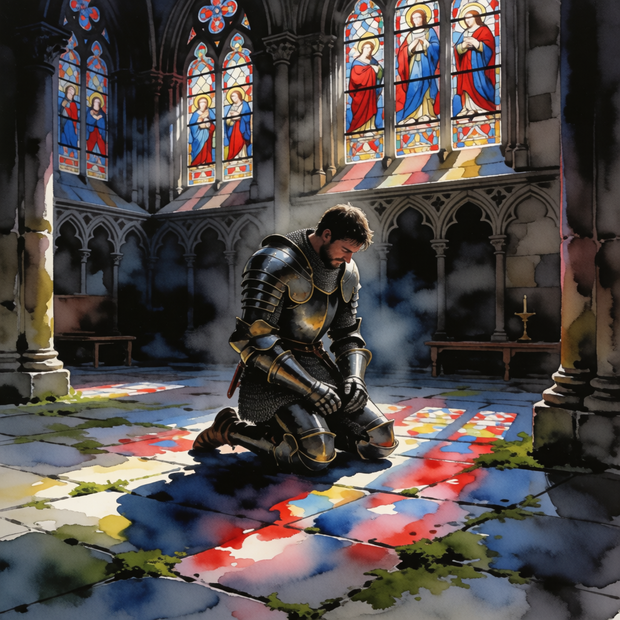
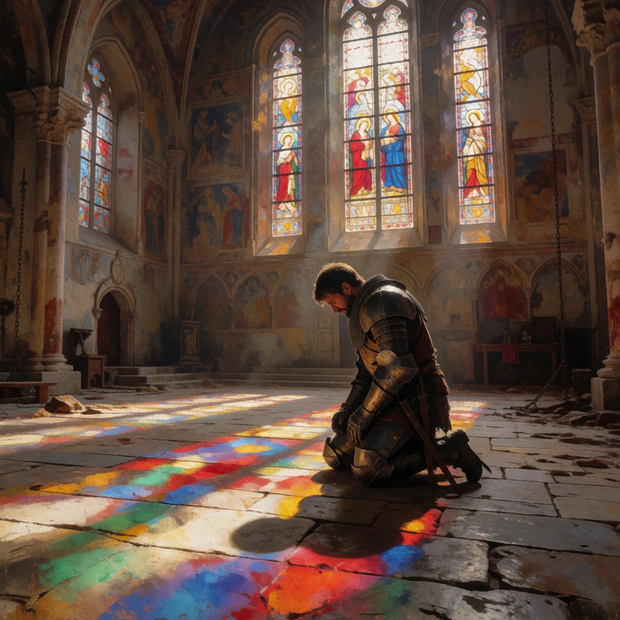
Prompt: Be specific and paint the full picture. "A medieval knight kneeling in an empty cathedral, sunlight through stained glass, soft volumetric light" works far better than "a knight in a church." If you want readable text in the image, write the exact words in quotes.
LEARN
📹 Videos
ComfyUI 101 Free Course ft. Sebastian Kamph
Floyo 101 for Team Collaboration
✨ Quick links
USE CASES
🎨 Concept Artists
Explore a look in volume. Run dozens of prompt variations to settle a mood, palette, or character direction before committing to a build.
🛍️ Product & Marketing
Generate campaign visuals, product concepts, and editorial frames from a text brief, with the stylistic range to match a specific look.
🏛️ Designers & Architects
Block out interiors, facades, materials, and early design directions from a description, fast enough to iterate in a live review.
📸 Editorial & Photo Styling
Produce high-contrast, magazine-style frames and stylized portraits when a shoot is not an option, with control over lighting and composition.
WHAT WORKS BEST / WHAT TO AVOID
✅ Works great
Detailed, descriptive prompts
A clear subject with named lighting and setting
Style requests the model can lean into
Exact words in quotes for readable text
⚠️ May produce softer results
One or two word prompts
Conflicting instructions in a single prompt
Raising steps above the tuned default
Pushing guidance up from the default
FAQ
What is Krea 2 Turbo?
Krea 2 Turbo is the fast inference version of Krea 2, an open-source image model from Krea AI. Both models carry 12 billion parameters and run on a Diffusion Transformer architecture. On quality, Krea 2 is the number one text-to-image model from an independent lab on Artificial Analysis. Turbo is the checkpoint you use for finished, fast text-to-image generation. AI FILMS StudioGitHub
How fast is Krea 2 Turbo?
It is built for speed. Krea 2 Turbo is a checkpoint distilled in 8 steps that generates native 2K images in approximately 2 seconds on consumer hardware. That is what makes it good for running many variations in a single session rather than waiting on each one. AI FILMS Studio
What is the difference between Krea 2 Turbo and Krea 2 RAW?
Krea 2 RAW is the base model, a pretrained checkpoint with no distillation, so it is diverse and highly malleable, and it is what you should use for fine-tuning, post-training, and LoRA training. Krea 2 Turbo is an 8-step distilled checkpoint built for fast, high-quality text-to-image. In short, train on RAW and run on Turbo. This workflow runs Turbo, so it is set up for generation, not training. GitHubGitHub
Does Krea 2 Turbo support style LoRAs?
Yes. This workflow includes a switch to turn on a preset style LoRA that steers the whole image toward a chosen look, such as ink wash, watercolor, or retro anime. LoRAs are trained on RAW and designed to express strongly on Turbo, so the styles apply cleanly at Turbo's fast speed. Build Fast with AI
Can I use Krea 2 Turbo for commercial projects?
Generally yes, under the Krea 2 Community License. It allows commercial use for individuals and teams under 50 seats; organizations with 50 or more seats require an Enterprise license from Krea, and all users must implement content filtering safeguards to prevent generation of unlawful content. Krea does not claim copyright over content generated by users, and users are solely responsible for their outputs. Review Krea's current license terms for your specific use. Build Fast with AIHugging Face
Why is the guidance set to 1 and the steps set to 8?
Those are the values the distilled model is built for. Turbo is distilled for few-step sampling, so it runs with 8 steps and CFG effectively disabled. Raising either one works against the way the checkpoint was trained and will not improve quality, so the defaults are the right call. GitHub
How to run Krea 2 Turbo online?
You can run Krea 2 Turbo online through Floyo. No installation, no setup, no API key to wire up. Open the workflow in your browser, type a prompt, and hit run. Free to try.
WHY FLOYO?
Floyo is the only platform with team collaboration for ComfyUI in the browser. You run workflows with no install. You share run history, assets, and models across your team. You pay only when you generate. Floyo supports open-source and closed-source models.
A designer runs a generation and likes the result. A teammate opens that exact run from shared history and keeps going. No file handoffs. No version confusion.
For studios and enterprise teams, Floyo adds private workspaces, pooled resources, and a team usage dashboard. Other ComfyUI cloud tools run for one person at a time. Floyo runs for the whole team, with transparent per-generation costs.
Ready to try it?
Type a prompt, pick a shape, and run it. The settings are already dialled in.
Questions? Watch the free course or check the FAQ above.
Read more


_1786518453053.png?width=400&height=300&quality=80&resize=cover)




