Kling3.0_I2V_Character
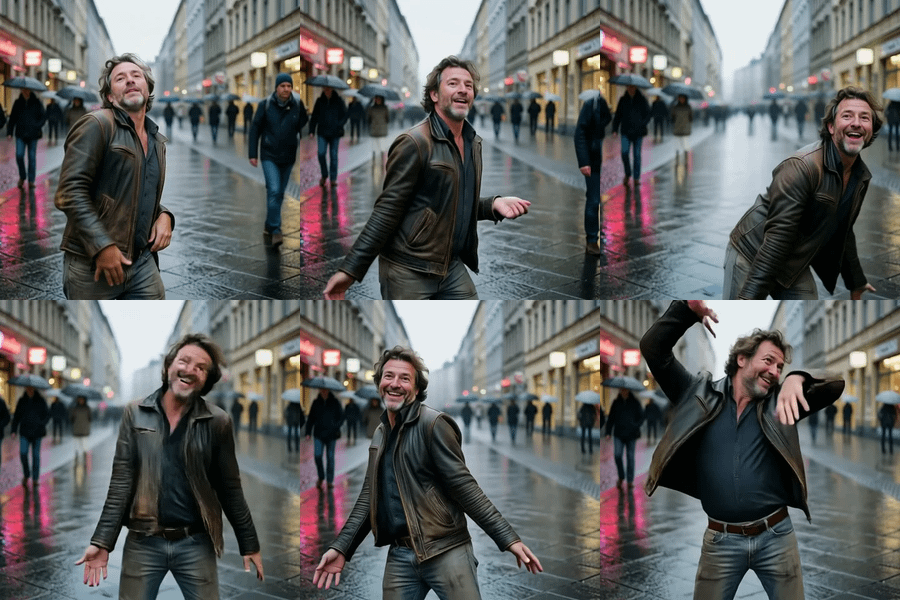
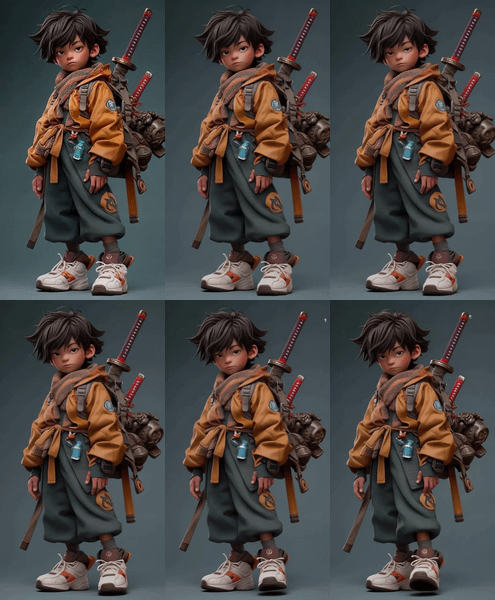
Kling3.0を使用したImage-to-Videoワークフローです。スタートフレーム、正面図、キャラクターシートの3つをアップロードすることで、キャラクターの顔・衣装・雰囲気を保ちながら、一貫性の高い動画を生成できます。 This is an Image-to-Video workflow using Kling3.0.
Image to Video
Kling3.0
Video
940

1. Overview|概要
このワークフローは、Kling3.0を使用したImage-to-Video用の動画生成ワークフローです。
This workflow is an Image-to-Video generation workflow using Kling3.0.
スタートフレーム、正面図、キャラクターシートの3つを参照画像として使用します。
It uses three reference images: Start Frame, Front View, and Character Sheet.
3つの画像を組み合わせることで、キャラクターの一貫性を高めた動画生成ができます。
By combining these three images, you can generate videos with higher character consistency.
Kling3.0は、Image-to-Video、Start & End Frame、複数参照画像、マルチショット制御に対応した動画生成モデルです。
Kling3.0 is a video generation model that supports Image-to-Video, Start & End Frame, multiple reference images, and multi-shot control.
Kling3.0は、一貫性、フォトリアル表現、最大15秒の動画生成、ネイティブ音声生成が強化されています。
Kling3.0 has improved consistency, photorealistic output, video generation up to 15 seconds, and native audio generation.
人物画像、AI美女、キャラクター動画、広告用ビジュアル、SNS向けショート動画に活用できます。
It can be used for portrait videos, AI beauty videos, character videos, advertising visuals, and short-form social media content.
1枚の画像だけで動画化するよりも、顔・衣装・体型・世界観を維持しやすい構成です。
Compared with using only one image, this setup makes it easier to preserve the face, outfit, body shape, and world setting.
2. How It Works|使い方
緑色のノードにスタートフレームをアップロードしてください。
Upload the Start Frame to the green node.
正面図用のノードにキャラクターの正面画像をアップロードしてください。
Upload the character’s Front View to the front-view node.
キャラクターシート用のノードにキャラクターシート画像をアップロードしてください。
Upload the Character Sheet to the character-sheet node.
3つの画像をアップロードしたら、プロンプトを入力してください。
After uploading the three images, enter the prompt.
プロンプトには、動き、表情、カメラワーク、演出、シーンの雰囲気を書いてください。
In the prompt, describe the motion, expression, camera movement, direction, and scene mood.
生成ボタンを押すだけで、参照画像をもとに動画を生成できます。
Press the Generate button to create a video based on the reference images.
スタートフレームは、動画の最初の見た目や構図を固定するために使用します。
The Start Frame is used to define the first frame, composition, and initial look of the video.
正面図は、顔や体型、衣装の正面情報を安定させるために使用します。
The Front View is used to stabilize the face, body shape, and front-facing outfit details.
キャラクターシートは、キャラクター全体の特徴やデザインを維持するために使用します。
The Character Sheet is used to preserve the overall character features and design.
この3つを使うことで、1枚入力よりも一貫性の高い動画を作りやすくなります。
Using these three references makes it easier to create a more consistent video than using a single image.
3. Prompt Control|プロンプトによる調整
プロンプトには、キャラクターをどのように動かしたいかを具体的に書いてください。
In the prompt, clearly describe how you want the character to move.
被写体の動き、表情変化、カメラワーク、背景の動き、映像の雰囲気を書いてください。
Describe the subject movement, expression changes, camera work, background movement, and video mood.
キャラクター性を保ちたい場合は、keep the same character identity と指定してください。
If you want to preserve the character identity, write keep the same character identity.
顔を維持したい場合は、keep the same face と指定してください。
If you want to preserve the face, write keep the same face.
衣装を維持したい場合は、keep the same outfit と指定してください。
If you want to preserve the outfit, write keep the same outfit.
体型を維持したい場合は、keep the same body shape と指定してください。
If you want to preserve the body shape, write keep the same body shape.
カメラワークを指定する場合は、ゆっくり寄る、横にスライドする、回り込み、手持ちカメラ風などを書いてください。
For camera control, describe movements such as slow push-in, side slide, orbit, or handheld camera style.
自然な動画にしたい場合は、過剰な動きよりも小さな動きを丁寧に指定してください。
For a natural video, describe subtle movements carefully rather than excessive motion.
一貫性を重視する場合は、キャラクターの顔、髪型、衣装、色味を変えないように指示してください。
If consistency is important, instruct the model not to change the face, hairstyle, outfit, or color palette.
短いプロンプトでも生成できますが、動きと維持したい要素を具体的に書くほど安定しやすくなります。
Short prompts can work, but describing both the motion and preserved elements clearly makes the result more stable.
4. Settings|設定
基本設定では、3つの画像をアップロードしてプロンプトを変更するだけですぐに使えます。
With the basic settings, you can use it immediately by uploading the three images and changing the prompt.
スタートフレームは、動画の開始構図として使用します。
The Start Frame is used as the opening composition of the video.
正面図は、顔・体型・衣装の基準画像として使用します。
The Front View is used as the reference for the face, body shape, and outfit.
キャラクターシートは、キャラクター全体の一貫性を保つために使用します。
The Character Sheet is used to maintain the overall character consistency.
まずはデフォルト設定のまま生成することをおすすめします。
It is recommended to generate with the default settings first.
キャラクターが崩れる場合は、プロンプトに keep the same character identity を追加してください。
If the character changes too much, add keep the same character identity to the prompt.
顔が変わる場合は、keep the same face を追加してください。
If the face changes, add keep the same face.
衣装が変わる場合は、keep the same outfit を追加してください。
If the outfit changes, add keep the same outfit.
動きが強すぎる場合は、穏やかな動き、自然な表情変化、小さなジェスチャーと指定してください。
If the motion is too strong, specify gentle movement, natural expression changes, and small gestures.
動きが弱い場合は、歩く、振り向く、手を振る、カメラに近づくなど具体的な動作を追加してください。
If the motion is too weak, add specific actions such as walking, turning around, waving, or approaching the camera.
必要に応じて、秒数、解像度、サンプラー、ステップ数を変更して用途に合わせてください。
If needed, adjust the duration, resolution, sampler, and step count depending on your use case.
一貫性を最優先する場合は、まず画像の情報量を増やし、設定変更は最小限にするのがおすすめです。
If consistency is the top priority, it is recommended to enrich the reference images first and keep setting changes minimal.
Read more