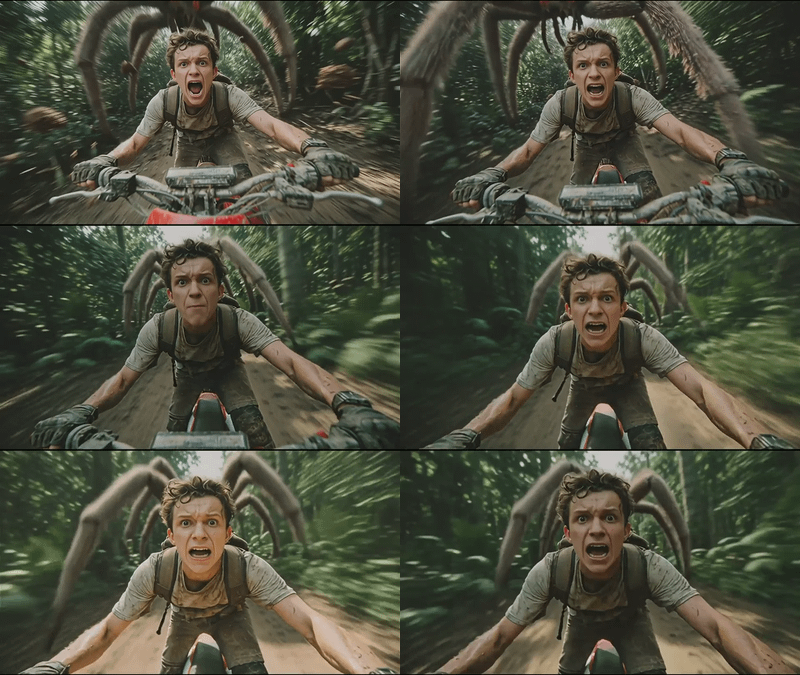
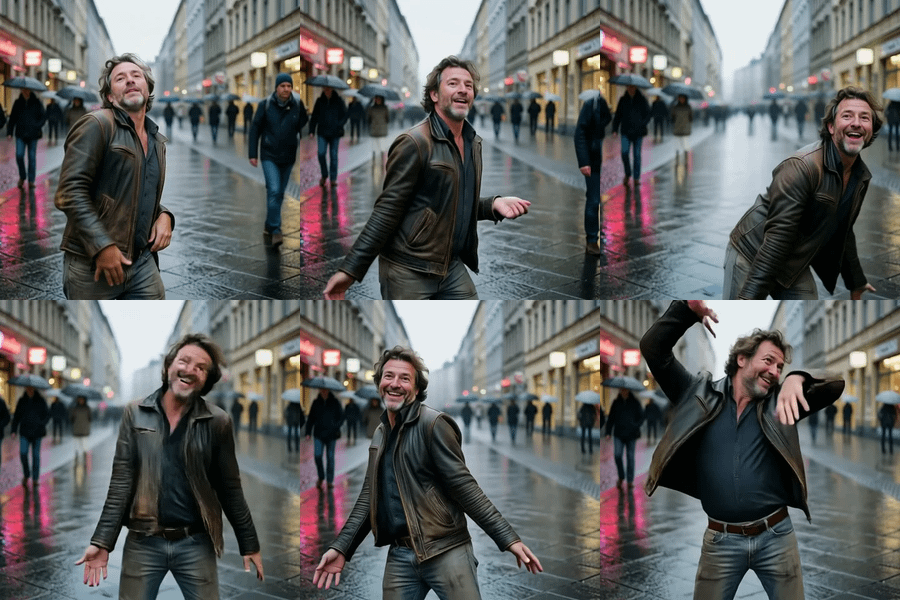
Kling 3.0 Pro · Image to Video
Animate a still into a 4K clip with sound using Kling 3.0 Pro by Kuaishou. Upload a start and end image, describe the motion, and hit run. Up to 15 seconds.
Animation
Image2Video
Kling
Kling 3.0 Pro
Video
1.4k
_1774195486846.webp)

ABOUT THE WORKFLOW
Animate a Still Into a 4K Clip With Sound Upload a start image and describe the motion. Kling 3.0 Pro builds the picture and the audio together in one pass and returns a clip with sound. Add an optional end image to steer where the shot lands. Native 4K at up to 60 fps, up to 15 seconds per run.
Partner node. This workflow calls an external API, so each run uses credits from your API wallet. No API key needed. Floyo handles the connection.
Model
Kling 3.0 Pro by Kuaishou. Released 5 February 2026. The quality tier of the Kling 3.0 generation, built on a unified multimodal framework that generates synchronized video and audio in one pass. Native 4K at up to 60 fps, up to 15 seconds, with multi-shot storyboarding and multilingual dialogue. Closed model with no open weights.
HOW IT WORKS
Step 1. Upload your start image The frame the clip opens on. It sets the subject, the scene, and the framing. Works great with: portraits · product shots · character art · location photos
Step 2. Upload an end image (optional) The frame the clip should land on. Helps the model plan the motion path from start to finish.
Step 3. Describe the motion Say what moves and how. "The man is dancing" or "camera slowly orbits the product, soft light shifts." Name the camera move separately from the subject.
Step 4. Set duration and shape Pick a duration up to 15 seconds and an aspect ratio. Both settings drive what a run costs.
Step 5. Hit run and download The clip comes back as a video file with sound, saved under video/kling. Ready for: Premiere · DaVinci Resolve · CapCut · After Effects
First time? Leave every setting as-is. The defaults (5 seconds · 16:9 · audio on · CFG 0.5 · random seed) are the right starting point for almost everyone.
RECOMMENDED SETTINGS
Quick-start guide. Find the goal that matches yours and copy the settings.
Standard clip (most people) — 5 seconds · 16:9 · audio on · CFG 0.5 · random seed. The right starting point for almost everyone.
Need a longer clip — Raise the duration up to 15 seconds. Duration drives cost.
Need a different shape — Switch the aspect ratio. 16:9, 9:16, 1:1, and other standard ratios are available.
Want the shot to land on a specific frame — Upload a second image as the end image. The model plans the motion between the two.
Sound is not matching the action — Describe the sound in the prompt after the visual action. Name the room tone, effects, and the score.
Want silent output — Turn generate audio off. The model skips the sound pass.
The clip drifts from the prompt — Raise CFG above 0.5. Higher values hold the model closer to your words, but push too far and the motion can stiffen.
Shot framing is wrong — Switch shot type from customize to a named option. Customize lets the model choose; named options like close-up or wide pin the framing.
Repeat a take you liked — Set a fixed seed. The same images, prompt, and seed give you the same clip back.
Multi-prompt and voice IDs — Advanced inputs for multi-shot storyboarding and character dialogue. Leave them empty for standard clips.
Prompt: Write the action, not the contents. "The man is dancing, camera holds steady, warm light" gives you more than "a man." Name the camera move separately from the subject motion, and describe the sound you want on a separate line.
LEARN
📹 Videos
ComfyUI 101 Free Course ft. Sebastian Kamph
Floyo 101 for Team Collaboration
✨ Quick links
USE CASES
🎬 Cinematic Single Shots Animate a concept frame into a 4K clip with camera moves, sound effects, and a score at up to 60 fps.
📢 Ads and Product Films Turn a product still into a finished spot with room tone and motion at native 4K without a shoot.
🎞️ Start-to-End Interpolation Give the model a first frame and a last frame and get smooth motion between the two with matching audio.
📱 Social Content Turn one still into a polished clip with sound for Reels, TikTok, or Shorts in one run.
WHAT WORKS BEST / WHAT TO AVOID
✅ Works great
Clear, well-lit start images with one readable subject
Prompts that name the movement, the camera, and the sound separately
Start and end images framed at a similar subject size
Clips of 5 to 10 seconds as a starting range
⚠️ May produce softer results
Prompts that describe the frame rather than what happens next
Fast collisions or extreme physics that break down at high speed
Start and end images with wildly different framing or subject sizes
Duration pushed to 15 seconds on a first test without iteration
FAQ
What is Kling 3.0 Pro? Kling 3.0 Pro is the quality tier of Kuaishou's third-generation video model, released 5 February 2026. It is built on a unified multimodal framework that generates synchronized video and audio in one pass. It outputs native 4K at up to 60 fps, handles clips up to 15 seconds, and supports multi-shot storyboarding with up to 6 camera cuts and multilingual dialogue in 8 languages with lip sync.
Does Kling 3.0 Pro generate audio with the video? Yes, by default. Sound is generated in the same pass as the picture. Effects, room tone, dialogue, and lip sync land on the same timeline as the action. Turn audio off if you want a silent clip. Voice IDs are available for character dialogue in multi-shot scenes.
What is the difference between Kling 3.0 Pro and Kling 2.6 Standard? Kling 3.0 Pro is a generation ahead. Native 4K (vs upscaled 1080p), 60 fps (vs 48), 15 seconds (vs 10), multi-shot storyboarding (vs single shot), and multilingual dialogue (vs audio only). The 2.6 Motion Control workflow in this batch does subject replacement from a reference video, which is a different task. Pick 3.0 Pro for the highest-fidelity single or multi-shot generation, and 2.6 Motion Control for mapping a reference video's motion onto your character.
Can Kling 3.0 Pro interpolate between a start and end frame? Yes. Upload a second image as the end image and the model plans the motion between the two. Both images should frame the subject at a similar size for the cleanest result.
Is Kling 3.0 open source? No. Kling is a closed model with no published weights. It is reached through the Kuaishou API.
How does Kling 3.0 Pro compare to Seedance 2.5 and Wan 2.7? All three generate video with native audio. Kling 3.0 Pro leads on resolution (native 4K) and frame rate (60 fps). Seedance 2.5 leads on clip length (30 seconds) and reference count (50 inputs). Wan 2.7 adds a thinking mode that plans composition before rendering and goes up to 15 seconds. Pick Kling 3.0 Pro for the highest visual quality, Seedance 2.5 for the longest clips, and Wan 2.7 for compositional planning.
How to run Kling 3.0 Pro online? You can run Kling 3.0 Pro online through Floyo. No installation, no setup, no API key to wire up. Open the workflow in your browser, upload your image, describe the motion, and hit run. Free to try.
WHY FLOYO?
Floyo is the only platform with team collaboration for ComfyUI in the browser. You run workflows with no install. You share run history, assets, and models across your team. You pay only when you generate. Floyo supports open-source and closed-source models.
A designer runs an edit and likes the result. A teammate opens that exact run from shared history and keeps going. No file handoffs. No version confusion.
For studios and enterprise teams, Floyo adds private workspaces, pooled resources, and a team usage dashboard. Other ComfyUI cloud tools run for one person at a time. Floyo runs for the whole team, with transparent per-generation costs.
Ready to try it? Upload a start image, describe the motion, and run it. The settings are already set.
Questions? Watch the free course or check the FAQ above.
Read more