Ideogram v4.5 for Text to Image
Generate images with readable text and clean design using Ideogram 4.5. Type a prompt, pick a size, and hit run.
Ideogram v4.5
Image
Text to Image
133



Nodes & Models
IdeogramV45TextToImage_floyo
MarkdownNote
PreviewImage
ABOUT THE WORKFLOW
Generate an Image from Text
Type a prompt describing the image you want. Ideogram 4.5 generates it with sharp typography and clean composition. The model rewrites your prompt by default to improve results. That’s it.
Partner node. This workflow calls an external API, so each run uses credits from your API wallet. No API key needed. Floyo handles the connection.
Model
Ideogram 4.5 by Ideogram, Inc. Strong at rendering readable text inside images, typography-heavy designs, posters, logos, and photorealism. Outputs up to native 2K (2048×2048 square, 2560×1440 landscape).
HOW IT WORKS
Step 1. Write your prompt
Describe the image you want. Include any text that should appear in the image, spelled out in quotes. Prompts can be up to 10,000 characters. The model also accepts JSON-structured prompts for complex layouts.
Works great with: posters · book covers · logos · product mockups
Step 2. Pick a size
Choose square, portrait, or landscape in standard or HD. Square HD is the default.
Step 3. Hit run and download
The model generates your image and returns it to the canvas. Preview it in the workflow, then download.
Ready for: Photoshop · Figma · Canva · any editor
First time? Leave every setting as-is. The defaults (medium quality · square HD · prompt expansion on) are the right starting point for almost everyone.
INPUT & SETTING LIMITS
Exact constraints from the Ideogram 4.5 API. Stay within these to avoid errors.
Prompt
Required. At least 1 character, up to 10,000 characters max.
Also accepts JSON-structured prompts for complex multi-element layouts.
Default in workflow: empty.
Quality
Options:
low,medium,high.Default in workflow:
medium.Low is the cheapest per image. Medium balances cost and detail. High gives the most detail and costs the most. Higher quality does not change the resolution.
Image size
Options:
square_hd,square,portrait_4_3,portrait_16_9,landscape_4_3,landscape_16_9, and additional aspect ratios.Default in workflow:
square_hd.Resolution tiers: 1K (1024×1024 square) or 2K (2048×2048 square, 2560×1440 landscape). The size option you pick determines which tier you get.
Maximum total pixel area: 4,194,304 pixels (equivalent to 2048×2048).
Number of images
Min: 1. Max: 8.
Default in workflow: 1.
Each additional image costs more credits.
Prompt expansion
Options: on or off.
Default in workflow: on.
When on, the model rewrites your prompt each run to add detail. When off, your exact words are used.
Prompt expansion rewrites the text differently each time, so turn it off and lock the seed to reproduce a result exactly.
Seed
Min: 0. Max: 2,147,483,647.
Default in workflow: random.
Set a fixed number to reproduce a result. Leave on random for variety.
RECOMMENDED SETTINGS
Quick-start guide. Find the goal that matches yours and copy the settings.
Standard generation (most people) — Medium quality · square HD · 1 image · prompt expansion on. The right starting point for almost everyone.
Quick test or draft — Low quality · 1 image. Fastest and cheapest way to check if your prompt lands before committing to a higher-quality run.
Maximum detail — High quality · 1 image. Use when the output needs fine detail, small text, or print-ready sharpness. Costs more per run.
Want options to choose from — Medium quality · set number of images up to 8 to generate several versions and keep the strongest.
Need exact prompt control — Turn prompt expansion off. The model uses your words without rewriting. Pair with a locked seed (any number from 0 to 2,147,483,647) to reproduce results exactly.
Text in the image is wrong — Spell out the exact words in quotes inside your prompt. Turn prompt expansion off so the model does not rewrite them. If text is still wrong, simplify the amount of text you are asking for.
Need a landscape or portrait shape — Switch image size to
landscape_16_9for wide banners orportrait_4_3for vertical posters. Pick the aspect ratio before running.
Prompt: Describe the scene, style, and any text you want in the image. Put text content in quotes: “a concert poster with the words ‘LIVE TONIGHT’ in bold sans-serif” works better than “a concert poster.” Keep it specific about layout and typography when text matters. You have up to 10,000 characters, but short, precise prompts tend to produce better results than long ones.
LEARN
📹 Videos
ComfyUI 101 Free Course ft. Sebastian Kamph
Floyo 101 for Team Collaboration
✨ Quick links
USE CASES
🎨 Graphic Designers
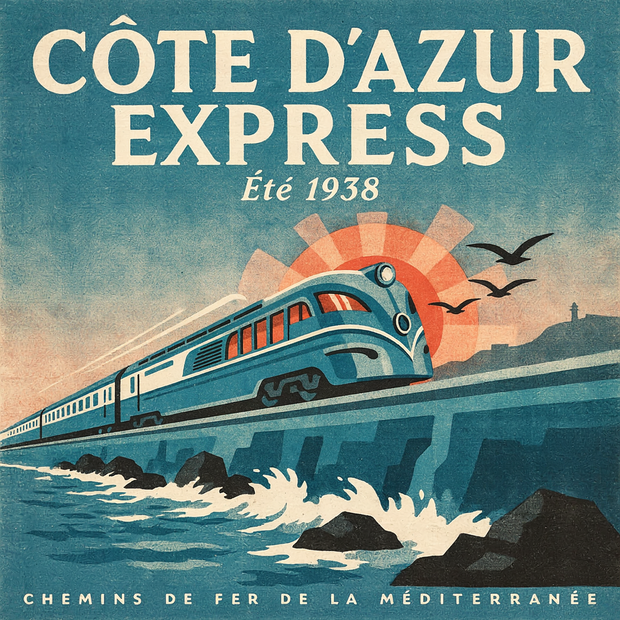
Generate posters, flyers, and social media graphics with accurate headlines and body text baked into the image.
📘 Book & Album Covers
Create cover concepts with readable titles, author names, and typographic layouts in a single generation.
🏷️ Logo & Brand Exploration
Produce logo concepts and wordmarks with clean letterforms to test directions before refining in a vector tool.
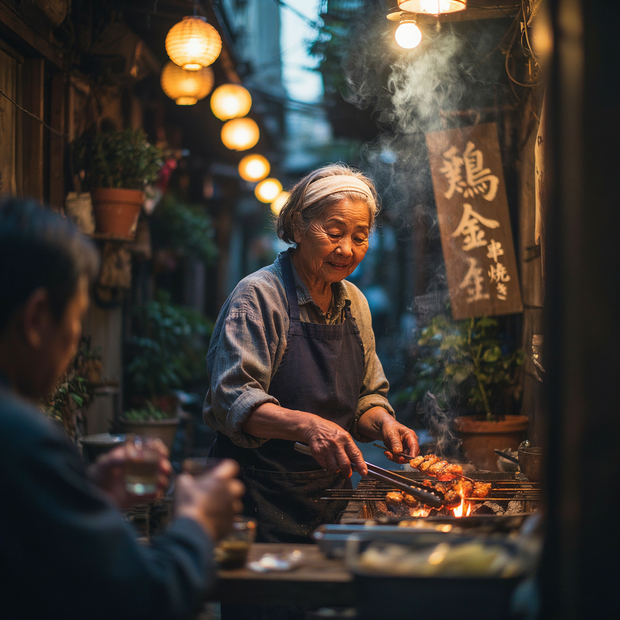
📸 Photorealistic Mockups
Generate product shots, lifestyle scenes, and marketing visuals with consistent style across multiple runs.
📐 Banners & Social Content
Use landscape and portrait presets to generate images sized for YouTube thumbnails, Instagram Stories, Pinterest pins, and website headers without cropping.
WHAT WORKS BEST / WHAT TO AVOID
✅ Works great
Prompts with specific text spelled out in quotes
Typography-heavy designs: posters, covers, signage
Clean compositions with a clear subject
Photorealistic scenes and product shots
Short, precise prompts with layout direction
⚠️ May produce softer results
Vague prompts with no layout direction
Long paragraphs of text in a single image
Iterative multi-turn editing (use the Ideogram 4.5 Edit workflow instead)
Extremely complex multi-element scenes
Leaving prompt expansion on when exact text matters
FAQ
What is Ideogram 4.5 and what is it best at?
Ideogram 4.5 is a text-to-image model made by Ideogram, Inc., released September 30, 2026. It follows Ideogram 4.0 and 3.0. Its standout strength is rendering readable text inside images, which makes it a strong fit for posters, logos, book covers, signage, and any design that includes typography. It is also strong at photorealism and consistent style across regenerations.
What resolution does Ideogram 4.5 output?
Ideogram 4.5 outputs up to native 2K resolution. In square format that is 2048×2048 pixels. In landscape it reaches 2560×1440. The workflow offers preset sizes including square, square HD, portrait (4:3 and 16:9), and landscape (4:3 and 16:9). The maximum total pixel area is 4,194,304 pixels (equivalent to 2048×2048).
What does prompt expansion do and should I turn it off?
Prompt expansion (called Magic Prompt on Ideogram’s own platform) rewrites your prompt before sending it to the model. It adds detail and structure to improve results. Leave it on for most runs. Turn it off when you need exact control over the words in your prompt, especially when the image contains specific text, or when you want to reproduce a result by reusing the same seed. With expansion on, the rewrite changes each run, so two identical prompts can produce different results.
How many images can I generate per run?
You can generate 1 to 8 images per run. The default is 1. Each additional image costs more credits. Generating 3 or 4 at once is a good way to get options without waiting for separate runs.
Is Ideogram 4.5 open source?
No. Ideogram 4.5 is proprietary and has no published weights. Ideogram 4.0 does have open weights. Ideogram has said 4.5 weights are coming, but they are not available yet.
Can I use Ideogram 4.5 images for commercial projects?
Ideogram 4.5 is a proprietary model, so commercial use is governed by Ideogram’s terms of service. Review their current terms before using outputs in shipped products, client work, or published materials.
How is Ideogram 4.5 different from Midjourney or FLUX for text in images?
Most image models struggle with legible text. Ideogram 4.5 is built to render readable typography, so text appears correctly spelled and well-placed in the image. If your output needs accurate headlines, labels, or signage, Ideogram 4.5 is a stronger starting point than models optimized for photorealism or artistic style alone.
What is the difference between Ideogram 4.5 generate and Ideogram 4.5 edit?
This workflow is text-to-image generation: it creates a new image from a prompt. The Ideogram 4.5 Edit workflow starts from an image you upload and modifies it with a prompt instruction. It also accepts up to 5 reference images. Use this generate workflow to make images from scratch, and the edit workflow to change an existing image.
How to run Ideogram 4.5 online?
You can run Ideogram 4.5 online through Floyo. No installation, no setup, no API key to wire up. Open the workflow in your browser, type your prompt, and hit run. Free to try.
WHY FLOYO?
Floyo is the only platform with team collaboration for ComfyUI in the browser. You run workflows with no install. You share run history, assets, and models across your team. You pay only when you generate. Floyo supports open-source and closed-source models.
A designer runs a generation and likes the result. A teammate opens that exact run from shared history and keeps going. No file handoffs. No version confusion.
For studios and enterprise teams, Floyo adds private workspaces, pooled resources, and a team usage dashboard. Other ComfyUI cloud tools run for one person at a time. Floyo runs for the whole team, with transparent per-generation costs.
Ready to try it?
Type a prompt and run it. The settings are already set.
Questions? Watch the free course or check the FAQ above.
Read more