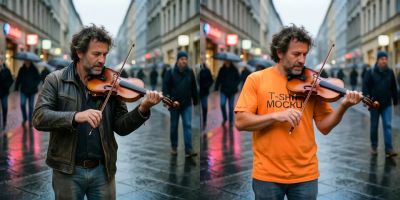
GPT Image 2.6 Sunburst Edit for Image Editing
Upload a photo, describe the change you want, and GPT Image 2.6 Sunburst redraws the edited parts and returns a new image.
GPT Image 2.6 Sunburst Edit
Image
Image Editing
33

ABOUT THE WORKFLOW
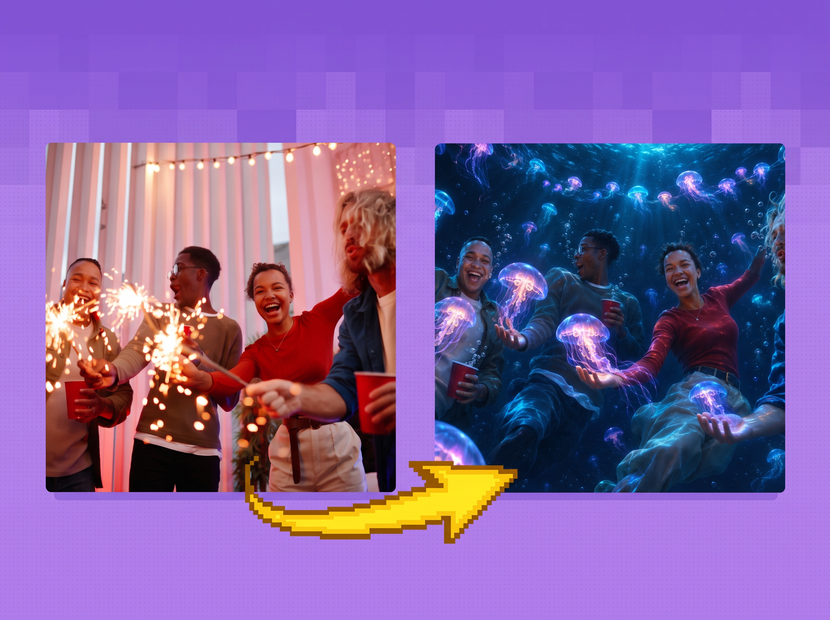
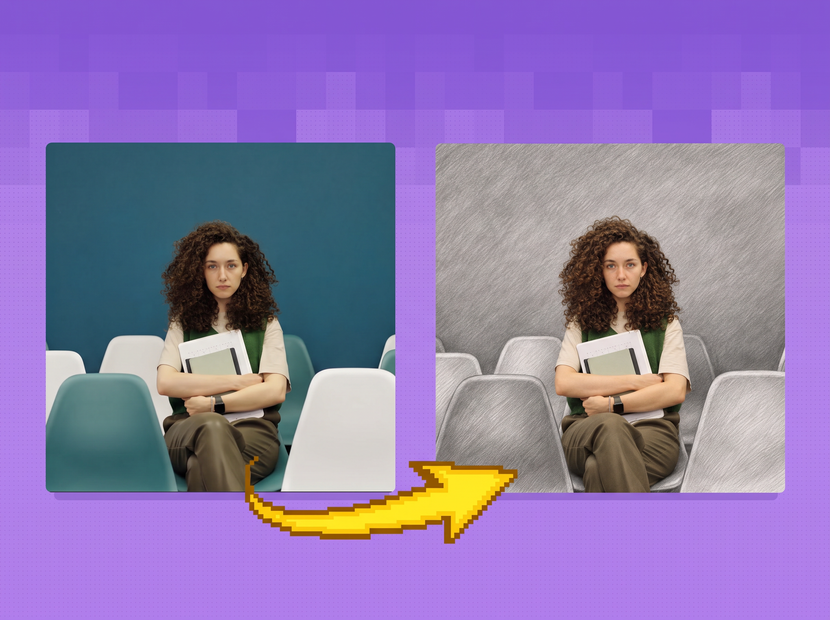
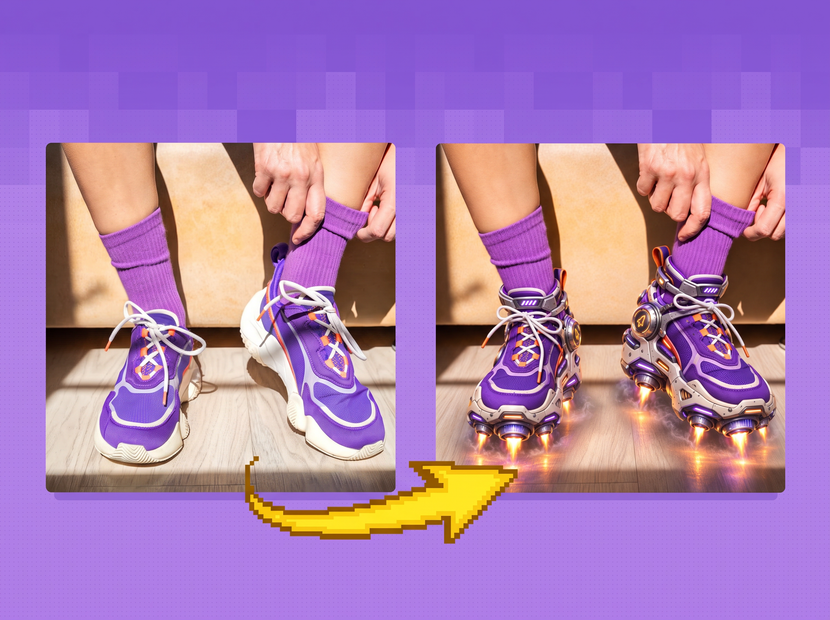
Edit any image with a prompt
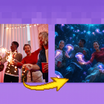
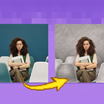
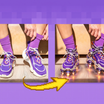
Upload a photo and describe what you want changed. The model reads your image and prompt, edits only the parts you described, and returns a new version. No manual masking required for most edits.
Partner node. This workflow calls an external API, so each run uses credits from your API wallet. No API key needed. Floyo handles the connection.
Model
GPT Image 2.6 Sunburst by OpenAI. Part of the Images 2.6 family. Strong at precise multi-turn edits, text-heavy layouts, and brand or product imagery.
HOW IT WORKS
Step 1. Upload your image
Drop your photo into the Load Image node. Clear, well-lit images work best. Supports common formats including JPG and PNG.
Works great with: product photos · portraits · marketing assets
Step 2. Describe the edit
Write what you want changed in the prompt field. Be specific about what to change and what to keep.
Example: “Change the background to a beach at sunset” or “Add sunglasses to the person.”
Step 3. Add a mask (optional)
Connect a mask to limit edits to one area of the image. Useful when you want to change a small region without affecting the rest of the photo.
Step 4. Add reference images (optional)
Connect up to 15 extra reference images for style or content guidance. Useful for matching a specific look or transferring elements between photos.
Step 5. Run the workflow
Click run. The model processes your image and prompt, then returns the edited image in the preview. Right-click to save, or connect a Save Image node.
Ready for: Photoshop · Canva · Figma
First time? Leave every setting as-is. The defaults are the right starting point for almost everyone.
RECOMMENDED SETTINGS
Image Inputs
image1 through image16 — at least one is required (pre-check blocks run if none connected)
A batch counts as one image per frame, so a batch of 4 fills 4 of the 16 slots
Max 16 images total counting every frame of a batch — exceeding this blocks the run
Images over 25 MB are auto-compressed; if still over 25 MB after compression, the run is blocked
Refer to images by number in the prompt: "put the dog from image 2 into the scene of image 1"
Mask (Optional)
Limits the edit to a specific area — white = edit, black = keep
Cannot be used together with markup — connecting both blocks the run
Applies to image1 only
Markup (Optional)
A transparent PNG drawn over image1 showing the model where and what to change (circles, arrows, notes)
Connect markup_image (IMAGE output) and markup_mask (MASK output) from the same Load Image node
Markup must be exactly the same size as image1 — mismatch blocks the run
markup_mask without markup_image (or vice versa) blocks the run
Cannot be used together with mask
Prompt
Required — empty prompt blocks the run
For edits: say what to change, then list what must stay the same
Be specific — vague prompts give vague edits
Image Size
Default: auto (matches the input image)
Options: auto, 14 presets, or custom
Custom best results: each side multiple of 16, longest side ≤ 3,840 px, shape no wider than 3:1, total pixels 655,360–8,294,400
Custom width/height must be typed on the node — feeding from another node causes an error
Quality
Default: high
Options: auto, low, medium, high, xhigh, max
Moves the price the most — every image you send adds to cost
Background
Default: auto
Options: auto, transparent, opaque
Transparent requires PNG or WebP — using JPEG with transparent blocks the run
Num Images
Default: 1, range 1–10
No SVG support in Edit nodes
Output Format
Default: png
Options: jpeg, png, webp, gif (no svg in Edit nodes)
Output Compression
Default: 0 (model decides), range 0–100
Applies to JPEG and WebP only
Reasoning Effort
Default: high
Options: low, medium, high
High helps with complex edits but takes longer — Sunburst handles dense detail well
GIF Settings
frame_count: 2–16, default 9
frame_duration_ms: 20–2,000, default 200
Same canvas size limits as Text-to-Image — too many frames at large sizes get refused
Safe: ≤9 frames at 1024×768, or 16 frames at ≤960×540
Output
Edited image saved to My Files > outputs
GIF: .gif file saved; IMAGE output carries every frame separately
Common Error-Causing Mistakes to Avoid
No input image connected — blocks the run
Empty prompt — blocks the run
More than 16 images (counting batch frames) — blocks the run
Mask and markup both connected — cannot use both together
markup_image without markup_mask or vice versa — blocks the run
Markup not the same size as image1 — blocks the run
Image still over 25 MB after compression — blocks the run
Transparent background + JPEG — must use PNG or WebP
Custom width/height fed from another node — must type on the node
GIF with too many frames at large sizes (e.g. 16 frames at 1024×768)
Recommended Safe Defaults
Image size: auto (matches input)
Quality: high
Background: auto
Output format: png
Reasoning effort: high
Num images: 1
Use a mask to protect parts you don’t want changed
GIF: ≤9 frames at default size; 16 frames only at ≤960×540
LEARN
📹 Videos
ComfyUI 101 Free Course ft. Sebastian Kamph
Floyo 101 for Team Collaboration
✨ Quick links
USE CASES
🛍️ Product photo editing
Upload a product shot and change the background, lighting, or staging without reshooting.
🖼️ Marketing asset updates
Swap text, colors, or elements in existing campaign visuals to create new variants from one base image.
👤 Portrait retouching
Add or remove accessories, change clothing colors, or adjust background elements in headshots and team photos.
🎨 Concept art iteration
Upload an illustration or sketch and describe targeted changes to refine composition, colors, or specific details between rounds.
📦 E-commerce listing prep
Clean up backgrounds, add consistent branding elements, or adjust product angles across a batch of listing images.
WHAT WORKS BEST / WHAT TO AVOID
✅ Works great
Clear, well-lit source photos with distinct subjects
Specific prompts that name what to change and what to keep
Masked edits for small, precise changes in one region
Reference images when matching a target style or object
⚠️ May produce softer results
Vague prompts like “make it better” or “improve this”
Low-resolution or heavily compressed source images
Edits that require understanding complex spatial relationships across the full image
Requests to generate large amounts of legible small text in one pass
FAQ
What is GPT Image 2.6 Sunburst?
GPT Image 2.6 Sunburst is an image generation and editing model from OpenAI, released November 4, 2026. It is part of the Images 2.6 family alongside the faster Flare variant. Sunburst is optimized for precise edits, text-heavy layouts, and brand imagery.
What is the difference between GPT Image 2.6 Sunburst and Flare?
Sunburst produces higher-fidelity results and handles complex edits with more precision. Flare is faster and better suited for quick drafts and rapid iteration. Use Flare to explore ideas, then switch to Sunburst for the final version.
Can I use GPT Image 2.6 Sunburst for commercial projects?
GPT Image 2.6 Sunburst is accessed through the OpenAI API. Commercial use is governed by OpenAI’s usage policies and terms of service. Check OpenAI’s current terms for your specific use case.
What image formats does GPT Image 2.6 Sunburst support?
The workflow outputs PNG, WebP, and animated GIF. Maximum output resolution is 4K. For GIF output, you can set between 2 and 16 frames with 20 to 2000 milliseconds per frame.
Does GPT Image 2.6 Sunburst support inpainting with masks?
Yes. Connect a mask input to limit edits to a specific area of the image. The model redraws only the masked region and leaves everything else untouched. This is useful for precise object swaps or localized changes.
How many reference images can I use with GPT Image 2.6 Sunburst?
You can connect up to 16 images total: one primary image and up to 15 additional reference images. Reference images help guide the model toward a specific style, object, or look.
How to run GPT Image 2.6 Sunburst online?
You can run GPT Image 2.6 Sunburst online through Floyo. No installation, no setup, no API key to wire up. Open the workflow in your browser, upload your inputs, and hit run. Free to try.
WHY FLOYO?
Floyo is the only platform with team collaboration for ComfyUI in the browser. You run workflows with no install. You share run history, assets, and models across your team. You pay only when you generate. Floyo supports open-source and closed-source models.
A designer runs an edit and likes the result. A teammate opens that exact run from shared history and keeps going. No file handoffs. No version confusion.
For studios and enterprise teams, Floyo adds private workspaces, pooled resources, and a team usage dashboard. Other ComfyUI cloud tools run for one person at a time. Floyo runs for the whole team, with transparent per-generation costs.
Ready to try it?
Upload a photo and describe your first edit. The model handles the rest.
Questions? Watch the free course or check the FAQ above.
Read more