

Capybara · Text to Image For Kids Edu
Generate images from a text prompt using Capybara v0.1, a unified visual creation model built on HunyuanVideo 1.5. Type a prompt and hit run.
capybara
Image
text rendering
text to image
132
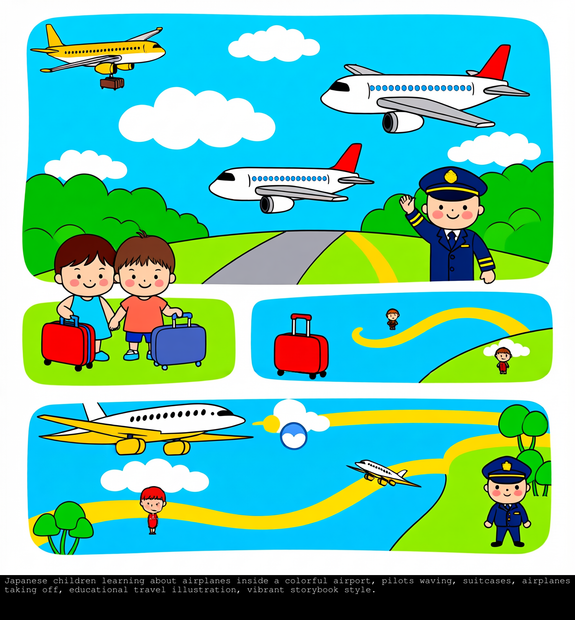
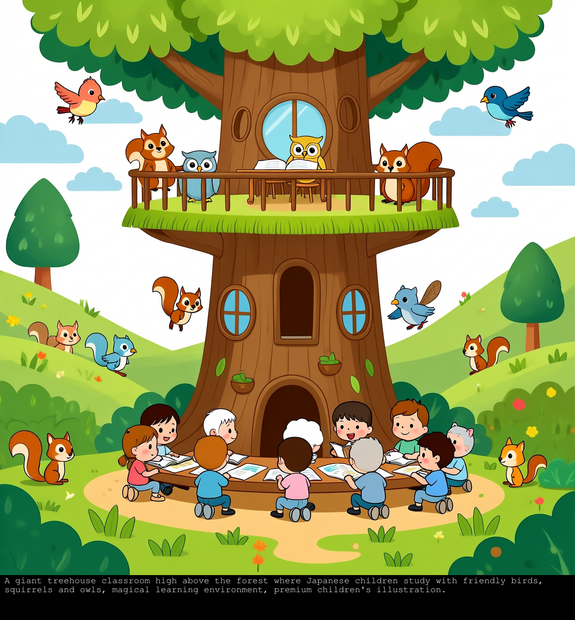
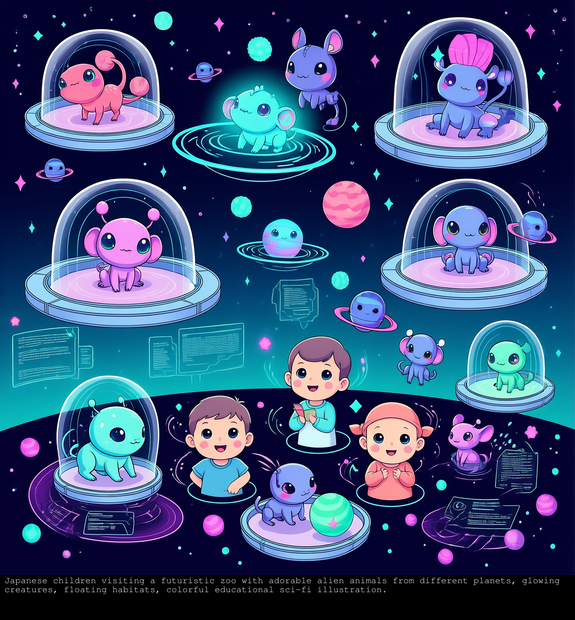

Nodes & Models
easy positive
RandomNoise
KSamplerSelect
UNETLoader
capybara_v0.1.safetensors
VAELoader
hunyuanvideo15_vae_fp16.safetensors
DualCLIPLoader
qwen_2.5_vl_7b.safetensors
byt5_small_glyphxl_fp16.safetensors
PreviewImage
BasicScheduler
ModelSamplingSD3
CLIPTextEncode
CFGGuider
SamplerCustomAdvanced
VAEDecode
AddLabel
FloyoStickyNote
EmptyHunyuanVideo15Latent
ABOUT THE WORKFLOW
Generate an Image
Type what you want to see, hit run, and get a high-quality image with accurate text rendering. Capybara is a unified model that handles image generation, editing, and video in one system. This workflow runs the text-to-image path. That's it.
Model
Capybara v0.1 by XGen Universe. A unified visual creation model (MIT license) built on HunyuanVideo 1.5 with a dual text encoder (Qwen 2.5-VL-7B + GlyphXL ByT5) for precise text rendering inside images.
HOW IT WORKS
Step 1. Write a prompt
Describe the image you want. Be specific about the subject, setting, lighting, and style. To include legible text inside the image, quote it in your prompt: a storefront sign that reads "Open 24 Hours."
Step 2. Write a negative prompt (optional)
List anything you want to keep out of the result, like "blurry, watermark, low quality." A default negative prompt is already loaded.
Step 3. Hit run and download
Capybara generates the image and returns the result with the prompt shown below it for reference. Preview it in the workflow, then download.
Ready for: Photoshop · Figma · Canva · any editor
First time? Leave every setting as-is. The defaults (1280×1280 · 20 steps · 6 guidance) are the right starting point for almost everyone.
RECOMMENDED SETTINGS
Quick-start guide. Find the goal that matches yours and copy the settings.
Standard generation (most people) — 1280×1280 · 20 steps · 6 guidance · random seed. The right starting point for almost everyone.
Want higher quality and more detail — Raise steps to 30 or 40. The model's creators recommend 50 for best quality, but the gains above 30 are subtle and the generation time goes up.
Want a different aspect ratio — Change width and height. The model supports standard presets: 1:1, 16:9, 9:16, 4:3, and 3:4. Stick to preset sizes for the most stable results.
Want to reproduce a result — Set the seed to a fixed number. The same seed, prompt, and settings produce the same image every time.
Want text rendered in the image — Quote the exact text in your prompt. The dual text encoder (Qwen 2.5-VL + GlyphXL ByT5) is built for accurate text rendering. "A vintage poster that reads 'Jazz Night'" works better than "a poster with some text."
The result looks soft or noisy — Add specific terms to the negative prompt: "blurry, low quality, distorted, ugly, watermark." If it persists, raise steps to 30.
Prompt: Be descriptive and specific. Include subject, setting, lighting, mood, and style. "Fantasy blacksmith's forge inside a mountain cave, glowing lava channeled into metalwork pools, sparks flying, warm orange and red lighting" works better than "fantasy scene." For text in the image, quote the exact words you want.
LEARN
📹 Videos
ComfyUI 101 Free Course ft. Sebastian Kamph
Floyo 101 for Team Collaboration
✨ Quick links
USE CASES
📸 Detailed Scene Generation
Generate richly described environments, interiors, and landscapes from a single prompt. The model handles complex multi-element scenes with consistent lighting and composition.
🔤 Text-in-Image Generation
Create images with legible text baked in: posters, signs, labels, logos, and titles. The dual text encoder (Qwen 2.5-VL + GlyphXL ByT5) is purpose-built for accurate text rendering.
🎨 Concept Art and Illustration
Describe a scene in detail and get a visual starting point for concept work, storyboards, or mood boards. Iterate with seed changes to explore variations.
🖼️ Portraits and Character Design
Generate detailed character portraits with control over lighting, wardrobe, and background. Descriptive prompts produce consistent, well-composed results.
WHAT WORKS BEST / WHAT TO AVOID
✅ Works great
Detailed, descriptive prompts with subject, setting, and lighting
Text rendering inside images (signs, posters, labels)
Complex multi-element scenes
Square and standard aspect ratio outputs
⚠️ May produce softer results
Short or vague prompts like "a cool image"
Very high resolutions above 1280 (edges and details may degrade)
Prompts with conflicting style directions
Extremely dense or small text in the image
FAQ
What is Capybara v0.1?
Capybara v0.1 is a unified visual creation model by XGen Universe, released under the MIT license. It is built on the HunyuanVideo 1.5 architecture and supports text-to-image, image editing, text-to-video, and video editing in a single system. This workflow runs the text-to-image path.
How does Capybara render text inside images?
Capybara uses a dual text encoder: Qwen 2.5-VL-7B for general prompt understanding and GlyphXL ByT5 for byte-level text handling. The combination is designed to produce accurate, legible text inside generated images. Quote the exact words you want in your prompt for the best results.
How is Capybara different from HunyuanVideo 1.5?
Capybara is built on the HunyuanVideo 1.5 architecture but is a separate model trained by XGen Universe. It adds a unified framework that handles image generation, image editing, and video generation through one model, with a focus on precise text rendering and instruction-based editing.
What resolution and steps should I use?
The workflow defaults to 1280×1280 at 20 steps with 6 guidance. The model creators recommend 50 steps for best quality and 30 to 40 for faster generation. At 20 steps, results are good for previews and iteration. Raise to 30 or higher for final output.
Is Capybara v0.1 free to use commercially?
Yes. Capybara is released under the MIT license, which allows commercial use, modification, and redistribution with no restrictions on output usage.
Does the negative prompt matter?
Yes. The default negative prompt ("blurry, low quality, distorted, ugly, watermark, text") helps avoid common artifacts. Keep it loaded unless you have a reason to clear it. If you want legible text in the image, remove "text" from the negative prompt so the model does not suppress it.
How to run Capybara online?
You can run Capybara online through Floyo. No installation, no setup, no API key to wire up. Open the workflow in your browser, type your prompt, and hit run. Free to try.
WHY FLOYO?
Floyo is the only platform with team collaboration for ComfyUI in the browser. You run workflows with no install. You share run history, assets, and models across your team. You pay only when you generate. Floyo supports open-source and closed-source models.
A designer generates an image and likes the result. A teammate opens that exact run from shared history and keeps going. No file handoffs. No version confusion.
For studios and enterprise teams, Floyo adds private workspaces, pooled resources, and a team usage dashboard. Other ComfyUI cloud tools run for one person at a time. Floyo runs for the whole team, with transparent per-generation costs.
Ready to try it?
Type a prompt and run it. The settings are already set.
Questions? Watch the free course or check the FAQ above.
Read more








