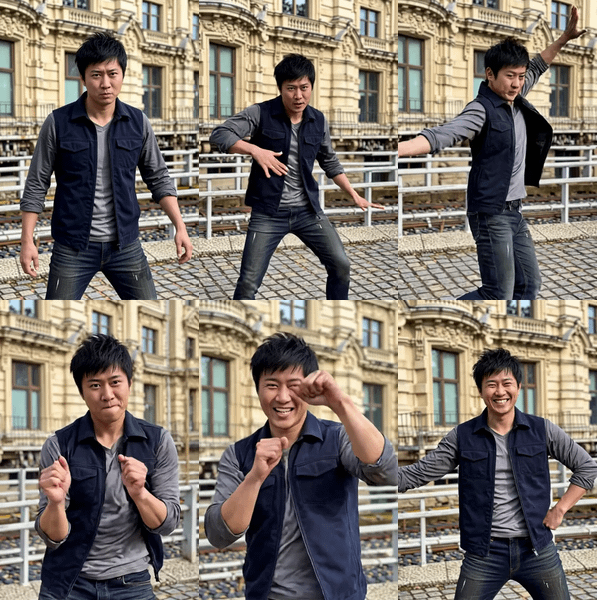
Wan 2.6 · Multi-Shot Image to Video
Upload a starting image and describe your scene. Wan 2.6 automatically plans and renders multiple camera angles and shot transitions within a single video, with synchronized audio, dialogue, and character consistency.
cinematic
image to video
multi-shot
Video
wan 2.6
142
%20(1)_1782890427666.webp)
_1782890427666.webp)
_1782890427666.webp)
%20(1)_1782890458711.webp)
Nodes & Models
AlibabaWan26ImageToVideo_floyo
VideoToFrames
LoadImage
FloyoStickyNote
VHS_VideoCombine
ABOUT THE WORKFLOW
Animate an Image with Multi-Shot Storytelling
Upload a starting image and describe the scene, action, and camera movement. Wan 2.6 breaks your prompt into multiple coherent shots and renders them as a single video with smooth transitions, consistent characters, and synchronized audio. Instead of one continuous clip, you get a mini-sequence with cuts, angle changes, and pacing that reads like an edited short, all from one generation. The output is an MP4 with native audio.
Partner node. This workflow calls an external API, so each run uses credits from your API wallet. No API key needed. Floyo handles the connection.
Model
Wan 2.6 by Alibaba (Tongyi Lab). A 14-billion-parameter video model with native multi-shot generation, audio-visual synchronization, and character consistency across shots. Automatically decomposes prompts into individual shots with planned transitions, camera angles, and pacing.
HOW IT WORKS
Step 1. Upload your starting image
The image that anchors the scene. The model preserves the subject, lighting, and visual style from this image across all generated shots.
Works great with: portraits · group shots · product photos · concept art · street scenes
Step 2. Write your prompt
Describe the full scene with camera directions, character actions, and dialogue. The multi-shot mode breaks long prompts into separate shots automatically. "The camera starts with a wide establishing shot of the alley, then cuts to a medium shot of the group, then pushes in to a close-up of the central character stepping forward" gives the model a clear shot plan. Include dialogue in quotes for lip-sync.
Step 3. Hit run
Wan 2.6 plans the shot sequence, renders each shot with transitions, and generates synchronized audio. Prompt extend is on by default, which lets the AI enhance your prompt with additional cinematic detail.
Step 4. Download
The output is a 24fps MP4 with audio, ready to use.
Ready for: Premiere · DaVinci Resolve · After Effects · TikTok · Instagram · YouTube
First time? Leave every setting as-is. The defaults (720P, 5 seconds, multi-shot, audio on, prompt extend on) are the right starting point for almost everyone.
RECOMMENDED SETTINGS
Quick-start guide. Find the goal that matches yours and copy the settings.
Standard multi-shot clip (most people) — 720P, 5 seconds, multi-shot mode, audio on, prompt extend on. No changes needed.
Longer narrative — Increase duration to 10 or 15 seconds. More time means more shots and transitions. Structure your prompt with more scene beats to fill the extra length.
Single continuous shot instead of multi-shot — Switch shot type from "multi" to "single." The model generates one unbroken take with no cuts. Good for product reveals, slow orbits, or continuous tracking shots.
More control over shot structure — Use temporal markers in the prompt: "Shot 1 [0-2s]: wide establishing shot of the street. Shot 2 [2-4s]: medium shot of the woman turning. Shot 3 [4-5s]: close-up of her expression." The model follows the time cues.
Dialogue with lip-sync — Write dialogue in quotes with speaker attribution. "She turns to the camera and says: 'Follow me.'" Wan 2.6 handles lip-sync in English, Chinese, and other major languages.
Prompt extend is changing too much — Turn prompt extend off if you want the model to follow your prompt exactly as written. With it on, the AI adds cinematic detail automatically, which can help sparse prompts but may override very specific instructions.
Audio does not match the scene — Add explicit sound descriptions: "footsteps on wet pavement, distant traffic, a door creaking open, jazz piano in the background." The model generates audio from these cues.
Prompt: For multi-shot, describe the full narrative arc. Include camera directions per shot ("wide shot," "medium close-up," "low-angle tracking"), character actions, and any dialogue. The model reads the full prompt and decomposes it into individual shots with transitions. More structured prompts produce better multi-shot sequences. Avoid single-sentence prompts in multi-shot mode.
LEARN
📹 Videos
ComfyUI 101 Free Course ft. Sebastian Kamph
Floyo 101 for Team Collaboration
✨ Quick links
USE CASES
🎬 Short Film and Ad Sequences
Generate multi-shot scenes with cuts, angle changes, and pacing from a single prompt. Wide-to-close sequences, shot-reverse-shot, and reveal transitions work out of the box.
📱 Social Media Content
Create TikTok, Reels, and Shorts with cinematic multi-angle coverage from one image. Native portrait and landscape support, with audio included, ready to post.
🛍️ Product Reveals and Demos
Animate a product photo into a multi-shot showcase: start wide, cut to detail, pull back for context. The model preserves product identity across every shot.
🎤 Dialogue and Character Scenes
Generate speaking characters with lip-sync across multiple angles. Write the dialogue, describe the camera plan, and the model handles the performance, transitions, and audio together.
📖 Narrative Micro-Stories
Build a beginning, middle, and end inside a single 10 to 15 second clip. The multi-shot engine plans the story structure, shot pacing, and transitions from your prompt.
WHAT WORKS BEST / WHAT TO AVOID
✅ Works great
Structured prompts with camera directions per shot (wide, medium, close-up)
Temporal markers ("Shot 1 [0-2s]", "Shot 2 [2-4s]") for precise pacing
Starting images with clear, well-lit subjects
Two to three characters with distinct visual descriptions
⚠️ May produce softer results
Very short, unstructured prompts in multi-shot mode (not enough to decompose)
More than three characters in fast-action scenes
Starting images with heavy motion blur or extreme angles
Conflicting camera directions within one shot segment
FAQ
What is multi-shot video generation?
Most video models generate single shots. Wan 2.6 can plan and execute multi-shot sequences with consistent characters, lighting, and scene logic. In multi-shot mode, the model breaks your prompt into individual shots with appropriate transitions, camera angles, and pacing, producing a mini-sequence rather than a single continuous clip. Hugging Face
How does Wan 2.6 handle character consistency across shots?
The model preserves facial features, clothing, body proportions, and lighting from the starting image across every shot in the sequence. When the camera cuts from a wide shot to a close-up, the same character appears with the same identity. This consistency is built into the multi-shot engine.
Does Wan 2.6 generate audio with the video?
Wan 2.6 is a multimodal AI video model that turns text, images, or both into 10 to 15 second videos with native audio, multi-shot structure, and stable subjects. Audio includes dialogue with lip-sync, ambient sound, sound effects, and music, all synchronized to the visual content. Happy Horse 1.0
What is the difference between multi-shot and single-shot mode?
Multi-shot breaks the prompt into multiple camera setups with cuts and transitions. Single-shot generates one unbroken take with continuous motion. Use multi-shot for narrative sequences. Use single-shot for product orbits, slow reveals, or continuous tracking shots.
What resolution and duration does this workflow support?
The workflow defaults to 720P at 5 seconds. Alibaba confirmed the model supports 15-second HD output at 1080p and 24 fps. Duration options are 5, 10, or 15 seconds. Replicate
Can I control the timing of individual shots?
Yes. Use temporal markers in the prompt: "Shot 1 [0-3s]: wide establishing shot. Shot 2 [3-5s]: close-up of the character speaking." The multi-shot functionality breaks down longer prompts into distinct narrative scenes, allowing for the creation of a complete story in a single generation. Picsart
How to run Wan 2.6 multi-shot image to video online?
You can run Wan 2.6 multi-shot image to video online through Floyo. No installation, no setup, no API key to wire up. Open the workflow in your browser, upload your image, write your prompt, and hit run. Free to try.
WHY FLOYO?
Floyo is the only platform with team collaboration for ComfyUI in the browser. You run workflows with no install. You share run history, assets, and models across your team. You pay only when you generate. Floyo supports open-source and closed-source models.
A designer runs an edit and likes the result. A teammate opens that exact run from shared history and keeps going. No file handoffs. No version confusion.
For studios and enterprise teams, Floyo adds private workspaces, pooled resources, and a team usage dashboard. Other ComfyUI cloud tools run for one person at a time. Floyo runs for the whole team, with transparent per-generation costs.
Ready to try it?
Upload your starting image, describe the scene with camera directions, and hit run. The multi-shot engine handles the rest.
Questions? Watch the free course or check the FAQ above.
Read more