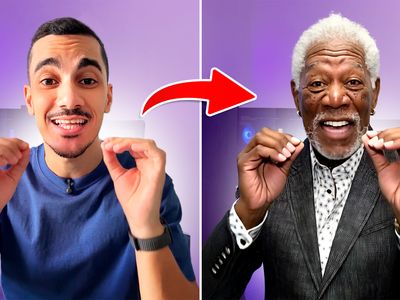
Wan 2.2 14B: Image to Video
Animate a still with Wan 2.2 14B, Alibaba's open-weight video model. Two experts split the render and a speed LoRA holds it to six steps. Upload and run.
alibaba
comfyui
image to video
lightx2v
open source
video generation
wan 2.2
wan22
324

Nodes & Models
LoadImage
WanVideoTorchCompileSettings
INTConstant
WanVideoBlockSwap
Note
CreateCFGScheduleFloatList
Label (rgthree)
WanVideoSampler
WanVideoDecode
GetImageSizeAndCount
Seed (rgthree)
WanVideoImageToVideoEncode
RIFE VFI
rife47.pth
Fast Groups Bypasser (rgthree)
LoadWanVideoT5TextEncoder
WanVideoVAELoader
Wan2_1_VAE_bf16.safetensors
WanVideoLoraSelect
lightx2v_I2V_14B_480p_cfg_step_distill_rank64_bf16.safetensors
WanVideoModelLoader
wan2.2_i2v_high_noise_14B_fp8_scaled.safetensors
wan2.2_i2v_low_noise_14B_fp8_scaled.safetensors
WanVideoTextEncode
WanVideoSetBlockSwap
WanVideoSetLoRAs
ImageResizeKJv2
VHS_VideoCombine
ABOUT THE WORKFLOW
Turn a Still Into Motion Upload a starting image and describe the motion you want. The clip passes through two models, one that lays out the movement and one that sharpens the detail, then gets its frames doubled for smoother playback and saved as an MP4.
Model
Wan 2.2 14B by Alibaba. An open-weight video model with a two-expert design. A high noise expert handles layout and motion through the early steps, a low noise expert refines detail through the later ones, so about 14 billion parameters stay active per step out of 27 billion total.
LightX2V speed LoRA. Distills sampling down to six steps.
RIFE interpolation. Doubles the rendered frames so motion reads smoother on playback.
HOW IT WORKS
Step 1. Upload your start frame The image the video begins from. It sets the subject, the scene, and the framing. Works great with: portraits · product shots · street scenes · concept art
Step 2. Describe the motion Say what moves and how, not what is already in the frame. "The four dancers step side to side in sync, hair moves with each turn, camera holds steady."
Step 3. Set your size and length The resize target sets the render size. The frame count sets how much footage comes back.
Step 4. Hit run and download The first model blocks out the motion, the second refines it, and the frames are doubled before saving. You get an MP4 under Wan22_I2V. Ready for: Premiere · DaVinci Resolve · CapCut · After Effects
First time? Leave every setting as-is. The defaults (1920 x 1080 · 121 frames · 6 steps · fixed seed) are the right starting point for almost everyone.
RECOMMENDED SETTINGS
Quick-start guide. Find the goal that matches yours and copy the settings.
Standard clip (most people) — 1920 x 1080 · 121 frames · 6 steps · fixed seed. The right starting point for almost everyone.
Faster test runs — Drop the resize target to 832 x 480. The 14B image to video weights were trained at 480p and 720p, so smaller renders finish quicker and sit closer to what the model knows.
Motion plays slower than real time — The render is doubled to 241 frames and saved at 24 frames per second. Wan 2.2 generates at 16 frames per second, so raise the output frame rate toward 32 if you want the clip back at its filmed speed.
Shorter or longer clip — Change the frame count on the encode step. Fewer frames finish faster and use less memory.
Repeat a take you liked — The seed already runs fixed, so the same image, prompt, and seed return the same clip. Change the number when you want a different take.
Motion looks mushy or unstable — Raise the step count. Six is what the speed LoRA is tuned for, and more steps trade generation time for stability.
You hit an out of memory error — Cut the frame count first, then the resolution. Longer clips cost more memory than larger frames.
The clip drifts off your source image — Name what has to stay the same. Calling out the setting, the lighting, and the clothing holds the model to your still across the full length.
Prompt: Describe motion, not contents. "She turns toward the window and smiles, curtains drift, camera pushes in slowly" gives you more than "a woman in a room." Name the camera separately from the subject, and say what stays fixed so the scene holds together across the clip.
LEARN
📹 Videos
ComfyUI 101 Free Course ft. Sebastian Kamph
Floyo 101 for Team Collaboration
✨ Quick links
USE CASES
🎬 Social Video Turn one photo into a short clip for Reels, TikTok, or Shorts without a shoot.
🛍️ Product Motion Animate a product shot into a rotating or drifting hero clip for a landing page or an ad.
🎞️ Previz and Animatics Test how a frame moves before it goes into a production schedule or a full animation pass.
🎨 Portfolio and Concept Work Bring illustration or concept art to life while keeping the original look intact.
WHAT WORKS BEST / WHAT TO AVOID
✅ Works great
Clear, well-lit stills with one readable subject
Prompts that name the movement and the camera separately
Steady camera work like a slow push in or a pan
Continuity lines that pin the setting and the wardrobe
⚠️ May produce softer results
Renders pushed far past the 480p and 720p training range
Prompts that describe the image instead of what happens next
Crowded scenes with several subjects moving at once
Long frame counts on a first pass, which is where memory runs out
FAQ
What is Wan 2.2 14B? Wan 2.2 14B is an open-weight image to video model from Alibaba's Wan team, released in July 2025. It uses a mixture of experts design built for diffusion: one expert handles the early, noisier steps where layout and motion are decided, and a second handles the later steps where detail is refined. Each expert is about 14 billion parameters, 27 billion in total, with only one active at any step.
What is the difference between the high noise and low noise models? They run in sequence on the same clip. The high noise expert goes first and settles the composition and the movement while the picture is still coarse. The low noise expert picks up partway through and sharpens texture, edges, and fine detail. Splitting the job this way gives more model capacity without raising the cost of a single step.
Is Wan 2.2 free for commercial use? Yes. Wan 2.2 is released under Apache 2.0, which allows commercial use with no revenue threshold, no attribution requirement in your interface, and no territory restrictions. That makes it one of the more permissive video models available, and it is why the weights can run on your own hardware without a separate license.
Why does this workflow use only six steps? A LightX2V distillation LoRA is loaded on both experts. It compresses the sampling schedule so a clip that would normally take twenty or more steps resolves in six. That is what makes a 14B model practical for iterating on prompts rather than waiting minutes per test.
What resolution does Wan 2.2 14B support? The model was trained for 480p and 720p output. This workflow renders larger than that, which trades generation time and some fidelity to the training range for a bigger frame. Drop to 832 x 480 or 1280 x 720 when you want results closest to what the model was built for.
What is the difference between Wan 2.2 and Wan 2.5? Wan 2.2 is open weight, runs on your own hardware, and generates picture only. Wan 2.5 runs through an API, was never released as weights, and adds synchronized audio. Pick 2.2 when you want local control, Apache licensing, and no per-run API cost, and 2.5 when you need sound generated alongside the picture.
How to run Wan 2.2 online? You can run Wan 2.2 online through Floyo. No installation, no setup, no model downloads. Open the workflow in your browser, upload a start frame, describe the motion, and hit run. Free to try.
WHY FLOYO?
Floyo is the only platform with team collaboration for ComfyUI in the browser. You run workflows with no install. You share run history, assets, and models across your team. You pay only when you generate. Floyo supports open-source and closed-source models.
A designer runs an edit and likes the result. A teammate opens that exact run from shared history and keeps going. No file handoffs. No version confusion.
For studios and enterprise teams, Floyo adds private workspaces, pooled resources, and a team usage dashboard. Other ComfyUI cloud tools run for one person at a time. Floyo runs for the whole team, with transparent per-generation costs.
Read more