Qwen Image Edit 2511: Composite a Photoshoot
Drop a person into any background with the lighting you choose, using Qwen Image Edit 2511. Upload three images, hit run, and keep the identity intact.
composite
Image to Image
portrait
product photography
qwen image edit 251
Reference Image
6
1.7k

Nodes & Models
UNETLoader
qwen_image_edit_2511_bf16.safetensors
CLIPLoader
qwen_2.5_vl_7b_fp8_scaled.safetensors
VAELoader
qwen_image_vae.safetensors
WorkflowGraphics
Note
LoadImage
LoraLoaderModelOnly
Qwen-Image-Edit-2511-Lightning-4steps-V1.0-bf16.safetensors
ImageScaleToTotalPixels
ModelSamplingAuraFlow
TextEncodeQwenImageEditPlus
VAEEncode
CFGNorm
FluxKontextMultiReferenceLatentMethod
KSampler
VAEDecode
SaveImage
HOW IT WORKS
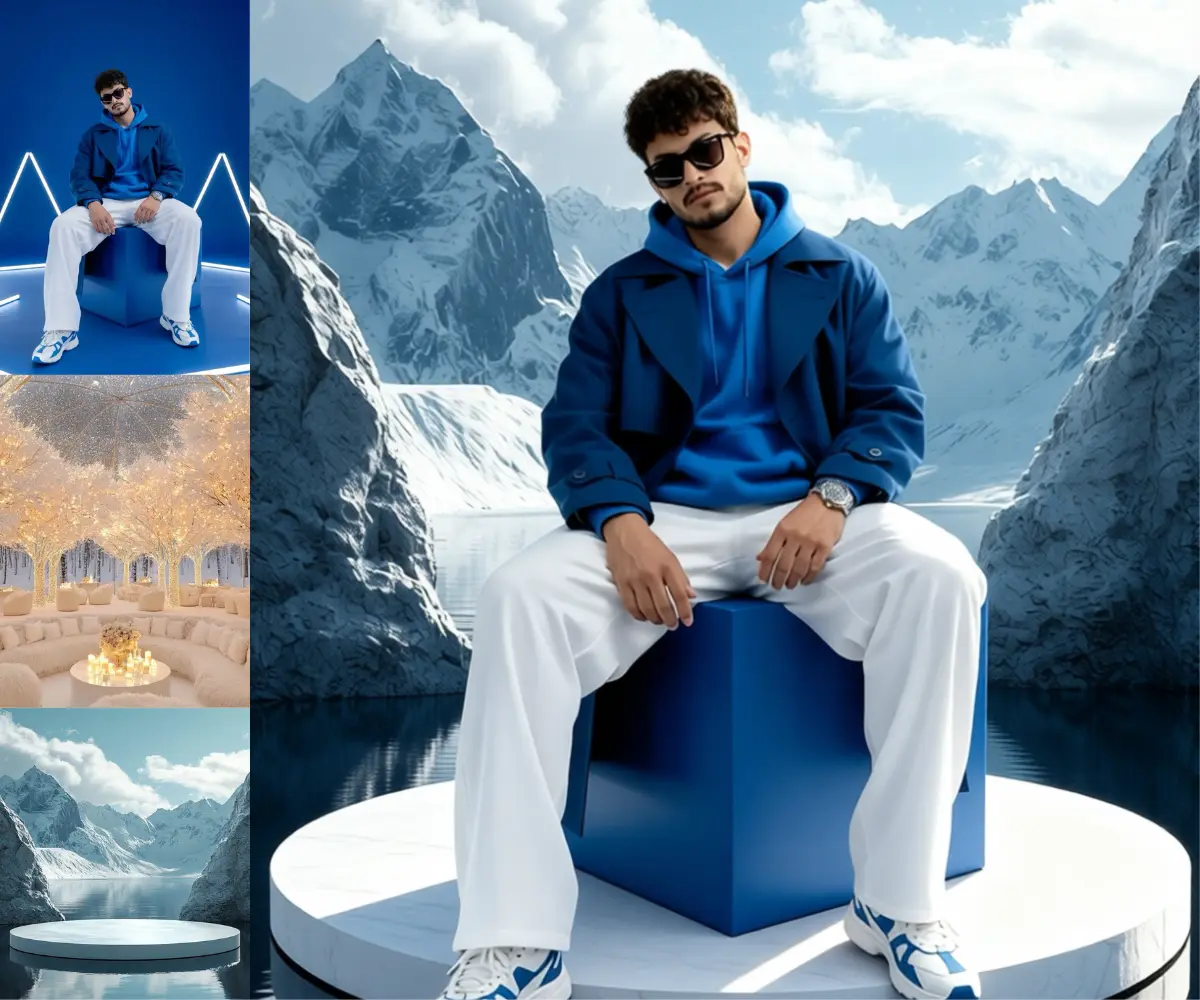
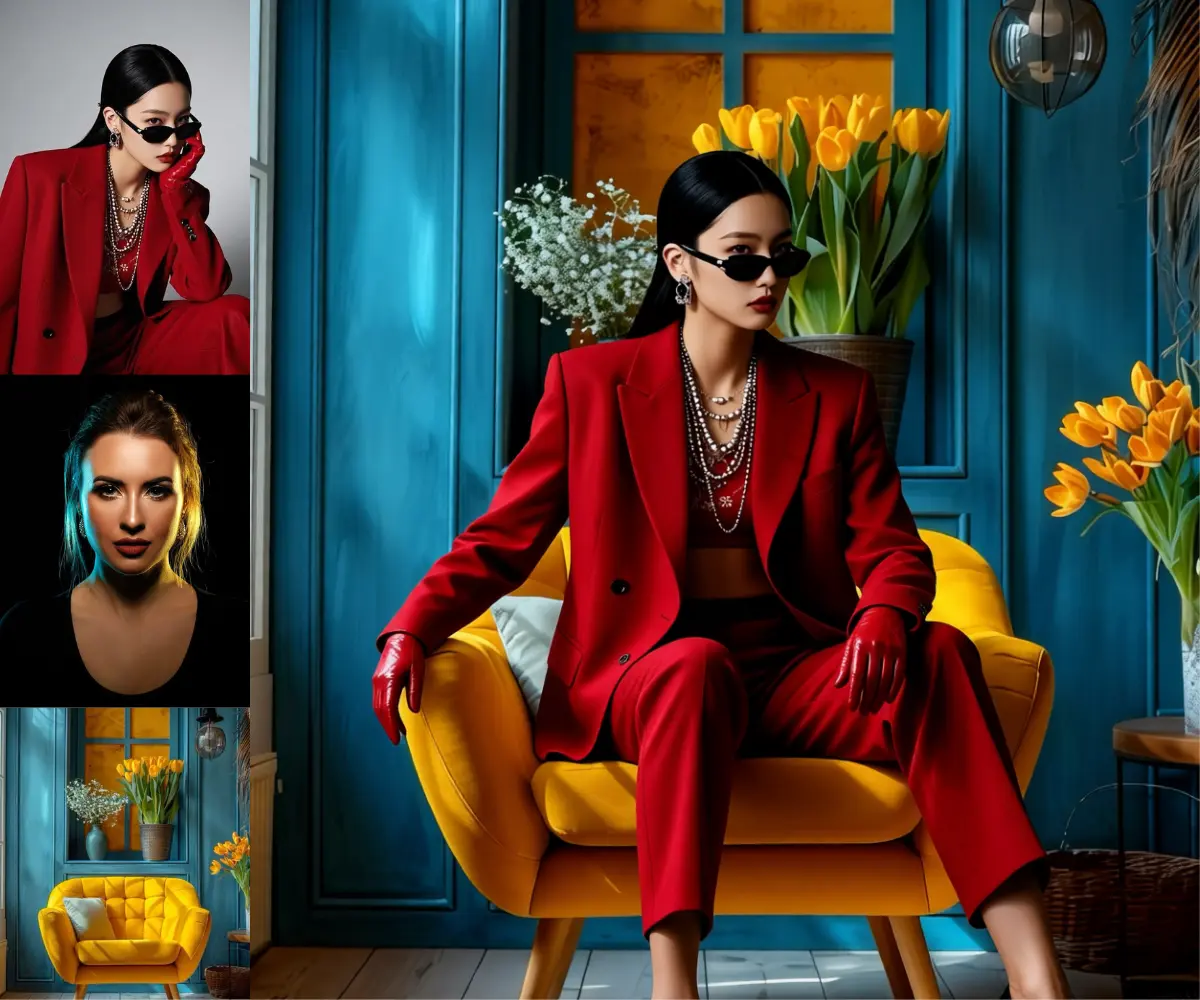
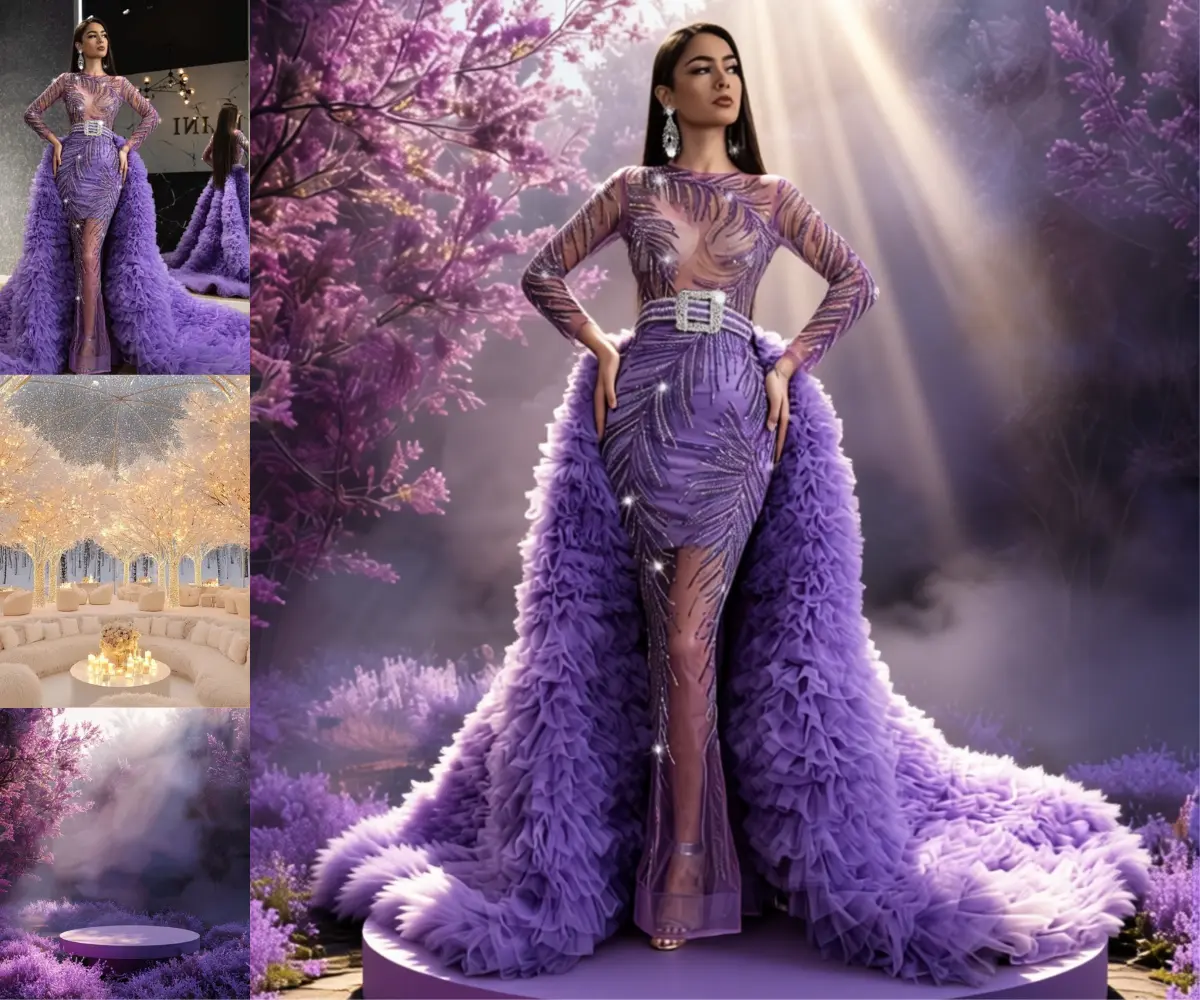
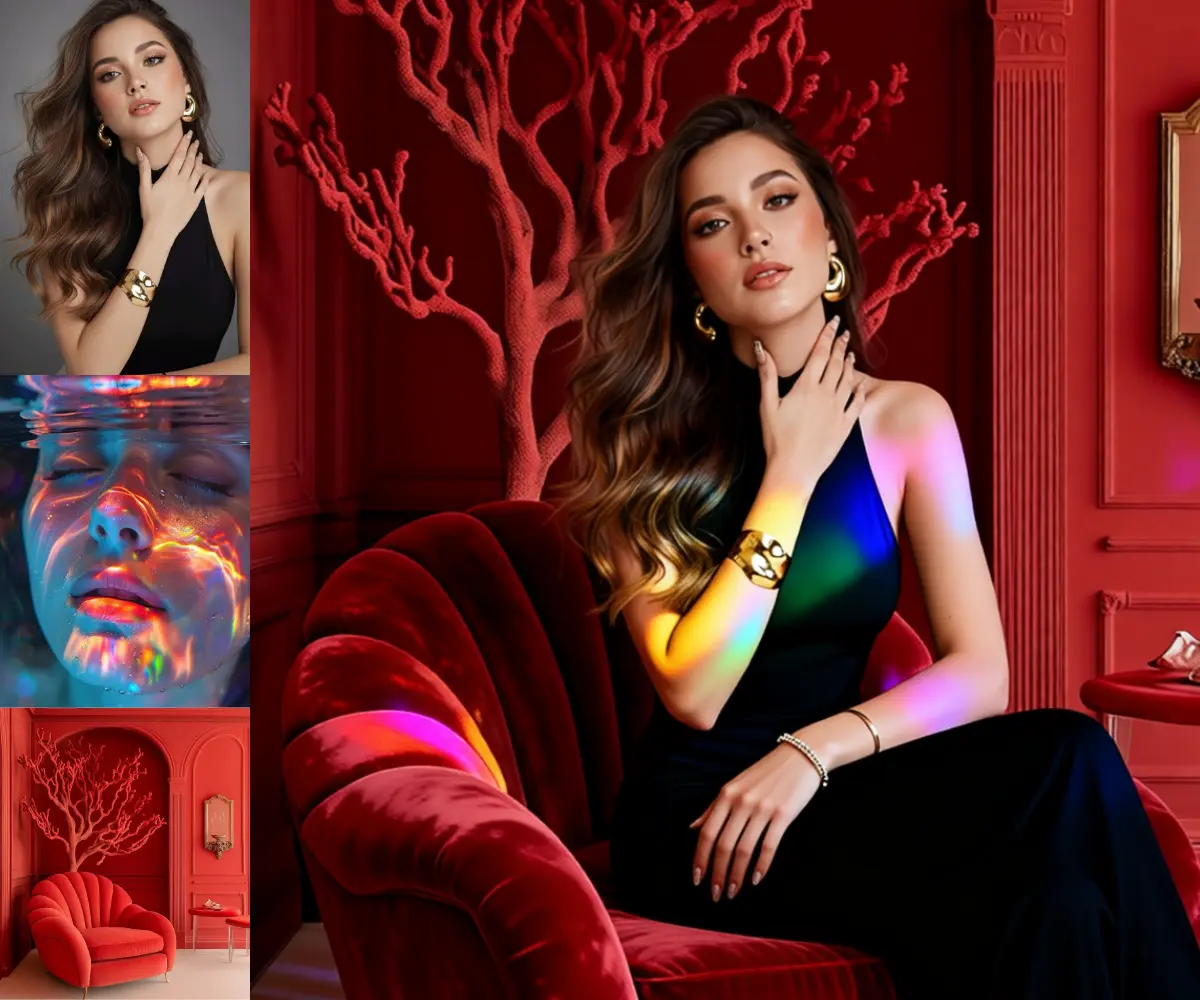
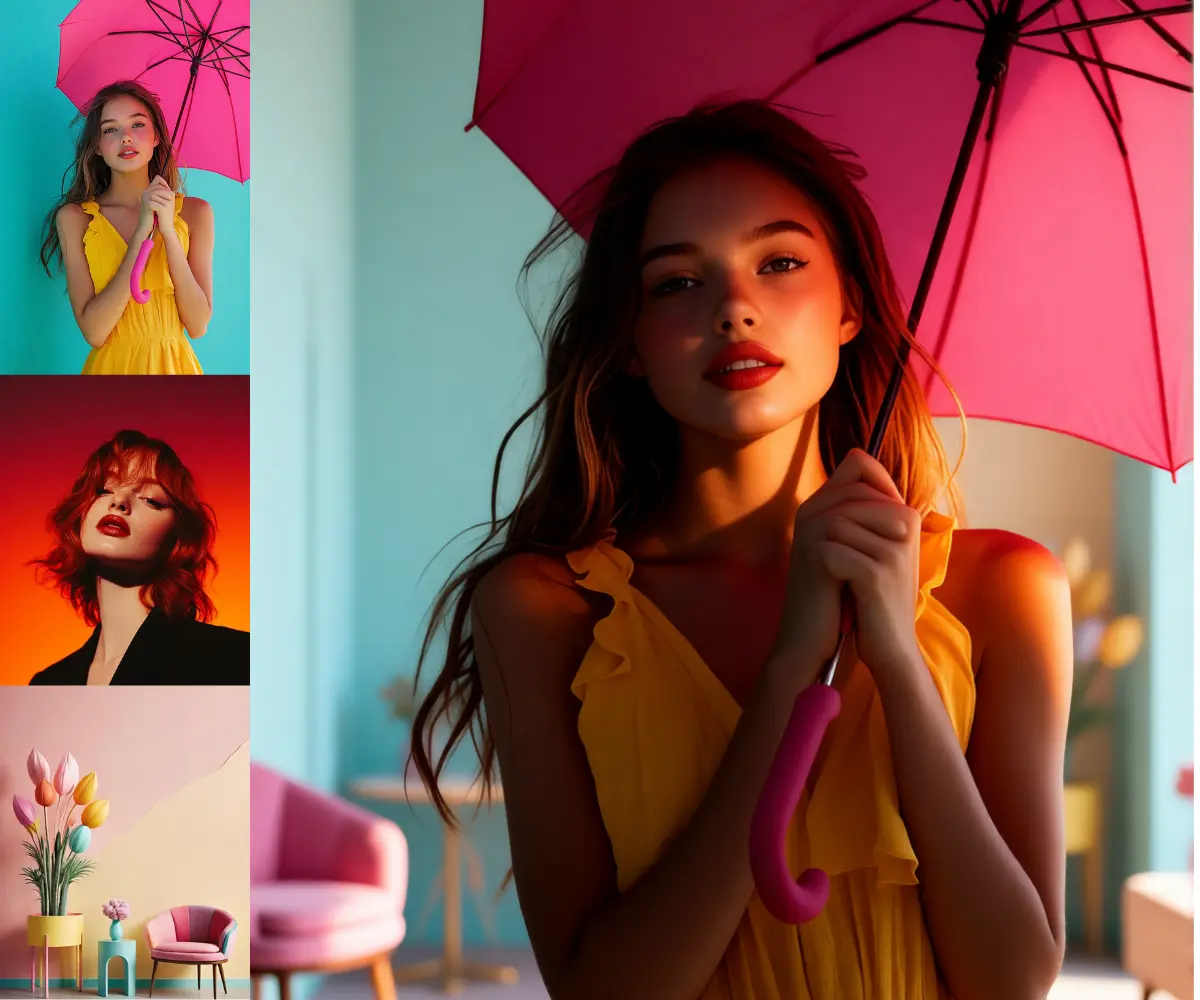
Step 1. Upload your three images Put the person in the Model Image, the scene in the Background Image, and the lighting look you want in the Lighting Image. The model keeps the subject and builds the scene around them. Works great with: a clear subject · a clean background plate · a strong lighting reference
Step 2. Check the prompt The default prompt places the subject into the background, fixes the scale and shadows so they sit in the scene, and pulls the mood from the lighting reference while holding the identity. Edit it to describe your own scene and pose.
Step 3. Hit run and download You get back one photorealistic composite that brings all three images together. Preview it, then download. Ready for: Photoshop · Figma · Canva · any editor
First time? Leave every setting as-is. The defaults (4 steps · CFG 1 · random seed · about 1.6 megapixels) are the right starting point for almost everyone.
RECOMMENDED SETTINGS
Quick-start guide. Find the goal that matches yours and copy the settings.
Standard composite (most people) Start here — Three images in, default prompt, 4 steps, CFG 1. The right starting point for almost everyone.
The identity is drifting — Name what to keep in the prompt: face, hair, outfit, jewelry. Pair that with a clear, front-facing model image. 2511 is built to hold identity, and a sharp subject gives it more to hold onto.
The subject looks pasted on — Keep the prompt lines about contact shadows, scale, and perspective. They tell the model to ground the subject in the scene instead of floating it on top.
The lighting is not landing — Use a lighting reference with a clear, directional look. The model reads its mood and reflections, so a flat reference gives a flat result.
Want a different scene or pose — Rewrite the positive prompt to describe the new setting and posture, and say which element comes from which image.
Reproduce a result you liked — Lock the seed to the number that produced it. Same three images, same prompt, same seed gives you the same composite.
Prompt: Be specific about what changes and what stays. Reference the inputs directly, like "place the subject from the model image into the background image." Keep the identity instructions explicit. The negative prompt guards against identity drift, broken anatomy, and a cutout look, so leave it on for a first run.
Steps: 4 is the tuned number for the Lightning LoRA built into this workflow. Raising it adds time without much gain.
USE CASES
📸 Editorial & Portrait Place a subject into a styled set with cinematic lighting for a magazine-style portrait, without booking a studio.
🛍️ E-commerce & Fashion Put a model or product into different backgrounds and lighting looks to build a set of shots from one source photo.
🎬 Pre-production & Look Dev Test how a subject reads against a location and a lighting mood before committing to a real shoot.
🎨 Composite Artists Skip the manual masking and relighting. Bring a subject, a background, and a lighting plate together in a single pass.
WHAT WORKS BEST / WHAT TO AVOID
✅ Works great
A clear, front-facing subject
A clean background plate
A strong, directional lighting reference
Specific prompts naming what to keep
⚠️ May produce softer results
Subject and background shot at mismatched angles
Flat or low-contrast lighting references
Vague prompts with no detail
Heavily occluded or low-resolution subjects
NEW TO COMFYUI?
Start with the free ComfyUI for Beginners Course on Floyo. Sixteen short videos take you from zero to running your own AI workflows. No setup headaches, no jargon, clear hands-on lessons. Watch the course, then run any workflow here in your browser.
👉 Watch the free ComfyUI for Beginners Course →
FAQ
What is Qwen Image Edit 2511? Qwen Image Edit 2511 is the November 2025 release of Alibaba Qwen's open-source image editing model. It is a 20-billion parameter model under the Apache 2.0 license, built for combining up to three images while preserving identity. Compared to earlier versions it holds subjects more consistently and follows instructions more closely.
How is 2511 different from Qwen Image Edit 2509? 2511 is the newer iteration and improves on 2509 in a few ways: it reduces image drift during edits, holds character identity better across imaginative changes, fuses multiple people into coherent group shots more cleanly, and bakes popular community LoRAs into the base model. In short, it is more stable and more consistent on the same kind of multi-image work.
How many images can I combine in this workflow? This workflow uses three: a model image for the subject, a background image for the scene, and a lighting image for the look. Qwen Image Edit 2511 works best with one to three reference images, which is why the workflow is built around exactly these three roles.
How does it keep the person looking like the same person? 2511 is designed to preserve facial identity and detail across edits, and the workflow leans on that with a prompt that explicitly says to keep the subject's face, hair, outfit, and proportions. For the strongest result, use a clear, front-facing model image and keep those identity instructions in the prompt.
What is the Lightning LoRA doing in this workflow? It is a speed LoRA. It cuts the model down to about 4 sampling steps, which is what keeps generation fast. It is already wired in, so you do not need to set anything up or change the step count.
Can I use the results commercially? Yes. Qwen Image Edit 2511 is released under the Apache 2.0 license, which permits commercial use, and images you generate on Floyo carry full commercial rights. You are responsible for having the right to use the people and photos you upload.
How to run Qwen Image Edit 2511 online? You can run Qwen Image Edit 2511 online through Floyo. No installation, no setup, no GPU to rent. Open the workflow in your browser, upload your three images, and hit run. Free to try.
WHY FLOYO?
Floyo is the only platform with team collaboration for ComfyUI in the browser. You run workflows with no install. You share run history, assets, and models across your team. You pay only when you generate. Floyo supports open-source and closed-source models.
A designer runs a composite and likes the result. A teammate opens that exact run from shared history and keeps going. No file handoffs. No version confusion.
For studios and enterprise teams, Floyo adds private workspaces, pooled resources, and a team usage dashboard. Other ComfyUI cloud tools run for one person at a time. Floyo runs for the whole team, with transparent per-generation costs.
Ready to try it? Upload your three images and run it. The prompt and settings are already set.
Questions? Watch the free course or check the FAQ above.
Read more
_1784197306076.png?width=400&height=300&quality=80&resize=cover)

_1766997541061.png?width=400&height=300&quality=80&resize=cover)