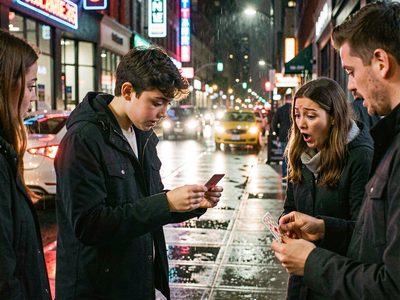
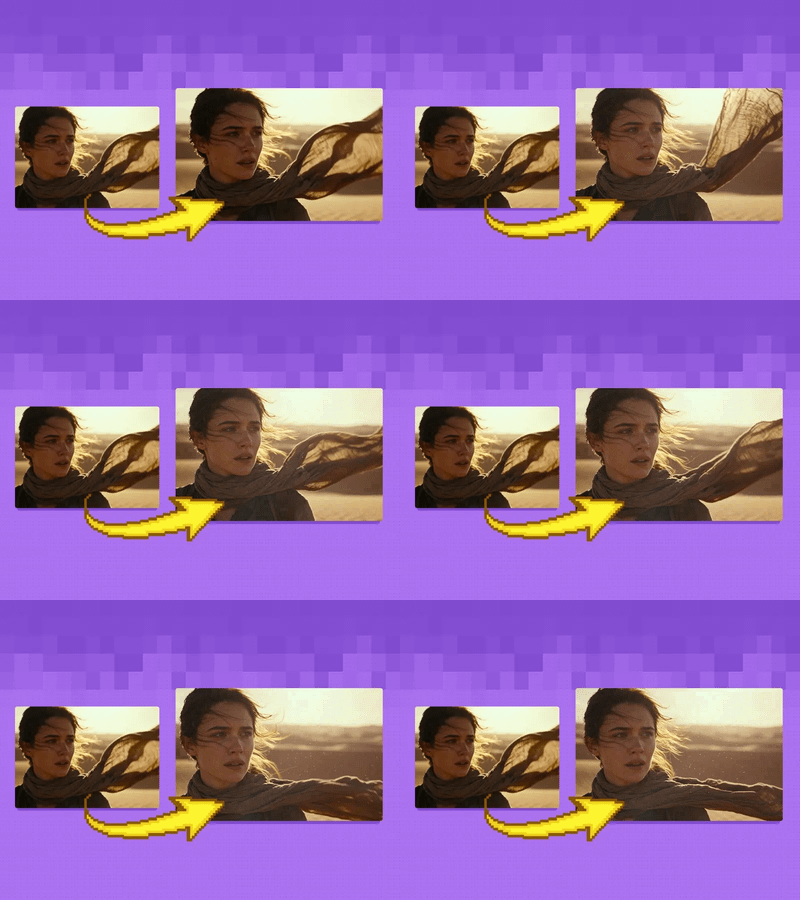
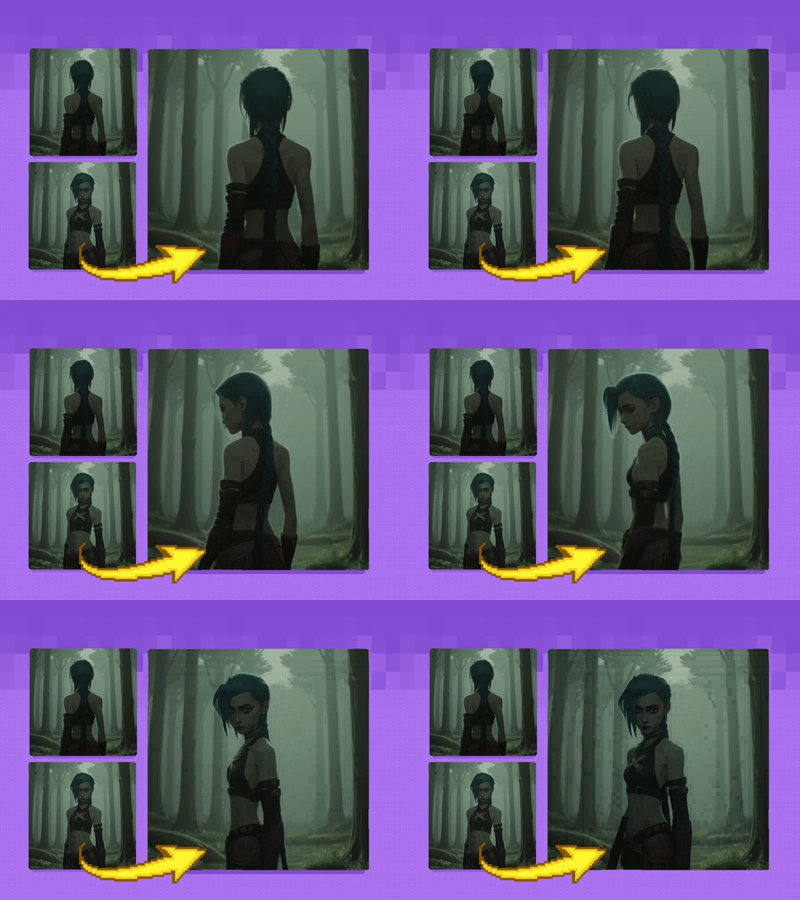
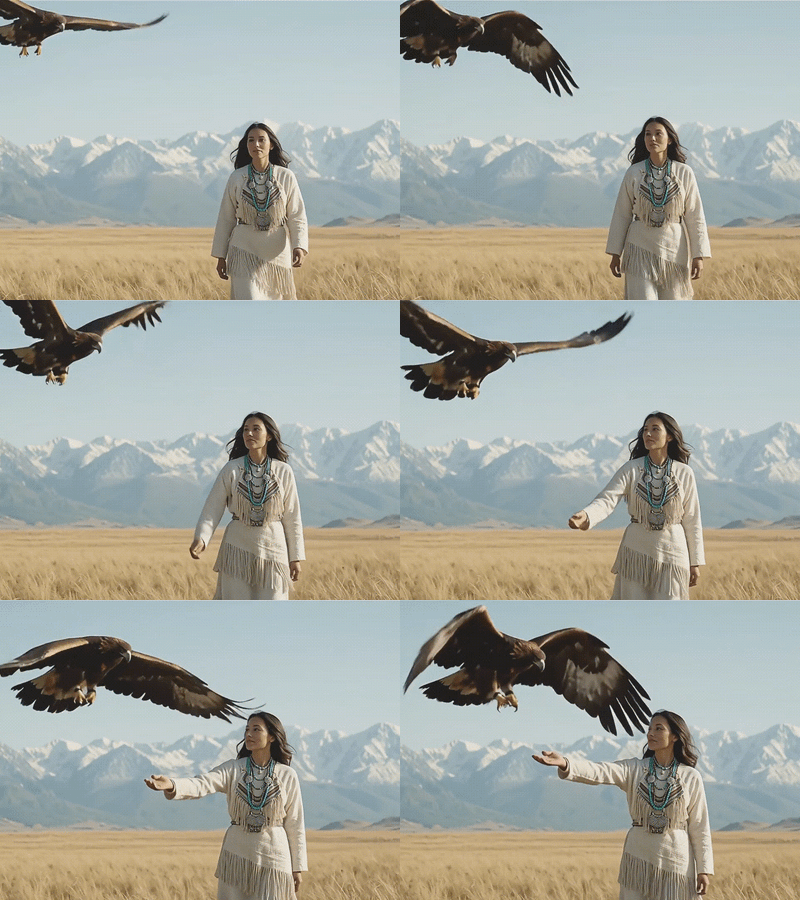
Qwen Image 2512 Text to Image
Text to image
Photography
Qwen
Qwen Image 2512
Text2Image
4
945

Nodes & Models
EmptySD3LatentImage
PrimitiveStringMultiline
CLIPLoader
qwen_2.5_vl_7b_fp8_scaled.safetensors
UNETLoader
qwen_image_2512_bf16.safetensors
VAELoader
qwen_image_vae.safetensors
CLIPTextEncode
ModelSamplingAuraFlow
KSampler
VAEDecode
SaveImage
PreviewImage
Qwen Image 2512 text-to-image generation. Write a prompt, set your resolution, and generate.
Qwen Image 2512 is Alibaba's December 2025 update to the Qwen Image model, significantly upgrading human realism, natural texture detail, and on-image text quality. Community benchmarks place it at or near the top of open-source image models and competitive with commercial systems on many use cases. The model runs locally, can be self-hosted, and carries Apache 2.0-style licensing for full commercial and deployment flexibility.
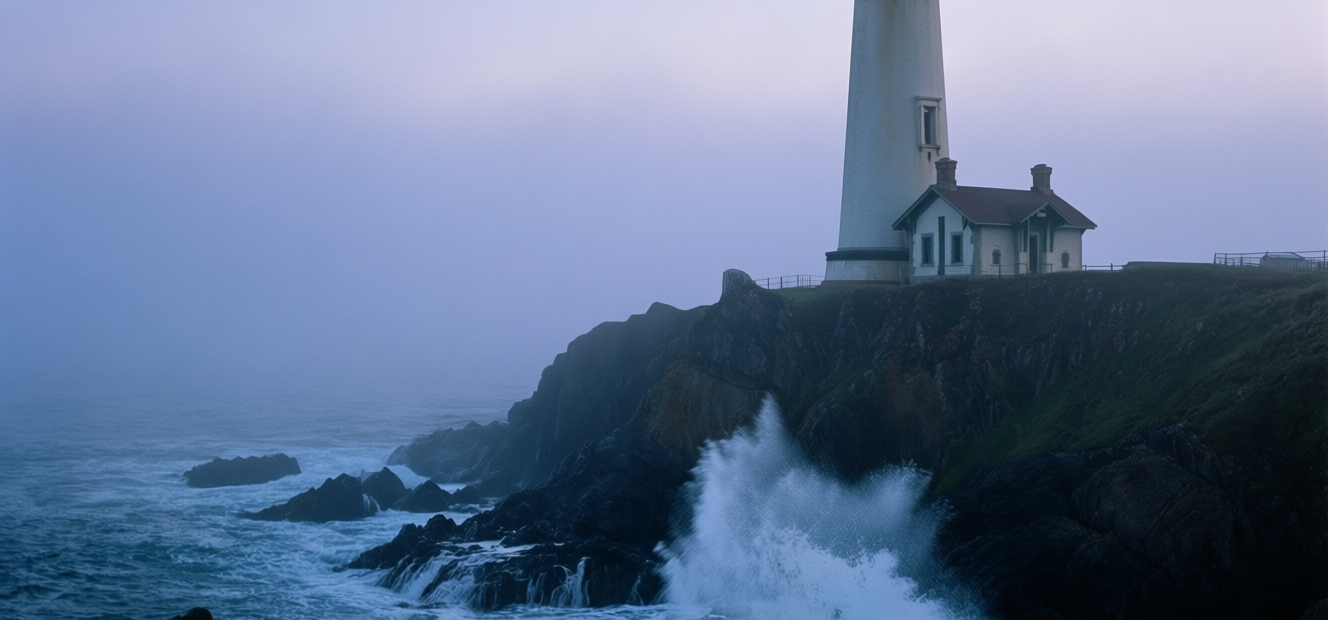
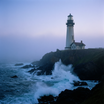
The default prompt is an atmospheric lighthouse scene at dawn: a detailed landscape with fog, waves, rocks, and light that shows the model's handling of natural environmental detail, subtle color grading, and compositional depth.
How do you use Qwen Image 2512 for text-to-image generation?
Write a prompt, set your resolution using the aspect ratio table, and run. Qwen Image 2512 generates at 50 steps with flow shift 3.1 and CFG 4 by default. Resolution, steps, and CFG are all adjustable. The negative prompt is pre-loaded in Chinese targeting the most common quality failures.
Prompt Qwen Image 2512 responds well to descriptive, scene-level prompts. The default prompt covers setting, subject, lighting behavior, atmospheric conditions, and emotional tone across four sentences. That structure consistently produces strong results.
Prompting approach that works: Lead with the scene or subject: "At dawn, a thin mist veils the sea. An ancient stone lighthouse stands at the cliff's edge." Name the lighting explicitly: "soft blue-purple hues under cool, hazy light," "golden hour backlight," "overcast diffused lighting." Add material and texture detail: "black rocks pounded by waves," "bursts of white spray," "fog diffusing the beacon light." For portraits: describe skin condition, lighting direction, and photographic style. "Natural skin texture, rim-lit from the left, editorial portrait style." For text in the image: specify the exact string, font weight, placement, and background contrast. "Bold white sans-serif headline reading 'SUMMIT 2025' centered on a dark navy background."
Negative prompt The default negative targets the most common quality failures in Chinese: low resolution, low quality, limb/finger deformation, oversaturation, wax look, faceless/featureless skin, over-smooth surfaces, AI aesthetic, cluttered composition, blurry or distorted text. Leave it as-is. Extend it with English terms if specific artifacts appear.
Resolution Use the aspect ratio reference built into the workflow: 1:1 at 1328x1328 (default) 16:9 at 1664x928 9:16 at 928x1664 4:3 at 1472x1104 3:4 at 1104x1472 3:2 at 1584x1056 2:3 at 1056x1584
Enter the width and height directly in the EmptySD3LatentImage node. Match to your output destination: 9:16 for vertical social content, 16:9 for widescreen formats, 1:1 for square posts.
Steps (default: 50) 50 steps for production-quality output. Reduce to 20-25 for faster preview runs when checking composition before committing to a full generation. The Lightning LoRA variant (4-step) is available separately for ultra-fast drafts.
CFG (default: 4) Controls how closely the output follows the prompt. 4 is calibrated for Qwen Image 2512's architecture. Increase toward 5-6 for tighter prompt adherence on detailed or multi-element prompts. Decrease toward 3 for softer, more interpretive results.
Flow shift (default: 3.1) Qwen Image 2512's flow shift is set to 3.1 and calibrated for the model. Leave at default unless you're experimenting with the generation process.
What is Qwen Image 2512 good for?
Qwen Image 2512 is strongest for high-realism image generation where natural skin, anatomy, fine textures, and accurate on-image text all need to hold up. As an open-source model with self-hosting flexibility and competitive benchmark performance, it fills the "high-realism + strong text" open-source slot.
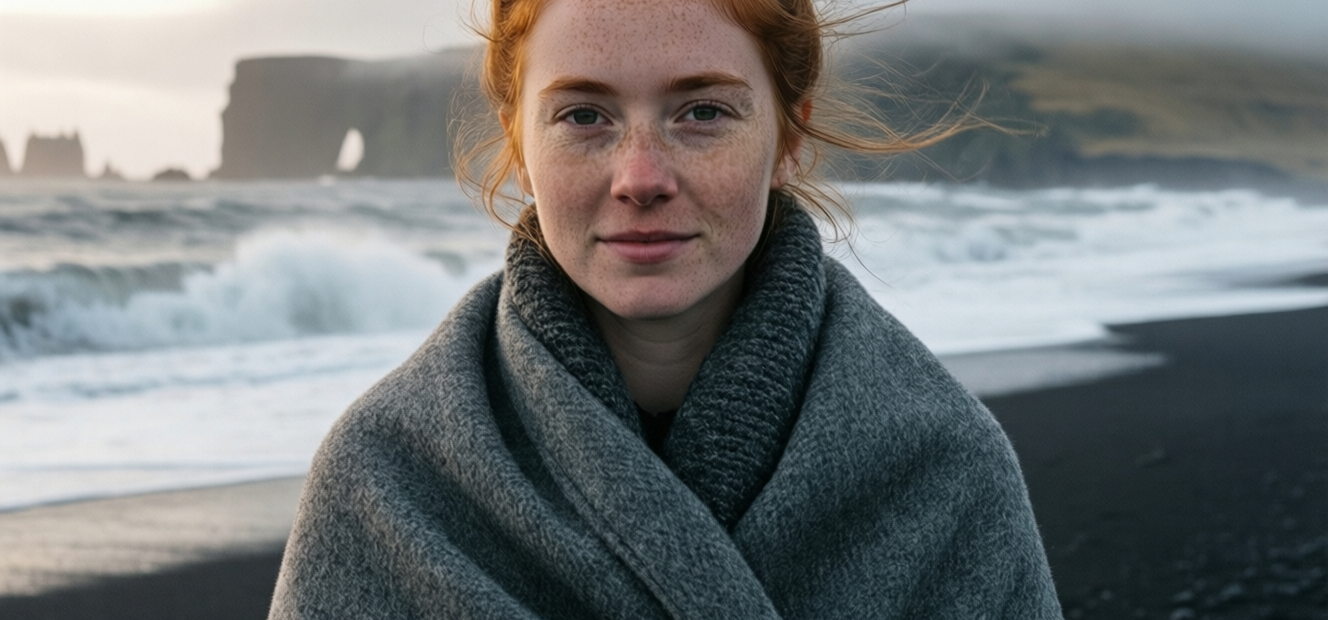
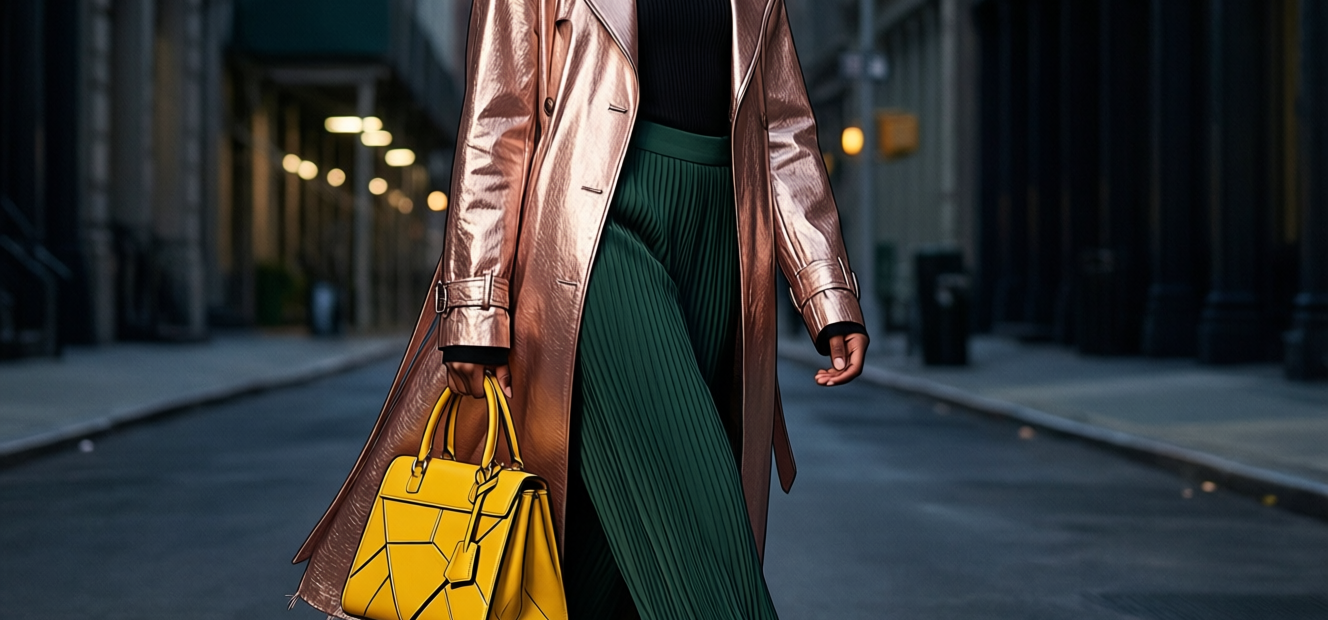
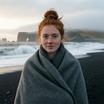
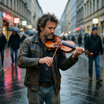
Photorealistic portraits and characters. Qwen Image 2512's December 2025 update substantially reduces the plastic, over-smoothed skin quality common in earlier open-source models. Natural skin texture, hair detail, and correct anatomy are its measurable improvements. For portrait and character work where realism matters, it's the current open-source benchmark.
Natural environments and complex textures. Detailed landscapes, water, foliage, animal fur, and complex materials (metal, fabric, glass) render with believable micro-structure. The lighthouse default prompt demonstrates this: fog diffusion, wave spray, wet rocks, and subtle sky color gradients all hold up.
Text-heavy images. Qwen Image 2512 handles multi-line text, signage, posters, slides, and mixed text-image layouts in both Chinese and English with strong spelling accuracy and alignment. For posters, social graphics, UI mockups, labels, and any output where legible text is required, it's ahead of most open-source alternatives.
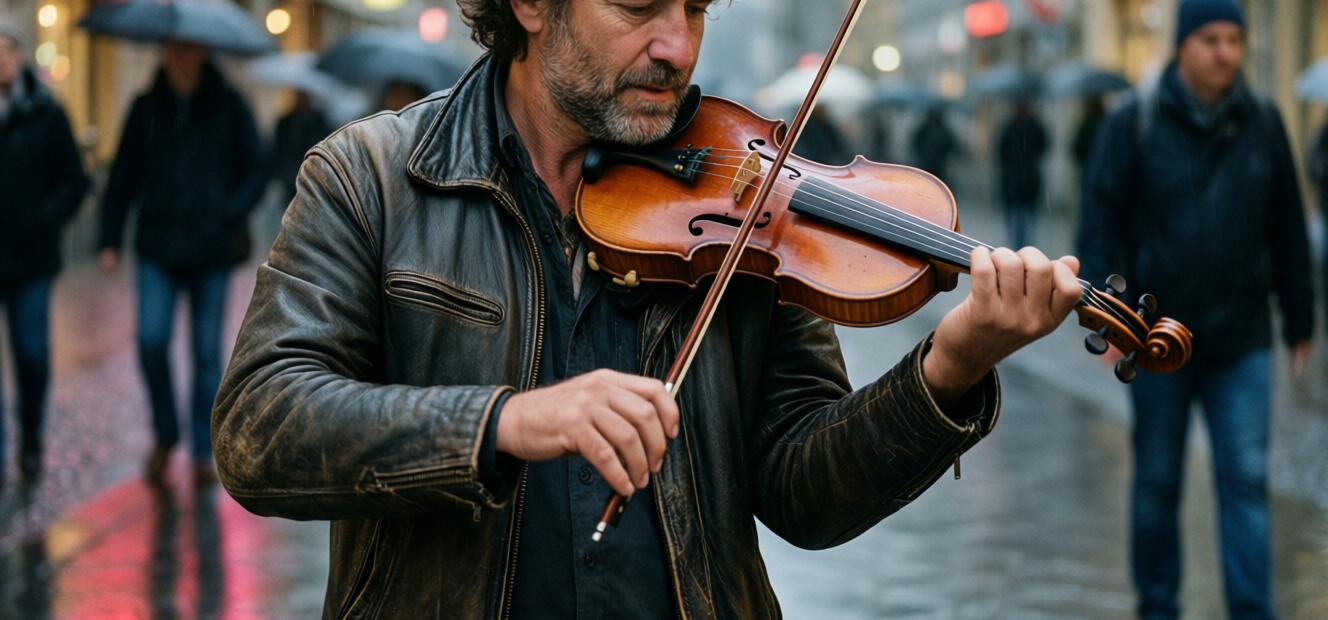
Concept art and environment design. Descriptive, detailed prompts produce concept-quality output. The model follows long, multi-element prompts without losing coherence on individual details. For early-stage concept ideation across characters, environments, and products, 50-step generation provides production-adjacent quality.
Honest notes: Qwen Image 2512 runs locally and requires enough VRAM to load the bf16 model. For teams without local GPU capacity, cloud compute is needed. As with all open-source models, community prompt patterns and LoRA variants are still developing compared to more established models like Flux.
How does Qwen Image 2512 compare to other open-source image models?
Qwen Image 2512 benchmarks at or near the top of open-source text-to-image models for human realism and text rendering. Compared to Flux Dev and SDXL, it produces more natural skin and stronger on-image text accuracy. Compared to commercial models, it offers self-hosting, fine-tuning, and Apache 2.0 deployment flexibility.
Flux Dev produces high-quality output and has a larger community of LoRA finetunes and prompt patterns. Qwen Image 2512's advantage is specifically in human realism and text rendering, where Flux can produce over-stylized results. For workflows that prioritize photorealism over stylistic range, 2512 is worth testing alongside Flux.
SDXL is more established with a wider ecosystem of custom models and LoRAs. Qwen Image 2512 produces higher-quality baseline output at equivalent prompt specificity.
For commercial teams comparing open-source models to proprietary systems, Qwen Image 2512 is competitive with closed image models on realism and text while remaining self-hostable and fine-tunable.
FAQ
What is Qwen Image 2512 and how does it differ from the original Qwen Image?
Qwen Image 2512 is Alibaba's December 2025 update to the Qwen Image model. Key improvements are higher human realism (more natural skin and anatomy), finer texture detail in natural environments, and stronger text rendering for multi-line text and mixed Chinese-English layouts. Benchmarks place it near the top of open-source models.
How do I render accurate text in images with Qwen Image 2512?
Specify the exact text string in your prompt, along with font weight, placement, and background contrast. "Bold white sans-serif headline reading 'SUMMIT 2025' centered on a dark navy background." The model handles Chinese and English text with strong spelling accuracy. Check longer passages for any character errors.
What resolutions does Qwen Image 2512 support?
Standard aspect ratios: 1:1 at 1328x1328, 16:9 at 1664x928, 9:16 at 928x1664, 4:3 at 1472x1104, 3:4 at 1104x1472, 3:2 at 1584x1056, and 2:3 at 1056x1584. Enter width and height directly in the latent image node.
Can I fine-tune or self-host Qwen Image 2512?
Yes. Qwen Image 2512 uses Apache 2.0-style licensing that permits self-hosting, fine-tuning, and commercial deployment. The bf16 model weights are available for local deployment, and LoRA-style personalization is supported for capturing custom styles.
How does Qwen Image 2512 compare to Nano Banana Pro for image generation?
Qwen Image 2512 is open-source and self-hostable; Nano Banana Pro runs via cloud API. For human realism and natural texture, they're competitive. Nano Banana Pro has stronger real-world knowledge grounding and multilingual text rendering via the Gemini architecture. Qwen Image 2512's advantage is local deployment flexibility and no per-generation API cost.
How do I run Qwen Image 2512 online?
You can run Qwen Image 2512 online through Floyo. No installation, no setup. Open the workflow in your browser, write your prompt, and hit run. Free to try.
Read more