Qwen Image 2.1 - Inpainting
Upload a scene and a reference, name what to replace, and Qwen Image 2.1 fills the spot.
e-commerce
image to image
inpainting
product photography
qwen
111
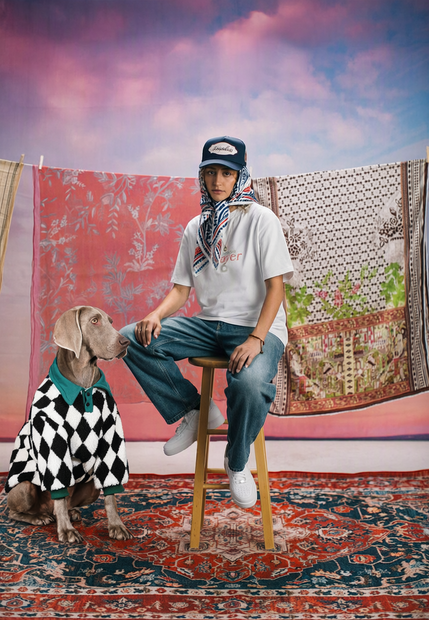
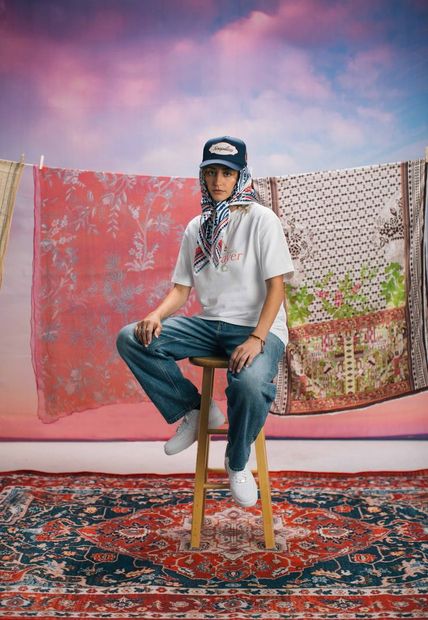
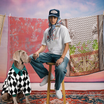

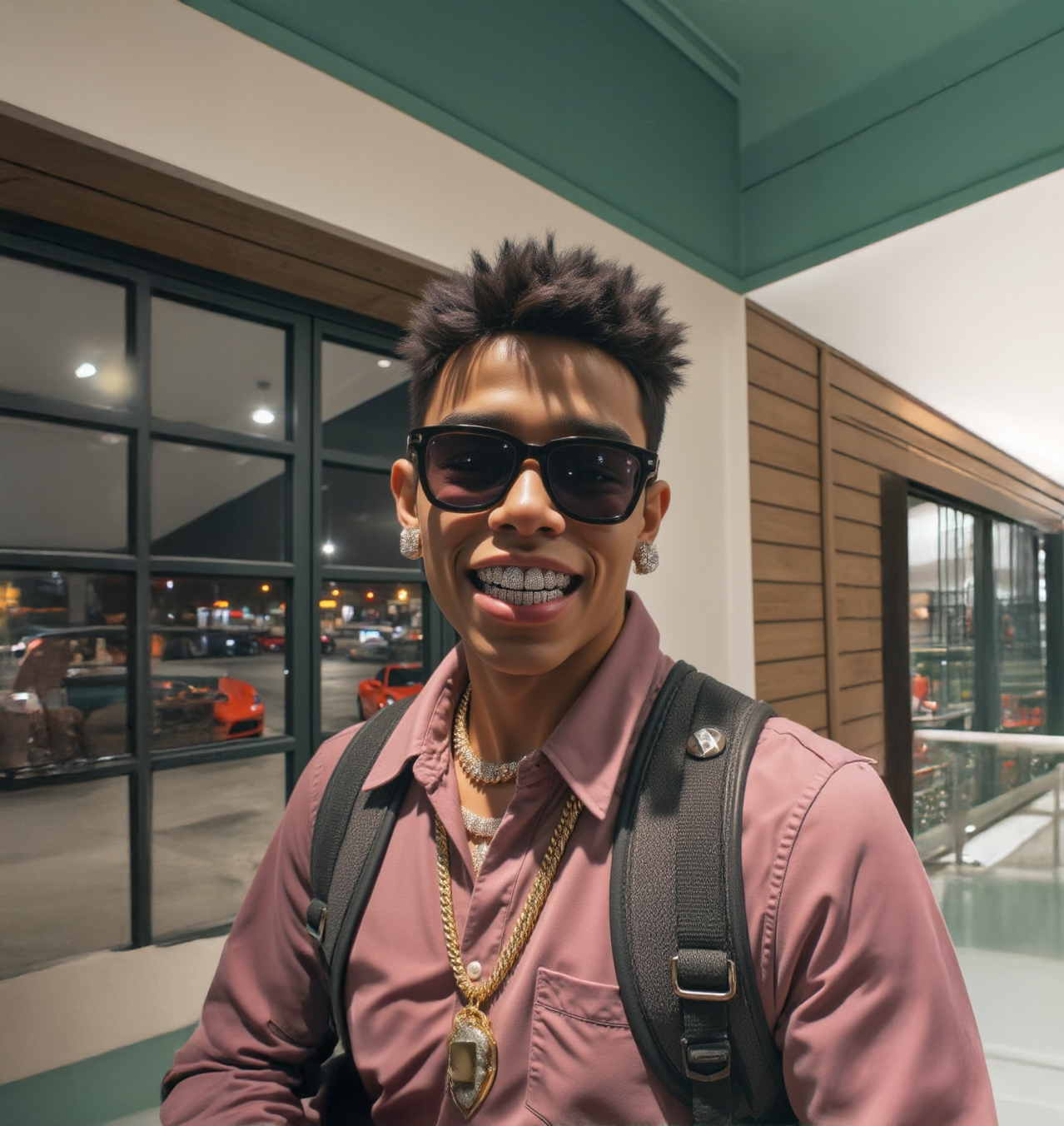
Swap one thing in a photo for something from a second image.
Upload the photo you want to change, upload a reference of what should go in, and name the thing you want replaced. The workflow finds that area from your words and builds the mask for you. Qwen Image 2.1 then paints your reference into that spot.
No hand-painted masks. Two uploads, one prompt, run it.
How do you inpaint with a reference image in Qwen Image 2.1?
Upload your scene as the first image and the object you want added as the second. Write a prompt that names the area to replace. SAM3 reads the prompt and masks that area, then Qwen Image 2.1 fills it using your reference. Leave the other defaults alone for your first run.
You only need to touch three things before hitting Run: two images and a prompt. Steps is the one setting worth adjusting later.
Scene image (first upload) This is the photo you want to change. You don't need to paint a mask on it. The workflow makes its own from your prompt. Want a cleaner swap? Pick a shot where the area you're replacing is clearly visible and not hidden behind other objects.
Reference image (second upload) This is the thing you want in the scene: a product, a pet, a prop. Want it to come through accurately? Use a photo where the subject is sharp and fully in frame. Try a plain background so the model can tell your subject apart from what's behind it.
Prompt Your prompt is how the workflow finds the area to edit. SAM3 reads it and masks whatever it matches in your scene. Want a precise mask? Name one object plainly: "the armchair" or "the vase on the table." Getting the wrong area? Cut the extra description and name the object the way you'd point at it.
Steps (default: 25) Want a quick test of your prompt and mask? Drop to 15. Happy with the placement and want a more detailed final? Try 30 to 35. More steps means a longer run, so test low and finish high.
Each run picks a new random seed. Run it a few times and keep the version you like. If the mask lands in the wrong place, try a few prompt wordings before changing anything else.
What is Qwen Image 2.1 reference inpainting good for?
It's for putting a specific thing into an existing photo: a product into a lifestyle shot, a pet onto a rug, a new chair into a room. Your reference image defines what goes in, and the automatic mask means you never paint one by hand. Two uploads and a short prompt get you a result.
Product and e-commerce work is the obvious fit. Shoot the item once, then place it into different scenes by swapping the scene image and keeping the same reference.
The tradeoff: the mask is only as good as what your prompt can point at. If the area you want to fill is empty space with nothing to name, the auto mask has less to grab. Need exact control over the edit area? A workflow with a hand-painted mask gives you that.
Changing the style of the whole image or regenerating the full background? A general image editing workflow fits better than inpainting.
FAQ
Do I need to paint a mask for Qwen Image 2.1 inpainting? No. In this workflow, SAM3 reads your prompt, finds the matching area in your scene image, and builds the mask on its own. That mask tells Qwen Image 2.1 where to place your reference. If the wrong area gets picked, reword the prompt to name the object more plainly.
What makes a good reference image for Qwen Image 2.1 inpainting? A clear, sharp shot of one subject, fully in frame. Product photos on plain backgrounds are a good starting point because nothing else competes for attention. Avoid references where the subject is cropped, blurry, or sharing the frame with similar objects, since the model has to guess which part you meant.
Why did Qwen Image 2.1 replace the wrong part of my image? The mask comes from your prompt, so a vague or crowded prompt can point at the wrong thing. Name one object in your scene the way you'd point at it, like "the armchair" or "the vase on the table." Cut extra mood or style words and run it again.
How many steps should I use for Qwen Image 2.1 inpainting? The workflow defaults to 25, a good middle ground between speed and detail. Drop to around 15 for quick tests while you dial in your prompt and reference. Go up to 30 or 35 for a final version. Each step adds time, so test low and finish high.
How to run Qwen Image 2.1 inpainting online? You can run Qwen Image 2.1 inpainting online through Floyo. No installation, no setup. Open the workflow in your browser, upload your inputs, and hit run. Free to try.
Ready to try it? Upload your scene and your reference, name what to replace, and hit run.
Read more