

Qwen Image 2.1 Face Swap
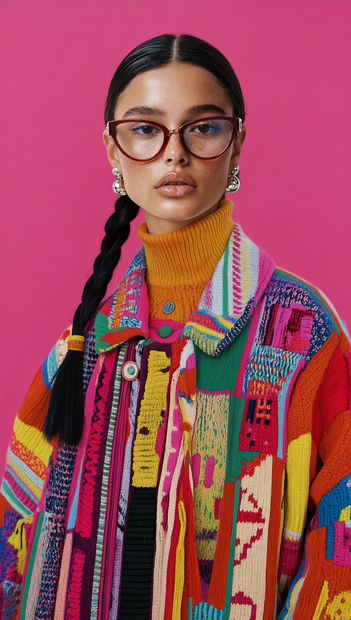
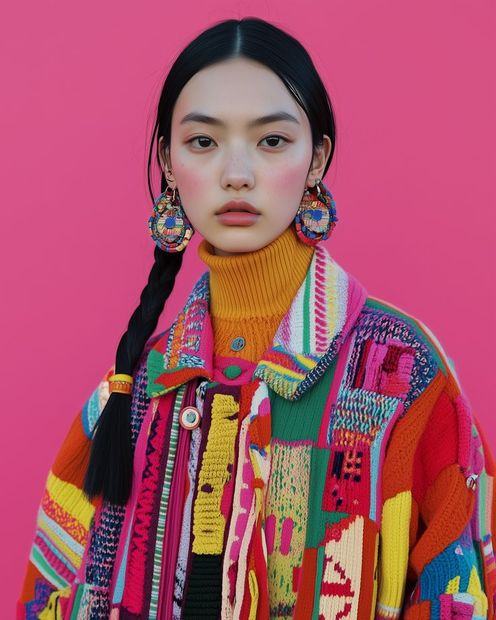
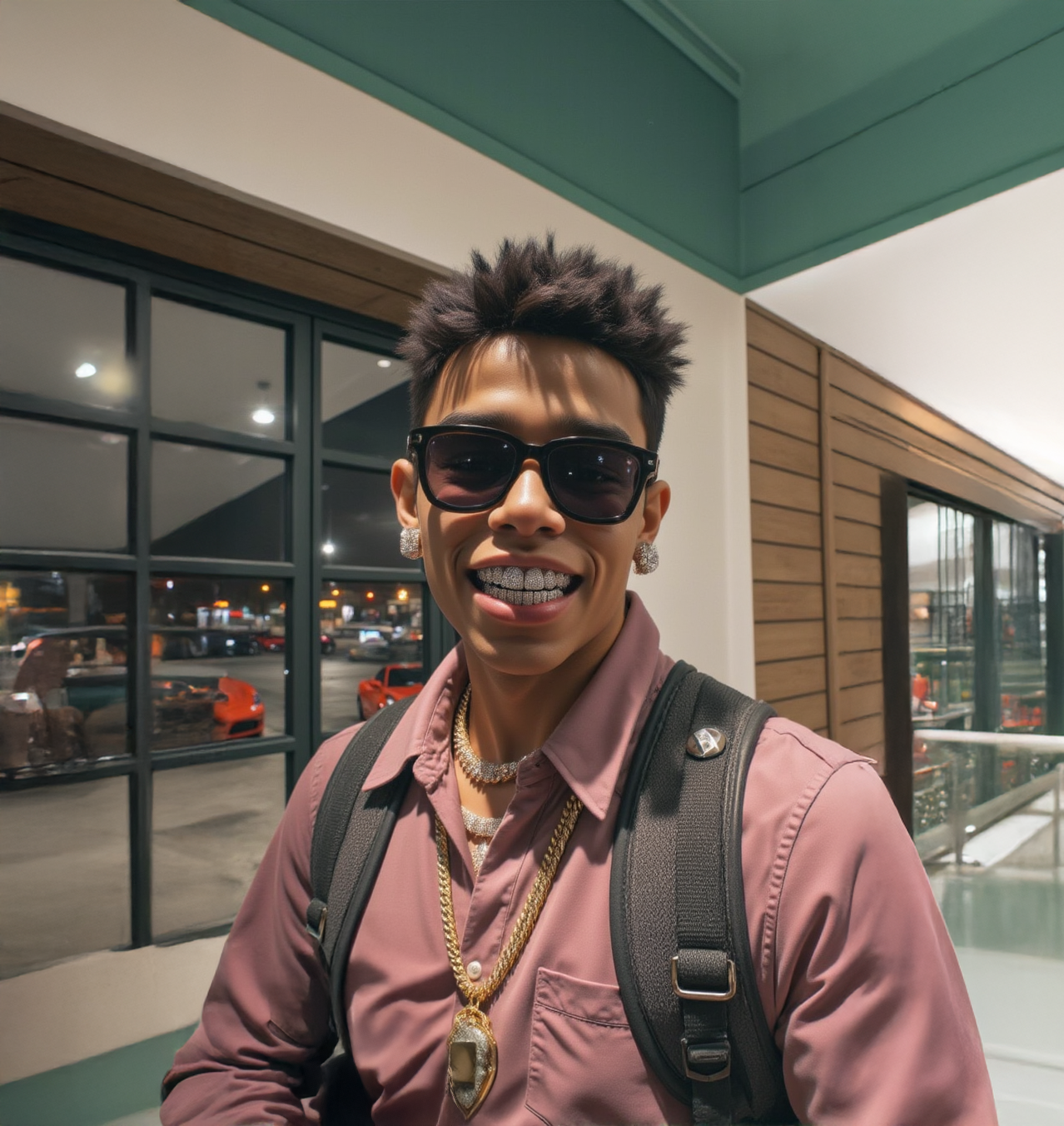
Upload a photo and a new face. Qwen Image 2.1 swaps in the whole head and keeps the body, pose, outfit, and scene from your original. Two uploads, one prompt.
face swap
image to image
portrait
qwen
109

Nodes & Models
LoadImage
UNETLoader
qwen_image_2.1_int8_convrot.safetensors
CLIPLoader
qwen3vl_8b_int8_convrot.safetensors
qwen3.5_9b_qwen_image_2.1_pe_i2i.int8_convrot.safetensors
VAELoader
qwen_image_2.1_vae_bf16.safetensors
ResolutionSelector
QwenImage21Cache
EmptyLatentImage
VAEDecode
SaveImage
KSampler
ComfySwitchNode
TextEncodeQwenImage21
BatchImagesNode
Put a new head on an existing photo. Hair and head shape change along with the face.
Upload the original photo and a photo of the new face. A helper model turns your short instruction into a detailed edit brief. Qwen Image 2.1 then draws the result with the new head on the same body, pose, outfit, and scene.
The default prompt is set up for one woman in frame. If your photo shows someone else, change one word and run it.
How do you do a head swap with Qwen Image 2.1?
Upload the photo you want to change as the original, then a clear, front-facing shot of the new face as the second image. Edit the prompt so it names the person in your photo. Set the aspect ratio to match your original, then run. The other defaults work for a first pass.
You need two uploads and a one-word prompt change. Aspect ratio is the one setting to check before hitting Run.
Original photo (Image 1) This is the photo whose head gets replaced. Body, pose, clothes, and background all come from here. Want a clean swap? Pick a shot where the head is fully in frame and not covered by hands, props, or hair across the face.
New face (Image 2) This is the head that goes in. A clear, front-facing, well-lit shot works best. Head looks pasted on? Use a face photo with lighting and head angle close to your original. Only use faces you have permission to use.
Prompt The default reads: "Replace the head of the woman in Image 1 with the head of the person in Image 2." Image 1 is your original photo and Image 2 is the new face. Swapping a man's head? Change "woman" to "man." More than one person in the shot? Point at one: "the man on the left in Image 1." Keep it to a sentence or two. The helper model writes the detailed brief for you, and long, complex prompts tend to confuse Qwen Image 2.1.
Aspect ratio (default: 9:16 portrait) This sets the shape of your result. It does not follow your photo automatically. Original is a landscape or square shot? Switch to the ratio closest to it. The catch: a shape that doesn't match your photo makes the model reframe the scene, and that can change the body.
Megapixels (default: 2) This sets the output size. Testing prompts and face photos? Drop to 1 for faster runs. Want more detail in the final? Try 3 or 4. Stay at 4 or below, since the model is built for up to 2048x2048.
Steps (default: 50) Want quick tests? Try 30. Happy with the swap? Go back to 50 for the final. More steps add detail and take longer.
Each run picks a new random seed, so the same inputs give a slightly different result every time. Run it two or three times and keep the best one.
What is Qwen Image 2.1 head swap good for?
It's for putting a specific person's head onto an existing photo while keeping the body, outfit, pose, and setting. Think reusing a styled fashion shot with a different model, fixing a group photo with a better take of someone's face, or previewing a cast member in a costume concept.
It works best when both photos agree. Similar lighting, similar head angle, similar distance from the camera. The bigger the mismatch, the more the head looks pasted on.
The tradeoff: this redraws the whole image instead of patching only the head. Body and scene follow your original closely, but small background details, textures, and colors can shift. Need every pixel outside the head left untouched? A masked inpainting workflow gives you that control.
Qwen Image 2.1 can add a yellowish cast and some grain. Check skin tones before you use a result.
FAQ
What's the difference between a head swap and a face swap in Qwen Image 2.1? A face swap changes the facial features and keeps the original hair and head shape. This workflow asks Qwen Image 2.1 for the whole head, so hair, hairline, and head shape come from your second photo too. The body, outfit, pose, and background stay from your original photo.
Why does the swapped head look pasted on in Qwen Image 2.1? Usually it's a lighting or angle mismatch between your two photos. If the original is lit from the side and the face photo is lit from the front, the model has to guess how to blend them. Pick a face photo with similar light, a similar head turn, and a similar camera distance, then run it again.
Why did Qwen Image 2.1 crop or reframe my photo? The output shape comes from the aspect ratio setting, not from your original photo. The default is 9:16 portrait. If your photo is landscape or square, the model redraws the scene to fit the new shape, which can move or change the body. Pick the ratio closest to your original and run it again.
Can I use Qwen Image 2.1 head swaps for commercial work? Qwen Image 2.1 is released under the Qwen Research License, which bars commercial use of the model without a separate commercial license from Alibaba. Personal projects, tests, and research are fine. For client or paid work, read the license and get that agreement first.
How to run Qwen Image 2.1 head swap online? You can run Qwen Image 2.1 head swap online through Floyo. No installation, no setup. Open the workflow in your browser, upload your inputs, and hit run. Free to try.
Ready to try it? Upload your photo and the new face, set the aspect ratio, and hit run.
Read more


_1781095044969.png?width=400&height=300&quality=80&resize=cover)




