MiniMax H3 · Music Video Generator
Upload 4 reference shots and your track. MiniMax H3 animates your subject across all four scenes and cuts to the beat automatically.
Audio
Music
Video
418
ABOUT THE WORKFLOW
Turn Reference Images Into a Music Video. Upload up to 4 character or scene images and a reference audio track. MiniMax H3 cuts the subject across all four visual references in sync with the beat, generating a continuous music-video-style sequence from a single prompt. The result comes back as a video file with audio baked in.
Partner node. This workflow calls an external API, so each run uses credits from your API wallet. No API key needed. Floyo handles the connection.
Model
MiniMax H3 by MiniMax. Running in reference-to-video-and-audio mode: the model reads up to 4 reference images and 1 audio track, then renders a continuous clip where the subject performs across all four visual contexts, cutting on the beat. Outputs up to 15 seconds. Closed model; weights are not publicly released.
HOW IT WORKS
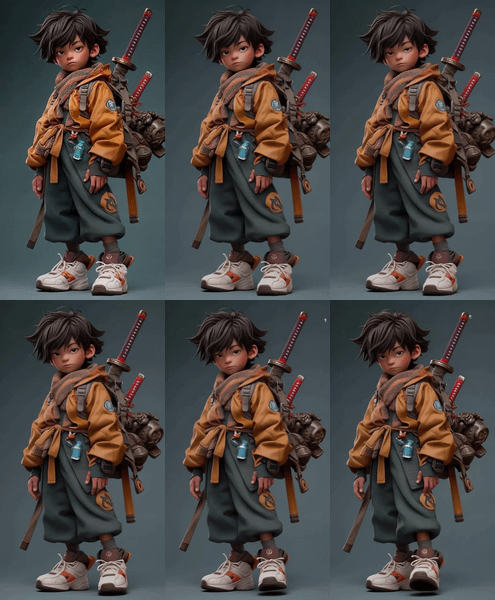
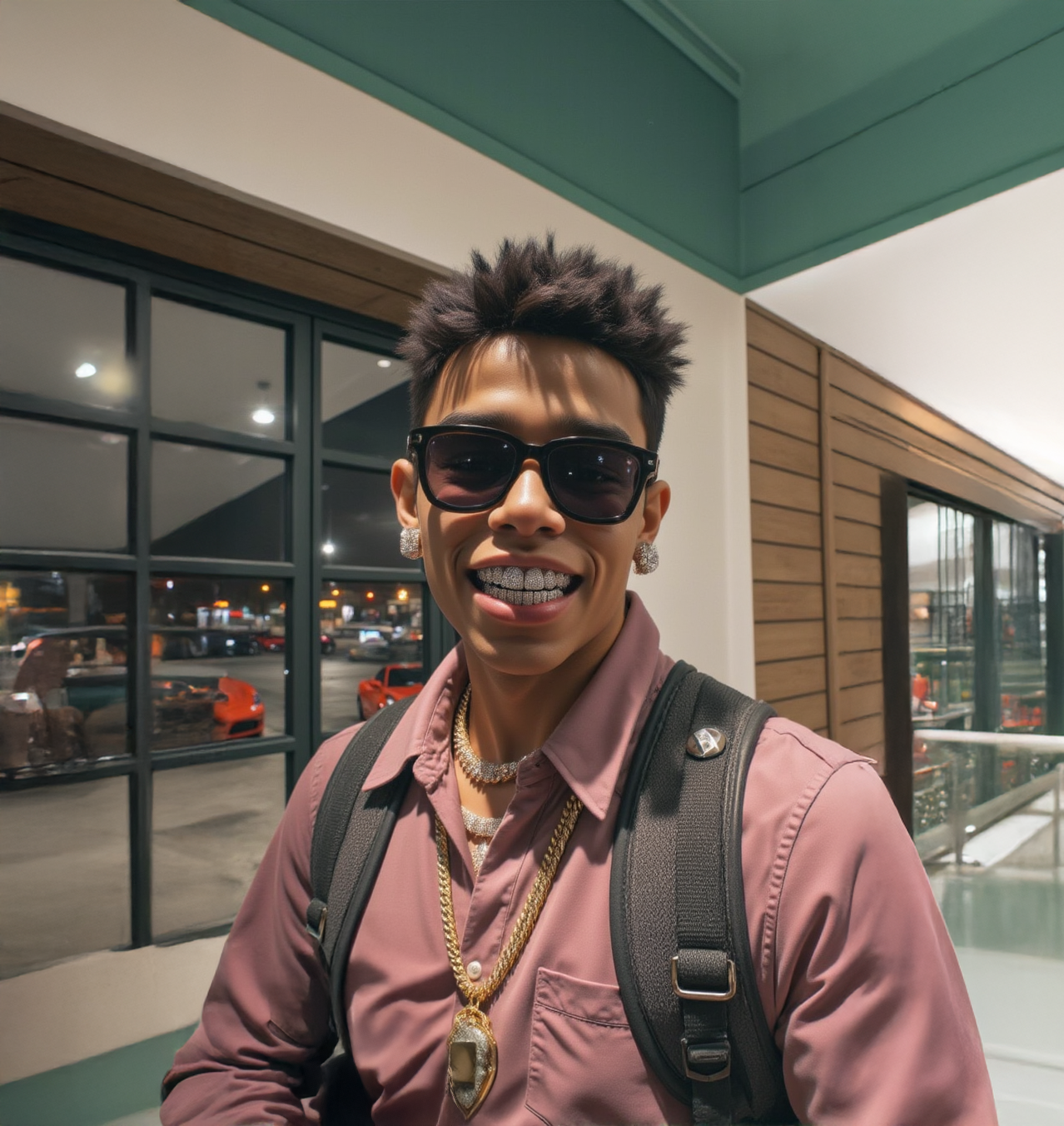
Step 1. Upload your reference images (up to 4). The shots the subject will appear across — different outfits, locations, or angles. Front-facing, well-lit images give the cleanest cuts. Works great with: portraits · character art · headshots · scene stills
Step 2. Upload your reference audio. The track the model will lock the edit to. The audio is passed through untouched — the model cuts the visuals to match it.
Step 3. Write your prompt. Describe the sequence you want. The default — "A 15-second music-video-style sequence: the same subject performs/raps continuously across 4 different reference shots, cutting cleanly on the beat between each location/outfit. Leave the audio track untouched." — is a strong starting point.
Step 4. Hit run and download. The model renders the multi-cut clip and saves it under video/MiniMax_H3. Ready for: Premiere · DaVinci Resolve · CapCut · After Effects
First time? Leave every setting as-is. The defaults (4 reference images · 1 audio track · beat-synced cut prompt) are the right starting point for almost everyone.
RECOMMENDED SETTINGS
Quick-start guide. Find the goal that matches yours and copy the settings.
Standard music video cut (most people) — 4 reference images · 1 audio track · default prompt · random seed. The right starting point for almost everyone.
The cuts don't feel beat-synced — Add "cut cleanly on the beat" to your prompt. The model responds to explicit timing language.
Subject drifts between shots — Use images of the same person from consistent angles. Strong facial reference in each image keeps identity stable across cuts.
Want fewer locations — Use 2 or 3 images instead of 4. Leave the unused image slots empty.
Want a silent output — Replace the reference audio with a silent clip, or trim the prompt to describe a visual-only sequence.
Repeat a result you liked — The same images, audio, and prompt will produce a very similar output. Seed control is not exposed in this workflow, so input consistency is your repeatability lever.
Prompt: Keep it simple. "The same subject performs continuously across 4 reference shots, cutting on the beat" is enough. Add detail about style or atmosphere only when you want the clip to diverge from what the reference images suggest.
Read more