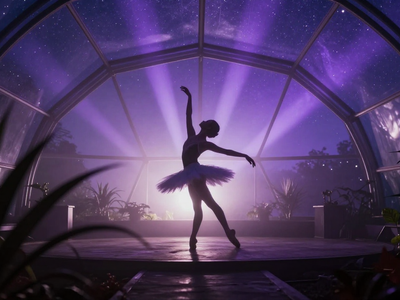
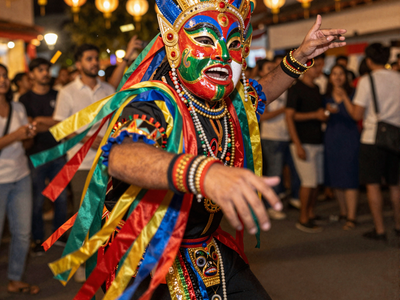
MiniMax H3 ControlNet Pose · Video Pose Control
Upload a video of someone moving and describe a new scene. MiniMax H3 follows the motion with ControlNet pose tracking and generates a matching video with synced audio.
controlnet
minimax h3
pose control
text to video
270

ABOUT THE WORKFLOW
Generate Video from a Pose
Upload a video of someone moving and write a prompt describing the scene you want. The workflow extracts body pose from each frame, then MiniMax H3 generates new video that follows the same motion with synced stereo audio. That’s it.
Model
MiniMax H3 by MiniMax. An open-weight video model (also called Hailuo 3.0) that generates 768p video at 24fps with native stereo audio in one pass. Uses the Fun ControlNet Union patch by Alibaba PAI for pose-guided generation.
HOW IT WORKS
Step 1. Upload your control video
A video showing the body motion you want the output to follow. Clear movement against a readable background works best.
Works great with: dance clips · acting takes · gesture references
Step 2. Write your prompt
Describe the subject, scene, camera, and lighting. The model reads the pose from the video and your text together. Say what the character looks like and where the scene takes place.
Step 3. Hit run and download
The workflow extracts pose skeletons from your video, generates new frames that follow them, adds synced audio, and saves a video file.
Ready for: Premiere · DaVinci Resolve · After Effects · any NLE
First time? Leave every setting as-is. The defaults (5 seconds · 16:9 · 20 steps · random seed) are the right starting point for almost everyone.
RECOMMENDED SETTINGS
Quick-start guide. Find the goal that matches yours and copy the settings.
Standard use (most people) — 5 seconds · 16:9 at 0.4 MP · 20 steps · random seed. The right starting point for almost everyone.
Faster generation at lower quality — Turn on the Lightning LoRA. Drops steps from 20 to 4. Good for quick previews before committing to a full run.
Longer clip — Raise duration above 5 seconds. Keep resolution at 0.4 MP to manage generation time.
Different aspect ratio — Change the resolution selector. Stay at or below 0.4 MP. Above 768x1344 may soften the output.
Loosen or tighten pose following — Lower ControlNet strength below 1 for more creative freedom. Keep it at 1 for strict pose matching.
The pose is wrong or drifting — Try a cleaner control video with more contrast between the body and the background before lowering strength.
Reproduce a result you liked — Lock the seed to the number from your previous run. Keep everything else the same.
Prompt: Describe the subject, materials, lighting, and camera. “A porcelain ballerina puppet on a dusty stage, soft moonlight through tall windows” is stronger than “a dancer.” Specific material and lighting cues shape the output more than long descriptions of motion, since the pose video handles the movement.
LEARN
📹 Videos
ComfyUI 101 Free Course ft. Sebastian Kamph
Floyo 101 for Team Collaboration
✨ Quick links
USE CASES
🎬 Motion Transfer for VFX
Record an actor’s performance on your phone, then regenerate the scene as any character or environment without a full CG pipeline.
💃 Dance and Music Videos
Upload a dance clip and restyle the performer as a different character, material, or creature while keeping every move intact.
🎮 Game and Cinematic Previews
Block out character animation from live reference footage and generate stylized clips for pitch decks or pre-visualization.
🎨 Concept Art in Motion
Turn a quick gesture video into a moving concept piece. Test how a character design reads in motion before committing to production.
WHAT WORKS BEST / WHAT TO AVOID
✅ Works great
Clear full-body movement against a plain background
Well-lit control video with visible limbs
Prompts with specific materials, lighting, and camera direction
Single-person performances
⚠️ May produce softer results
Crowded scenes with many overlapping people
Control video with heavy motion blur or low light
Resolutions above 768x1344
Very long durations combined with high resolution
FAQ
What is MiniMax H3 and how is it related to Hailuo?
MiniMax H3 is the latest video generation model from MiniMax, the lab behind the Hailuo video models. It is also called Hailuo 3.0. Open weights were released in August 2026. It generates 768p video at 24 frames per second with native stereo audio in a single pass.
How does pose control work in this workflow?
The workflow uses SDPose to detect body keypoints in every frame of your control video. It draws a skeleton map from those keypoints, then MiniMax H3 generates new video frames that follow the skeleton layout while matching your text prompt. The result is a new scene with the same motion as your original clip.
What is the Fun ControlNet Union patch?
It is a ControlNet adapter for MiniMax H3, released as open source by Alibaba PAI. It lets the model accept control signals like body pose, so the generated video follows spatial guidance from your input rather than inventing motion from scratch.
Does the output include audio?
Yes. MiniMax H3 generates stereo audio in the same pass as the video. The audio is synced to the visual output and saved together in the final file.
What resolution and duration can this workflow produce?
The default is 16:9 at 0.4 megapixels (roughly 768x432 equivalent) for 5 seconds at 24fps. You can raise duration or switch aspect ratio, but stay at or below 0.4 MP. Output above 768x1344 tends to soften. Raise resolution or duration one at a time to keep generation times manageable.
Is MiniMax H3 open source and can I use the output commercially?
MiniMax H3 is released under the MiniMax H3 Community License, and the ControlNet patch is open source from Alibaba PAI. Check the MiniMax H3 Community License for commercial use terms, as community licenses may include restrictions on usage scale or redistribution.
How to run MiniMax H3 ControlNet Pose online?
You can run MiniMax H3 ControlNet Pose online through Floyo. No installation, no setup, no API key to wire up. Open the workflow in your browser, upload your control video, write a prompt, and hit run. Free to try.
WHY FLOYO?
Floyo is the only platform with team collaboration for ComfyUI in the browser. You run workflows with no install. You share run history, assets, and models across your team. You pay only when you generate. Floyo supports open-source and closed-source models.
A director runs a pose-controlled generation and likes the result. An animator opens that exact run from shared history and keeps going. No file handoffs. No version confusion.
For studios and enterprise teams, Floyo adds private workspaces, pooled resources, and a team usage dashboard. Other ComfyUI cloud tools run for one person at a time. Floyo runs for the whole team, with transparent per-generation costs.
Ready to try it?
Upload a video of someone moving, describe the scene you want, and hit run.
Questions? Watch the free course or check the FAQ above.
Read more