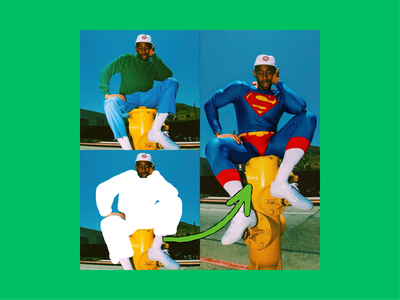
JoyAI Image Edit · Image to Image
Edit any image with spatial instructions using JoyAI Image Edit, the open-weight 24B model from JD.com. Move, rotate, add, or remove objects with text.
image editing
image to image
joyai
joyai image edit
232





Nodes & Models
LoadImage
UNETLoader
joyai_image_edit_bf16.safetensors
CLIPLoader
qwen3vl_8b_joyimage_edit_bf16.safetensors
VAELoader
wan_2.1_vae.safetensors
TextEncodeJoyImageEdit
EmptySD3LatentImage
KSampler
SaveImage
VAEDecode
CFGNorm
ABOUT THE WORKFLOW
Edit an Image With Spatial Instructions Upload a picture and describe the change in plain language. The model parses the scene, works out where everything is, and applies the edit. Strong at spatial work: moving objects, rotating them, changing the camera angle, adding or removing elements while the rest of the scene holds.
Model
JoyAI Image Edit by JD Open Source (JD.com). Released 2 April 2026 under Apache 2.0. Combines an 8 billion parameter Qwen 3 VL encoder with a 16 billion parameter diffusion transformer, 24 billion total. Uses the Wan 2.1 VAE. Built for instruction-guided editing with deep spatial understanding: scene parsing, relational grounding, and instruction decomposition.
HOW IT WORKS
Step 1. Upload your picture The image you want edited. Works great with: product shots · characters · interiors · concept art
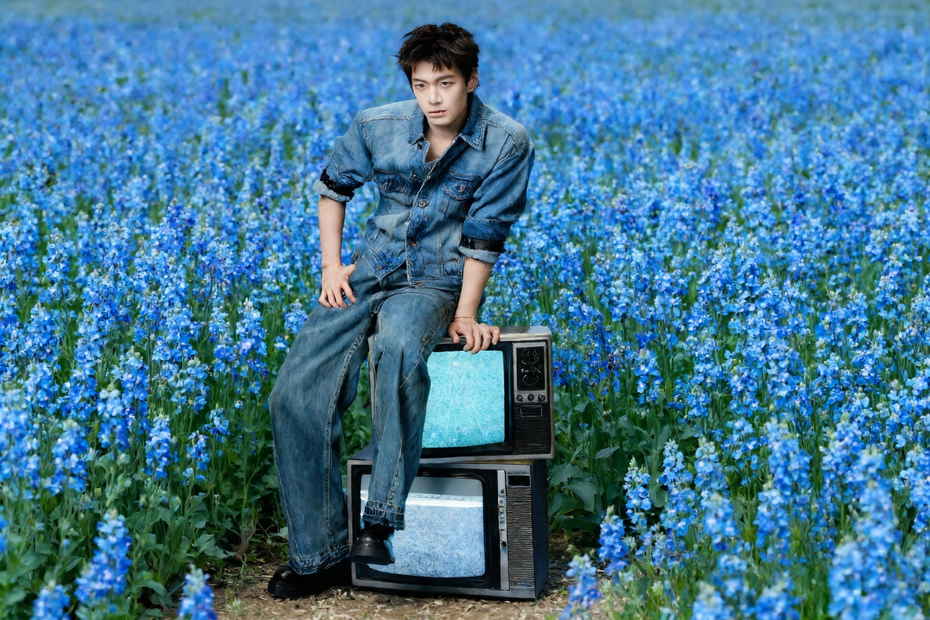
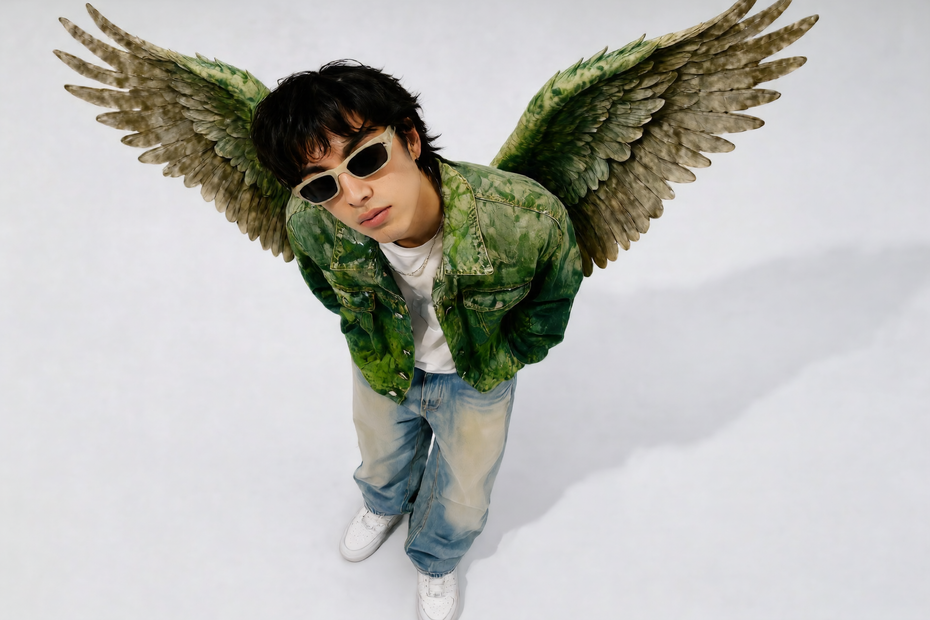
Step 2. Describe the change Write the edit in plain language. Spatial instructions land particularly well. "Rotate the chair to show the front side view" or "move the cup to the left edge of the table" or "add wings to the man."
Step 3. Hit run and download The model applies the edit in 40 passes and saves the result under JoyAI_ImageEdit. Ready for: Photoshop · Figma · Canva · any editor
First time? Leave every setting as-is. The defaults (1920 x 1280 · 40 steps · CFG 4 · fixed seed) are the right starting point for almost everyone.
RECOMMENDED SETTINGS
Quick-start guide. Find the goal that matches yours and copy the settings.
Standard edit (most people) — 1920 x 1280 · 40 steps · CFG 4 · fixed seed. The right starting point for almost everyone.
Faster runs at some cost to detail — Lower the step count. Below 20 the result softens noticeably, so 25 to 30 is the floor for usable output.
The edit drifts from your instruction — Raise CFG one point at a time. Higher values hold the model closer to your words, but push too far and contrast gets harsh.
Want a different take on the same edit — Change the seed number. The default ships on fixed, so the same picture, prompt, and seed return the same result.
Want to steer away from something — Add the word or phrase to the negative prompt. It is empty by default and ready to use.
Spatial edits are not landing — Be literal. "Move the cup 3 centimetres to the left" works better than "adjust the cup." Name the object, the direction, and the distance or angle.
Output size is wrong for your use — Change the width and height. The model outputs at whatever size you set.
Prompt: Be literal and spatial. "Rotate the product 45 degrees to the right, keep the background and lighting unchanged" gives you more than "show a different angle." Name the object, the transformation, and what stays fixed. The model's strength is following specific spatial instructions, so use them.
LEARN
📹 Videos
ComfyUI 101 Free Course ft. Sebastian Kamph
Floyo 101 for Team Collaboration
✨ Quick links
USE CASES
📐 Spatial Repositioning Move, rotate, or resize an object in a shot without redoing the render or the photo.
🛍️ Product Multi-View Generate alternate angles of a product from a single reference image for listings and catalogues.
🎨 Scene Composition Add or remove elements from a frame, like placing wings on a character or removing clutter from a set.
🎬 Camera Angle Changes Shift the camera perspective on a scene from a single still, producing a new viewpoint without reshooting.
WHAT WORKS BEST / WHAT TO AVOID
✅ Works great
Literal spatial instructions: move, rotate, resize, reframe
Single-object edits with a named direction or angle
Product rotation and multi-view generation
Naming what stays fixed alongside what changes
⚠️ May produce softer results
Photorealistic skin detail on close-up portraits
Edits that need precise colour matching
Vague instructions like "improve this" with no spatial direction
Step counts below 20
FAQ
What is JoyAI Image Edit? JoyAI Image Edit is an open-weight image editing model from JD Open Source, the open-source arm of JD.com. It combines an 8 billion parameter Qwen 3 VL encoder with a 16 billion parameter diffusion transformer, 24 billion parameters total, and uses the Wan 2.1 VAE. Weights were released 2 April 2026, ComfyUI integration landed April 10, and Diffusers support followed April 11.
What makes JoyAI Image Edit different from other editing models? Spatial understanding. The model parses the scene before touching pixels, working out where objects are and how they relate, then applies the instruction to the right region. That makes it strong at edits other models struggle with: rotating a product, shifting an object across the frame, changing the camera angle, and generating alternate views from a single still.
Is JoyAI Image Edit free for commercial use? Yes. It is released under Apache 2.0, which allows commercial use, modification, fine-tuning, and self-hosted deployment with no revenue threshold and no territory restrictions.
What hardware does JoyAI Image Edit need to run locally? The bf16 checkpoint for the diffusion model plus the Qwen 3 VL 8B encoder totals around 45 GB on disk. An INT8 quantized version is also published. Community reports put 24GB of VRAM at workable. System RAM of 32GB or more is the practical target.
How does JoyAI Image Edit compare to Qwen Image Edit 2509? Both are open weight under Apache 2.0 and both take one image plus a text instruction. Qwen Image Edit 2509 is stronger at identity preservation for face swaps and supports multi-image editing with up to three inputs. JoyAI Image Edit is stronger at spatial manipulation: rotating objects, changing camera angles, and generating alternate views from a single still. Pick Qwen for face and identity work, and JoyAI for spatial edits.
Why does this workflow run 40 steps? The model is undistilled and 40 steps is the recommended baseline from the developers. Below 20 the picture softens noticeably. The 24 billion parameter count also means each step takes longer than a smaller model, so expect longer generation times at high resolution.
How to run JoyAI Image Edit online? You can run JoyAI Image Edit online through Floyo. No installation, no setup, no 45GB download. Open the workflow in your browser, upload a picture, describe the change, and hit run. Free to try.
WHY FLOYO?
Floyo is the only platform with team collaboration for ComfyUI in the browser. You run workflows with no install. You share run history, assets, and models across your team. You pay only when you generate. Floyo supports open-source and closed-source models.
A designer runs an edit and likes the result. A teammate opens that exact run from shared history and keeps going. No file handoffs. No version confusion.
For studios and enterprise teams, Floyo adds private workspaces, pooled resources, and a team usage dashboard. Other ComfyUI cloud tools run for one person at a time. Floyo runs for the whole team, with transparent per-generation costs.
Ready to try it? Upload a picture, describe the spatial change, and run it. The settings are already set.
Questions? Watch the free course or check the FAQ above.
Read more