

Image Outpaint to Any Aspect Ratio
Reframe any image to a new aspect ratio without cropping. Nano Banana Pro extends the canvas, inventing new background pixels while keeping the original intact.
Api
Image
Image to Image
Outpainting
419
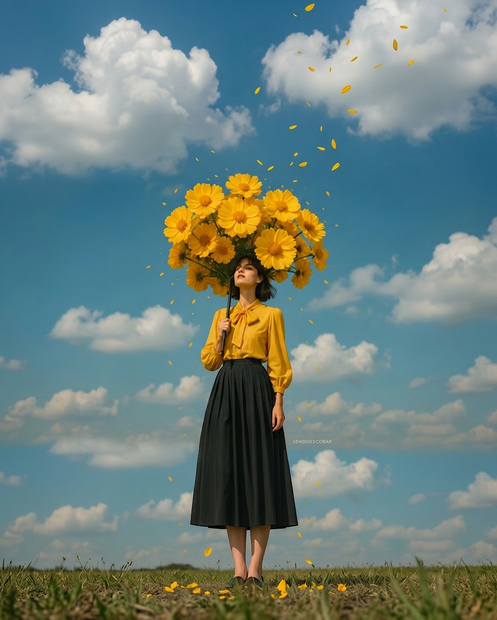
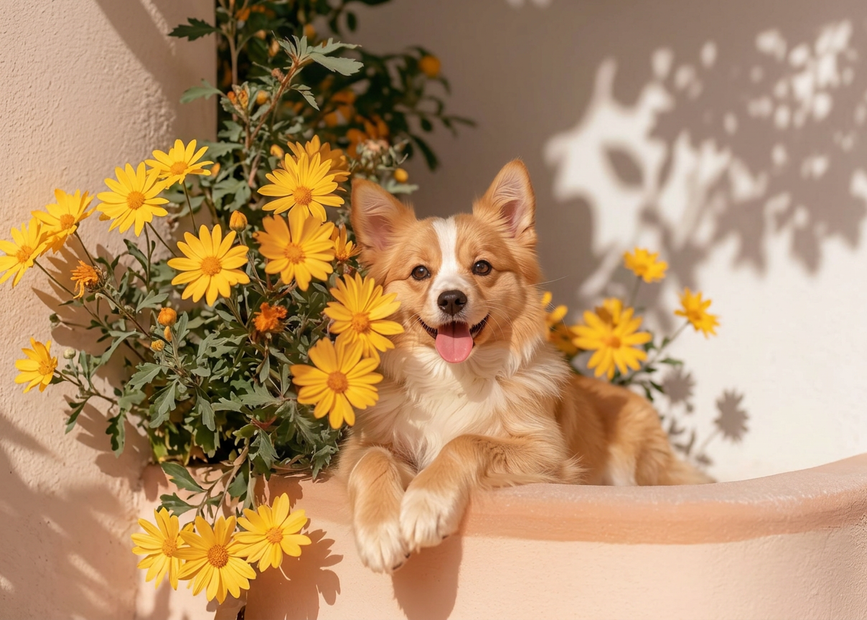
_1778839856071.png?width=1400&height=620&quality=80&resize=contain)
_1778839856071.png?width=104&height=104&quality=80&resize=cover)
Nodes & Models
NanoBanana2Unified_floyo
LoadImage
MarkdownNote
PrimitiveInt
PreviewImage
GetImageSize
ComfyMathExpression
SaveImage
ImageResizeKJv2
ImageCompare
ImagePadForOutpaint
EmptyImage
ImageCompositeMasked
FluxResolutionNode
ImageResize+
FluxResolutionNode
FluxResolutionNode
ImageResize+
ImageResize+
ImageResize+
Reframe any image into a new aspect ratio without losing the subject or cropping pixels.
The workflow extends the canvas to your target ratio (1:1, 16:9, 21:9, 9:16, or custom) and fills the new empty area with Nano Banana Pro, Google's image model. The original pixels stay exactly as uploaded. Only the new canvas around them gets generated.
You control where the original image sits in the new frame: hugged left, centered, or pushed right. Same for top and bottom. So you can shift a portrait subject off-center to make room for headline space, or expand a square photo into widescreen for a thumbnail.
How do you outpaint an image to a new aspect ratio?
Upload your image, pick the target aspect ratio, and choose where the original should sit in the new frame using two percentage sliders. The workflow pads the canvas with green pixels, then Nano Banana Pro fills only the green region with new content that extends the scene naturally. The original pixels are preserved pixel-for-pixel.
Input image Whatever you want to extend. The model handles photos, illustrations, AI-generated art, and screenshots. Higher input resolution gives the model more context to extend from, so don't downscale before importing if you can help it.
Aspect ratio Pick from the dropdown on the Image Extender node. Common picks: 1:1 for feed posts, 9:16 for Reels and Stories, 16:9 for YouTube thumbnails, 21:9 for cinematic banners, 4:5 for portrait posts. Custom ratios work too.
Top/left outpaint percentage (default 50%) Controls vertical and horizontal positioning. 0% hugs the top or left edge, 50% centers, 100% hugs the bottom or right. Use these to compose where the subject sits in the new frame. A 9:16 reframe of a centered portrait usually wants 50/50. A 21:9 banner with copy space on the right wants 0/0 (subject pushed to the left).
Prompt The default prompt locks the model to "only modify the green pixels, leave the original untouched." Edit it with specific details if the model is hallucinating wrong content: add "extend the sandy beach to the right" or "continue the brick wall" to guide what fills the new area.
Number of candidates (default 4) How many variations Nano Banana Pro generates per run. Four is the sweet spot. Generate more if the scene is tricky and you need options to pick from. Each candidate adds runtime.
Output resolution (default 1K) Sets the maximum output dimension. Push to 2K for higher detail when targeting print or large displays. Most social use cases are fine at 1K.
Seed Default is randomize. Lock to a specific number to reproduce the same outpaint result, useful when iterating on the prompt.
Two pitfalls to know
If your subject contains green (plants, neon, a literal green screen), the green-pixel masking can confuse the model. Open the Image Extender subgraph and change the fill color to something that contrasts your subject: magenta, cyan, or hot pink work well.
Scale mismatch breaks the illusion. Going from 1:1 to 21:9 asks the model to invent a lot of new pixels in one direction. Simple backgrounds (skies, walls, floors) extend reliably. Complex scenes (crowds, dense foliage, busy architecture) get visible artifacts. Match your input choice to the ambition of the reframe.
What is this workflow good for?
Anyone who needs to repurpose a single image across multiple platforms or formats: a portrait that needs to work as a square post, a 9:16 Reel, and a 16:9 YouTube thumbnail. Faster than shooting separate compositions, more controllable than naive crop-and-zoom.
Content repurposing where one master image needs to work across Instagram square, Stories 9:16, YouTube thumbnails 16:9, and LinkedIn banners 1.91:1. Generate all four reframes from the same source in minutes.
E-commerce listings where a square product shot needs to extend horizontally for a hero banner without distorting the product or reshooting.
Movie poster and key art work where you have a portrait but need a 21:9 cinematic crop with the subject pushed to one side and copy space on the other.
AI art pipelines where the generator output is locked to certain ratios (1:1, 4:5, 16:9) and you need to push it to a wider or taller format afterward.
Adapting historical photos, illustrations, or memes to modern aspect ratios for thumbnails, banners, and carousel posts.
When to skip it: when you need to preserve every pixel and the new area should be transparent (pad with alpha instead), when your scene is so dense or complex that hallucinated extensions will be obvious, or when the target ratio requires far more invented pixels than original ones.
FAQ
What is outpainting? Outpainting is extending the canvas of an image beyond its original edges, generating new pixels that continue the scene. Where inpainting fills masked areas inside an image, outpainting expands the image outward into empty space. It's how you turn a portrait into a widescreen banner without cropping anything from the original.
What is Nano Banana Pro? Nano Banana Pro is the upgraded version of Google's Nano Banana image model from the Gemini family. It's known for strong instruction following ("only edit the green pixels"), composition preservation, and natural-language compositing tasks, which is exactly why it works well for outpainting through the green-fill technique this workflow uses.
How is outpainting different from regular image generation? Regular image generation creates a new image from scratch based on your prompt. Outpainting starts with an existing image and adds new pixels around it, matching the style, lighting, and content of the original. The result reads as the same photograph, only wider or taller. The transition between original and generated pixels should be invisible.
Can I outpaint to any aspect ratio? Yes. The workflow supports 1:1, 4:5, 9:16, 16:9, 21:9, and custom ratios. The further the target ratio is from your source, the more pixels Nano Banana Pro has to invent, and the more obvious any seams can get on busy backgrounds. Simple backgrounds extend further without issues.
How do you run Nano Banana Pro outpainting online? This workflow runs natively on Floyo. No installation, no setup. Open it in your browser, upload your image, pick your aspect ratio, and hit run. Free to try.
Read more

_1786518453053.png?width=400&height=300&quality=80&resize=cover)




