Happy Horse 1.0 for Video Color Grading (Monotone)
Apply a color grade to any video using Happy Horse 1.0, Alibaba’s instruction-driven video editing model. Upload a video, choose a color reference, and hit run.
Happy Horse 1.0
Video
Video Editing
138


ABOUT THE WORKFLOW
Color Grade a Video
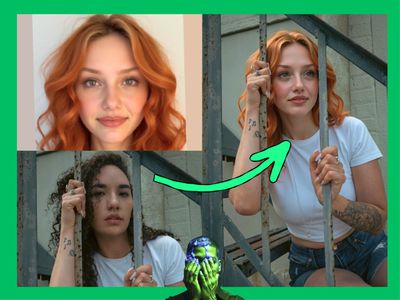
Upload a video and choose a color reference. Pick a solid color, upload a reference image, or select a built-in color preset. Happy Horse 1.0 reads the color temperature, contrast, and tones from the reference and applies them across every frame.
Partner node. This workflow calls an external API, so each run uses credits from your API wallet. No API key needed. Floyo handles the connection.
Model
Happy Horse 1.0 by Alibaba ATH Innovation Unit. A 15B parameter video editing model, strong at instruction-driven color and style transfer while preserving original motion, framing, and content.
HOW IT WORKS
Step 1. Upload your video
The clip you want to color grade. Any resolution, any length up to about 15 seconds per pass.
Works great with: short films · social clips · b-roll · music videos
Step 2. Choose a color reference
Set the number at the top of the workflow to pick your method. 1 = pick a solid color. 2 = upload a reference image. 3 = use a built-in color preset like Magenta Mood.
Step 3. Hit run and download
Happy Horse 1.0 applies the grade to every frame and returns the video with audio intact. Preview it in the workflow, then download.
Ready for: Premiere Pro · DaVinci Resolve · After Effects · Final Cut Pro
First time? Set the number to 2, upload a reference image with the look you want, and leave everything else as-is. The defaults (720P · auto audio · random seed) are the right starting point for almost everyone.
RECOMMENDED SETTINGS
Video Input
Required: Yes
API formats: MP4 or MOV (H.264 recommended)
API constraints: Max 100 MB, 3–60 seconds input, frame rate above 8 fps
Output duration is capped at 15 seconds — even though the API accepts up to 60 seconds of input
Floyo page says: Up to about 15 seconds per pass, any resolution
Tip: Clips under 15 seconds work best. For longer footage, split, grade each clip against the same reference, and reassemble in your editor
Color Reference Mode
Set by a number at the top of the workflow:
1: Solid color — chosen with a color picker
2: Uploaded reference image (recommended for first runs)
3: Built-in color preset, such as "Magenta Mood"
Reference image tips: Use strong, clear color identity with even lighting. Mixed-lighting or neutral-toned references give weaker results
Prompt
Required: Yes
API max length: 2,500 characters
Floyo default: Pre-filled for exact color matching
To soften the grade: Add wording like "subtle" or "light touch" — e.g., "Apply a subtle color grade from @reference_image_1"
Can reference images as
@Image1through@Image5No strength/intensity slider exists — grade strength is controlled through prompt wording only
Reference Images
Floyo: One reference image input (via mode 2)
API supports: Up to 5 reference images
API constraints: JPEG, PNG, or WEBP; min 300px; max 10 MB each; aspect ratio between 1:2.5 and 2.5:1
Must be publicly accessible URLs in API calls
Resolution
Floyo default: 720P
API default: 1080P
API options: 720P or 1080P only
1080P costs more per second of video — the Floyo page recommends testing at 720P first
Audio
Floyo default: Auto (keeps the original audio)
API options: "auto" (model decides whether to regenerate audio) or "origin" (keeps original audio track)
For color grading, "origin" or "auto" both effectively preserve audio
Seed
Floyo default: Random
API range: 0 to 2,147,483,647
Lock to a specific number to reproduce a result with the same video + prompt + reference
Additional API Parameters Not Exposed on Floyo Page
enable_safety_checker: boolean, default true — content moderation on input and output
outputFormat: MP4 (default), WEBM, or MOV
outputQuality: 20–99, default 95 — compression quality (higher = larger files)
numberResults: 1–4 — number of variations per run
Output
Format: Graded video with audio (MP4)
Resolution: Matches the chosen resolution setting (720P or 1080P)
Aspect ratio: Preserved from the source video
Generation time: ~25 seconds typical
Compatible with Premiere Pro, DaVinci Resolve, After Effects, and Final Cut Pro
Common Error-Causing Mistakes to Avoid
Video longer than 15 seconds — output is capped at 15 seconds even though the API accepts up to 60 seconds of input
Video shorter than 3 seconds — API minimum is 3 seconds
Video file over 100 MB — will be rejected
Frame rate below 8 fps — API requires above 8 fps
Neutral or mixed-lighting reference images — produce weak, inconsistent grades
Vague prompts — "make it look cinematic" is too vague; be specific about the color treatment
Expecting a strength/intensity slider — doesn’t exist; control strength through prompt wording
Reference image too small — must be at least 300px on shortest side
Reference image aspect ratio outside 1:2.5 to 2.5:1 — will be rejected
Recommended Safe Defaults
Color reference mode: 2 (uploaded reference image)
Resolution: 720P (test first, upgrade to 1080P after)
Audio: Auto
Seed: Random (lock only for reproducibility)
Video: Under 15 seconds, MP4/MOV H.264, above 8 fps
Prompt: Keep the pre-filled default for exact color matching; add "subtle" or "light touch" to soften
LEARN
📹 Videos
ComfyUI 101 Free Course ft. Sebastian Kamph
Floyo 101 for Team Collaboration
✨ Quick links
USE CASES
🎬 Filmmakers & Colorists
Match the look of one shot across an entire sequence. Upload a graded hero frame as the reference and apply it to every clip in the scene.
📱 Social Media Creators
Give all your clips a consistent color identity without learning DaVinci Resolve. Pick a reference image that matches your brand palette and run every video through it.
🎵 Music Video Editors
Lock a mood across cuts by grading everything to a single reference. Warm tones, cold tones, desaturated looks, or high-contrast film styles in one pass.
🎨 Motion Designers & VFX Artists
Grade AI-generated video or 3D renders to match live-action footage. Upload a frame from the target scene as the reference.
💡 Ad & Product Video Teams
Unify the color across product videos shot in different lighting. Use a hero image from the campaign as the reference to pull everything into the same palette.
WHAT WORKS BEST / WHAT TO AVOID
✅ Works great
Reference images with strong, clear color identity
Well-lit video with consistent exposure
Short clips under 15 seconds per pass
Landscape, street, and narrative footage
⚠️ May produce softer results
References with neutral or mixed-lighting tones
Extreme low-light or overexposed video
Clips longer than 15 seconds in a single pass
Heavy VFX composites with many color zones
FAQ
What is Happy Horse 1.0 and who made it?
Happy Horse 1.0 is a 15B parameter video editing model made by Alibaba’s ATH Innovation Unit (Taotian Future Life Lab), released in April 2026. It takes text instructions, images, and video as input and returns edited video with synchronized audio. It is strong at instruction-driven editing, color transfer, and style transfer while preserving original motion and framing.
How does AI video color grading work with Happy Horse 1.0?
You upload a video and provide a color reference. The model reads the color temperature, contrast curve, shadow tones, and highlight colors from the reference and applies them across every frame. It preserves the original subject, motion, and framing while shifting the color palette to match the reference.
What are the three color reference modes in this workflow?
Mode 1 lets you pick a solid color, and the model shifts the video toward that hue. Mode 2 lets you upload a reference image, such as a graded still from another project, and the model matches its look. Mode 3 applies a built-in color preset like Magenta Mood. Set the number at the top of the workflow to choose.
Can Happy Horse 1.0 color grade videos longer than 15 seconds?
The model handles clips up to about 15 seconds well in a single pass. Longer videos may lose consistency past that point. For longer projects, split the footage into shorter clips, grade each one against the same reference, and reassemble in your editor.
Does the color grading preserve the original audio?
Yes. The audio setting defaults to auto, which keeps the original sound from your uploaded video. The graded output comes back with audio intact.
Is Happy Horse 1.0 open source or API only?
As of October 2026, Happy Horse 1.0 is API only. Alibaba has indicated open weights are planned but not released yet. This workflow calls the API through a partner node, so you pay per generation from your API wallet with no separate API key needed.
How to run Happy Horse 1.0 video color grading online?
You can run Happy Horse 1.0 video color grading online through Floyo. No installation, no setup, no API key to wire up. Open the workflow in your browser, upload your video and a color reference, and hit run. Free to try.
WHY FLOYO?
Floyo is the only platform with team collaboration for ComfyUI in the browser. You run workflows with no install. You share run history, assets, and models across your team. You pay only when you generate. Floyo supports open-source and closed-source models.
A designer runs an edit and likes the result. A teammate opens that exact run from shared history and keeps going. No file handoffs. No version confusion.
For studios and enterprise teams, Floyo adds private workspaces, pooled resources, and a team usage dashboard. Other ComfyUI cloud tools run for one person at a time. Floyo runs for the whole team, with transparent per-generation costs.
Ready to try it?
Upload a video, choose a color reference, and run it. The prompt is already set.
Questions? Watch the free course or check the FAQ above.
Read more