Grok Imagine: Edit Images with a Text Prompt
Edit any image with a text instruction using Grok Imagine. Upload a picture, describe the change, and get a side-by-side comparison back in under a second.
API
background removal
E-commerce
Grok Imagine
Image
Image Editing
Image to Image
Style Transfer
6.6k


ABOUT THE WORKFLOW
Edit an Image With a Text Instruction
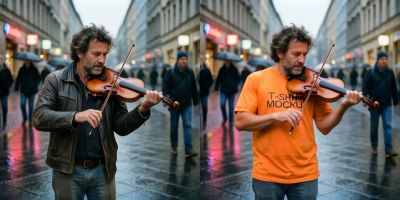
Upload a picture and say what to change. Grok Imagine applies the edit and the workflow places the original and the result side by side in one saved file so you can compare them at a glance.
Partner node. This workflow calls an external API, so each run uses credits from your API wallet. No API key needed. Floyo handles the connection.
Model
Grok Imagine by xAI, powered by the Aurora engine. A closed autoregressive model that reads your picture alongside your instruction and returns the edited version. Fast at targeted changes like removing, replacing, or adding elements while the rest of the picture holds.
HOW IT WORKS
Step 1. Upload your picture
The image you want edited. Any subject, any style.
Works great with: portraits · product shots · interiors · illustrations
Step 2. Describe the change
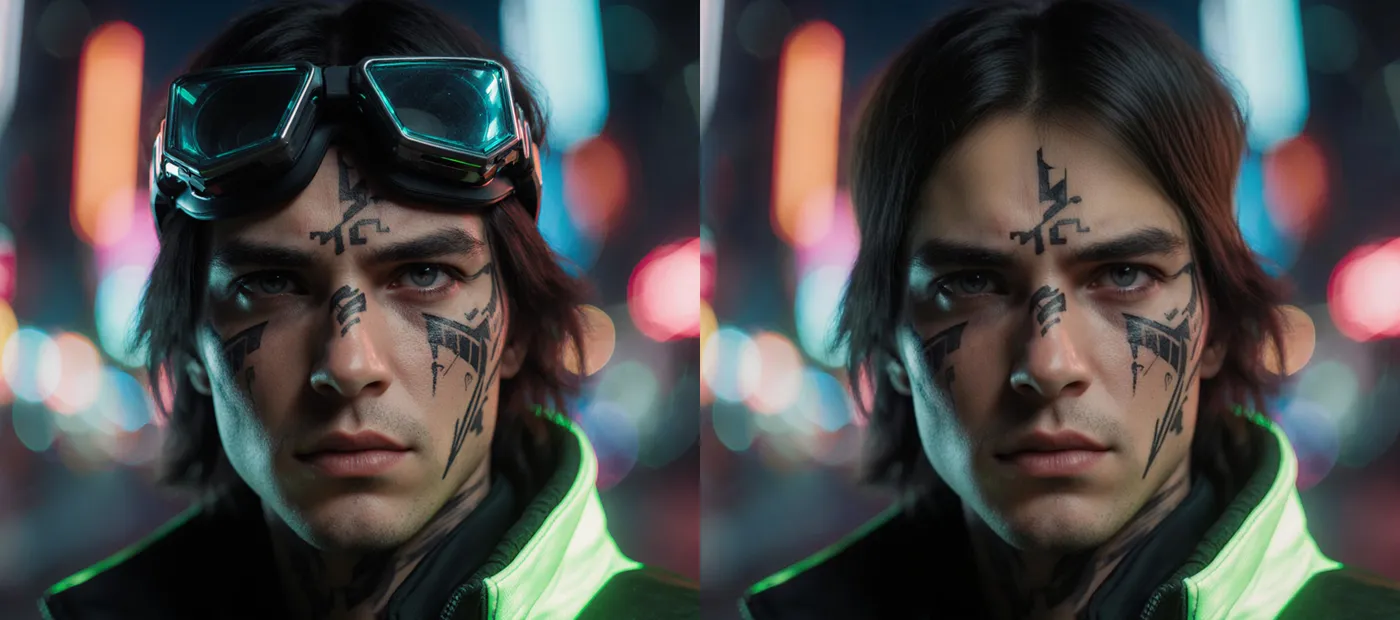
Say what to add, remove, or replace. Name what must stay fixed as well as what changes. "Remove the goggles from the person, keep the rest as it is."
Step 3. Hit run
Grok Imagine applies the edit. The workflow places the original and the result side by side and saves that comparison file.
Step 4. Download
The saved file is the comparison, not the edit alone. Crop it if you need the result on its own.
Ready for: Photoshop · Figma · Canva · any editor
First time? Leave every setting as-is. The defaults (1 image · JPEG · comparison to the right) are the right starting point for almost everyone.
RECOMMENDED SETTINGS
Quick-start guide. Find the goal that matches yours and copy the settings.
Standard edit (most people) — 1 image · JPEG · comparison to the right. The right starting point for almost everyone.
Want options to choose from — Raise the number of images. You get several edited versions in one run and keep the strongest. Image count drives cost.
Need a different file type — Switch the output format away from JPEG.
Want the comparison laid out differently — Change the comparison direction. The edit can sit to the right, left, above, or below the original.
The edit changed too much — Name what must stay fixed. "Remove the hat, keep the hair, the face, and the background unchanged" holds more of the picture in place than "remove the hat."
The edit barely landed — Be more specific about the change. Name the object, the area, and what replaces it rather than giving a broad instruction.
Need the edit alone, not the comparison — The workflow saves the side-by-side file. Crop the result half in your editor, or remove the ImageConcatenate node and wire the edit output straight to save.
Prompt: Write the change, not the scene. "Remove the sunglasses, keep the eyes and the expression" gives you more than "make it look natural." Listing what stays fixed alongside what changes stops the model from redrawing areas you wanted left alone.
LEARN
📹 Videos
ComfyUI 101 Free Course ft. Sebastian Kamph
Floyo 101 for Team Collaboration
✨ Quick links
USE CASES
🧹 Object Removal
Remove an item from a shot without hand-masking, like taking a logo off a shirt or a person out of a background.
🔄 Element Swaps
Replace one thing with another while the rest of the picture stays in place, like swapping a product colour or a background element.
👔 Wardrobe and Styling
Change what someone is wearing in a portrait while the pose and the setting hold.
🛍️ Product Retouching
Clean up a product shot, add or remove props, or adjust details for a listing without a reshoot.
WHAT WORKS BEST / WHAT TO AVOID
✅ Works great
Clear instructions that name one specific change
Listing what stays fixed alongside what changes
Targeted removals and replacements
Clean, well-lit source images
⚠️ May produce softer results
Vague instructions like "make it better" or "clean this up"
Precise spatial instructions about exact pixel positions
Expecting untouched areas to remain pixel-identical
Edits that fight each other in the same prompt
FAQ
What is Grok Imagine editing?
Grok Imagine editing takes a picture and a text instruction, reads them together through xAI's Aurora engine, and returns the picture with the requested change applied. It is the image-to-image counterpart to Grok Imagine's text-to-image generation, using the same underlying model in edit mode.
How fast is Grok Imagine editing?
Typically under a second per image. The speed comes from Aurora's autoregressive architecture, which predicts patches sequentially rather than denoising a full image over many steps the way diffusion models do.
Does Grok Imagine keep the rest of the picture untouched?
It tries to, but the result is not pixel-identical outside the edited area. Aurora rebuilds the picture as a whole rather than masking and inpainting, so subtle shifts in texture or tone can appear in areas you did not mention. Naming what must stay fixed in your prompt reduces this.
What is the difference between this and the Grok Imagine text-to-image workflow?
Text-to-image generates a picture from a prompt alone, with no input image. This workflow starts from a picture you upload and changes it according to your instruction. Use text-to-image to make something new and this one to change something you already have.
Can I use Grok Imagine edits commercially?
Yes. xAI's terms of service permit commercial use of generated and edited images across all access tiers, with no revenue threshold. There is no IP indemnification, so if an output infringes on a third party's rights, the liability sits with you. Review the current terms before using output in paid work.
Why is the saved file a comparison and not the edit alone?
The workflow places the original and the edited version side by side before saving, so you can judge the change at a glance. If you need the edit on its own, crop the result half in your editor, or remove the concatenation node and wire the edit output directly to the save node.
How to run Grok Imagine editing online?
You can run Grok Imagine editing online through Floyo. No installation, no setup, no API key to wire up. Open the workflow in your browser, upload a picture, describe the change, and hit run. Free to try.
WHY FLOYO?
Floyo is the only platform with team collaboration for ComfyUI in the browser. You run workflows with no install. You share run history, assets, and models across your team. You pay only when you generate. Floyo supports open-source and closed-source models.
A designer runs an edit and likes the result. A teammate opens that exact run from shared history and keeps going. No file handoffs. No version confusion.
For studios and enterprise teams, Floyo adds private workspaces, pooled resources, and a team usage dashboard. Other ComfyUI cloud tools run for one person at a time. Floyo runs for the whole team, with transparent per-generation costs.
Ready to try it?
Upload a picture, describe the change, and run it. The settings are already set.
Questions? Watch the free course or check the FAQ above.
Read more