GPT Image 2 for Virtual Try-On & Image Editing
Upload a person photo and a clothing reference. GPT Image 2 swaps the outfit via API, keeping face and pose intact. Optional mask for precision edits.
e-commerce
gpt
Image
image to image
openai
product photography
style transfer
virtual try-on
140
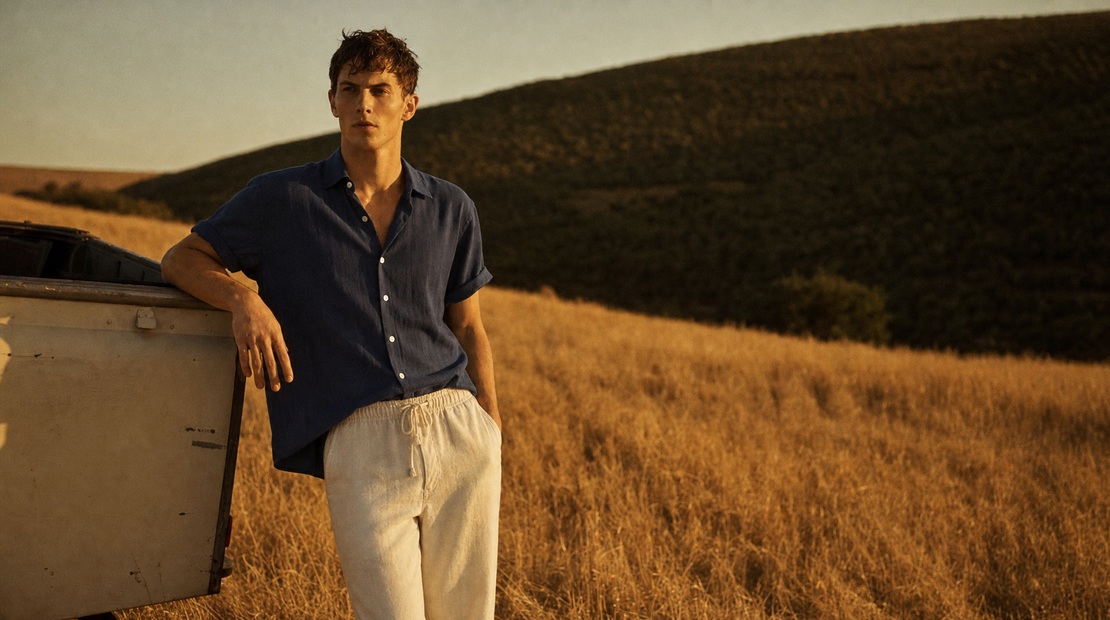
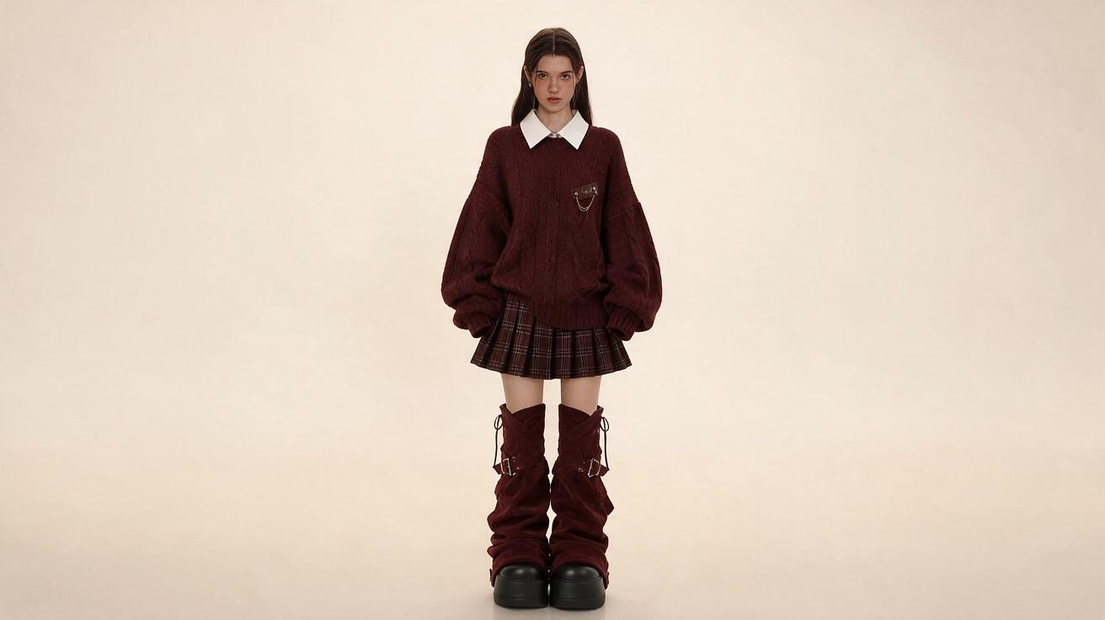
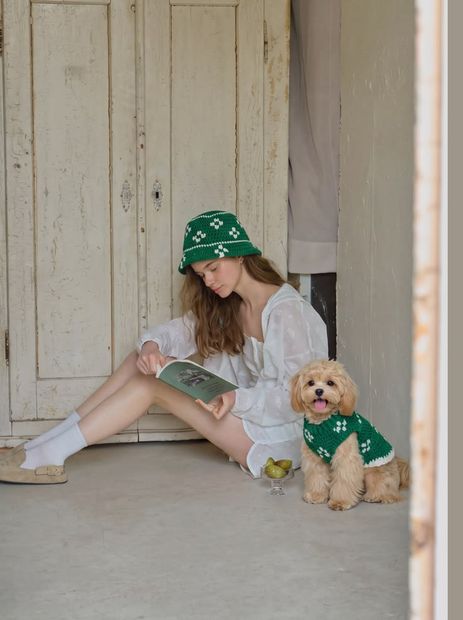
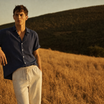
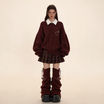
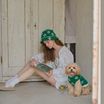
GPT Image 2 virtual try-on through a partner API with mask support and quality control.
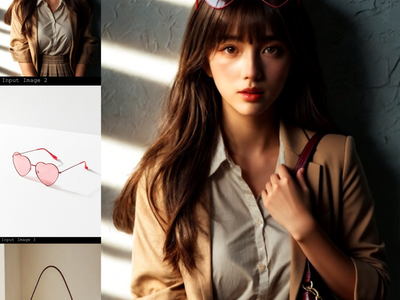
Upload a photo of a person and a photo of an outfit. The model dresses the person in the referenced clothing while preserving their face, body, pose, and background. Clothing details, colors, fit, and texture carry over from the reference. GPT Image 2 is the image editing endpoint built into OpenAI's GPT-4o family, so each run costs additional credits from your API wallet. No API key needed. Floyo handles the connection.
The prompt is pre-filled. Upload two images and hit run.
How do you use GPT Image 2 for virtual try-on?
Upload a photo of the person you want to re-dress and a clear shot of the outfit. The model reads both images, keeps the person's identity and pose, and generates a new image with them wearing the referenced clothing. The prompt is already written. Change nothing on your first run.
Image 1 (Model) The person you want to re-dress. Face, pose, and background carry over to the result. A clear, well-lit photo with the full body visible works best. The workflow labels this "Model" but it works for any subject when you rewrite the prompt.
Image 2 (Clothes) The outfit you want applied. A front-facing product shot with even lighting gives the cleanest results. Busy backgrounds in the clothing image can bleed into the output. This input is optional for non-try-on edits where you only need one reference. A third image slot is available if you wire it up.
Mask (optional) Limits the edit to a specific area of the image. Wire up the mask input when you want the model to change only part of the photo and leave everything else untouched. Not needed for full try-on edits.
Prompt Pre-filled with a virtual try-on instruction. For your first run, leave it alone. If the result misses something, rewrite the prompt before touching any other setting. You can also use the prompt for non-try-on edits: describe any change you want and the model will apply it. Be specific about what should change and what should stay the same.
Image Size (default: 1920x1080 landscape) Sets the output dimensions. Several presets are available in landscape, portrait, and square. Pick the one that matches your input to reduce cropping.
Quality (default: high) Choose between standard and high. High produces sharper results but costs more per run. For previews and quick tests, standard saves credits.
Num Images (default: 1) Generate multiple variations in one run. Want to compare a few options before picking one? Increase this number.
Output Format (default: PNG) Choose PNG or JPEG. PNG keeps full quality. JPEG produces smaller files.
What is GPT Image 2 good for?
GPT Image 2 is the image editing endpoint from OpenAI's GPT-4o family. It follows detailed edit instructions well, composites multiple references cleanly, and renders legible text in images. The mask input lets you target specific areas for editing.
E-commerce teams can shoot a model once and swap outfits across an entire catalog without rebooking a studio. Upload the model photo, swap in each product shot, and build a full lookbook from a single session. The quality toggle lets you run fast previews on standard, then re-run final shots on high.
Stylists and fashion designers can test combinations before producing samples. See how a fabric reads on a body without sewing anything.
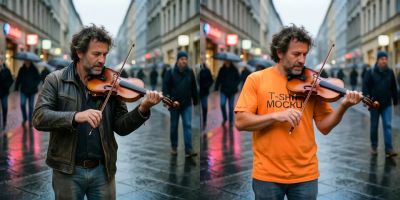
The model also works for non-clothing edits. Rewrite the prompt and it becomes a general image editor. Background swaps, logo placement, compositing, text overlay, and object removal all work through the same pipeline. The mask input adds precision: limit edits to a specific area when you want the rest of the image untouched.
Text rendering is a standout. If your edit involves placing brand names, labels, or readable text on a product or scene, GPT Image 2 handles it more cleanly than most alternatives.
This is a partner API workflow. Each run costs additional credits from your API wallet on top of your Floyo plan. High quality at large sizes costs more per image. The model uses closed weights accessed through Floyo's partner API. No local download is available.
FAQ
What resolution does GPT Image 2 output? The default is 1920x1080 in landscape. Several presets are available in landscape, portrait, and square formats. Pick the one that matches your input image to reduce cropping.
Can I use GPT Image 2 for edits besides virtual try-on? Yes. Rewrite the prompt to describe any edit: background swaps, object placement, text overlay, logo application, or compositing. The workflow supports up to three reference images and an optional mask for targeted edits, though only two image inputs are connected in this layout.
What is the difference between standard and high quality? High produces sharper results with more detail but costs more credits per image. Standard is faster and cheaper. Use standard for quick previews and testing, then switch to high for final output.
Does GPT Image 2 cost extra? Yes. This workflow calls an external API through Floyo's partner connection. Each run costs additional credits from your API wallet. High quality costs more than standard. No separate API key is needed. Floyo handles the connection.
How do I run GPT Image 2 virtual try-on online? You can run GPT Image 2 virtual try-on online through Floyo. No installation, no setup. Open the workflow in your browser, upload your inputs, and hit run. Free to try.
Read more