FLUX.2 Klein Outpaint · Image Expansion
Upload an image and FLUX.2 Klein extends the scene outward on both sides, filling in new content that matches the original lighting, perspective, and detail, then upscales the result with SeedVR2.
extend
flux 2 klein
Image
image expansion
outpaint
Video
230
_1782842906311.png?width=1400&height=620&quality=80&resize=contain)
_1782842906311.png?width=1400&height=620&quality=80&resize=contain)
_1782842906311.png?width=1400&height=620&quality=80&resize=contain)
_1782842906311.png?width=104&height=104&quality=80&resize=cover)
_1782842906311.png?width=104&height=104&quality=80&resize=cover)
_1782842906311.png?width=104&height=104&quality=80&resize=cover)

Nodes & Models
LoadImage
KSamplerSelect
MarkdownNote
RandomNoise
UNETLoader
flux-2-klein-9b.safetensors
PreviewImage
CLIPLoader
qwen_3_8b_fp8mixed.safetensors
Image Comparer (rgthree)
VAELoader
flux2-vae.safetensors
DifferentialDiffusion
CLIPTextEncode
ConditioningZeroOut
CFGGuider
EmptyFlux2LatentImage
SamplerCustomAdvanced
VAEEncode
ReferenceLatent
GetImageSize
SaveImage
LayerUtility: ImageScaleByAspectRatio V2
Flux2Scheduler
ImagePadForOutpaint
VAEDecode
InpaintModelConditioning
DrawMaskOnImage
FloyoStickyNote
Int
SeedVR2LoadDiTModel
SeedVR2LoadVAEModel
ema_vae_fp16.safetensors
CR Prompt Text
SeedVR2VideoUpscaler
Int
SeedVR2LoadDiTModel
SeedVR2LoadVAEModel
ema_vae_fp16.safetensors
SeedVR2VideoUpscaler
SeedVR2LoadDiTModel
SeedVR2LoadVAEModel
ema_vae_fp16.safetensors
SeedVR2VideoUpscaler
CR Prompt Text
ABOUT THE WORKFLOW
Expand an Image
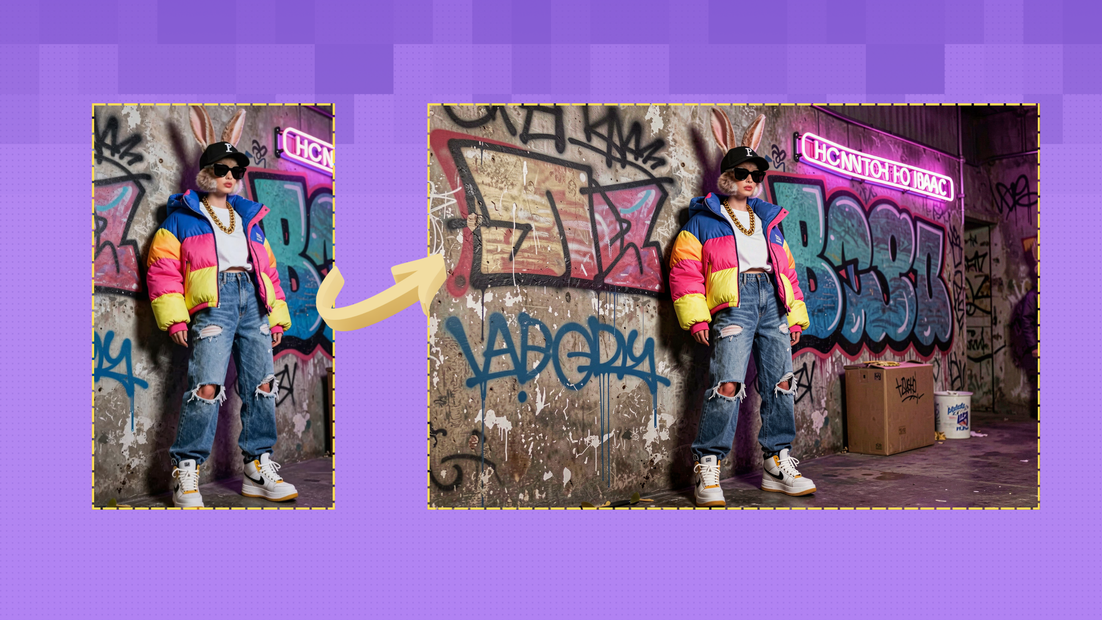
Upload an image. The workflow pads it with empty space on the left and right, then FLUX.2 Klein fills in the expanded areas by reading the lighting, depth, and content of your original and continuing the scene outward. After expansion, SeedVR2 upscales the full result to high resolution. The output includes a side-by-side comparison of the original and expanded image so you can check the result before downloading.
Model
FLUX.2 Klein 9B by Black Forest Labs. A fast 9-billion-parameter image model with native inpainting and outpainting support. Fills expanded regions while matching the style, perspective, and lighting of the source image. Runs in 4 steps for fast generation.
SeedVR2 7B by ByteDance. A video and image upscaler that sharpens the expanded result to high resolution (up to 2048x4096) while preserving fine detail.
HOW IT WORKS
Step 1. Upload your image
Any photo, render, or AI-generated image. The workflow scales it to 1024px on the longest side before expanding.
Works great with: landscapes · street scenes · interiors · product shots · portraits · concept art
Step 2. Hit run
The workflow pads 1000px of empty space on each side of the image, then FLUX.2 Klein fills both sides with new content that continues the scene. A feathered blend at 50px keeps the seam invisible. After expansion, SeedVR2 upscales the full result.
Step 3. Compare and download
The workflow produces a side-by-side comparison of the original and expanded image, plus the final upscaled result. Check the expansion, then download.
Ready for: Photoshop · Premiere · Figma · print · widescreen displays · social media banners
First time? Leave every setting as-is. The prompt, padding, and upscaler are preconfigured. Upload your image and run.
RECOMMENDED SETTINGS
Quick-start guide. Find the goal that matches yours and copy the settings.
Standard horizontal expansion (most people) — Upload your image and run. The workflow expands 1000px on each side and upscales. No changes needed.
Turn a portrait or square image into widescreen — The default padding (1000px left + 1000px right) converts a square or vertical image into a wide panoramic format. Drop in a portrait and get a widescreen scene.
Less expansion — Reduce the left and right padding values (e.g. 500px each) for a subtler extension that stays closer to the original frame.
Expand vertically instead — Swap the padding values: set top and bottom padding instead of left and right. This extends the sky, floor, or ceiling of a scene.
Expand in all directions — Set padding on all four sides. The model fills every direction at once. Results work best when the original image has clear environmental cues in every direction.
Seam visible at the boundary — Increase the feather value above 50px for a softer blend. If the source image has harsh lighting gradients at the edges, the model needs a wider transition zone.
Reproduce a result — The seed defaults to fixed (10344). Keep it locked to get the same expansion. Change it for a different interpretation of the same scene.
Prompt: The prompt is pre-written for outpainting: it instructs the model to remove grey areas and extend the scene. Leave it as-is for most runs. If you want to steer what appears in the expanded area (e.g. "continue the forest on both sides" or "extend with an ocean horizon"), add that description to the prompt.
LEARN
📹 Videos
ComfyUI 101 Free Course ft. Sebastian Kamph
Floyo 101 for Team Collaboration
✨ Quick links
USE CASES
🖥️ Widescreen Conversion
Turn a square or vertical image into a widescreen frame for desktop wallpapers, YouTube thumbnails, website heroes, and ultrawide displays.
🎬 Filmmaking and Post-Production
Expand a shot to a wider aspect ratio without reshooting. Extend establishing shots, add breathing room for titles, or create parallax-ready layered backgrounds.
🛍️ Product and E-commerce Banners
Take a product photo and expand the scene around it to fill a banner or header format. The model extends the background and environment while keeping the product intact.
🎨 Concept Art Extension
Expand a key visual into a wider environment for worldbuilding, pitch decks, or game-level design. The model reads the perspective and lighting from the original and continues them outward.
WHAT WORKS BEST / WHAT TO AVOID
✅ Works great
Images with clear environmental context at the edges (sky, ground, walls, foliage)
Evenly lit scenes without heavy vignetting
Landscapes, streets, interiors, and architectural shots
Moderate expansion (1000px per side at 1024px base)
⚠️ May produce softer results
Images with a subject cropped tightly at the edge (half a face, half an object)
Heavy lens distortion or extreme wide-angle shots
Very dark or underexposed edges
Massive expansion (more than 2x the original width in a single pass)
FAQ
What is image outpainting?
Outpainting extends an image beyond its original borders. The model reads the content, lighting, and perspective at the edges and generates new content that continues the scene. The result is a wider (or taller) image that looks like it was captured with a wider lens or from further back, rather than cropped from a larger original.
How much does this workflow expand the image?
The default adds 1000 pixels to the left and 1000 pixels to the right at a 1024px base resolution. This roughly triples the width of the image. You can adjust the padding values to expand more or less, or in different directions.
Can I expand vertically instead of horizontally?
Yes. Swap the padding values: set top and bottom padding instead of left and right. This extends the scene upward and downward, adding more sky, ceiling, or floor.
What does SeedVR2 do in this workflow?
After FLUX.2 Klein fills in the expanded area, SeedVR2 upscales the full result to high resolution (up to 2048x4096). This sharpens both the original content and the newly generated regions so the final output is print and production ready.
Why does the workflow use grey areas for the expansion?
The workflow pads the image with grey space, then masks those areas and instructs FLUX.2 Klein to replace them with scene content. The grey acts as a placeholder that tells the model exactly where to generate new content. A 50px feather at the boundary blends the original and generated areas for an invisible seam.
Is FLUX.2 Klein 9B licensed for commercial use?
FLUX.2 Klein 9B is released under the FLUX Non-Commercial License for open-weight users. For commercial use, Black Forest Labs offers a separate Self-Hosted Commercial License. SeedVR2 is released by ByteDance under its own license terms. Check both licenses for your specific use case.
How to run image outpainting with FLUX.2 Klein online?
You can run image outpainting with FLUX.2 Klein online through Floyo. No installation, no setup, no local GPU needed. Open the workflow in your browser, upload your image, and hit run. Free to try.
WHY FLOYO?
Floyo is the only platform with team collaboration for ComfyUI in the browser. You run workflows with no install. You share run history, assets, and models across your team. You pay only when you generate. Floyo supports open-source and closed-source models.
A designer runs an edit and likes the result. A teammate opens that exact run from shared history and keeps going. No file handoffs. No version confusion.
For studios and enterprise teams, Floyo adds private workspaces, pooled resources, and a team usage dashboard. Other ComfyUI cloud tools run for one person at a time. Floyo runs for the whole team, with transparent per-generation costs.
Ready to try it?
Upload your image and hit run. The expansion and upscaler are already configured.
Questions? Watch the free course or check the FAQ above.
Read more