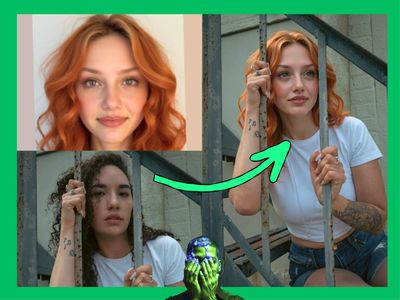
Nano Banana Pro: Edit Any Image
gemini 3 pro
Image
Image2Image
Image Editing
Nano Banana Pro Edit
3
1.6k




Nodes & Models
NanoBananaEdit_floyo
LoadImage
PreviewImage
ABOUT THE WORKFLOW
Edit an Image Upload an image and describe the change you want, and Nano Banana Pro applies it. Add more reference images to guide the edit. That's it.
Partner node. This workflow calls an external API, so each run uses credits from your API wallet. No API key needed. Floyo handles the connection.
Model
Nano Banana Pro by Google. The Gemini 3 Pro image model, strong at realistic edits and accurate text.
HOW IT WORKS
Step 1. Upload your image The image you want to edit. Works great with: photos · portraits · products · designs
Step 2. Describe the change Say what to change in plain language, like "change the image to chibi art style" or "swap the background to a beach at sunset."
Step 3. Add reference images (optional) Add up to three more images to guide the edit, such as a style to match or an object to bring in.
Step 4. Hit run and download Nano Banana Pro applies the edit and returns the result. Preview it in the workflow, then download. Ready for: Photoshop · Figma · Canva · any editor
First time? Leave every setting as-is. The defaults (1 image · JPEG) are the right starting point for almost everyone.
RECOMMENDED SETTINGS
Quick-start guide. Find the goal that matches yours and copy the settings.
Standard edit (most people) ★ Start here — 1 image · JPEG. The right starting point for almost everyone.
Want options to choose from — Raise the number of images to generate several edited versions and keep the strongest.
Guide the edit with references — Add up to three more images to bring in a style, an object, or a specific look.
Editing or adding text — Nano Banana Pro renders text accurately, so spell out the exact words you want in the image.
Need a different file type — Switch the output format to match where the image is going.
The edit is not landing — Keep the prompt specific about what to change and what to keep, rather than a broad instruction.
Want realistic results — Describe the change plainly. The model is strong at photorealistic edits.
Prompt: Describe the change and what to preserve. "Change to chibi art style, keep the pose" is clearer than "make it a cartoon." When you add references, say what each one contributes to the edit.
USE CASES
🎨 Style Changes Restyle a photo into a new art style or look from a single instruction.
🖼️ Object & Background Edits Swap backgrounds, add or remove objects, and change details in a shot.
🛍️ Product & Marketing Adjust product shots, add elements, or restyle an image for a campaign.
🔤 Text-accurate Edits Edit or add legible text in the image, where most models struggle.
WHAT WORKS BEST / WHAT TO AVOID
✅ Works great
Clear, specific edit instructions
Single, clean source images
Style changes and object edits
Reference images to guide the look
⚠️ May produce softer results
Vague instructions like "make it better"
Too many references at once
Crowded source images
Conflicting edits in one prompt
LEARN
📹 Videos
ComfyUI 101 Free Course ft. Sebastian Kamph
Floyo 101 for Team Collaboration
✨ Quick links
FAQ
What is Nano Banana Pro? Nano Banana Pro is Google's Gemini 3 Pro image model. It is strong at realistic edits and at rendering accurate text, and it supports editing with reference images. This workflow runs it in edit mode, so you start from an image you upload and describe the change you want.
How does the editing work, and what are reference images for? You upload the image to edit and describe the change in a prompt. You can also add up to three more reference images, for four in total, to guide the edit, such as a style to match or an object to bring into the picture. The model applies your instruction while drawing on those references.
Does Nano Banana Pro render text well? Yes. Accurate text rendering is one of its strengths, which sets it apart from many image models. That makes it a good fit for edits that add or change legible text, like signs, labels, or titles in the image.
Do the outputs have a watermark? Yes. Google applies an invisible SynthID watermark to images from Nano Banana Pro to mark them as AI-generated. It does not change how the image looks, but it stays embedded in the file.
How is this different from the Nano Banana Pro generate workflow? This workflow is image-to-image editing: it starts from your uploaded image and changes it. The generate workflow creates a new image from a text prompt and references. Use this one to modify an existing image, and the generate workflow to make one from scratch.
Can I use the results commercially? Nano Banana Pro is a proprietary Google model, so commercial use is governed by Google's terms rather than an open license. Commercial use is generally allowed, but review Google's current terms, note that outputs carry the SynthID watermark, and make sure you have the rights to any image you upload.
How to run Nano Banana Pro online? You can run Nano Banana Pro online through Floyo. No installation, no setup, no API key to wire up. Open the workflow in your browser, upload an image, describe the edit, and hit run. Free to try.
WHY FLOYO?
Floyo is the only platform with team collaboration for ComfyUI in the browser. You run workflows with no install. You share run history, assets, and models across your team. You pay only when you generate. Floyo supports open-source and closed-source models.
A designer runs an edit and likes the result. A teammate opens that exact run from shared history and keeps going. No file handoffs. No version confusion.
For studios and enterprise teams, Floyo adds private workspaces, pooled resources, and a team usage dashboard. Other ComfyUI cloud tools run for one person at a time. Floyo runs for the whole team, with transparent per-generation costs.
Ready to try it? Upload an image, describe the change, and run it. The settings are already set.
Questions? Watch the free course or check the FAQ above.
Read more


_1786522681696.png?width=400&height=300&quality=80&resize=cover)