



COMMUNITY PAGE
ComfyUI Troubleshooting Guide: Fix Every Common Error
A complete reference for fixing the most common ComfyUI errors - from security settings and missing modules to VRAM crashes and video generation limits.
What this guide covers:
Section 1: Security Level & Custom Node Manager
ComfyUI Manager's security settings control what you can install. Most custom node installation failures trace back to these settings.
Issue 1.1 - "This action is not allowed with this security level configuration"
When you try to install a custom node through ComfyUI Manager - especially via a Git URL - you see:
⚠️ This action is not allowed with this security level configuration
ComfyUI Manager's security level is blocking the operation. At the default normal setting, Manager refuses to install unverified third-party Git repositories to prevent malicious code injection.
_1792160539603.png)
The Four Security Levels
| Level | What It Allows |
|---|---|
| strong | Most restrictive. Blocks Git URL installs, pip installs, and all high-risk operations. |
| normal | Default. Blocks unverified Git URL installs. Allows registered database plugins and model downloads. |
| normal- | Same as normal, but permits high-risk features when ComfyUI is running on a local IP. |
| weak | Least restrictive. Allows Git URL installs, "Try Fix," and all Manager operations. |
Fix It
Step 1 - Locate config.ini. The path depends on your ComfyUI Manager version:
| Manager Version | Config Path |
|---|---|
| v3.0 and above | ComfyUI/user/default/ComfyUI-Manager/config.ini |
| Below v3.0 | ComfyUI/custom_nodes/ComfyUI-Manager/config.ini |
Not sure which version you have? The config path is printed in your ComfyUI startup log.
- Step 2 - Back up the file. Copy
config.inibefore editing it. - Step 3 - Edit the security level. Open
config.iniin any text editor and change:
security_level = normal
Change it to:
security_level = weak
- Step 4 - Save the file. On Windows, if the save fails, right-click
config.ini→ Properties → uncheck Read-only. - Step 5 - Restart ComfyUI completely:
- Desktop version: Fully exit the application and relaunch.
- Portable version: Close the window and run
run_nvidia_gpu.batagain. - Manual install: Stop the Python process (
Ctrl+C) and restart.
A page refresh is not enough - the config is read at server startup.
- Step 6 - Verify. In ComfyUI Manager, try installing a node via Git URL. If no error appears, the change took effect.
Security note: weak disables protections that exist for a real reason. Only install custom nodes from sources you trust, and consider setting security_level back to normal once you have finished installing.
Alternative: Skip the Config Edit Entirely
If the node you want is registered in the Manager database, install it through Manager → Custom Nodes Manager and search by name instead of pasting a Git URL. Registered nodes install fine at the default normal security level - no config change needed.
If the Setting Does Not Take Effect
- Confirm you edited the correct
config.ini- if you have both paths from the table above on disk, v3.0+ reads theuser/default/one. - Update ComfyUI Manager to the latest version, then re-apply the edit (updates can regenerate the config).
- Check your ComfyUI startup log for the Manager version and config path it actually loaded.
Issue 1.2 - ComfyUI Custom Nodes Manager Not Showing or Not Working
The Manager button is missing from the menu, or clicking it does nothing - blocking you from browsing or installing any ComfyUI custom nodes.
Fix It
- Confirm Manager is installed. Check that a
ComfyUI-Managerfolder exists incustom_nodes/. If missing:cd custom_nodes
git clone https://github.com/ltdrdata/ComfyUI-Manager.gitThen restart ComfyUI - the Manager button should appear in the menu.
- Button exists but installs fail: You are hitting the security level block from Issue 1.1. Edit
config.iniand setsecurity_level = weak. - Manager loads but shows no nodes: Check your network connection to GitHub. Manager fetches its node database from a remote channel URL at startup. If behind a proxy or firewall, set
bypass_ssl = Trueinconfig.inias a test. - Login screen blocks access: Ensure your authentication proxy is not stripping the
/api/and/manager/routes that Manager depends on.
Note: ComfyUI-Manager moved to the Comfy-Org GitHub organization as Comfy-Org/ComfyUI-Manager on March 28. The old URL still works via GitHub redirects.
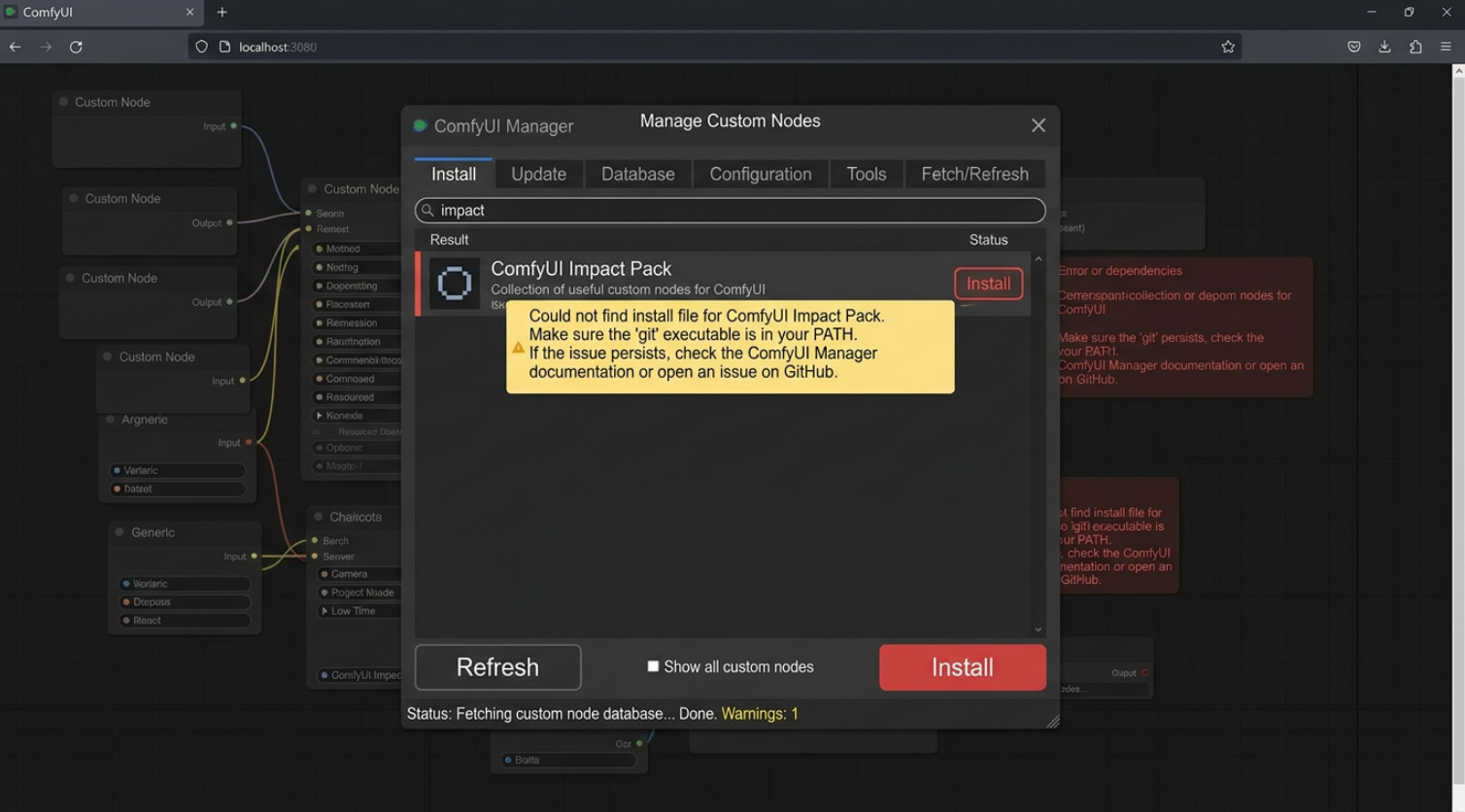
Issue 1.3 - "This workflow uses custom nodes you haven't installed yet"
When you load a workflow from a PNG, JSON, or shared link, ComfyUI displays this warning with red-outlined nodes labeled "NodeName (not installed)."
Fix It
- Click Manager → Install Missing Custom Nodes.
- Manager scans the workflow and lists every missing package with an Install button.
- Click Install for each one.
- Restart ComfyUI fully - a page refresh will not load new nodes; the server must restart.
- Reopen the workflow. Previously red nodes should now resolve.
If Manager cannot find a node: It may be unregistered, private, or deprecated. Find the GitHub URL from the workflow's source post, then install manually:
cd custom_nodes
git clone <repository-url>
pip install -r <repository-folder>/requirements.txt
Restart ComfyUI afterward. Installing via Git URL through Manager requires security_level = weak (Issue 1.1). Manual git clone from the terminal bypasses Manager's security check entirely.
Floyo comes with thousands of pre-installed custom nodes, and you can request any that are missing. No security level edits, config files, or Git installs needed.
Section 2: Module & Import Errors (SageAttention, WAN, HYVideo)
Import errors are almost always caused by installing packages into the wrong Python environment. ComfyUI uses its own isolated interpreter, not your system Python.
Issue 2.1 - Can't import SageAttention: No module named 'sageattention'
ValueError: can't import sageattention: No module named 'sageattention'
First: Is This Actually Blocking You?
This error means two very different things:
- A harmless startup warning. SageAttention is an optional speed optimization. If ComfyUI loads and your workflows run, you can ignore it entirely.
- A workflow-blocking error. WanVideoWrapper, HunyuanVideo, LTX, and Qwen Image workflows can hard-fail at queue time when a node explicitly requests SageAttention.
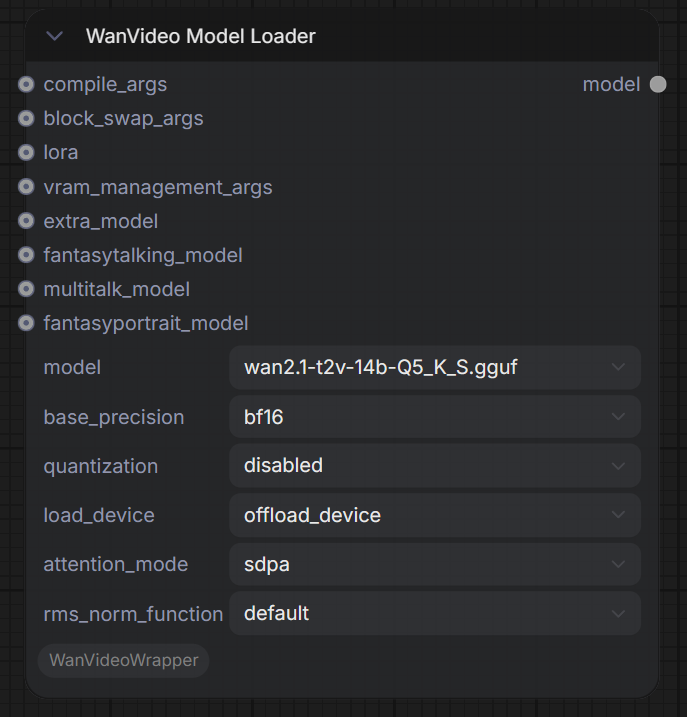
If you are in the second case, try this first: most video workflows expose an attention backend option on the model loader node. Set attention_mode to sdpa, sdp, or comfy. PyTorch's built-in scaled dot-product attention is slightly slower but works everywhere, including Mac.
The #1 Cause: You Installed Into the Wrong Python
ComfyUI does not use your system Python. It runs its own isolated interpreter. A plain pip install from a normal terminal installs into system Python, where ComfyUI will never look.
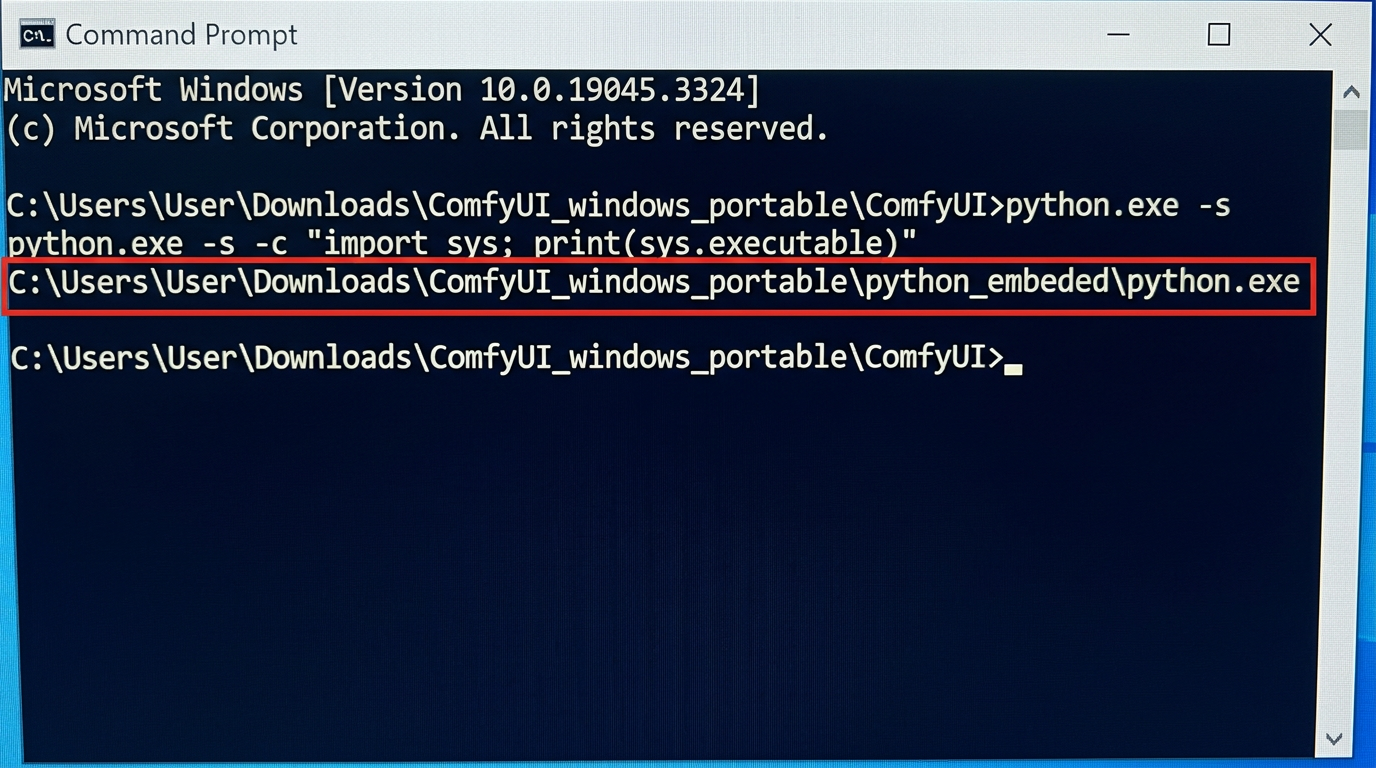
Step 1 - Identify ComfyUI's actual Python:
| Install Type | Python Path |
|---|---|
| Windows Portable | ComfyUI_windows_portable\python_embeded\python.exe |
| Manual / venv | ComfyUI\venv\Scripts\python.exe (Win) or ComfyUI/venv/bin/python (Linux/Mac) |
| Stability Matrix | StabilityMatrix\Packages\ComfyUI\venv\Scripts\python.exe |
| Desktop | Check the startup log - the interpreter path is printed at launch |
Step 2 - Verify it is the right one:
# Windows Portable:
.\python_embeded\python.exe -s -c "import sys; print(sys.executable)"
.\python_embeded\python.exe -s --version
Step 3 - Install using that interpreter:
# Windows Portable:
.\python_embeded\python.exe -m pip install sageattention# Manual / venv (Linux):
./venv/bin/python -m pip install sageattention
Step 4 - Verify the import works:
.\python_embeded\python.exe -c "import sageattention; print(dir(sageattention))"
Two gotchas that waste hours:
- The module name is lowercase. Python imports are case-sensitive - it is
import sageattention, notimport SageAttention. - There is no
__version__attribute. Usepython.exe -m pip show sageattentionto check the version.
Mac (Apple Silicon): SageAttention requires CUDA and does not support MPS. Do not attempt installation - disable it on the node and use the SDPA fallback described above.
Issue 2.2 - Can't import SageAttention: No module named 'triton'
can't import sageattention: No module named 'triton'
SageAttention is installed but Triton - its GPU kernel compiler dependency - is missing or installed in the wrong environment. Same environment rule applies: install Triton with ComfyUI's Python, not system Python.
Linux:
./venv/bin/python -m pip install triton
Windows:
The standard triton package does not support Windows. Install triton-windows instead:
# Remove any existing Triton first:
.\python_embeded\python.exe -m pip uninstall triton
# Install the Windows build:
.\python_embeded\python.exe -m pip install -U triton-windows
Critical extra step for Portable users: Triton on Windows needs C headers and libraries that embedded Python does not ship. Download the include and libs folders from the triton-windows release and copy both into your python_embeded directory.
Check for conflicting installs:
.\python_embeded\python.exe -m pip list | findstr triton
Only triton-windows should appear. If both triton and triton-windows are listed, uninstall the plain triton. Mac: Triton does not support macOS. Disable SageAttention on the node.
Issue 2.3 - WanVideoModelLoader: Can't import SageAttention
WanVideoModelLoader: can't import sageattention: No module named 'sageattention'
Same root cause as Issue 2.1, surfaced through the WAN video pipeline. This also affects WanVideoEncode and WanVideoSampler.
Fastest fix: Set the WanVideoModelLoader node's attention_mode to sdpa or comfy. The workflow will run immediately.
To actually install SageAttention: follow the environment-aware steps in Issue 2.1. Version matching matters - SageAttention wheels are built against specific PyTorch and CUDA versions:
.\python_embeded\python.exe -m pip show torch
Known quirk: Some models (Wan, Qwen-Image) can produce black frames or noise output with SageAttention due to overflow in its quantization. If your video output is corrupted after enabling SageAttention, switch attention_mode back to sdpa.
Issue 2.4 - WanVideoSetLoRAs: 'NoneType' object has no attribute 'lower'
WanVideoSetLoRAs: 'NoneType' object has no attribute 'lower'
This means the node received an empty value where it expected a LoRA filename.
Fix it: Check every LoRA slot on the node. Set unused slots to the explicit None option - do not leave them blank. A blank slot passes None to the string parser, triggering the crash. If you recently moved LoRA files, click Refresh or restart ComfyUI.
Issue 2.5 - HYVideoVAELoader Error
HYVideoVAELoader: Error loading VAE model
Fix it: Confirm the VAE exists in models/vae/ and is the correct size (800MB–1.2GB). If missing, download from the HunyuanVideo Hugging Face repository - check the node pack's README for the exact link. If the file is significantly smaller than expected, delete and re-download. Restart ComfyUI.
Issue 2.6 - IPAdapterUnifiedLoader: CLIPVision Model Not Found
This looks like an import error but is not - it is a file-placement issue. The CLIP Vision file must be in models/clip_vision/. See Section 6.4 for the full fix with download commands and the correct directory distinction.
On Floyo, SageAttention, Triton, and model dependencies are already installed on cloud GPUs. You skip the Python environment troubleshooting entirely.
Section 3: Workflow Errors & Management
Where ComfyUI stores workflows, how to save and import them, and how to fix the most common workflow validation errors.
Issue 3.1 - Where Does ComfyUI Save Workflows?
By default, ComfyUI stores saved workflows inside a user/ directory within the ComfyUI installation folder. The exact path depends on your OS:
| OS | Default Path |
|---|---|
| Windows (standalone) | ComfyUI_windows\ComfyUI\user\default\workflows\ |
| Windows (manual install) | C:\Users\<you>\ComfyUI\user\default\workflows\ |
| Linux / Mac | ~/ComfyUI/user/default/workflows/ |
| Docker / Cloud | /workspace/ComfyUI/user/default/workflows/ (varies by provider) |
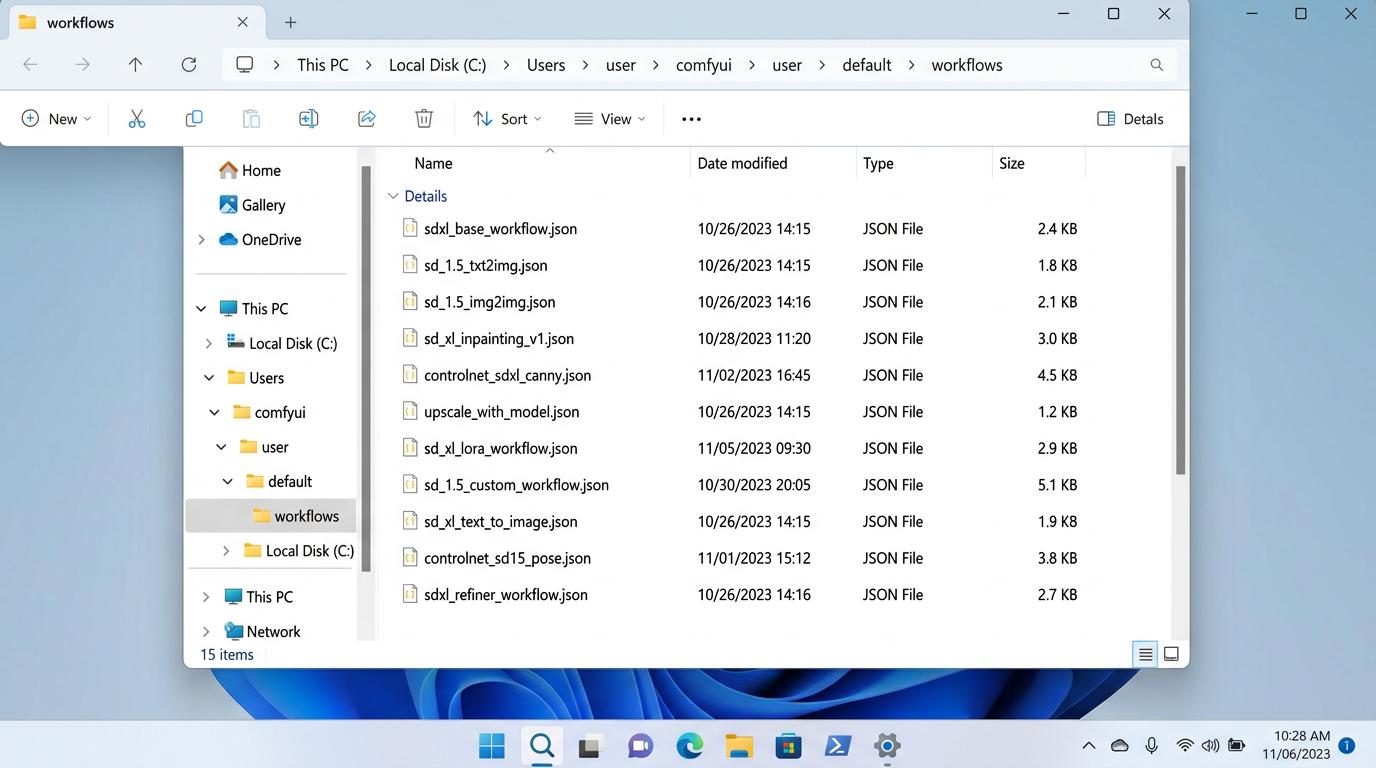
All saved workflows are stored as .json files. If you have customized your setup with --user-directory, workflows save to whatever path you specified. You can create subfolders inside workflows/ for organization - ComfyUI scans subdirectories recursively.
Issue 3.2 - How to Save & Import Workflows in ComfyUI
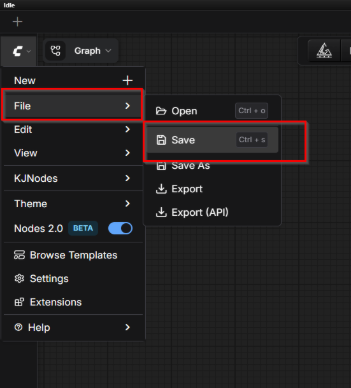
_1791521637387.png)
- To save: Click Workflow → Save As to save as a
.jsonfile. Or use Workflow → Export to download the workflow JSON to your browser's Downloads folder. - To save embedded in an image: The Save Image node's PNG output automatically embeds the full workflow JSON in metadata. Only PNG preserves this - JPEG and WebP do not.
- To load / import: Drag and drop a
.jsonfile or PNG directly onto the canvas, or use Workflow → Open (Ctrl+O). - For easy access: Place workflows in
user/default/workflows/so they appear in ComfyUI's built-in browser.
Issue 3.3 - "Prompt has no outputs"
This means the ComfyUI workflow validator cannot find a connected output node - either no output node exists, a connection is broken, or a muted node is blocking data flow.
_1791521692504.png)
Fix It
- Check for an output node. Make sure your workflow has at least one Save Image, Preview Image, or equivalent. If missing, right-click the canvas → Add Node → image → Save Image.
- Trace the chain. Starting from your output node, follow connections backward through every node. Look for any link that appears broken and reconnect it.
- Check for muted nodes. Right-click any greyed-out node and select Unmute (or press
Mwhile selected). A muted node blocks all data flowing through it. - Click Queue Prompt again.
Quick test: Add a new Preview Image node, connect it directly to your final VAE Decode output, and queue. If it runs, the break is between that point and your original output node.
Issue 3.4 - "We couldn't detect valid metadata in this image"
The PNG file does not contain embedded ComfyUI workflow JSON. Common causes: the image was saved as JPEG or WebP (which strip metadata), it was re-compressed by social media platforms, or it was not generated by ComfyUI at all.
Fix It
- Check the file format - if it is
.jpgor.webp, the metadata was never embedded. Request the original PNG or the.jsonworkflow file from the creator. - Inspect metadata manually with ExifTool:
exiftool image.png | grep -i "workflow\|prompt" - For future prevention: Always share original PNGs and export workflows as separate
.jsonfiles via Workflow → Export.
Skip the local setup and run ComfyUI workflows directly in your browser with Floyo. No JSON files to manage, no folder paths to sort out.
Section 4: Memory, VRAM & Performance
VRAM limits are the most common cause of ComfyUI crashes, especially on 8GB–12GB consumer GPUs running newer models like Flux, Wan, and HunyuanVideo.
Issue 4.1 - torch.OutOfMemoryError: Allocation on Device
torch.OutOfMemoryError: Allocation on device
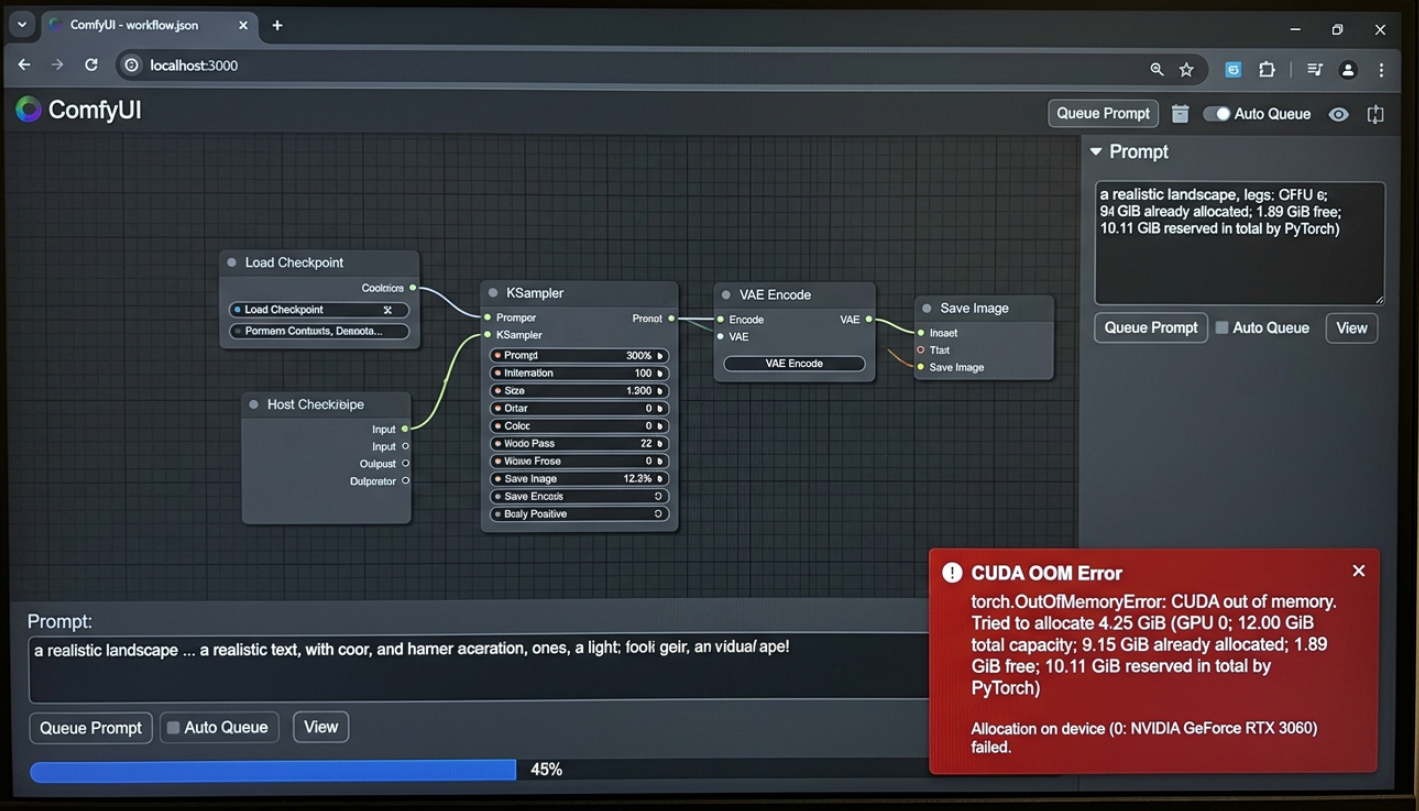
Your GPU ran out of VRAM mid-generation. The model, latents, and intermediate tensors together exceeded what your GPU can hold.
Check Your Available VRAM First
nvidia-smi # Linux / Windows
system_profiler SPDisplaysDataType | grep "VRAM\|Memory" # Mac
VRAM Requirements by Model
| Model | Min VRAM | Recommended | Settings for 8GB GPU |
|---|---|---|---|
| SD 1.5 | 4 GB | 6 GB | Default settings; no special flags needed |
| SDXL | 6 GB | 10 GB | Enable --lowvram; use fp16 VAE |
| Flux.1 Dev | 10 GB | 16 GB | fp8 checkpoint + --lowvram |
| Flux.1 Schnell | 8 GB | 12 GB | fp8 checkpoint; reduce resolution to 768x768 |
| HunyuanVideo (720p) | 12 GB | 24 GB | Not feasible at 8GB - use cloud GPU |
| Wan 2.1 (480p) | 10 GB | 16 GB | fp8 + --lowvram + 13-frame max |
| Wan 2.1 (720p) | 16 GB | 24 GB | Not feasible at 8GB - use cloud GPU |
| LTX Video 2.3 | 8 GB | 12 GB | fp8; limit to 97 frames at 480p |
If your model's minimum VRAM exceeds your GPU, no amount of optimization will make it work locally. Use a cloud provider or switch to an API-based node.
Fix It
Add --lowvram to your launch command:
python main.py --lowvram
- For extreme cases (6GB GPUs running SDXL), use
--novram- offloads everything to CPU. Much slower but prevents crashes. - Use fp8 or fp16 model checkpoints. Full fp32 models consume 2–4x more VRAM.
- Reduce resolution and frame count. For video models, halving resolution roughly quarters VRAM usage.
- Close other GPU applications. Browser hardware acceleration, Discord, and game launchers all consume VRAM.
Issue 4.2 - Using LayerUtility: PurgeVRAM to Prevent Crashes
If your workflow chains multiple models (e.g., text-to-image followed by an upscaler or video model), VRAM stays occupied by the first model and the second cannot load. The LayerUtility: PurgeVRAM node fixes this by forcibly clearing GPU memory between stages.
_1791521728282.png)
The Node's Parameters
The node has one input and two boolean toggles - there is no dropdown or mode selector:
| Parameter | Type | Default | What It Does |
|---|---|---|---|
anything |
any | - | Passthrough input. Does not affect purging; it exists so the node can sit inside your data flow and execute at the right point in the graph. |
purge_cache |
boolean | true | Runs garbage collection and clears the CUDA cache, freeing memory no longer in use. |
purge_models |
boolean | true | Unloads all models currently occupying VRAM. |
Both toggles default to true, so dropping in the node with default settings clears everything.
PurgeVRAM vs. PurgeVRAM V2
Both versions expose the same two parameters. The difference is where they can sit in your graph:
| Node | Use It When |
|---|---|
| LayerUtility: PurgeVRAM | At a terminal point - the end of a branch, where nothing needs to run after the purge. |
| LayerUtility: PurgeVRAM V2 | Mid-workflow - when you need to continue executing nodes after memory is cleared. |
If your workflow needs to load a second model after the purge, use V2.
How to Use It
- Install ComfyUI-Layer-Style via ComfyUI Manager (search "LayerStyle").
- Right-click the canvas → Add Node → LayerUtility → SystemIO → Purge VRAM V2.
- Wire it between two pipeline stages: connect your upstream output into
anything, and the node's output into your downstream loader. The passthrough connection forces ComfyUI to execute the purge at that exact point in the graph. - Leave both toggles at true for a full clear, or disable one:
purge_models = false- clears cache but keeps models loaded.purge_cache = false- unloads models but keeps cached data.
PurgeVRAM vs. --lowvram: The --lowvram flag is global and slows down every node. PurgeVRAM is surgical - it clears memory only at the specific transitions where you are hitting OOM crashes.
If the Purge Does Not Seem to Work
- Both toggles must be true for a full clear. If VRAM still looks occupied after the node runs, confirm neither was switched off.
- The node must be wired into the execution path. A PurgeVRAM node sitting unconnected on the canvas never executes. ComfyUI only runs nodes that feed into an output, so the
anythingpassthrough connection is mandatory.
Issue 4.3 - Monitoring GPU Usage & Speeding Up Generation
- ComfyUI-Monitor or rgthree: Install via Manager to add a real-time VRAM/RAM/GPU stats bar to the top of the interface - useful for watching VRAM climb and identifying which node causes OOM spikes.
- ComfyUI WaveSpeed: Install the WaveSpeed node pack for token-level caching that can cut generation time by 30–50%. Add
WaveSpeedApplyinline with your sampler. Best results on Flux and SDXL. - ComfyUI Pause: Install ComfyUI-Pause via Manager to insert manual pause points that wait for user input before continuing.
- ComfyUI Clamp Colors: The Clamp Colors node restricts pixel values to a valid range after post-processing. Insert it after sharpening or color grading nodes if outputs show blown-out highlights or crushed shadows.
If you use Floyo, you don't have to do anything - workflows run on cloud H100 GPUs with 80GB VRAM. You will never hit out-of-memory errors, and there is no need to configure low-VRAM flags or monitor GPU usage manually.
Section 5: Connection & Server Errors
WebSocket drops, port conflicts, and server startup failures - the networking side of ComfyUI troubleshooting.
Issue 5.1 - ComfyUI Reconnecting Error
The ComfyUI interface shows a persistent "Reconnecting..." status. The canvas becomes unresponsive and queued prompts stop updating. This means the WebSocket connection between your browser and the ComfyUI server has dropped.
_1791960291751.png)
The 4 Most Common Causes
- The ComfyUI server process crashed. Check the terminal for a Python traceback (usually OOM or a custom node exception). Restart ComfyUI and refresh the browser.
- The port is blocked or changed. ComfyUI defaults to port
8188. Verify the port in terminal output matches your browser URL. If in use:python main.py --port 8189 - Firewall or antivirus blocking the connection. Temporarily disable your firewall and try refreshing. If it connects, add
python.exeor the ComfyUI directory to your allowlist. - Browser extension interference. Open ComfyUI in an Incognito/Private window. If it connects, an ad blocker or VPN extension is the culprit - add
127.0.0.1to its allowlist.
Issue 5.2 - ComfyUI Server Will Not Start
If the ComfyUI server never reaches the "To see the GUI go to:" line, check for port conflicts:
lsof -i :8188              # Linux / Mac
netstat -ano | findstr :8188  # Windows
Kill the conflicting process or use a different port. If the terminal shows an ImportError or ModuleNotFoundError, run pip install -r requirements.txt to restore missing dependencies. For CUDA error or "no CUDA GPUs are available," verify PyTorch/GPU driver compatibility at pytorch.org.
Issue 5.3 - Generating a ComfyUI Error Report
A proper ComfyUI error report should include:
- The full terminal traceback (paste text, not a screenshot)
- Your PyTorch version and GPU name
- The exported workflow JSON via Workflow → Export
- Your ComfyUI commit hash
Partial reports with just a screenshot of the error banner almost never get resolved.
Floyo handles server management and connectivity in the cloud. No ports to configure, no WebSocket drops, and no local process to keep alive.
Section 6: Models, LoRAs & File Management
Putting files in the wrong folder is the single most common cause of "model not found" errors. This section covers the complete ComfyUI model directory structure and how to manage models, LoRAs, and downloads.
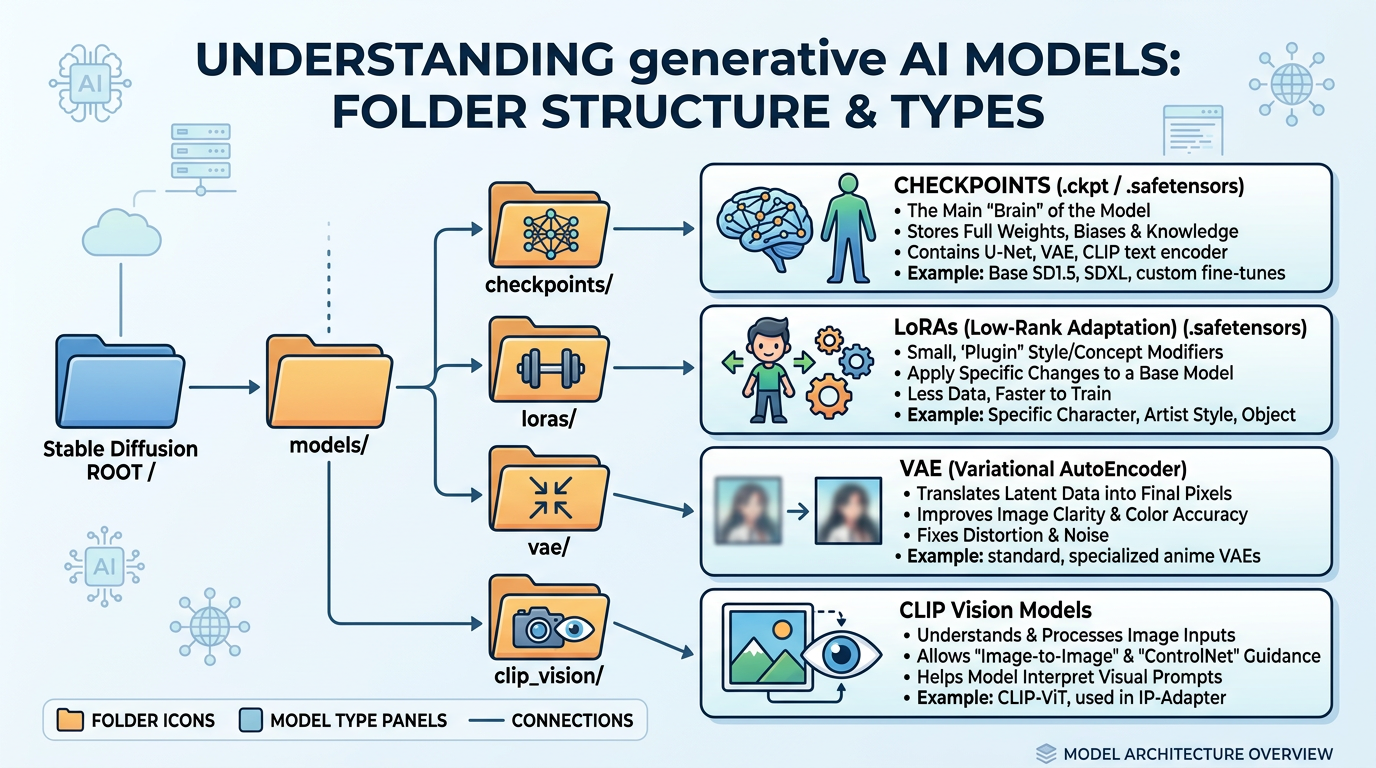
The ComfyUI Model Folder Structure
This is the complete default directory tree for the ComfyUI model folder. Every model type has a dedicated subfolder - putting a file in the wrong one is the single most common cause of "model not found" errors:
Issue 6.1 - How to Add Safetensors to ComfyUI
You have downloaded a .safetensors file and ComfyUI does not show it in any dropdown. First, identify what kind of model it is:
_1792167913216.png)
| Model Type | Where to Put It | Typical Size |
|---|---|---|
| Full checkpoint (SD 1.5, SDXL) | models/checkpoints/ | 2–7 GB |
| LoRA | models/loras/ | 10–300 MB |
| VAE | models/vae/ | 300–800 MB |
| ControlNet | models/controlnet/ | 700MB–1.5 GB |
| CLIP Vision | models/clip_vision/ | 1–3 GB |
| Embedding / Textual Inversion | models/embeddings/ | < 10 MB |
| Diffusion model (Flux, etc.) | models/diffusion_models/ | 10–25 GB |
Move the file into the correct subfolder, then click Refresh on the node dropdown or press F5 to reload the interface. You can create subfolders inside any model directory for organization (e.g., models/loras/anime/) - ComfyUI scans subdirectories recursively.
Issue 6.2 - What Does LoRA Do in ComfyUI & How to Add Multiple LoRAs
LoRA (Low-Rank Adaptation) files are small model patches that add a specific style, character, or concept to a base checkpoint without replacing the entire model. Apply them using a Load LoRA node between your checkpoint loader and sampler. Control intensity with strength_model and strength_clip (1.0 = full effect, 0.0 = disabled).
To add multiple LoRAs, chain them sequentially:
Load Checkpoint → Load LoRA #1 → Load LoRA #2 → Load LoRA #3 → KSampler
   (MODEL,CLIP)    (MODEL,CLIP)    (MODEL,CLIP)    (MODEL,CLIP)
_1791521806331.png)
Order matters - LoRAs applied first have a slightly stronger influence. Start each LoRA at strength 0.6–0.8 when stacking multiples to avoid oversaturation.
Issue 6.3 - Where to Download ComfyUI Models
| Source | What You Will Find |
|---|---|
| Hugging Face | Official model releases (Flux, Wan, LTX, HunyuanVideo, SD3.5) |
| CivitAI | Community checkpoints, LoRAs, embeddings |
| GitHub Releases | Custom node-specific models (ControlNet, IPAdapter weights) |
For large models, download directly via terminal:
cd ComfyUI/models/loras/
wget https://huggingface.co/<user>/<repo>/resolve/main/model.safetensors
Issue 6.4 - IPAdapterUnifiedLoader: CLIPVision Model Not Found
The CLIP Vision file must be in models/clip_vision/ - this is the only directory the IPAdapter node checks. Not clip/, not ipadapter/, not checkpoints/.
cd models/clip_vision/
wget https://huggingface.co/h94/IP-Adapter/resolve/main/models/image_encoder/model.safetensors \
  -O CLIP-ViT-H-14-laion2B-s32B-b79K.safetensors
If using extra_model_paths.yaml, ensure a clip_vision entry points to the correct folder.
Floyo gives you access to popular models and LoRAs without manual downloads. Select from a dropdown instead of organizing files into the right folders.
Section 7: Installation & Setup
How to install ComfyUI on any platform, keep it updated, set up cloud GPU environments, and manage Python versions.
Issue 7.1 - How to Install ComfyUI: Portable vs Desktop
| ComfyUI Portable | ComfyUI Desktop | |
|---|---|---|
| What it is | Standalone ZIP with embedded Python | Native app installer with auto-updates |
| Best for | Windows power users; full environment control | Beginners; Mac/Linux users; one-click launch |
| Custom nodes | Full access via Manager or git clone | Full access; same Manager workflow |
| Updating | Manual git pull | Built-in auto-updater |
| OS support | Windows only | Windows, macOS, Linux |
Installation Commands
Windows Portable: Download the latest ZIP from ComfyUI GitHub releases, extract, and run run_nvidia_gpu.bat.
Desktop (all OS): Download from comfy.org, run the installer, launch from your Applications menu.
Linux manual install:
git clone https://github.com/comfyanonymous/ComfyUI.git
cd ComfyUI
pip install -r requirements.txt
python main.py
Issue 7.1 - How to Install ComfyUI: Portable vs Desktop
| ComfyUI Portable | ComfyUI Desktop | |
|---|---|---|
| What it is | Standalone ZIP with embedded Python | Native app installer with auto-updates |
| Best for | Windows power users; full environment control | Beginners; Mac/Linux users; one-click launch |
| Custom nodes | Full access via Manager or git clone | Full access; same Manager workflow |
| Updating | Manual git pull | Built-in auto-updater |
| OS support | Windows only | Windows, macOS, Linux |
Installation Commands
Windows Portable: Download the latest ZIP from ComfyUI GitHub releases, extract, and run run_nvidia_gpu.bat.
Desktop (all OS): Download from comfy.org, run the installer, launch from your Applications menu.
Linux manual install:
git clone https://github.com/comfyanonymous/ComfyUI.git
cd ComfyUI
pip install -r requirements.txt
python main.py
Issue 7.2 - Update ComfyUI & "Your ComfyUI isn't git repo"
Desktop: Updates automatically on launch.
Portable / Git install: Run git pull then pip install -r requirements.txt in the ComfyUI root folder and restart.
If you see "Your ComfyUI isn't git repo," your installation was downloaded as a ZIP rather than cloned with git. Convert it:
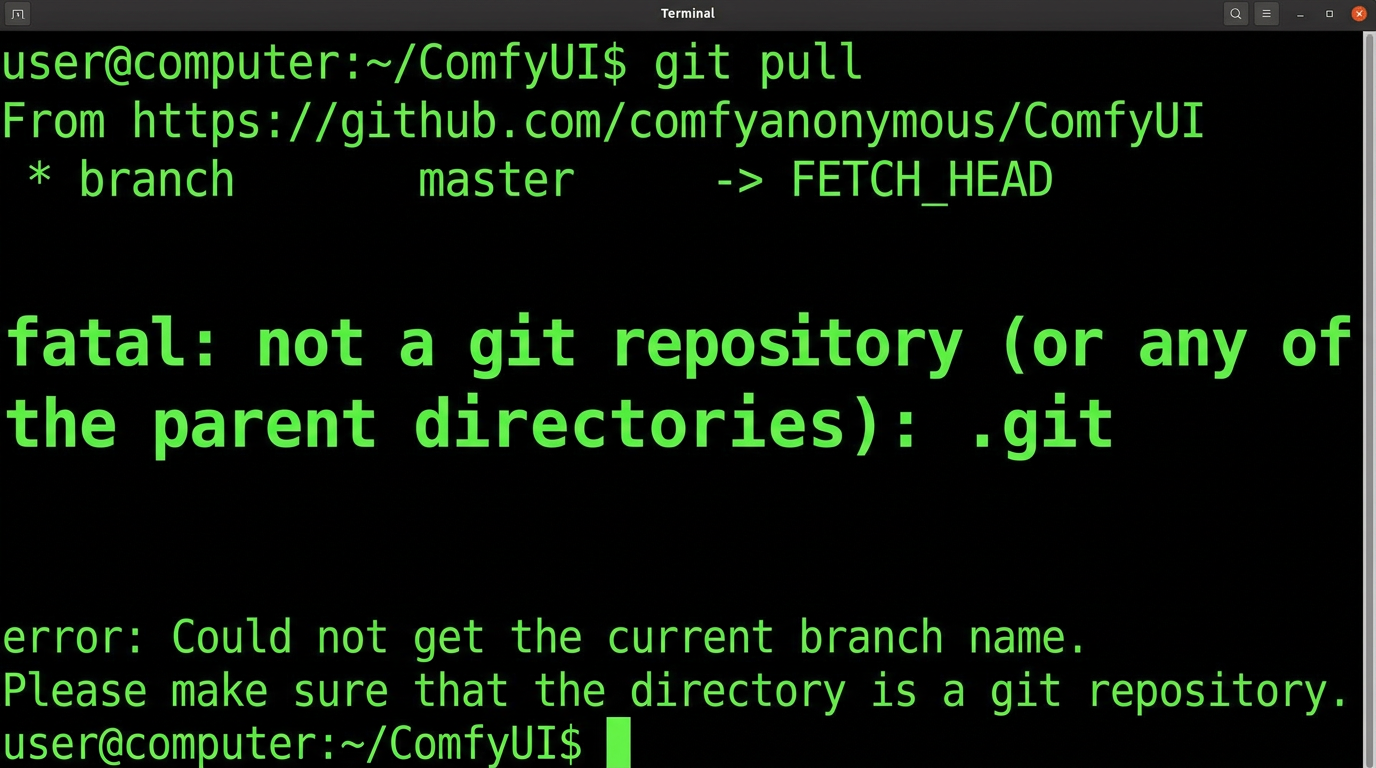
git init
git remote add origin https://github.com/comfyanonymous/ComfyUI.git
git fetch origin
git reset --hard origin/master
Note: git reset --hard overwrites modified core files but leaves models/, custom_nodes/, and output/ untouched since they are not tracked by git. Back up any edited core Python files first.
Version Reference
| Version | Best For |
|---|---|
| Latest (master) | Experienced users - newest features, occasional breaking changes |
| Latest stable release | Most users - tagged and tested before publish |
| Pinned commit | Production use - lock to a known-good hash |
Issue 7.3 - ComfyUI RunPod Setup
Use a RunPod community template with ComfyUI pre-installed, or install manually:
git clone https://github.com/comfyanonymous/ComfyUI.git /workspace/ComfyUI
cd /workspace/ComfyUI && pip install -r requirements.txt
Launch with --listen for external access:
python main.py --listen 0.0.0.0 --port 8188
Access via RunPod's "Connect" → "HTTP Service on port 8188."
Critical: Files in /workspace/ persist across restarts. Files outside it (/root/ or /tmp/) are wiped when the pod stops. Always install ComfyUI and models inside /workspace/.
Issue 7.4 - ComfyUI Downgrade Python
If a custom node requires an older Python version, create a separate virtual environment rather than downgrading your system Python:
Linux / Mac (using pyenv):
pyenv install 3.10.14
pyenv local 3.10.14
python3.10 -m venv venv_comfy
source venv_comfy/bin/activate
pip install -r requirements.txt
Windows:
C:\Python310\python.exe -m venv venv_comfy
venv_comfy\Scripts\activate
pip install -r requirements.txt
Before downgrading, confirm the error is actually a Python version issue - many ImportError messages look like version problems but are solved by a simple pip install.
No Python, no Git, no GPU drivers. Floyo runs ComfyUI in your browser on pre-configured cloud infrastructure - open a workflow and start generating.
Section 8: Video Generation Issues
Wan 2.2 video generation limits, VRAM tiers, frame counts, and how to extract frames from video in ComfyUI.
Issue 8.1 - What Is the Longest WAN 2.2 Video You Can Generate Locally?
About these numbers: The figures below are compiled from published vendor documentation, the official ComfyUI Wan 2.2 tutorial, and community benchmarks - not from our own testing. VRAM usage varies with your exact node graph, sampler settings, and what else is loaded. Treat these as starting points, not guarantees.
Which Wan 2.2 Are You Running?
| Variant | Practical VRAM Floor | What It Is For |
|---|---|---|
| TI2V-5B | ~8 GB | Fast text-to-video and image-to-video, optimized for rapid prototyping. Fits on 8GB with ComfyUI's native offloading. |
| 14B (FP8) | ~16–24 GB at 480p | Full-quality generation. The mainstream choice on 24GB consumer cards. |
| 14B (FP16, text encoder on GPU) | ~54–65 GB | Datacenter territory. Not a consumer configuration. |
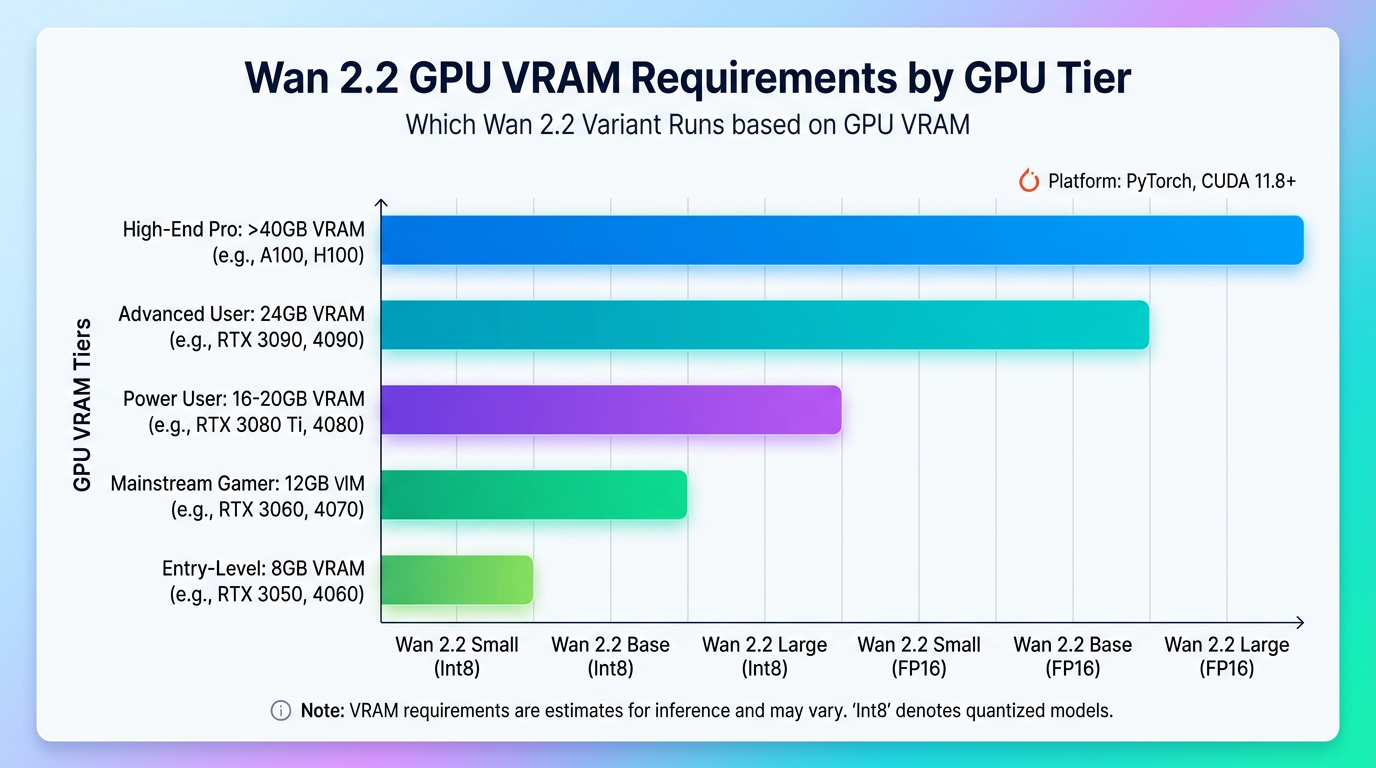
GPU Tiers and What They Actually Run
| VRAM Tier | Example GPUs | What Runs |
|---|---|---|
| 8 GB | RTX 3070, RTX 3060 12GB | TI2V-5B at 480p only |
| 12 GB | RTX 4070, RTX 4070 Super | 14B via GGUF Q5 + T5 CPU offload at 480p; TI2V-5B comfortably |
| 16 GB | RTX 4080 Super, RTX 4060 Ti | 14B FP8 + T5 offload at 720p; TI2V-5B fully on GPU |
| 24 GB | RTX 4090, A5000 | 14B at 480p with FP8; GGUF Q5 at 720p; TI2V-5B at 720p |
| 40–80 GB | A100, H100 | 14B at 720p, batched generation, production workloads |
Frame Count: The Real Numbers
- 81 frames at 480p (832x480) is the standard starting point - it balances quality, speed, and VRAM.
- 49 frames or fewer is the safe baseline when you are on 8GB and hitting crashes.
- Dropping from 81 to 41 frames cuts VRAM by roughly 20%.
- Moving from 480p to 720p at the same frame count costs roughly 4 GB extra VRAM.
Reducing VRAM, In Order of Impact
- Switch to GGUF q8_0. Highest-impact single change. If still OOM, drop to q4_0.
- Use FP8 instead of BF16/FP16. Reduces memory footprint by 20–40% at a minor quality cost.
- Reduce frame count from 81 to 41 (~20% VRAM saving).
- Drop from 720p to 480p (~4 GB saving at same frame count).
- Offload the T5 text encoder to CPU. This is what makes 12GB cards viable for the 14B model.
Testing Your Own Ceiling
- Start at 480p, 49 frames, with your chosen variant and quantization.
- Run the graph and confirm it completes.
- Increase one variable at a time - resolution or frame count, never both.
- Note where it fails. That is your real ceiling for that specific workflow.
Issue 8.2 - How to Extract Frames from Video in ComfyUI
Install VideoHelperSuite via ComfyUI Manager, then use the Load Video (Upload) or Load Video (Path) node. Key parameters:
frame_load_cap- maximum number of frames to extractskip_first_frames- skip intro framesselect_every_nth- extract every Nth frame (set to 3 or 4 for long videos)
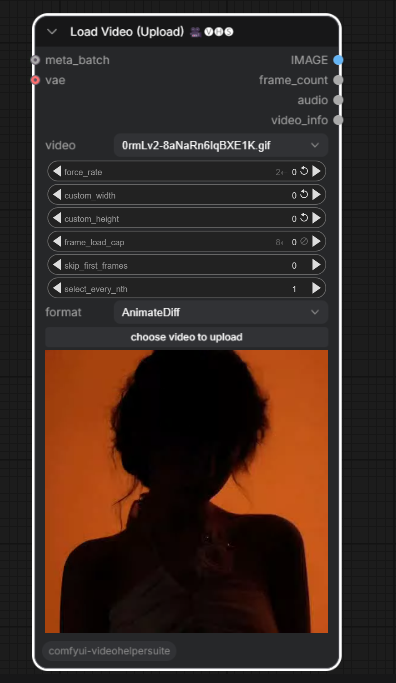
The node outputs an IMAGE batch you can wire into any image-processing pipeline - img2img, ControlNet, or reference-based generation.
Tip: Extracting every frame from a 30fps, 10-second video produces 300 images. Use select_every_nth to reduce this before your pipeline runs out of RAM.
If you use Floyo, you don't have to do anything - Wan 2.2 runs on H100 GPUs with 80GB VRAM. There is no variant to pick, no quantization to tune, and no VRAM ceiling to test against.
Section 9: Image Processing
Three core ComfyUI image processing techniques: inpainting, upscaling, and outpainting. Each is a deep topic - here is the working foundation and the most common fixes.
Issue 9.1 - ComfyUI Inpainting
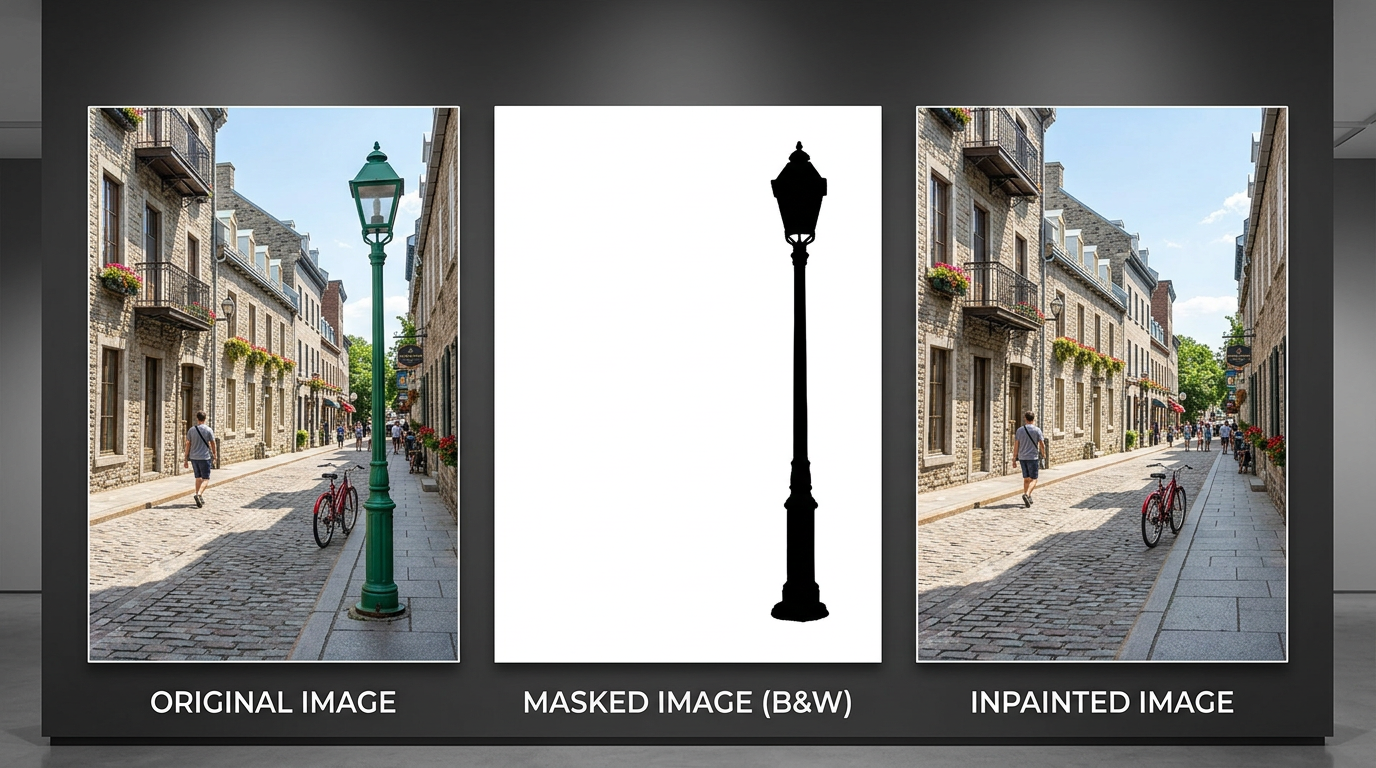
Inpainting lets you selectively regenerate parts of an image - fixing faces, removing objects, or replacing backgrounds - while keeping the rest untouched. A basic workflow requires three inputs: the original image, a mask (black = keep, white = regenerate), and a prompt describing what should fill the masked area.
Common Fixes
- Seam artifacts at mask edges - increase
mask_blurorfeatheringto blend the boundary. - Generated area does not match style - use denoise strength 0.6–0.8 instead of 1.0 so the sampler retains context from surrounding pixels.
- Poor results overall - switch to an inpainting-specific checkpoint (filenames containing "inpainting") for significantly better output.
Issue 9.2 - ComfyUI Upscaling
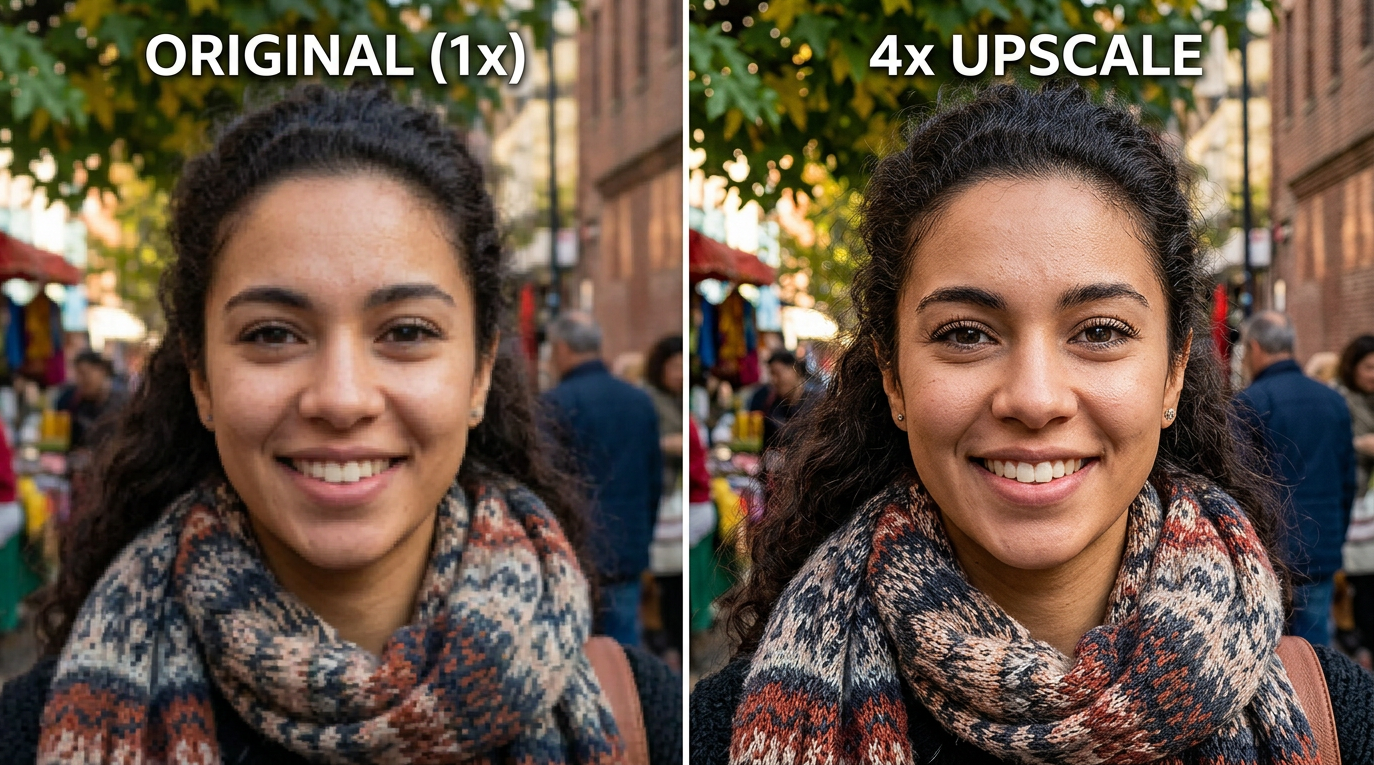
Upscaling increases image resolution after generation. Two approaches:
| Method | When to Use | Key Node |
|---|---|---|
| Model-based upscaling | Post-generation; fast; preserves original | UpscaleModelLoader + ImageUpscaleWithModel |
| Latent upscaling (Hi-Res Fix) | During generation; adds detail; uses more VRAM | LatentUpscale → second KSampler pass |
Common Fixes
- Blurry results - use quality upscalers like
4x-UltraSharpor4x-NMKD-Siax(download tomodels/upscale_models/). - OOM during latent upscale - latent upscaling at 2x quadruples VRAM. Use tiled VAE decode or switch to model-based upscaling.
- Upscaler not found - the file must be in
models/upscale_models/, notmodels/checkpoints/(see Section 6).
Issue 9.3 - ComfyUI Outpainting
Outpainting extends an image beyond its original borders, generating new content that continues the existing scene. The workflow uses the same mechanism as inpainting but in reverse: pad the image with empty pixels, mask the new area, and let the sampler fill it in using an inpainting model.
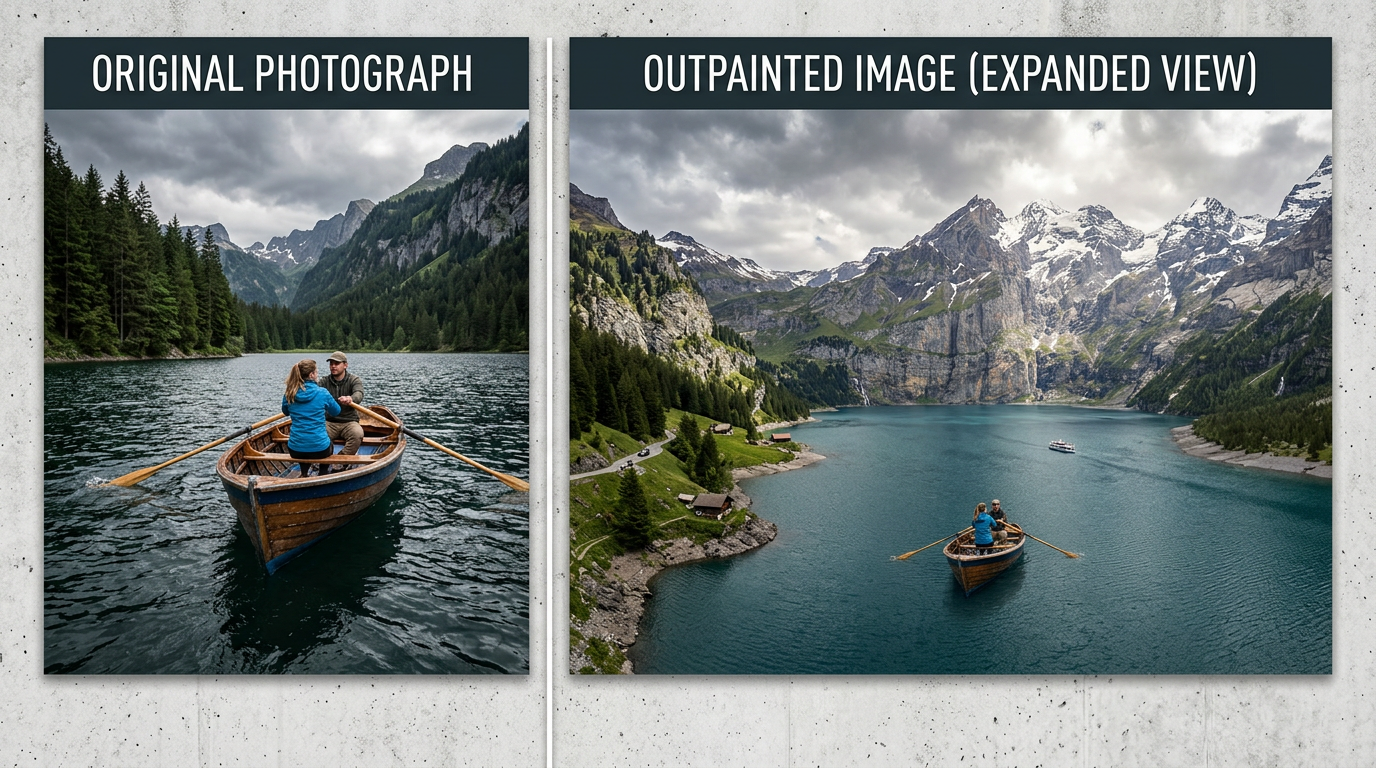
Common Fixes
- New content does not match - write your prompt to describe the full scene including existing content, not just the new area.
- Visible seam - use the
ImagePadForOutpaintnode with built-in feathering rather than manually padding with solid color. - Inconsistent large expansions - outpaint in multiple smaller steps (128–256px per pass) instead of one large expansion.
Inpainting, upscaling, and outpainting are ready to use as templates on Floyo. Upload your image, adjust settings, and run - no node wiring or model downloads required.
ComfyUI troubleshooting FAQ
How do I fix "This action is not allowed with this security level configuration" in ComfyUI?
ComfyUI Manager is blocking the install at its default normal security level. Open config.ini (in ComfyUI/user/default/ComfyUI-Manager/ for Manager v3.0+), change security_level = normal to security_level = weak, save, and fully restart ComfyUI. If the node is registered in Manager, you can skip the edit and install it by name instead. Set it back to normal once you're done.
Why does ComfyUI keep showing "Reconnecting"?
The browser has lost its WebSocket connection to the ComfyUI server. Check the terminal first: most often the server crashed, usually from running out of VRAM or a custom node error. If it's still running, check that the port in your browser matches the one in the terminal (default 8188), then try a private window to rule out a firewall, VPN or ad blocker. On Floyo there's no local server to drop, because workflows run on our cloud GPUs.
How do I fix "can't import sageattention: no module named 'sageattention'"?
The package is usually installed into your system Python instead of the one ComfyUI uses. Install it with ComfyUI's own interpreter, for example .\python_embeded\python.exe -m pip install sageattention on Windows Portable. If you just need the workflow to run, set the loader's attention_mode to sdpa. SageAttention is optional and needs CUDA, so it won't work on a Mac.
How do I add safetensors files to ComfyUI?
Put the file in the folder that matches its type: checkpoints in models/checkpoints/, LoRAs in models/loras/, VAEs in models/vae/, Flux and other diffusion models in models/diffusion_models/. Then refresh the node's dropdown or reload the page. On Floyo, popular models are already loaded and you pick them from a dropdown.
What does a LoRA do in ComfyUI?
A LoRA is a small add-on file that teaches a base model a specific style, character or product without replacing it. Load it with a Load LoRA node between your checkpoint and sampler, and set its strength between 0 and 1. To use several, chain the nodes and start each one at 0.6 to 0.8. You can also train your own LoRA on Floyo without a local GPU.
Where does ComfyUI save workflows?
In ComfyUI/user/default/workflows/ as .json files, unless you set a different --user-directory. Use Workflow > Save As to save, and drag a .json file or a ComfyUI PNG onto the canvas to load one. On Floyo, every workflow and run is saved to your account in the cloud, and you can still export any workflow as JSON.
How long a Wan 2.2 video can I generate locally?
It depends on your VRAM. As a starting point, 81 frames at 480p is the standard setting for the 14B model on a 24 GB card, and 49 frames or fewer is the safe baseline on 8 GB with the 5B model. To go longer or sharper, use FP8 or GGUF quantization, lower the frame count, or offload the text encoder to CPU. Or run it on Floyo's cloud GPUs, where your graphics card isn't the limit.
How do I show GPU and VRAM usage at the top of ComfyUI?
Install a monitor node pack such as Crystools or rgthree through ComfyUI Manager and restart. It adds a live bar with CPU, RAM, GPU and VRAM usage to the top of the interface, so you can see which node pushes memory over the limit.
How do I fix torch.OutOfMemoryError: Allocation on device?
Your GPU ran out of VRAM. Launch with --lowvram, use FP8 or FP16 checkpoints, lower the resolution or frame count, and close other apps that use the GPU. If you chain models, add a PurgeVRAM node between stages. If the model's minimum VRAM is above your card's, no setting will fix it; run that workflow on a cloud GPU instead.
How do I fix "comfyui-frontend-package not found in requirements.txt"?
This usually appears after updating ComfyUI when the new frontend package wasn't installed. Run pip install -r requirements.txt from the ComfyUI folder using ComfyUI's own Python (for Windows Portable, .\python_embeded\python.exe -m pip install -r ComfyUI\requirements.txt), then restart.
What does "Prompt has no outputs" mean in ComfyUI?
ComfyUI can't find a connected output node. Make sure the workflow has a Save Image or Preview Image node, follow the links back from it to find a broken connection, and unmute any greyed-out node. Then queue it again.
Should I use ComfyUI Portable or ComfyUI Desktop?
Desktop is the easier start: a normal installer for Windows, Mac and Linux that updates itself. Portable is a Windows-only folder with its own Python, which suits people who want full control over the environment. Both run the same workflows and custom nodes.
Can I run ComfyUI workflows without installing anything?
Yes. Floyo runs ComfyUI workflows in your browser on cloud GPUs, with thousands of custom nodes and popular models already set up, so most errors in this guide never come up. You can open the full node graph, change anything, and export the workflow as JSON whenever you want. Browse ready-to-run workflows.
Can I run ComfyUI online or in the cloud?
Yes. You can rent a cloud GPU and install ComfyUI yourself, or use a platform that runs it for you. On Floyo, ComfyUI workflows run in your browser on cloud GPUs, with custom nodes and models already set up, so there's nothing to install or update.
Does ComfyUI work on a Mac?
Yes. ComfyUI Desktop runs on Apple Silicon Macs using Metal (MPS). Expect slower generations than on an NVIDIA GPU, and some nodes that need CUDA, such as SageAttention and Triton, won't work at all. For heavy video models, a cloud GPU is usually the practical option.
Can ComfyUI use multiple GPUs?
Not for a single job by default: one workflow runs on one GPU. The ComfyUI-MultiGPU node pack lets you place parts of a workflow, like the text encoder or VAE, on a second GPU to free up VRAM. To use both GPUs fully, run two ComfyUI instances with --cuda-device 0 and --cuda-device 1 on different ports.
What are ComfyUI's system requirements?
An NVIDIA GPU with at least 8 GB of VRAM is the practical minimum for image models, and 16 to 24 GB for video models like Wan 2.2. Add 16 GB of system RAM and plenty of disk space, since a single model can be 10 to 25 GB. AMD GPUs work best on Linux with ROCm.
Why is ComfyUI not using my GPU?
Usually the CPU-only build of PyTorch is installed. Check with python -c 'import torch; print(torch.cuda.is_available())' using ComfyUI's Python. If it prints False, reinstall PyTorch with CUDA from pytorch.org and update your NVIDIA driver.
Is ComfyUI free?
Yes. ComfyUI is free and open source. What costs money is the hardware: a capable GPU, or cloud GPU time. Floyo has a free plan, so you can try workflows before paying for GPU time.
Is ComfyUI safe to use?
ComfyUI itself is open source and widely used. The risk is custom nodes, which run Python code on your machine. Install them from sources you trust, keep ComfyUI Manager at the normal security level, and avoid nodes with no public repository.
ComfyUI vs Automatic1111: which should I use?
Automatic1111 and Forge use a form-based interface that's quicker to learn for basic image generation. ComfyUI uses nodes, which takes longer to learn but gives you full control, and new models, especially video models, usually arrive in ComfyUI first.
Conclusion: Fix it once or skip the setup
Most ComfyUI errors come down to four causes: packages in the wrong Python environment, missing nodes or models, not enough VRAM, or something out of date. Read the console log first, check which Python ComfyUI is using, keep ComfyUI and your nodes updated, and back up before you update. That clears the large majority of problems in this guide.
If you'd rather spend that time making things, Floyo runs the same workflows in your browser, with nodes, models and GPUs already set up.
Fix common ComfyUI errors fast. Step-by-step solutions for security blocks, missing modules, VRAM crashes, LoRA setup, video generation limits, and installation problems with screenshots and code examples.