
Wan2.2 14b - Image to Video w/ Optional Last Frame
Generate high quality video from a start frame, as well as an optional end frame with this Wan2.2 14b Image to Video workflow!
Animation
Filmmaking
First and last frame
Game Development
Image to Video
Wan2.2
30
5.0k
%20(1)_1777105835912.webp?width=1400&height=620&quality=80&resize=cover)
%20(1)_1777105843726.webp?width=1400&height=620&quality=80&resize=cover)
%20(1)_1777105843726.webp?width=1400&height=620&quality=80&resize=cover)
%20(1)_1777105835912.webp?width=104&height=104&quality=80&resize=cover)
%20(1)_1777105843726.webp?width=104&height=104&quality=80&resize=cover)
%20(1)_1777105843726.webp?width=104&height=104&quality=80&resize=cover)

Nodes & Models
WanVideoTorchCompileSettings
WanVideoBlockSwap
INTConstant
LoadImage
Note
Label (rgthree)
Seed (rgthree)
Fast Groups Bypasser (rgthree)
LoadWanVideoT5TextEncoder
umt5-xxl-enc-bf16.safetensors
WanVideoVAELoader
Wan2_1_VAE_bf16.safetensors
WanVideoLoraSelect
lightx2v_I2V_14B_480p_cfg_step_distill_rank64_bf16.safetensors
WanVideoModelLoader
CreateCFGScheduleFloatList
ImageResizeKJv2
WanVideoTextEncode
WanVideoSetBlockSwap
WanVideoSetLoRAs
WanVideoImageToVideoEncode
WanVideoSampler
WanVideoDecode
GetImageSizeAndCount
RIFE VFI
rife47.pth
VHS_VideoCombine
VHS_VideoCombine
VHS_VideoCombine
Wan 2.2 14B image-to-video generation. Upload a start frame, write a prompt describing the motion, and the model generates a video from it.
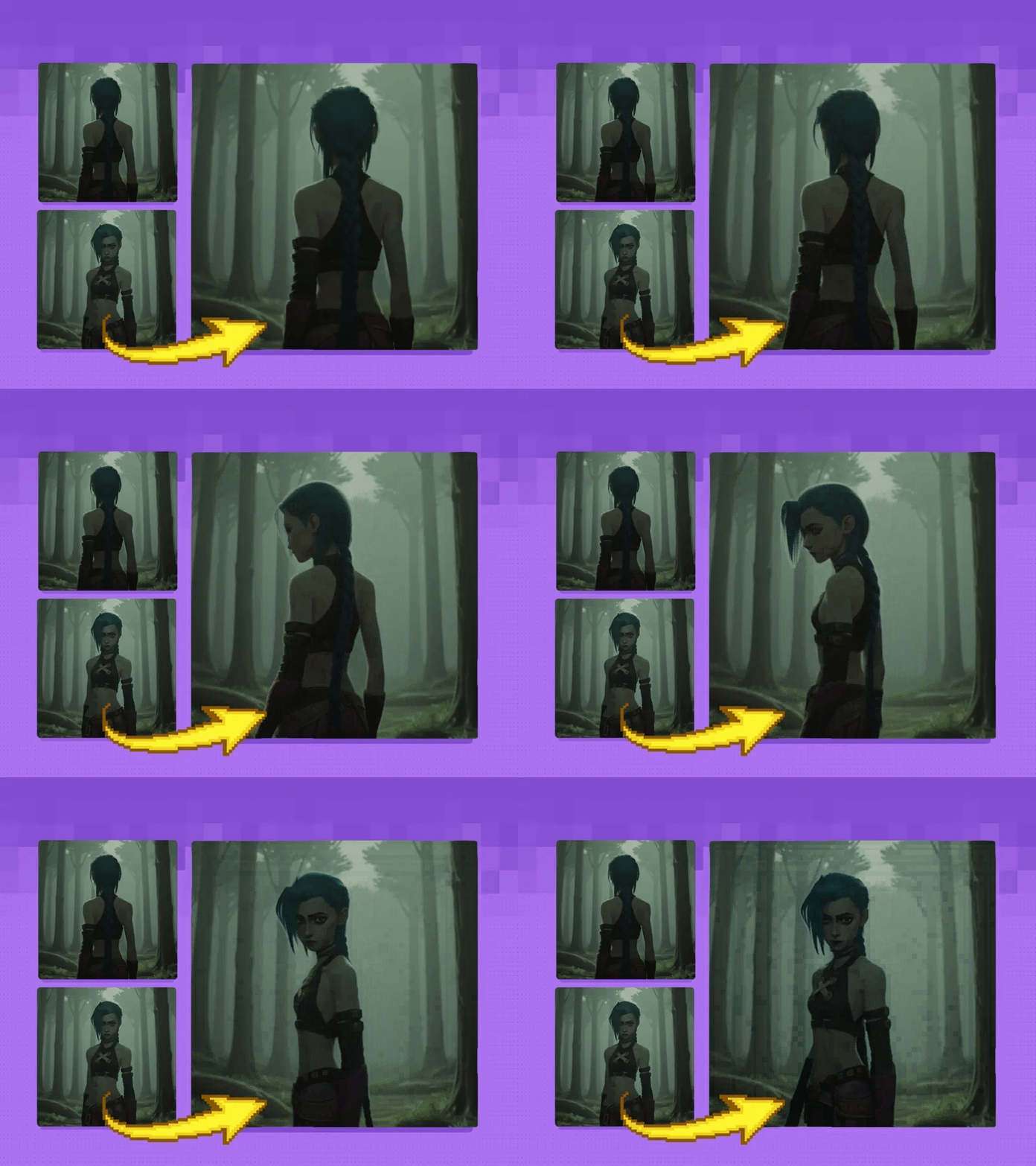
Add an end frame and the model interpolates between the two: it figures out the motion, transition, and scene changes needed to get from frame one to frame two. Enable RIFE frame interpolation and the frame count doubles without extra generation time.
Two resolution and frame limits to know going in: start frame only gives you up to 81 frames at 832x480. Add an end frame and the cap drops to 53 frames. Both limits exist because first/last frame generation requires significantly more VRAM.
This workflow is a work in progress. Higher resolutions and frame counts are coming.
How do you use Wan 2.2 14B image to video?
Upload your start frame, write a prompt describing the motion, set your frame count, and run. That covers most generations. The end frame and RIFE interpolation groups are optional and off by default. Enable them when you need a specific destination frame or want to double your output frame count.
Start frame Upload the image you want the video to begin from. The model reads this as the first frame and generates forward from it.
Clean, well-composed images work best. The model preserves the start frame exactly and animates from there.
The image gets resized to 832x480 (lanczos, center crop) before processing. If your image has a different aspect ratio, it will be cropped to fit.
Portrait and landscape orientation both work. The crop happens around the center, so keep your subject away from edges if aspect ratio differs from 832x480.
Prompt (positive) Describe the motion and scene. Be specific about what moves, how it moves, and in what direction.
Camera motion: "slow zoom out," "pan left across the scene," "handheld camera slight shake."
Subject motion: "the woman walks forward," "leaves blow in the wind," "the door swings open."
Scene detail: "cinematic lighting, depth of field, film grain."
Match the prompt to what is actually in your start frame. The model reads both the image and the prompt. Contradictions between them reduce coherence.
The workflow includes a pre-written negative prompt in Chinese (standard Wan quality degradation terms). Leave it as-is unless you have a specific reason to adjust it.
End frame (optional group) Upload a second image as the target destination frame. When enabled, Wan 2.2 interpolates between the start and end frame: it generates the motion, transitions, and scene changes needed to move from one to the other.
Frame cap drops from 81 to 53 when you enable this. First/last frame mode uses more VRAM.
Both images are resized to 832x480 before processing.
If you run into an out-of-memory error with end frame enabled, reduce your frame count first.
Use images with similar compositions and subjects for cleaner interpolation. Large differences between start and end frames (different locations, different subjects) produce less predictable results.
num_frames Set this in the WanVideoImageToVideoEncode node.
Default is 53 (the first/last frame cap).
With start frame only, you can go up to 81 frames.
Lower frame counts generate faster and use less VRAM. Start at 33 or 41 if you are testing a prompt before committing to a full run.
At 16fps output, 53 frames is about 3.3 seconds. 81 frames is about 5 seconds.
RIFE frame interpolation (optional group) After generation, RIFE inserts new frames between every existing frame, doubling the frame count without any additional model generation. The workflow uses RIFE 4.7 at 2x multiplier.
A 53-frame generation becomes 105 frames after RIFE. An 81-frame generation becomes 161 frames.
At 16fps output, RIFE-doubled 53 frames gives you about 6.5 seconds. 81 frames gives about 10 seconds.
Fast mode and ensemble are both on by default. These give the best quality-speed tradeoff for most footage.
RIFE works well on smooth, consistent motion. Fast cuts, strobing effects, or rapid motion can produce artifacts between interpolated frames.
Steps and sampling This workflow uses a split-step pipeline with two separate Wan 2.2 14B models.
Steps: 6 total. The generation is fast because of the LightX2V step-distillation LoRA (lightx2v_I2V_14B_480p_cfg_step_distill_rank64_bf16.safetensors), which is loaded at strength 3 for the first sampler and strength 1 for the second. This LoRA is specifically trained to produce quality results at low step counts.
Split at step 3. The first sampler runs from step 0 to step 10 using the high-noise model (wan2.2_i2v_high_noise_14B_fp8_scaled). The second sampler picks up from step 10 using the low-noise model (wan2.2_i2v_low_noise_14B_fp8_scaled). Each model is optimised for its phase of denoising.
Scheduler: DPM++ SDE. Good at resolving fine motion detail at low step counts.
CFG: 1. The step-distillation LoRA handles guidance internally. Leave CFG at 1.
Shift: 8. Controls the noise schedule alignment. Leave this at default for 480p generation.
Seed Fixed at a specific value by default. Change it or switch to randomize to get variation across runs. Lock the seed when you find a good motion pattern and want to test prompt changes against it.
What is Wan 2.2 14B image to video good for?
Wan 2.2 14B is built for high-quality motion generation from reference images. The two-model split-step pipeline with step-distillation delivers quality that typically requires 20 to 30 steps in 6 steps instead, keeping generation time practical while maintaining output quality.
The start-frame-only mode is the fastest path. Upload a photo of a person, product, or scene, write a motion prompt, and get a short video clip. Useful for product animation, social content, and animating still photography that would otherwise stay static.
The start/end frame mode is where Wan 2.2 becomes genuinely different from single-frame video models. If you know where the video needs to start and where it needs to end (a character standing up, a door opening to reveal a room, a product rotating to show a different angle), both frames can be specified and the model figures out the motion between them. This makes it practical for production work where you need the output to hit specific keyframes.
RIFE doubling extends short clips without additional generation cost. A 3-second Wan generation becomes a 6-second clip. The interpolated frames are smooth as long as the underlying motion is consistent.
Where to work within the current limits: 832x480 is the only supported resolution. Higher resolutions are in progress. For content that needs a higher resolution output, the workflow as-is can serve as a motion draft that is then upscaled in post. The 53/81 frame caps are also current limits, so reduce frame count if you hit VRAM errors before reaching the cap.
FAQ
Why does adding an end frame reduce the frame cap from 81 to 53?
First/last frame mode encodes both images into the latent and runs the model over a longer conditioning window. This requires significantly more VRAM than start-frame-only generation. The 53-frame cap is the current limit for running both at 832x480 without hitting out-of-memory errors. If you do hit OOM, reduce frame count first.
What is the split-step pipeline and why does it use two models?
The workflow loads two versions of Wan 2.2 14B: a high-noise model and a low-noise model. The first sampler runs the high-noise model for the first half of the denoising process (steps 0 to 10). The second sampler switches to the low-noise model for the refinement phase (steps 10 onward). Each model is tuned for its specific phase, which produces better results than running a single model across all steps.
What does the LightX2V LoRA do?
LightX2V is a step-distillation LoRA trained to produce quality video output at low step counts. Without it, getting acceptable quality from Wan 2.2 typically requires 20 or more steps. With it loaded at the trained strengths (3 for the first sampler, 1 for the second), 6 steps is enough. It is not optional in this workflow. Removing it would require significantly more steps to get comparable output.
Can I increase the resolution above 832x480?
Not currently. 832x480 is the only supported resolution in this workflow. Higher resolutions are in progress. The workflow notes this is a work in progress.
When should I use RIFE frame interpolation?
When you want a longer clip without generating more frames. RIFE doubles your frame count by inserting interpolated frames between every existing one. It works well on smooth, consistent motion. If your generated video has fast motion, flash cuts, or strobing, interpolated frames may show artifacts. Test on the raw output first before enabling RIFE.
How do I run Wan 2.2 14B image to video online?
You can run Wan 2.2 14B image to video online through Floyo. No installation, no setup. Open the workflow in your browser, upload your start frame, and hit Run. Free to try.
Read more