Flux 2 Klein 9B Panorama Inpainting
Edit 360 panoramas with Flux 2 Klein 9B. Select a region, describe the change, and the edit gets composited back into your full panoramic image. No warping.
flux
flux 2 klein
Image
image to image
inpainting
outpainting
panorama
1
598
_1776228897792.png?width=1400&height=620&quality=80&resize=contain)
_1776228897792.png?width=104&height=104&quality=80&resize=cover)

Nodes & Models
UNETLoader
flux-2-klein-9b.safetensors
CLIPLoader
qwen_3_8b_fp8mixed.safetensors
VAELoader
flux2-vae.safetensors
LoadImage
CLIPTextEncode
VAEEncode
ReferenceLatent
KSampler
VAEDecode
PreviewImage
Edit specific parts of a 360 panorama using Flux 2 Klein 9B.
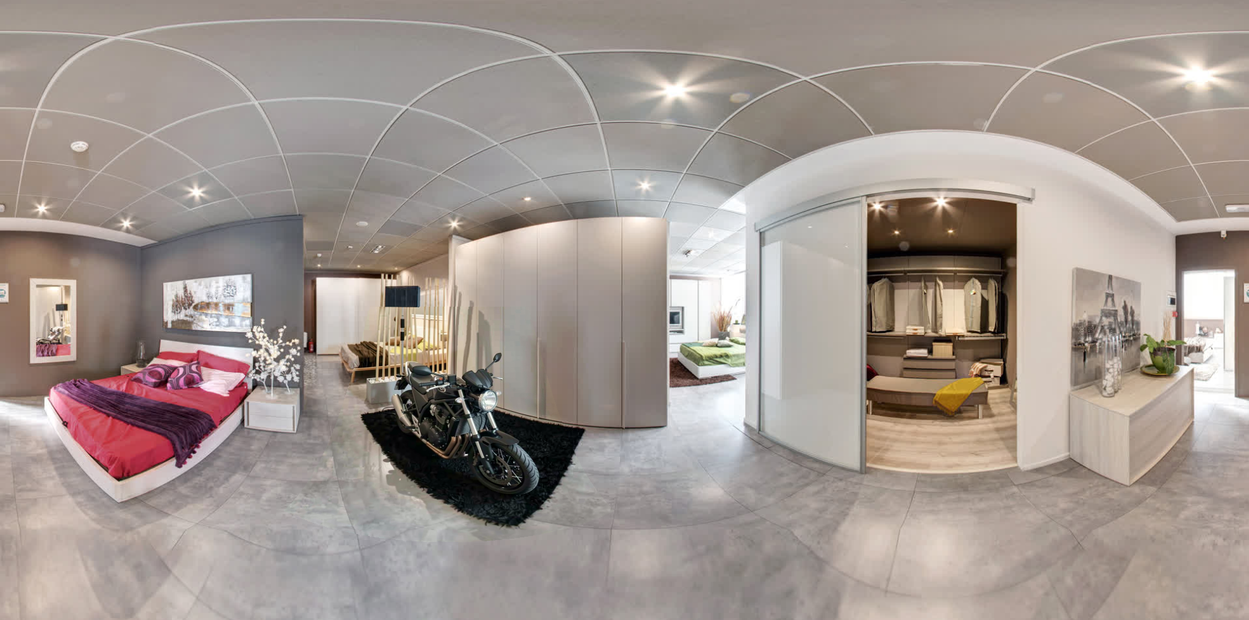
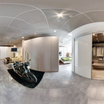
Upload an equirectangular panoramic image, select a region to edit using the built-in panorama viewer, and describe what you want changed. Klein 9B regenerates that section, and the workflow composites it back into your full panorama. The output is a 2048x1024 equirectangular image ready for any 360 viewer.
Two inputs. One prompt. Your panorama comes back edited.
How do you edit a 360 panorama with Flux 2 Klein 9B?
Upload an equirectangular panoramic image, use the PanoramaCutout viewer to frame the area you want to change, write a short prompt describing the edit, and hit run. Klein 9B redraws that region while the rest of your panorama stays intact.
The defaults work well out of the box. Here are the inputs worth knowing about.
Panorama Cutout (region selection) This is where you pick what part of the panorama to edit. The interactive viewer lets you set yaw, pitch, and field of view to frame your shot. You can also choose the aspect ratio for the cutout. Want to edit a wide area? Widen the horizontal FOV. Need to target a small object? Zoom in tight with a narrow FOV.
The output megapixels setting controls the resolution of the extracted region. Default is 1. Higher values give you more detail in the cutout but take longer to process.
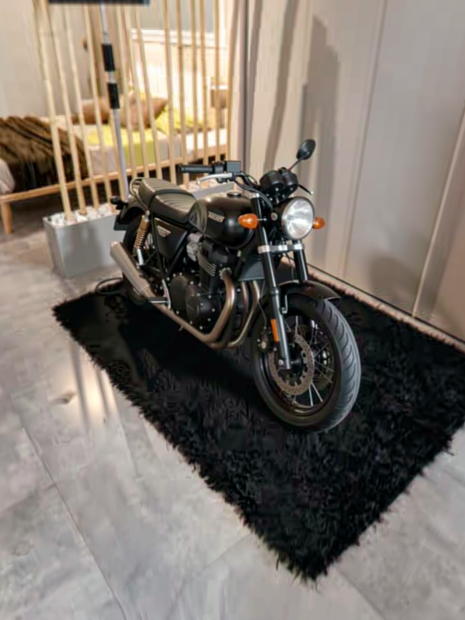
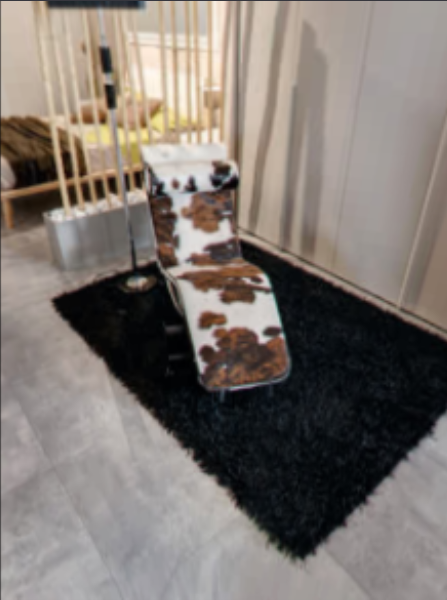
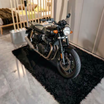
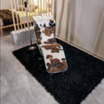
Edit Prompt Describe the change you want. Be direct and specific. "Change chair into a motorcycle" works better than "a cool vehicle where the furniture was." Klein 9B responds well to short, clear instructions.
Steps Default is 8. Klein 9B is fast at low step counts. Going higher (12-15) can add detail but slows things down. For most panorama edits, 8 is enough.
CFG Default is 1. This is normal for Klein 9B. Higher values push the model to follow your prompt more closely but can introduce artifacts. Start at 1 and go up to 2-3 if the edit is not following your description.
Denoise Default is 1 (full regeneration of the selected area). Want the edit to blend more with the original? Drop it to 0.6-0.8. The lower you go, the more the original image shows through. For object replacement, keep it at 1. For subtle tweaks, try 0.5-0.7.
Seed Randomized by default. Lock it to a specific number when you want to compare different prompts or settings on the same region.
What is panorama inpainting with Klein 9B good for?
Panorama inpainting with Klein 9B lets you edit objects, swap elements, or change details inside 360 images without breaking the equirectangular projection. The edit stays correctly mapped when viewed in any 360 player.
Virtual tours and real estate walkthroughs are the obvious use case. Remove unwanted objects from a room, swap out furniture, or change wall colors without reshooting.
VR environment design works well too. Edit parts of a 360 background for games or VR experiences. Replace a sky, add props, or change the mood of a scene.
The workflow handles the projection math for you. You edit in a flat, rectilinear view and the result maps back to equirectangular correctly. No manual warping or stitching.
Where this falls short: if your panorama has heavy stitching artifacts in the region you want to edit, Klein 9B can amplify those. Clean source images get clean edits.
Built with FearnWorks panorama nodes (PanoramaCutout + PanoramaStickers).
FAQ
What image format do I need for Klein 9B panorama editing? You need an equirectangular panoramic image. This is the standard 2:1 ratio format that 360 cameras output. Most 360 cameras (Insta360, Ricoh Theta) export in this format by default. The workflow outputs at 2048x1024.
Can I edit multiple regions in one panorama with Klein 9B? This workflow edits one region per run. To edit multiple areas, run the workflow once, use the output as your new input, and select a different region for the next edit.
What denoise strength should I use for Klein 9B panorama edits? For replacing objects (swapping furniture, changing signs), use 1.0. For color or texture changes where you want to keep the shape, try 0.5-0.7. For subtle adjustments like lighting changes, go as low as 0.3-0.4.
Does Klein 9B preserve the 360 projection when editing panoramas? Yes. The workflow extracts a flat region, edits it, and composites it back using the correct equirectangular mapping. Your edited panorama works in any 360 viewer without distortion.
How to run Klein 9B panorama inpainting online? You can run Klein 9B panorama inpainting online through Floyo. No installation, no setup. Open the workflow in your browser, upload your inputs, and hit run. Free to try.
Read more