
Qwen Image Edit 2509 for LoRA Dataset
Create Character LoRA Dataset
Dataset
LoRA
Qwen
Qwen Image Edit 2509
21
3.4k


Nodes & Models
Text Multiline
Label (rgthree)
LoadImage
StringConcatenate
CLIPTextEncode
ImageScaleToTotalPixels
GetImageSize
TextEncodeQwenImageEditPlus
ModelSamplingAuraFlow
EmptyLatentImage
KSampler
VAEDecode
PreviewImage
SaveImageKJ
CR Prompt List
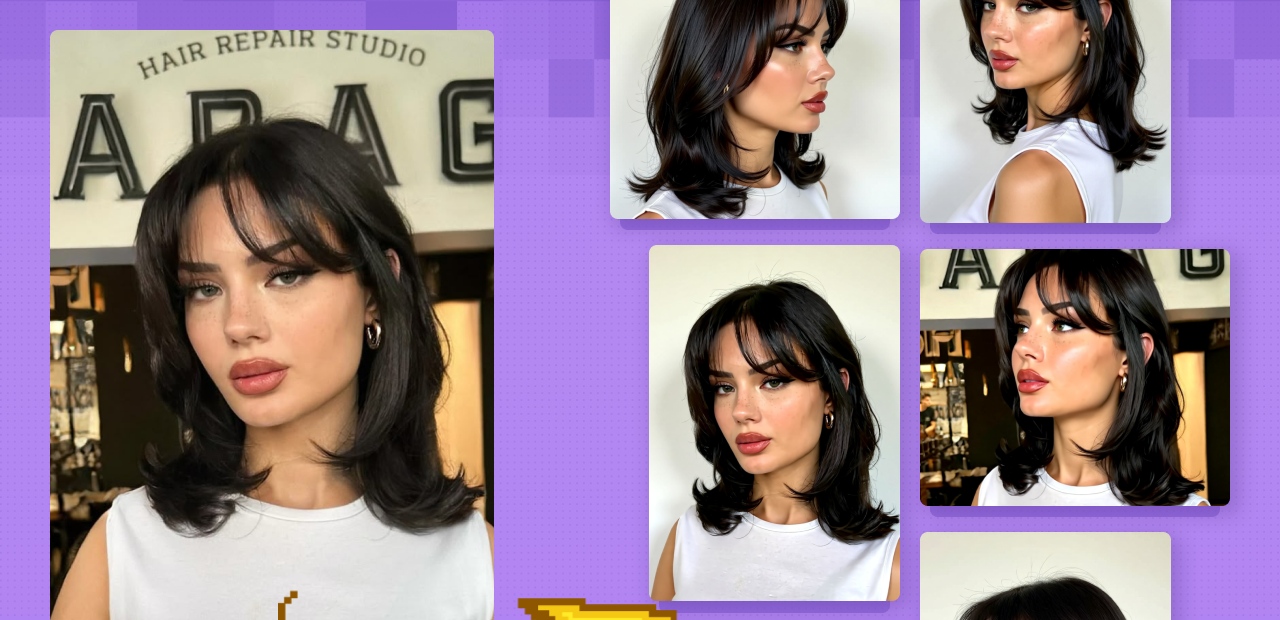
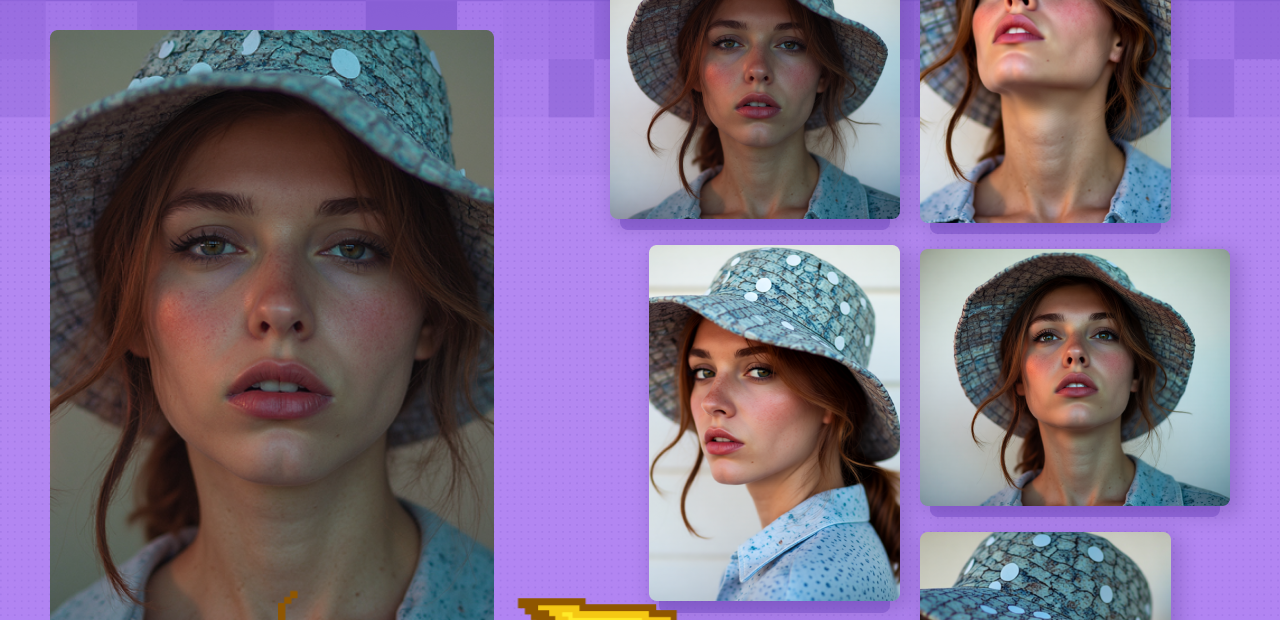
Upload one reference image of your character, and this workflow outputs 20 photorealistic shots across different angles, lighting setups, and expressions, all with the same face. It uses Qwen Image Edit 2509, a model built for strong identity preservation, so your character looks like themselves across every frame. The full prompt list is already loaded and ready. You're mostly choosing your character name, your output folder, and hitting run.
How do you use Qwen Image Edit 2509 to create a LoRA dataset?
Upload one character image, name your character, set the output path, and run. Qwen Image Edit 2509 loops through 20 pre-built portrait prompts covering angles, lighting, and expressions, then writes each image and its caption to your folder. Ready to feed straight into LoRA training.
Reference image (LoadImage node) This is the only image input. Upload a clean, front-facing portrait of your character. The clearer the face, the more consistent the outputs. Avoid heavy shadows, occlusions, or low resolution on the input.
Character name (Text Multiline) Type your character's name here. It gets prepended to the file path so all 20 images save to a named subfolder. Keep it short, no spaces or special characters.
Saving path (Text Multiline) Set the root output directory where your dataset folder will land. Default points to the local ComfyUI output directory. Change this to wherever your LoRA training pipeline expects the data.
Prompt list (CR Prompt List) 20 pre-written portrait prompts are already loaded: profile left, profile right, three-quarter views, Rembrandt lighting, worm's-eye, bird's-eye, macro, Dutch angle, and more. All designed to give your LoRA trainer the angular variety it needs without retraining the same face twice. You don't need to edit these unless you want to add or swap shots.
Edit instruction (TextEncodeQwenImageEditPlus) This is where you tell Qwen what to edit on each generation. The default is set to a specific transformation. Clear it out and write your own. Keep it focused: "Make the subject smile slightly" or "Change background to a dark studio." Broad instructions produce inconsistent results across the 20 frames.
Steps (KSampler, default: 4) The workflow runs at 4 steps using the Lightning LoRA, which is fast. Increasing steps beyond 4 gives diminishing returns here because the Lightning LoRA is tuned for 4. Leave it unless you've swapped out the speed LoRA.
Sampler/scheduler (KSampler, default: euler / beta) Euler + beta is the default. It works well with Qwen Image Edit at low step counts. Don't touch this unless you're testing.
Seed (KSampler, default: fixed) Seed is set to fixed by default, which keeps outputs reproducible across your 20-image batch. Want variation across multiple runs of the same prompt? Switch to randomize.
Resolution (EmptyLatentImage, default: 512x512) The workflow generates at 512×512 and then scales up using ImageScaleToTotalPixels (set to 1MP). That gives you clean ~1024×1024 outputs without running the full generation at high res. Most LoRA trainers are fine with 1024×1024 square crops. If your pipeline needs a different resolution, adjust the scale target in ImageScaleToTotalPixels, not the latent size.
Models loaded
qwen_image_edit_2509_fp8_e4m3fn.safetensors: the base model
Qwen-Image-Lightning-4steps-V1.0.safetensors: speed LoRA, enables 4-step generation
lenovoqwen.safetensors: a quality LoRA stacked on top for sharper outputs
CLIP: qwen_2.5_vl_7b_fp8_scaled.safetensors with the qwen_image mode
VAE: qwen_image_vae.safetensors
All three model components are Qwen-specific. Don't mix in standard Flux or SD VAEs. The outputs will break.
What is a Qwen Image Edit LoRA dataset workflow good for?
It's for LoRA trainers who need a clean, consistent multi-angle character dataset without spending hours manually shooting or editing images. Upload one reference face, get 20 ready-to-train portraits, varied enough for a solid dataset, consistent enough that your LoRA learns the right identity.
This is the part of LoRA training most people skip or rush. You either spend hours curating images from different sources (and end up with inconsistent lighting and style), or you generate a batch that all look identical (and your LoRA overfits to a single angle). This workflow solves both problems.
The 20 built-in prompts cover the full angular range a good character LoRA needs: left and right profiles, three-quarter views, high and low angles, Dutch tilts, worm's-eye, bird's-eye, and Rembrandt lighting. That's most of what a facial LoRA trainer needs to recognize your character from any direction.
Qwen Image Edit 2509 is notably better than diffusion-based alternatives here because it doesn't generate from scratch. It edits from your reference. Faces don't drift between shots. The jaw stays the same. Eye spacing holds. You're not hoping the model infers the right face across 20 prompts; you're showing it the face every time.
Where this has limits: if your reference image has a partial face, occlusion, or very low resolution, identity drift increases. And this isn't the workflow for full-body character sheets: focused on head and face shots. For full-body consistency, you'd need a different pipeline.
FAQ
How many images does this workflow generate for LoRA training?
20 images per run, one per prompt in the CR Prompt List. That's the minimum dataset size for a character LoRA with reasonable quality. Run it multiple times with different reference photos or seed settings to build a larger, more varied dataset.
Why use Qwen Image Edit 2509 instead of a standard Flux workflow for dataset generation?
Qwen Image Edit edits from your reference image rather than generating from scratch. Facial features stay consistent because it sees the face every time. Standard text-to-image models infer the face from prompts, which leads to drift between shots, especially across extreme angles.
Do I need to write my own prompts?
No. The 20-prompt list is pre-loaded and covers the angle and lighting range needed for a good character LoRA. You can edit or add prompts in the CR Prompt List node if you want more variety, but most users run the defaults as-is.
Can I use this workflow for style LoRAs or object LoRAs?
It's built specifically for character/face LoRAs. The prompt set is all portrait angles. For style or object LoRAs, you'd want a different dataset workflow without the facial-angle emphasis.
How do I run Qwen Image Edit 2509 online for LoRA dataset generation?
You can run this workflow online through Floyo. No installation, no setup. Open the workflow in your browser, upload your reference image, and hit run. Free to try.
Read more