AI Influencer Video Maker (Qwen 2511 + LTX-2)
Build your AI influencer, stage the product moment, and animate the full promo in one workflow.
Audio
Image
Influencer
LTX
Product
Qwen
UGC
Video
1.0k
_1772389694491.gif)
Nodes & Models
LoadImage
VAELoader
qwen_image_vae.safetensors
CLIPLoader
qwen_2.5_vl_7b_fp8_scaled.safetensors
UNETLoader
qwen_image_edit_2511_bf16.safetensors
CheckpointLoaderSimple
ltx-2-19b-distilled.safetensors
LatentUpscaleModelLoader
ltx-2-spatial-upscaler-x2-1.0.safetensors
LTXVAudioVAELoader
ltx-2-19b-distilled.safetensors
EmptyImage
PrimitiveFloat
KSamplerSelect
ManualSigmas
RandomNoise
PrimitiveInt
LoraLoaderModelOnly
Qwen-Image-Edit-2511-Lightning-4steps-V1.0-bf16.safetensors
CLIPTextEncode
ImageScaleBy
ImageScaleToTotalPixels
ModelSamplingAuraFlow
LTXVConditioning
GetImageSize
LTXVEmptyLatentAudio
TextEncodeQwenImageEditPlus
VAEEncode
CFGNorm
EmptyLTXVLatentVideo
FluxKontextMultiReferenceLatentMethod
CFGGuider
KSampler
LTXVPreprocess
VAEDecode
LTXVImgToVideoInplace
SaveImage
LTXVConcatAVLatent
SamplerCustomAdvanced
LTXVSeparateAVLatent
LTXVLatentUpsampler
LTXVAudioVAEDecode
CreateVideo
SaveVideo
LTXVGemmaCLIPModelLoader
gemma-3-12b-it-qat-q4_0-unquantized/model-00001-of-00005.safetensors
ltx-2-19b-distilled.safetensors
CM_FloatToInt
ImpactExecutionOrderController
Two-stage AI influencer video production. A model photo and a product image go in. A UGC-style promotional video comes out.
Step 1 uses Qwen Image Edit 2511 to place the product naturally into the scene, where the influencer appears to be holding or presenting it in a realistic promotional photo. Regenerate until the pose and framing look right. Step 2 uses LTX-2 to animate that image into a short vertical video with subtle motion, natural expressions, and lip-synced dialogue. The output is a vertical video ready for Reels, Shorts, or ad placements.
No filming. No actors. No editing or animation skills required.
How do you use the AI Influencer Video Maker?
Upload a model image and a product image. Step 1 generates a realistic promotional photo with the product placed naturally in scene. Regenerate until satisfied. Step 2 takes the approved image and animates it into a talking video with lip-synced dialogue. Upload both inputs at 9:16 (1080x1920) for correct framing.
Input images (upload at 9:16) Upload both the model image and product image in 9:16 vertical format (1080x1920) for correct framing and best quality. Vertical inputs produce vertical outputs that drop directly into Reels and Shorts without cropping.
For the model image: clean, well-lit shots with a simple background produce the best product placement results. The model's pose and framing carry through to the generated promotional image. For the product image: a clean shot of the product on a neutral background allows Qwen to place it accurately in the model's hands or in the scene.
Step 1: Generate the promotional photo Write a prompt describing how the product should appear in the scene. The workflow includes a prompt reference to follow. Describe the placement, the mood, and any styling direction: "holding the skincare bottle at chest height, warm studio lighting, lifestyle photography style."
Regenerate multiple times. Each run produces a different pose, framing, and placement. When you find one that looks right, save the generated image. That image feeds into Step 2.
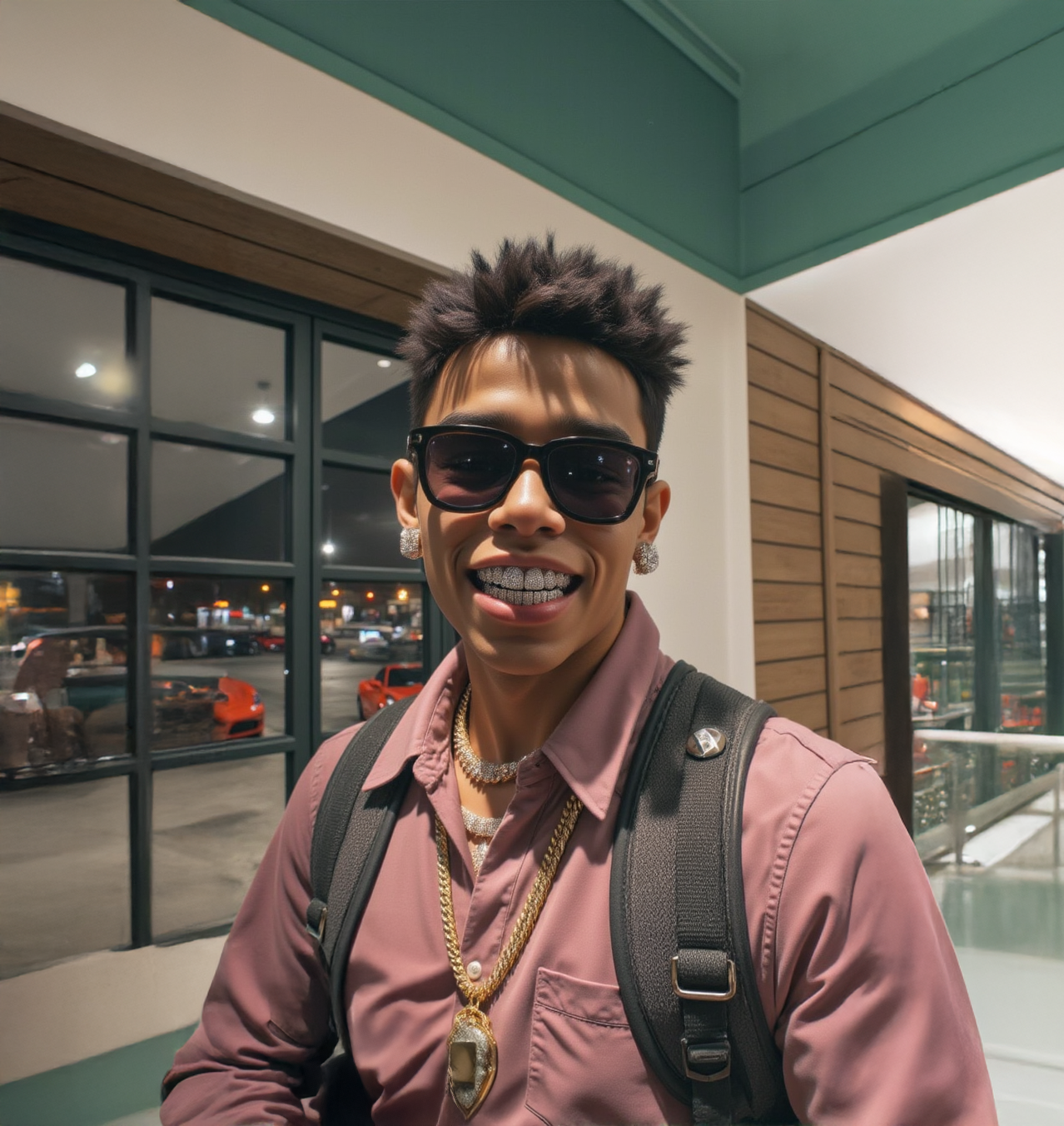
The output of Step 1 is a realistic promotional photo where the influencer appears to be genuinely holding or presenting the product. The model's identity and the product's appearance both carry through from the input images.
Step 2: Animate into a talking video Enable Step 2 after selecting your final image. Upload the generated promotional photo into the final image input. Write the dialogue prompt: what you want the influencer to say in the video. The workflow includes a prompt reference for this step too.
LTX-2 animates the image with: Subtle body and head motion for natural movement. Facial expressions matched to the dialogue. Lip-sync speech that matches the text in your prompt.
The output is a short vertical video in the style of UGC (user-generated content) creator videos.
What is the AI Influencer Video Maker good for?
This workflow is for brands and marketers who need UGC-style promotional videos without a production shoot. Upload a model and a product, describe the scene and dialogue, and get a ready-to-post vertical video. Covers e-commerce, product launches, social ads, and influencer-style content across any product category.
E-commerce and product marketing. Generate promotional videos for product pages, social ads, and email campaigns. The influencer-style format performs similarly to real UGC content for many categories: skincare, supplements, fashion accessories, tech gadgets, and home products. Produce multiple variations with different models, dialogue, and framing from the same product image.
Social content at scale. Create multiple influencer videos from a single product shot for A/B testing different angles, scripts, and styles. Each Step 1 regeneration produces a different pose and framing; each Step 2 run can carry different dialogue. Testing variations without reshooting is the core production advantage.
Small brands without production budgets. Professional influencer content typically requires model fees, videographer, lighting, editing, and post-production. This workflow produces output in the same format from two input images and a prompt.
Multilingual and localized campaigns. Change the dialogue prompt in Step 2 to produce the same influencer video in different languages for international markets. The visual stays consistent; the speech changes.
Honest notes: outputs work best with clean, well-lit source images. Complex backgrounds, poor lighting, or low-resolution inputs reduce generation quality in both steps. The video output is short and suitable for social formats. It's not designed for long-form content. For maximum realism, choose model images that match the aesthetic and style of your brand.
How does this compare to other AI video generation approaches?
The two-stage approach separates the product placement challenge (Step 1) from the animation challenge (Step 2). Most text-to-video pipelines struggle with precise product placement alongside a specific model. Doing it as an image edit first, then animating the result, produces more controlled and accurate output than a single-pass text-to-video generation.
Single-pass text-to-video with product placement in the prompt tends to hallucinate product details or place the product incorrectly. The image-first approach solves this: Qwen Image Edit 2511 places the product accurately in the photo, you approve it visually, and then LTX-2 animates only what's already correctly placed.
Standard AI image generation can produce the promotional photo (Step 1 equivalent) but won't produce the animated talking video. Standard image-to-video without the product placement step misses the promotional photo quality. The combination is what produces the UGC-style output.
FAQ
What input images work best for the AI Influencer Video Maker?
Upload both images at 9:16 (1080x1920) vertical format. For the model: clean, well-lit, simple background. For the product: clean shot on a neutral background. Higher quality inputs produce more realistic promotional photos and better animation in Step 2.
How many times should I regenerate Step 1?
As many times as needed to get the pose, framing, and product placement right. Each regeneration produces a different result. The Step 1 output is what LTX-2 animates, so getting it right before moving to Step 2 saves time. Most users find a good result within 3-5 regenerations.
What should I write in the Step 2 dialogue prompt?
Write the specific words you want the influencer to say. Keep it short. 1-3 sentences works best for social content length. The workflow includes a prompt reference. Include the product name and a clear call to action: "I've been using [product] every morning and my skin has never looked better. Try it, link in bio."
Can I use this for any product category?
Yes. The workflow works across product categories where lifestyle promotional photography is standard: skincare, wellness, fashion, tech accessories, food products, and home items. Categories where the product interaction is highly specific (complex assembly, small or intricate products) may require more regeneration attempts to get accurate placement.
How do I run the AI Influencer Video Maker online?
You can run this workflow online through Floyo. No installation, no setup. Open the workflow in your browser, upload your model and product images, and hit run. Free to try.
Read more