Idol 3D: Image to Gaussian Splat + Orbit Video
Turn one image into a 3D Gaussian splat and a turntable video with Idol by Speridlabs. Upload a clear photo or render of a single object, then hit run.
3D
Idol
Image
Image to 3D
Image to Gaussian Splat
33


节点与模型
CreateCameraInfo
RemoveBackground
LoadImage
LoadBackgroundRemovalModel
birefnet.safetensors
CLIPVisionLoader
dino_v3_vit_h_bf16.safetensors
InvertMask
VAELoader
idol_decoder_fp16.safetensors
flux2-vae.safetensors
JoinImageWithAlpha
UNETLoader
idol_fp16.safetensors
TripoSplatSamplingPreview
ComfySwitchNode
TripoSplatPreprocessImage
TripoSplatConditioning
PreviewImage
KSampler
VAEDecodeTripoSplat
RenderSplat
SplatToFile3D
CreateVideo
SaveGLB
SaveVideo
ABOUT THE WORKFLOW
Turn One Image Into 3D
Upload one picture of an object or character. The background is removed for you, and the workflow builds a full 3D Gaussian splat. It predicts the sides your picture never showed. You get a splat file to download plus a 3 second orbit video of the result.
Model
Idol by Speridlabs (Apache 2.0). A single-image 3D model that generates up to 1,048,576 Gaussians per object and fills in hidden angles from one view.
HOW IT WORKS
Step 1. Upload your image
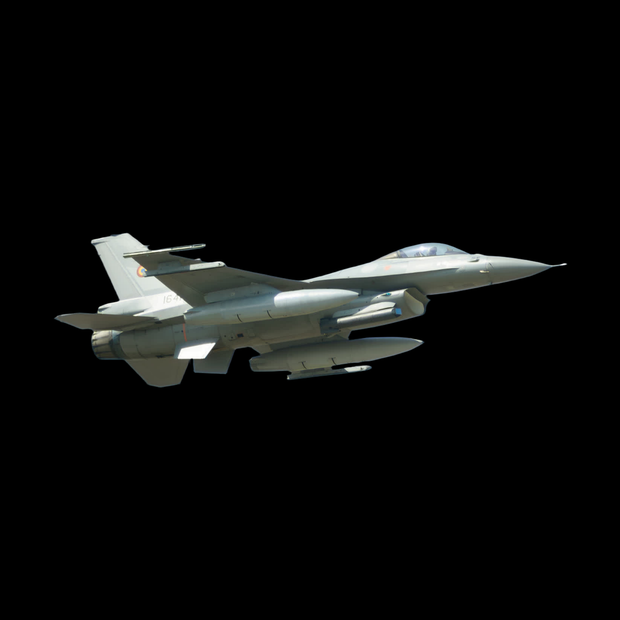
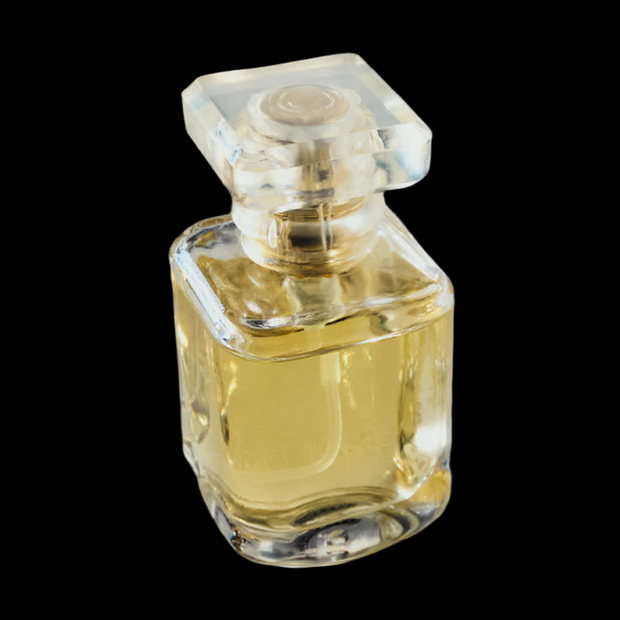
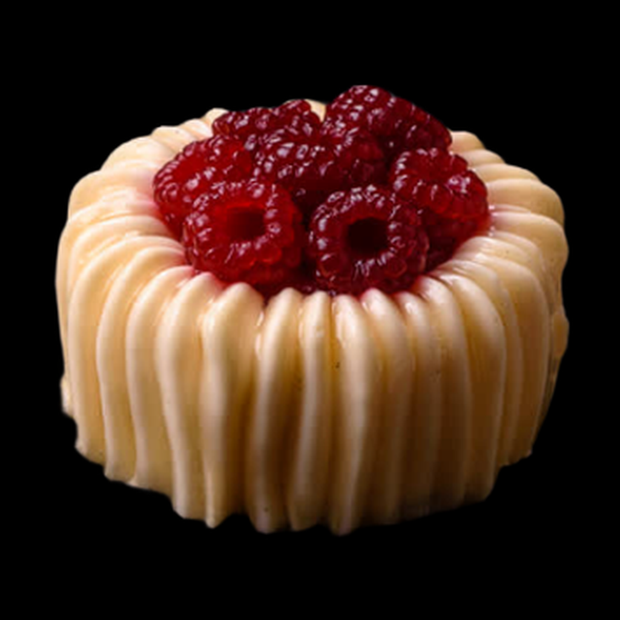
Use one clear object or character, centered and fully in frame. Photos, 3D renders and AI-generated images all work.
Works great with: product photos · character renders · AI concept art
Step 2. Pick your background mode
Background removal is on by default and cuts the object out automatically. If your file is already a transparent PNG, turn it off so the workflow uses your own transparency instead.
Step 3. Adjust detail and seed (optional)
Splat count sets how many Gaussians make up the object. The default of 262,144 balances detail and file size. Change the seed for a different take on the hidden sides, for example from "46" to "120".
Step 4. Watch the live preview (optional)
While the model samples, a point-cloud preview shows the shape forming. Turn the preview switch off if you only want the final result.
Step 5. Run and download
You get a 3D Gaussian splat in SPZ format and a 1024 x 1024 turntable video (75 frames at 25 fps). A preview of the cleaned-up input image shows exactly what the model saw.
Ready for: splat viewers · web 3D scenes · social clips
First time? Leave every setting as-is. The defaults are the right starting point for almost everyone.
RECOMMENDED SETTINGS
Input Image
Loaded file is “#inputs/example_image_octopus (2).png” — a local upload
Replace with a hosted sample, or the first run fails for other users
Use one clear object on a simple background
Busy scenes or several objects give messy splats
Background Mask
“Mask Source” switch ON — BiRefNet removes the background automatically
OFF uses the image’s own transparency (inverted alpha) — only for PNGs that already have a transparent background
A JPG has no alpha — switch OFF gives an empty mask
Preprocess recenters the masked object on a black square
Erode radius 1, size 1024 — both fine
Higher erode trims rough edges but can eat thin parts
Sampling Preview
Preview switch ON — model is patched to show a live point preview each step
Preview settings: octree 5, 16,384 points, yaw 90, pitch 15, point size 2
Preview Gaussian count range: 1,024 to 262,144, steps of 32
Adds overhead every step — turn OFF on Floyo if no one watches it
Sampling
KSampler: 20 steps, CFG 3, dpmpp_2m, simple scheduler, denoise 1
Seed fixed at 46 — same result every run
Set to randomize for variations
Gaussian Count
num_gaussians: 262,144 (decode seed also fixed)
Allowed range: 32 to 1,048,576, steps of 32
262,144 matches the octree point density
Higher values only make it denser — no new detail, more VRAM and time
Lower it for lighter files on web or mobile
3D File
Splat to File format: spz, saved as 3d/3d_idol_image_to_gaussian_splat
Node is named Save GLB but writes .spz, not .glb
SPZ is compressed and not every viewer opens it
Idol natively outputs standard .ply — switch to ply for widest compatibility
Orbit Video
Render: 1024 × 1024, 75 frames, splat scale 1, sharpen 2, headlight 0, opacity threshold 0, color style
Background: grey #848484
Create Video at 25 fps — 75 frames = 3-second orbit
Camera: orbit, yaw 16.7, pitch 0, distance 4.86, FOV 35
Roll is 1.9° — video comes out slightly tilted; set to 0
More frames or higher resolution raise render time
Output
One 3D splat file (.spz) with an interactive 3D preview in the Save node
One MP4 orbit video — 1024 × 1024, 3 seconds at 25 fps, grey background
Preview of the preprocessed image (object centered on black)
About 262k Gaussians per splat
Same result every run while both seeds are fixed
License
Idol: Speridlabs, Apache-2.0
Check the DINOv3 and Flux.2 VAE licenses before commercial use on Floyo
Common Error-Causing Mistakes to Avoid
Running on ComfyUI older than v0.23.0
Leaving the local “#inputs/…” image path
Mask switch OFF with a JPG or non-transparent PNG — empty mask
Whole scenes or multiple objects in one image
Gaussian counts outside 32–1,048,576 or not multiples of 32
Pushing Gaussian count above 262,144 expecting more detail
Expecting .glb from the Save GLB node — it saves .spz
Leaving live preview on when no one watches
Small roll value tilting the orbit video
Recommended Safe Defaults
ComfyUI v0.23.0 or newer
One clear, centered object photo
Mask switch ON (BiRefNet), erode 1, size 1024
Live preview OFF for production runs
KSampler: 20 steps, CFG 3, dpmpp_2m, simple
262,144 Gaussians
File format ply for compatibility, spz for smaller files
Render 1024 × 1024, 75 frames, 25 fps, roll 0
Seeds on randomize for variety, fixed to reproduce a result
LEARN
📹 Videos
ComfyUI 101 Free Course ft. Sebastian Kamph
Floyo 101 for Team Collaboration
✨ Quick links
USE CASES
🛍️ Product 3D previews
Turn a single packshot into a 3D splat you can rotate and a turntable clip for product pages.
🎮 Game props and blockouts
Convert concept art of a prop or character into a 3D asset to place and review in a scene.
🎨 Concept art to 3D
Take an AI-generated character or object image and see it from every angle in minutes.
🥽 AR and VR placement
Generate splats of real objects to drop into immersive scenes and spatial experiences.
📱 Social turntable clips
Export the 3 second orbit video as ready-to-post content for reels and product teasers.
WHAT WORKS BEST / WHAT TO AVOID
✅ Works great
One object or character, fully in frame
Clean product photos with even lighting
3D renders and AI-generated object images
Three-quarter angles that show depth and more than one side
⚠️ May produce softer results
Several objects or a full scene in one image
Objects cropped at the frame edge or partly blocked
Glass, mirrors and other transparent or reflective surfaces
Low-resolution, blurry or heavily compressed images
FAQ
What is Idol image to 3D?
Idol is an open-weight model from Speridlabs that turns a single image of an object into a 3D Gaussian splat. It removes the background, frames the object and predicts the sides the image never showed. It can generate up to 1,048,576 Gaussians per object.
Can I use Idol for commercial projects?
Idol's weights are released under Apache 2.0, which allows commercial use. The pipeline also uses the DINOv3 image encoder and the FLUX.2 VAE, which have their own terms. Review those licenses before a commercial deployment.
What is the difference between a Gaussian splat and a 3D mesh?
A mesh is a surface built from polygons. A Gaussian splat represents the object as many small, colored, semi-transparent 3D blobs, which renders soft detail and lighting with high realism. Splats open in Gaussian splat viewers and in engines that support splats, not in standard mesh tools.
How much VRAM does Idol need?
Idol peaks at about 7.2 GB of GPU memory, so it runs on consumer GPUs. Speridlabs reports around 19 seconds per image on an RTX 4090 and about 7 seconds on an H100 at 262,144 Gaussians.
What is the difference between Idol and TripoSplat?
Both turn one image into a 3D Gaussian splat and use a similar pipeline: BiRefNet, a DINO image encoder and the FLUX.2 VAE. TripoSplat comes from Tripo (VAST AI) under the MIT license and focuses on adaptive density control. Idol comes from Speridlabs under Apache 2.0 and scales up to 1,048,576 Gaussians per object.
What file does this image to 3D workflow export?
By default it exports a 3D Gaussian splat in SPZ format, a compressed splat format that keeps files small. It also saves a 1024 x 1024 turntable video of the splat.
How to run Idol image to 3D online?
You can run Idol image to 3D online through Floyo. No installation, no setup, no API key to wire up. Open the workflow in your browser, upload your inputs, and hit run. Free to try.
WHY FLOYO?
Floyo is the only platform with team collaboration for ComfyUI in the browser. You run workflows with no install. You share run history, assets, and models across your team. You pay only when you generate. Floyo supports open-source and closed-source models.
A designer runs an edit and likes the result. A teammate opens that exact run from shared history and keeps going. No file handoffs. No version confusion.
For studios and enterprise teams, Floyo adds private workspaces, pooled resources, and a team usage dashboard. Other ComfyUI cloud tools run for one person at a time. Floyo runs for the whole team, with transparent per-generation costs.
Ready to try it?
Upload a photo of one object and get a 3D splat and a turntable video back in one run.
Questions? Watch the free course or check the FAQ above.
Notes for review (not page copy):
The title is 31 characters and the subtitle is 151 characters, so the subtitle can also be the meta description.
The check found no stray em dashes or banned words.
Apache 2.0 for Idol comes from a release write-up; I couldn't confirm it on the model card itself, so check the license on Speridlabs' Hugging Face page before publishing.
The speed figures are what Speridlabs reports. The VRAM and speed figures come from public descriptions of Idol, not from this workflow's file.
展开